Alarms
All views show alarm and information symbols with the following meanings:
 |
Message | Audit trail information1 |
|---|---|---|
 |
Reminder | Events that are not urgent: |
 |
Warning | Measured value above limit (measuring point) |
 |
Alarm | Measured value above limit (measuring point) |
 |
Error | Urgent hardware errors: |
 |
Disabled | Measuring point or device disabled (under "Setup") |
| Circle of any color (Yellow, Orange, Red, Blue) | Inhibited | Alarm is inhibited and thus suppressed. The alarm function will be resumed when the inhibition ends. Even if the alarm has ended, the inhibition will remain for the defined time. |
 |
Inhibited | Measured value alarm is inhibited (green circle) |
 |
Inhibited | Technical alarm is inhibited (black circle) |
 |
Inhibited | Measured value and technical alarms are inhibited (green and black circle) |
1 Messages are only available in the system if the function "Audit Trail" has been enabled by the license key.
The number of active alarms are displayed at any time in the top status line:

Figure 1: Current system alarms in the status line
As well the status of each device can be seen directly under:
Alarm Triggers
There are two ways to trigger a measurement alarm:
| Measuring point alarm | Two alarm limit types can be entered for every measuring point. The settings can be made in the menu "Tools" > "Setup" > "Measuring Points", see also chapter 3.4.7. |
|---|---|
| Alarm limits (alarm scheme) | Instead of measuring point alarms, generally valid alarm schemes can be defined. They are applied to the desired measuring points. The settings can be made in the menu "Tools" > "Setup" > "Alarm Limits", see also chapter 3.4.7. |
Set Notification
The user notifications can be defined for every group. The settings apply to the respective group; see group navigation on the left in Figure 2. The settings can be passed down from the parent group to the child groups if the check mark is placed (on the right in Figure 2).
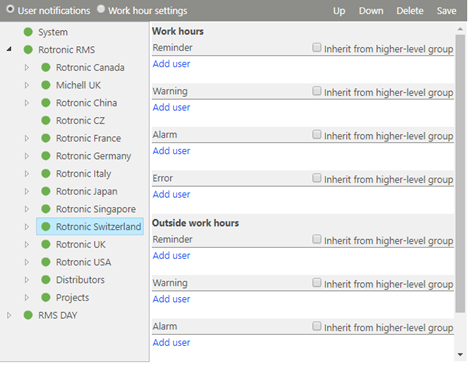
Figure 2: Overview of notification settings
Notifications have the following setting possibilities:
| Work hours | The work hours can be set individually for every day. 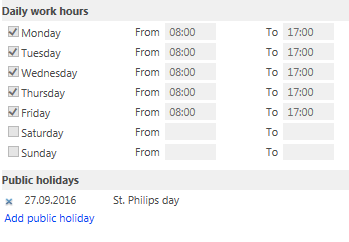 |
||||||||||||
|---|---|---|---|---|---|---|---|---|---|---|---|---|---|
| User2 | Which user is to be notified | ||||||||||||
| Type | \ | \ |
Warning \ | \ | --- \ | --- \ | \ | \ |
Alarm \ | \ | \ |
Error \ | |
|
Warning | ||||||||||||
|
Alarm | ||||||||||||
|
Error | ||||||||||||
| Alarm medium | |||||||||||||
| Alarm order | Telephone alarms are given in the order of the users as listed from top to bottom. The top user is called first, and the bottom user last of all.  |
2 All users who have any right in that group are selectable
Inhibited Alarms
Every active alarm can be inhibited for a selectable time span. No notification is emitted in this time. The alarm function is resumed as soon as the inhibit ends and the alarm is still active.
Special cases:
Active Alarm
The notification is carried out as set as long as an alarm is active and not inhibited:
Repetition Interval
For email and SMS, the repetition interval can be set separately for every alarm level. See chapter 3.1
The telephone notification is carried out until the alarm has been inhibited or ended.