Step-by-step
Web Server Structure
| Step 1 | To access the server, run the Web browser and edit the IP address of the device in the address Bar . The following window will appear: 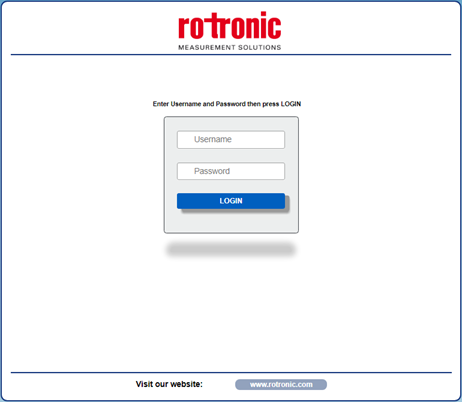 **NOTE: ** |
|---|---|
| Step 2 | Enter the Username and Password. If the default settings are in use, the parameters to access the site are: Click on the "Login" button to access the device's home page. It will appear as follows: 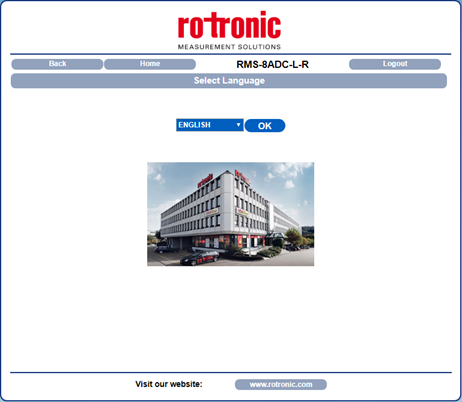 **NOTE: ** For all web pages going forward, you will find the following options: |
| Step 3 | To access the main menu page of the device, select a language and click "OK". The following window will appear: 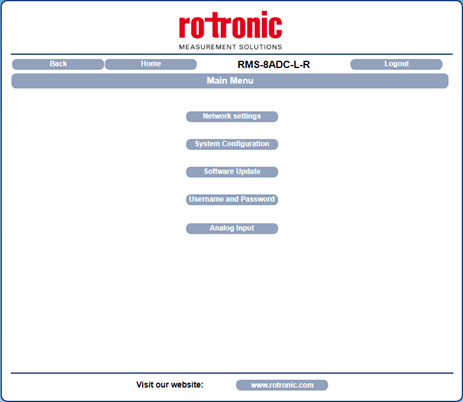 From this page, it is possible to access the internal configuration parameters of the device (as described in the table below). |
Internal configuration parameters of the device
Network Settings  |
Set the Ethernet communication parameters | 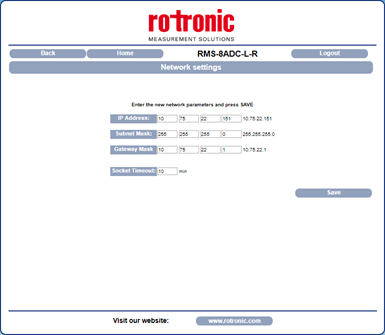 |
**NOTE: ** When modifying these parameters, save and wait for the device to reset for the new parameters to apply. |
|---|---|---|---|
System Configuration 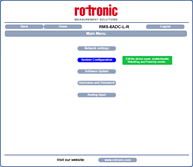 |
Set the system configuration parameters | 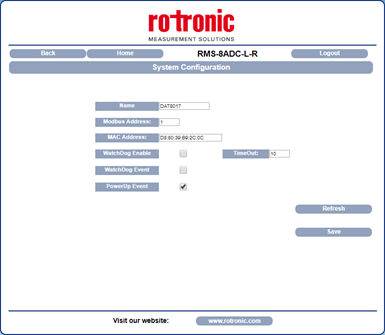 |
This parameter is forced to 245 in INIT condition. - MAC Address: MAC address of the device - Watchdog Enable, Timeout, Watchdog Event: Watchdog function is not supported by RMS. - Power-up Event: This parameter is set at 1 at each power on. 1 indicates that the device has been switched off or a reset has occurred. If this is set at 0, the device did not power off. NOTE: Once saved, to read the new parameters on the device, click the Refresh button. |
System Update 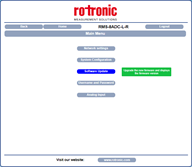 |
Access software upgrades if available | 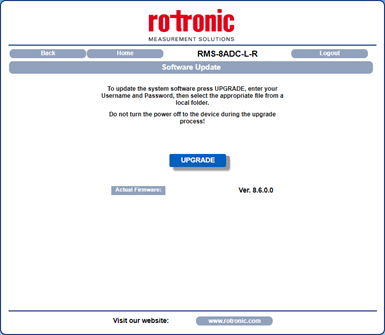 |
This section allows access to the firmware and web server upgrades. To execute the update, click on the "Upgrade" button. The system will open a pop-up window where the required credentials will need to be inserted in order to proceed. The parameter "Actual Firmware" shows the current firmware version loaded on the device. |
User name and Password 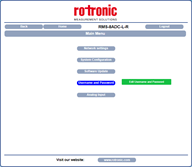 |
Set new login details | 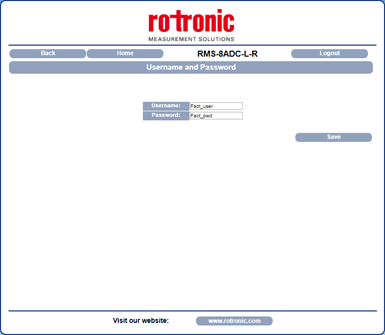 |
This segment is used to set a user name and password. Default: Fact_user - Password: Set and visualize the password for the device. Default: Fact_pwd **NOTE: ** Once saved, the changes apply immediately. |
Analog Input 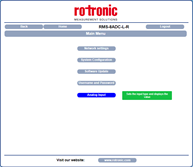 |
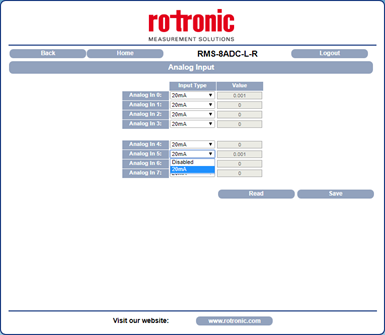 |
In this segment, the user can view the value of the analog inputs expressed in mA. The "Read" button updates the value read from the device. NOTE: ** To save the modifications relating to the Input Type, click the "Save" button. |
| **Note: ** Hovering the cursor over the sections of the initial menu will provide you with a description of each segment. |
|---|