Static IP Configuration
If the network is with a static IP server, then the IP settings need to be configured within the device.
| Step 1 | Add your device to the network by plugging in the Ethernet cable and supply power to the device. Example here with the device with serial number 0061836915. |
|---|---|
| Step 2 | Download "RMS-Config" here. |
| Step 3 | Open "RMS-Config":  |
| Step 4 | Click on "Device" > "Search" > "Network devices". All devices that can be found on the network appear in the table. 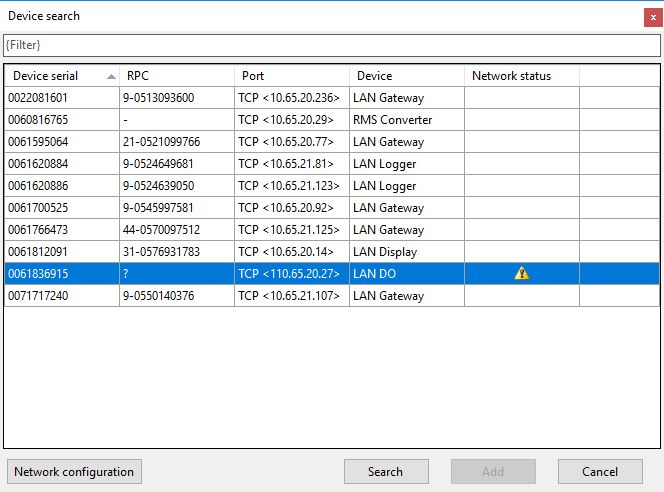 The network status will indicate an "!", meaning that the configuration of the device does not match the network settings. The "Add" button is grayed out. |
| Step 5 | Click on "Network configuration" to configure the IP settings 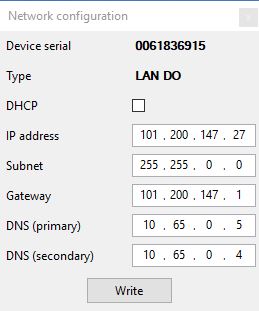 Configure the settings accordingly, then click on "Write". |
| Step 6 | The device overview will appear without the device because the configurations are being written. 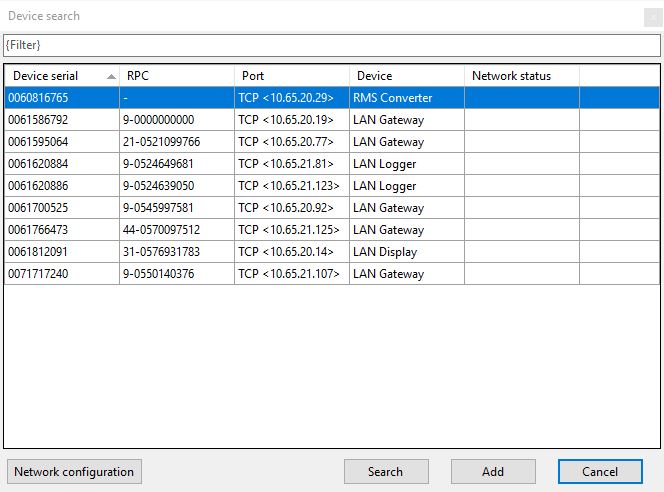 |
| Step 7 | Wait for a few minutes for the device to reset, then click on "Search" Should the settings not yet be written then the following will appear: 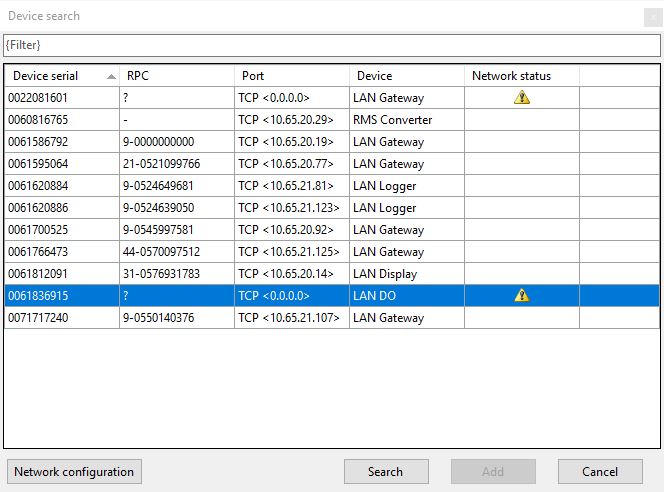 Simply press "Search" again to refresh the view: 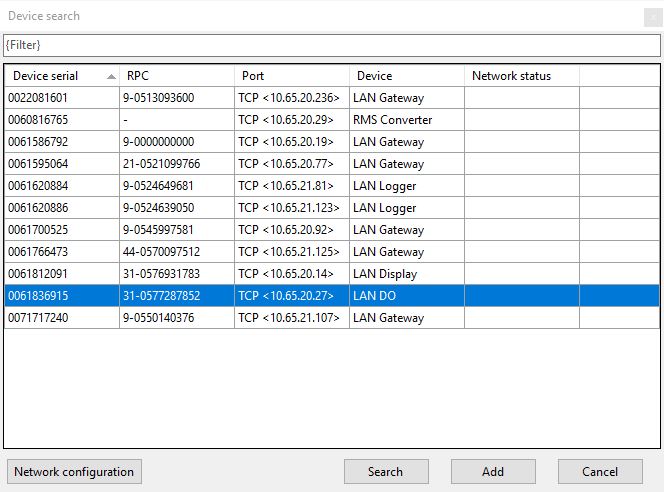 |
| Step 8 | Click on "Add": 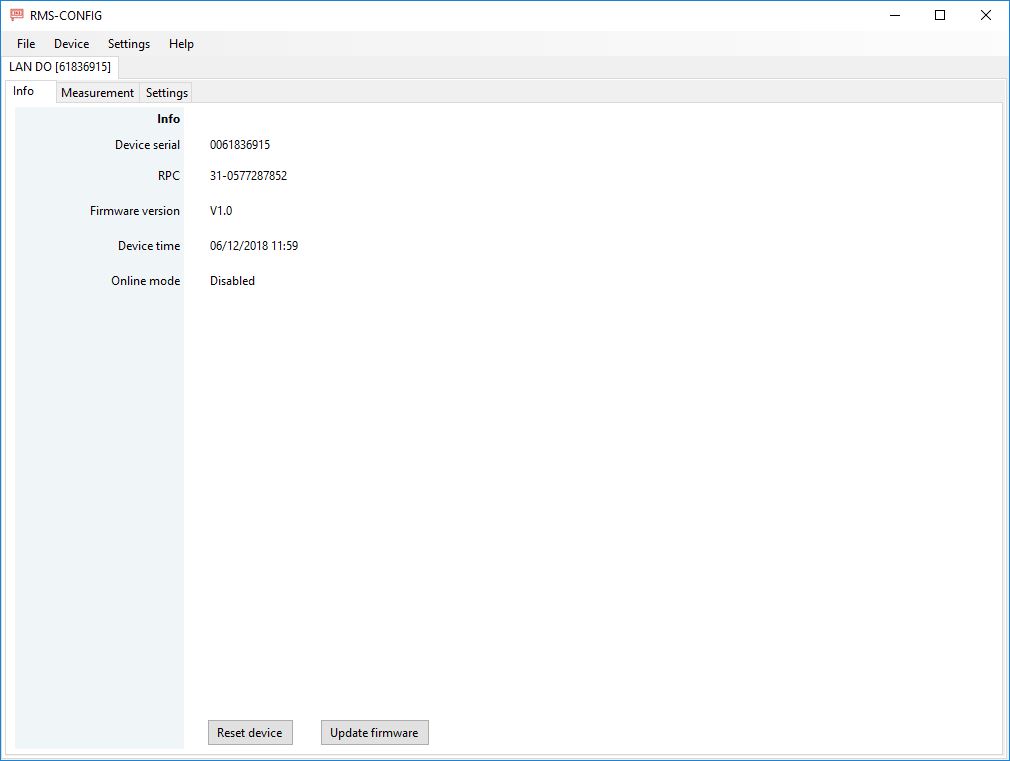 |
| Step 9 | Click on "Settings" to see more details about the device settings: 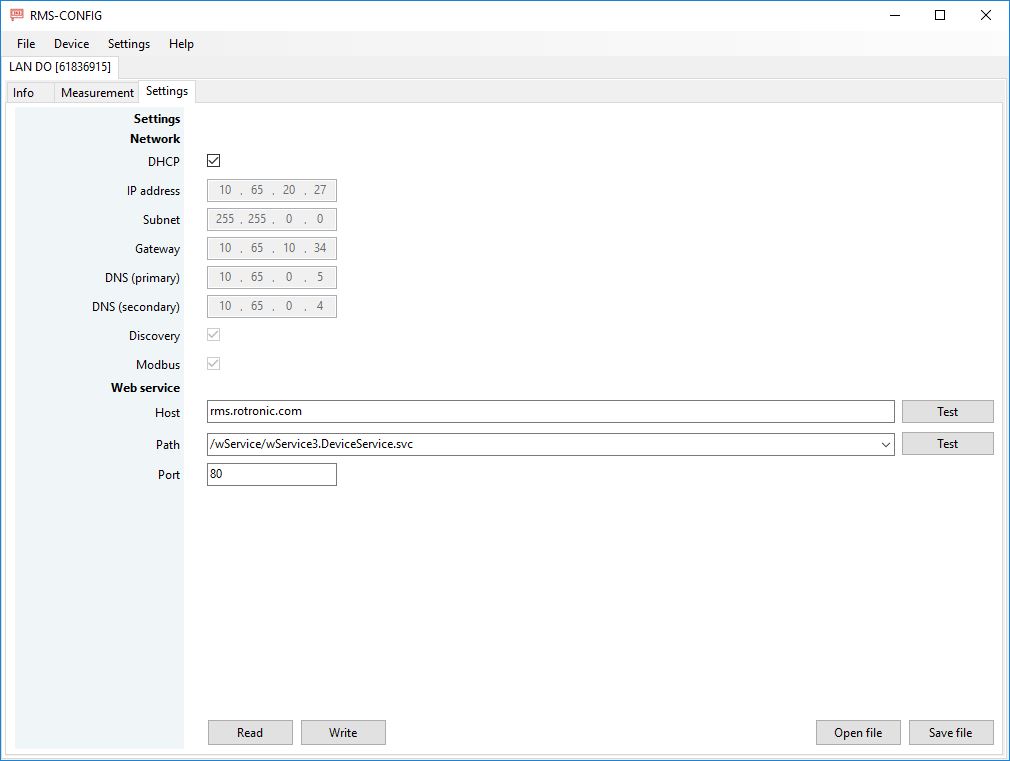 |