Troubleshooting RMS Auto Login
| 1 | When a browser error appears when using the RMS Auto Login software, this means that the application was trying to open the Chrome browser, but it failed: 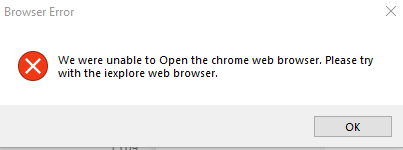 Failed reasons: - The Selenium Chrome driver version is outdated and the chrome browser is upgraded to a new version. - The Selenium Chrome driver was already in running state. - The RMS Auto Login application did not close the old session properly before starting the new one. |
|---|---|
| 2 | Check the Chrome version (Chrome://settings/help):  |
| 3 | Install the appropriate RMS Auto Login software version: - v1.0.4.91 for chrome 91.xxx - v1.0.4.92 for chrome 92.xxx - v1.0.4.93 for chrome 93.xxx - v1.0.4.94 for chrome 94.xxx Note: - The ChromeDriver has support for one upward version, for example, ChromeDriver 91 will also work fine with the Chrome 92 version but it will fail on the Chrome 93 version. - The minor release number (91, 92, 93, 94) in the RMS Auto Login version number (v1.0.4.91, v1.0.4.92, v1.0.4.93, v1.0.4.94) is representing the Chrome major version number (91.xxx, 92.xxx, 93.xxx, 94.xxx). |
| 4 | Install the latest version of RMS Auto Login software version v1.1 where the required version of Chrome driver is automatically downloaded. |