HF8 transmitter
Device description
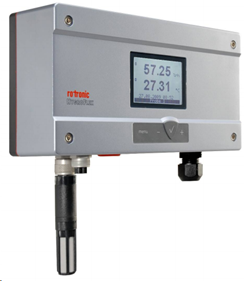
The HF8 is a transmitter with 2 HC2 or 2 analog inputs and 4 relays.
The HF8 transmitters are also dataloggers. The units with display will always indicate the time in the coordinated universal time and not the local time. All data visualised within the RMS software will be indicated in the local time.
| Important: Please consult the HF8 user manual as well as the HW4 manual for HF8 devices for further details. |
|---|
Network configuration of the device
To add the HF8 into the RMS, it is necessary to setup the individual network configuration of the device such as:
The HF8 default settings are:
To find and configure the network settings of the device, please connect the device into the LAN and use the Digi Device Discovery Tool (https://www.rotronic.com/de-ch/rms/downloads-rms?form_key=usHTRE667OOcxi1J&download_type=Drivers+and+tools).
| Step 1 | - Discover the IP address: Open and execute DigiDeviceDiscovery.exe. The device search starts automatically. Double click on the device: a web browser opens. - If the IP address or the host name device is known, please type into the address bar of the web browser: http://ipaddress (e.g. http://192.178.1.1) or http://hostname (e.g. http://SN12345678). |
|---|---|
| Step 2 | Log in for further network configuration: 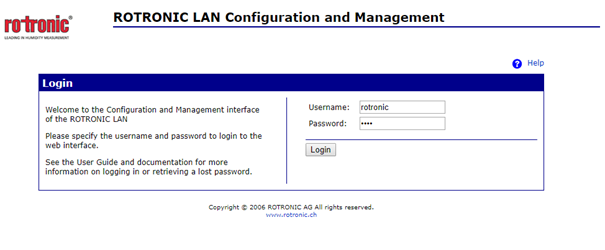 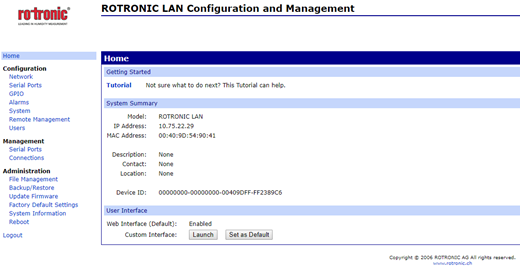 |
| Step 3 | Check or change the network settings: 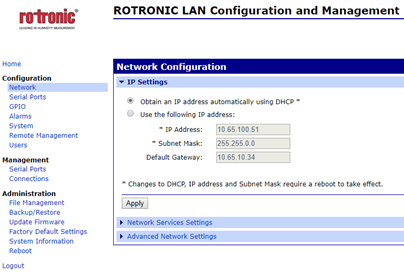 IMPORTANT: Rotronic recommends using a fixed IP address for the RMS-CONVERTER-100 as well as for the digital devices. The reason being the support of the log function within the RMS-CONVERTER-100 in case of any interruption to the RMS server. |
| Step 4 | Check or change the host name and set the check mark for "Enable AutoIP address assignment": 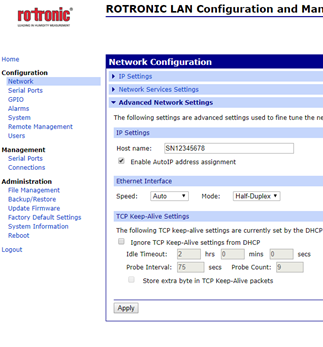 If a DNS is active within the network, the RMS / RMS-CONVERTER-100 can communicate based on the host name instead of the IP address. |
| Step 5 | Disable the Discovery mode: The device search function of HW4 and the Discovery tool uses a Device Discovery function (ADDP). At the end of the configuration, it is meaningful to disable this feature. IMPORTANT: Parallel and unwished communication due to the opening of HW4 will be avoided. A side effect is, that this device will not automatically be found by HW4 or the Discovery tool anymore. To access the device via HW4, the IP address must be added manually. |
| Step 6 | Close connection after the following number of idle seconds: Unwished parallel communication/requests to the Ethernet address of the Rotronic device can cause an unwished blocking of the device's internal access to the Ethernet port. For that reason the following setting can be done: If the port is blocked then the device will renew/unblock the port by itself after the chosen timeout. This way a permanent timeout of the device will be avoided. The loss of data will be reduced significantly. For an RMS-CONVERTER-100 interval of 60 seconds, a timeout of 10 to 30 seconds would be meaningful. 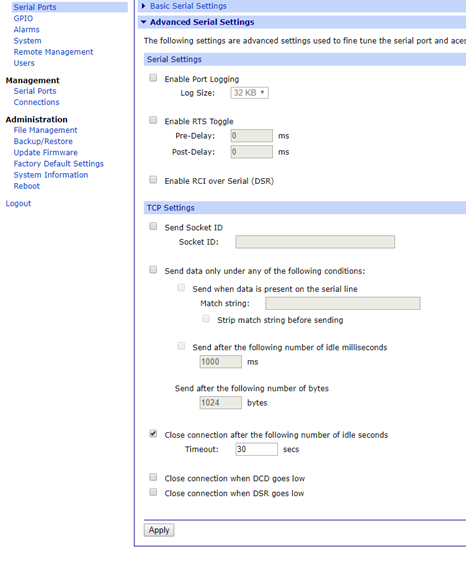 |
Integration into RMS via the RMS-CONVERTER-100
| Step 1 | Log in to the RMS software. Select "Tools" > "Setup" > "Devices". Select the RMS-CONVERTER-100 and click on "Add/Search" devices: 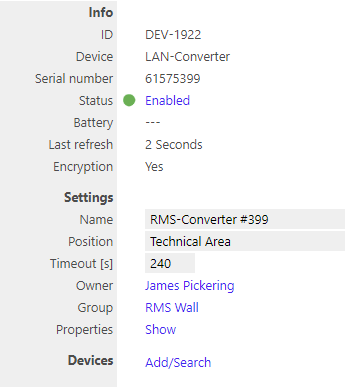 |
||||||
|---|---|---|---|---|---|---|---|
| Step 2 | Select the device type in the drop down menu. It is possible to type the IP address or host name into the "IP address" field. IMPORTANT: If the field stays empty, RMS searches automatically. If the automatic search function is disabled, an IP address or a host name has to be typed into the field. 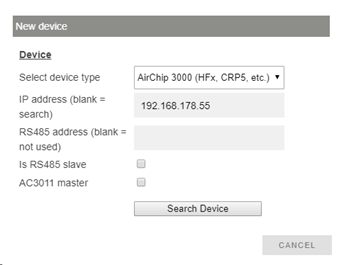 |
||||||
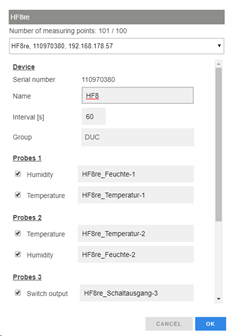
| Step 3 | The device appears: configure accordingly. \ |
 \ \ |
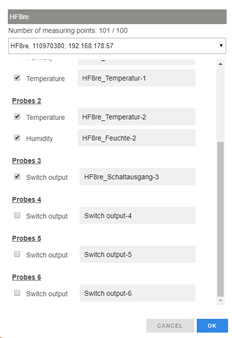 \ \ |
\ | --- \ | --- \ | NOTE: The interval cannot be shorter than the interval of the RMS-CONVERTER-100. IMPORTANT: If all check marks for measurement points are not set during initial installation and you wish to expand it later, then the same device needs to be added again with the same identification and IP address (there is no need to delete the device before adding it). The desired check marks can then be set. After completing this process, the added or updated measurement points will appear. |
|
|
||||||
| Step 4 | The device is added.  |
||||||
| Step 5 | IMPORTANT: Overwritten settings. ** By adding the device to RMS via the RMS-CONVERTER-100, the following configuration will be overwritten on the device: NOTE**: If one of the settings above is changed with HW4 further to the initial installation into RMS, then RMS will not note the change. However, such a change would cause RMS to not work correctly. The changes will however be overwritten should the RMS-CONVERTER-100 reboot (due to a short power interrupt). |
||||||
| Step 6 | Finish configuration. |
Functionality within RMS
| Step 1 | Device settings: log in to the RMS software. Select "Tools" > "Setup" > "Devices". Select the device. 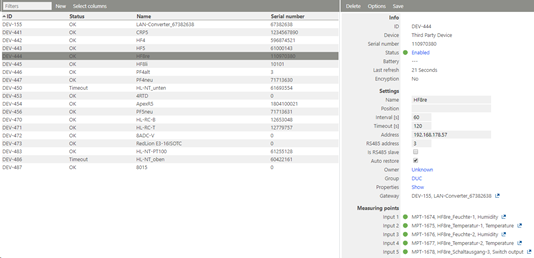 \ |
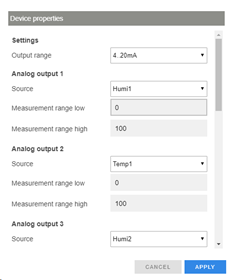 \ \ |
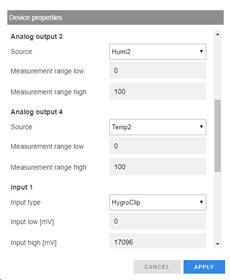 \ \ |
\ | --- \ | --- \ | 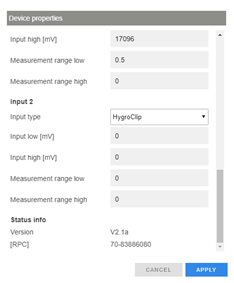 IMPORTANT: Under "Options", "the firmware update", "import firmware file", "import device definition" and "device inventory" are not supported for this device. IMPORTANT: The output range, the sources and the measurement ranges of the analog outputs 1 and 2, can be scaled and stored within the device clicking "Apply". |
|---|---|---|---|---|---|---|---|
|
|
||||||
| Step 2 | Measurement point settings: log in to the RMS software. Select "Tools" > "Setup" > "Measuring point". Select the measuring point: 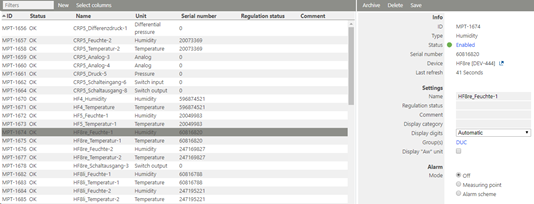 |
||||||
| Step 3 | Adjustment: log in to the RMS software. Select "Tools" > "Adjustment". Select the measuring point. Click on "Refresh now". General procedure: NOTE: The user of this feature must take care about sufficient stable circumstances for a data acquisition. Please take the interval into account. One value after every 60 seconds does not detect short-term changes of the value. 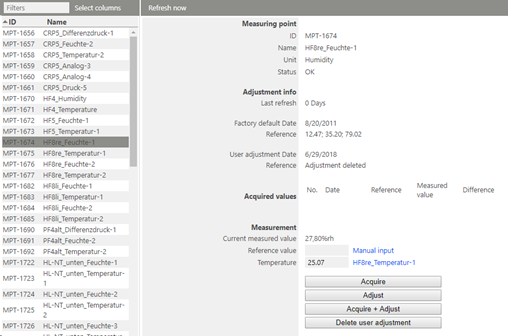 \ |
Humidity 2 points acquired 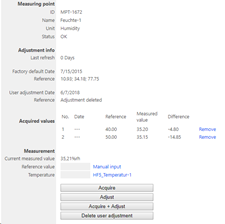 \ \ |
Humidity 2 points adjusted 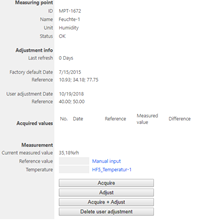 \ \ |
\ | --- \ | --- \ | NOTE: For humidity, multiple points can be acquired and adjusted. For temperature, only 1 or 2 points. |
| Humidity 2 points acquired |
Humidity 2 points adjusted |
||||||
| Step 4 | Data logging: the HF8 has an internal memory, the HF8 is not battery powered. So the HF8 cannot log during a power interruption. In case of a communication interruption to the RMS Server, the RMS-CONVERTER-100 logs the data of the HF8. After the interruption, RMS requests the data from the RMS-CONVERTER-100. In case of a communication interruption between the RMS-CONVERTER-100 and the HF8, the HF8 would log the data. After the interruption, RMS requests the data from the RMS-CONVERTER-100. The HF8 can log up to 10,000 relative humidity and temperature values provided by a single HygroClip 2 probe or up to 20,000 data values provided by a single 1-channel analog probe. Both probe inputs can be logged at the same time and in that case the recording capacity per probe is cut in half. The calculated parameter cannot be recorded. With an interval of 60 s, the HF8 is able to bridge a communication interruption of maximum: This time can be increased by using a higher log interval. \ |
Important: - Time difference UTC - local time The device internal real time clock of the HF8 is set to UTC time automatically. If the HF8 internal memory is used together with the HW4 e. g. as a backup system, the time difference between UTC-time and local time must be taken into consideration. The HF8 time stamp of measurement values in the memory differs to the local time. The difference between UTC and local depends on the location and the clock change (summer/winter time). - Time synchronization In case of a time deviation between the device internal time of the HF8 to the RMS server time, the RMS software checks and corrects it every interval. The time synchronization of a HF8 is visible within the RMS-CONVERTER-100 log file (see chapter Troubleshooting - RMS-CONVERTER-100). \ |
\ | --- \ | |||
| Important: - Time difference UTC - local time The device internal real time clock of the HF8 is set to UTC time automatically. If the HF8 internal memory is used together with the HW4 e. g. as a backup system, the time difference between UTC-time and local time must be taken into consideration. The HF8 time stamp of measurement values in the memory differs to the local time. The difference between UTC and local depends on the location and the clock change (summer/winter time). - Time synchronization In case of a time deviation between the device internal time of the HF8 to the RMS server time, the RMS software checks and corrects it every interval. The time synchronization of a HF8 is visible within the RMS-CONVERTER-100 log file (see chapter Troubleshooting - RMS-CONVERTER-100). |
|||||||
| Step 5 | Sensor error: In case of one sensor error out of the two, RMS displays a sensor error for both measurement values.  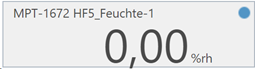 |
||||||
| Step 6 | Measurement alarm: Alarms linked to the measurement limits and programmed within the HC2 will not be transmitted to RMS. However if the device has a display and the display is configured correctly, the alarm will show on the display. | ||||||
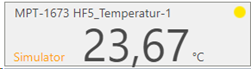
| Step 7 | Fix values on the HC2: fixed measurement values programmed within the HC2 are displayed as simulators within RMS.  \ |
 \ \ |
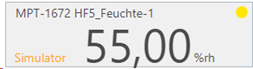 \ \ |
\ | --- \ | --- \ | IMPORTANT: In case of an active fix value of one measurement value of a HC2, RMS will show "Simulator connected" for both measurement values of the probe. |
|
|