PF4/5 transmitter
Device description
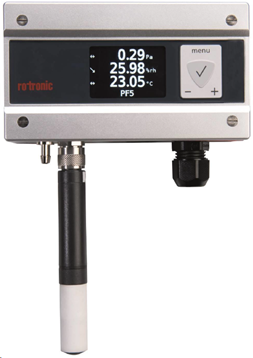
The PF4/5 is the latest generation transmitter with an integrated differential pressure sensor and 1 Pt100 or HC2 probe/analog input and 1 relay.
| Important: Please consult the PF4/5 user manual as well as the HW4 manual for PF4/5 devices for further details. |
|---|
Network configuration of the device
To add the PF4/5 into the RMS, it is necessary to setup the individual network configuration of the device such as:
The PF4/5 default settings are:
| Important: The Digi Device Discovery Tool does not work with the PF4/5 |
|---|
The Options to get the actual device settings are:
Integration into RMS via the RMS-CONVERTER-100
| Step 1 | Log in to the RMS software. Select "Tools" > "Setup" > "Devices". Select the RMS-CONVERTER and click on "Add/Search" devices: 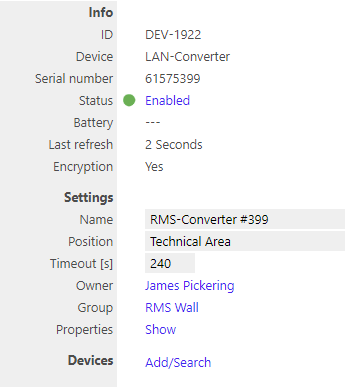 |
|---|---|
| Step 2 | Select the device type in the drop down menu. It is possible to type the IP address or host name into the "IP address" field. IMPORTANT: If the field stays empty, RMS will not search for the device automatically. 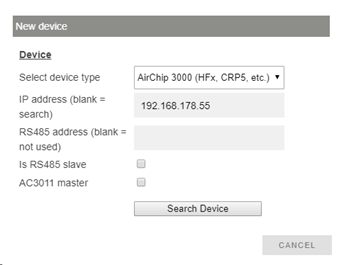 |
| Step 3 | The device appears: configure accordingly. 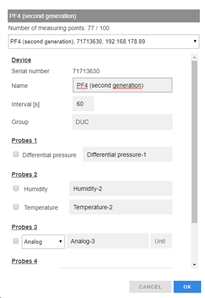 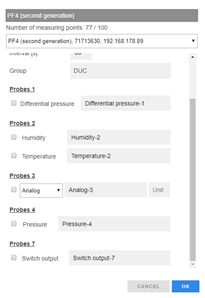 NOTE: The interval cannot be shorter than the interval of the RMS-CONVERTER-100. IMPORTANT: If all check marks for measurement points are not set during initial installation and you wish to expand it later, then the same device needs to be added again with the same identification and IP address (there is no need to delete the device before adding it). The desired check marks can then be set. After completing this process, the added or updated measurement points will appear. |
| Step 4 | The device is added.  |
| Step 5 | IMPORTANT: Overwritten settings. ** By adding the device to RMS via the RMS-CONVERTER-100, the following configuration will be overwritten on the device: NOTE**: If one of the settings above is changed with HW4 further to the initial installation into RMS, then RMS will not note the change. However, such a change would cause RMS to not work correctly. The changes will however be overwritten should the RMS-CONVERTER-100 reboot (due to a short power interruption). |
| Step 6 | Finish configuration. |
Functionality within RMS
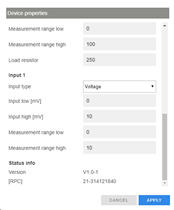
| Step 1 | Device settings: log in to the RMS software. Select "Tools" > "Setup" > "Devices". Select the device. 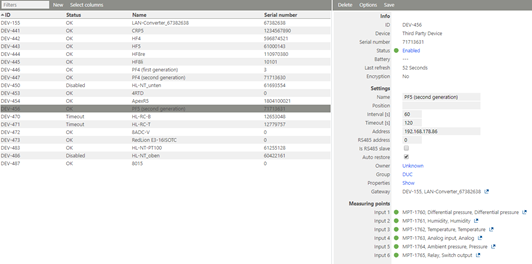 \ |
 \ \ |
 \ \ |
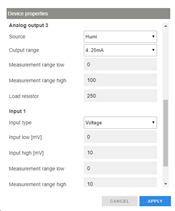 \ \ |
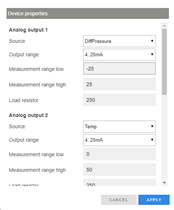
\ | --- \ | --- \ | --- \ | IMPORTANT: Under "Options", "the firmware update", "import firmware file", "import device definition" and "device inventory" are not supported for this device. IMPORTANT: The output range, the sources and the measurement ranges of the analog outputs 1 and 2, can be scaled and stored within the device clicking "Apply". |
|---|---|---|---|---|---|---|---|---|---|
|
|
|
|||||||
| Step 2 | Measurement point settings: log in to the RMS software. Select "Tools" > "Setup" > "Measuring point". Select the measuring point: 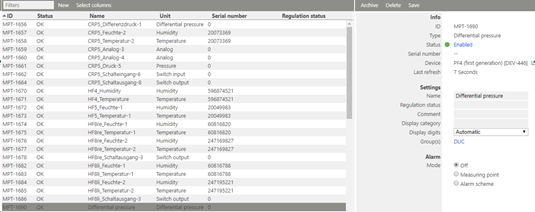 |
||||||||
| Step 3 | Adjustment: log in to the RMS software. Select "Tools" > "Adjustment". Select the measuring point. Click on "Refresh now". General procedure: NOTE: The user of this feature must take care about sufficient stable circumstances for a data acquisition. Please take the interval into account. One value after every 60 seconds does not detect short-term changes of the value. 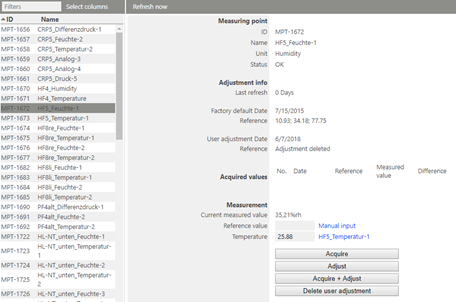 The PF4/5 has different adjustment scenarios for differential pressure. Common adjustment The PF4/5 can be adjusted at multiple reference pressure values. NOTE: A new common adjustment overwrites the common adjustment before, but does not overwrite the 0-point compensation. - 0-Point compensation To compensate long term drift, a 0-Point compensation is recommended. 1. Type in "0" as the reference value and click "Acquire + Adjust" (or "Acquire" and then "Adjust") 2. A valve closes the "+" and "-" connectors of the sensor internally and defines a new 0-point. This procedure needs app. 10 sec. The PF5 will not be able to send measurement values out during this time. NOTE: The PF4 has a 0-point compensation integrated within the device internal sensor. No extra adjustment is necessary. NOTE: A new 0-Point compensation overwrites the previous 0-Point compensation, but doesn’t overwrites the current One point (≠0 Pa) adjustment (see below). NOTE: The real date and reference value cannot be shown due to missing compatibility of these systems. For relative humidity and temperature: \ |
Humidity 2 points acquired 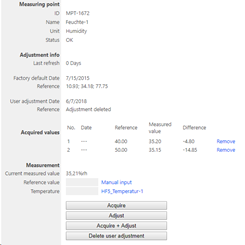 \ \ |
Humidity 2 points adjusted 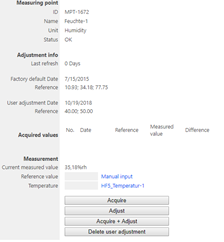 \ \ |
\ | --- \ | --- \ | NOTE: For humidity, multiple points can be acquired and adjusted. For temperature, 1 or 2 points. |
||
| Humidity 2 points acquired |
Humidity 2 points adjusted |
||||||||
| Step 4 | Data logging: the PF4/5 has no internal memory, the PF4/5 is not battery powered. So the PF4/5 cannot log during a power interruption. In case of a communication interruption to the RMS Server, the RMS-CONVERTER-100 logs the data of the PF4/5. After the interruption, RMS requests the data from the RMS-CONVERTER-100. In case of a communication interruption between the RMS-CONVERTER-100 and the PF4/5, the PF4/5 would not log the data. |
||||||||
| Step 5 | Sensor error: In case of one sensor error out of the two, RMS displays a sensor error for both measurement values.  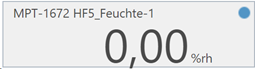 |
||||||||
| Step 6 | Measurement alarm: Alarms linked to the measurement limits and programmed within the HC2 will not be transmitted to RMS. However if the device has a display and the display is configured correctly, the alarm will show on the display. | ||||||||
| Step 7 | Fix values on the HC2: fixed measurement values programmed within the HC2 are displayed as simulators within RMS.  \ |
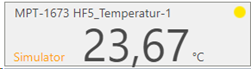 \ \ |
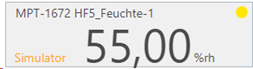 \ \ |
\ | --- \ | --- \ | IMPORTANT: In case of an active fix value of one measurement value of a HC2, RMS will show "simulator connected" for both measurement values of the probe. |
||
|
|