Lighthouse Apex R5 data logger
Device description
The Lighthouse Apex R5 is a particle counter that measures particle concentration with two channels and two measurement ranges.
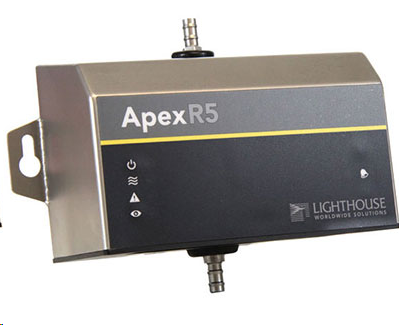
| Important: Please consult the Apex R5 user manual for further details. |
|---|
Network configuration of the device
The Lighthouse Apex R5 is to be connected via Ethernet connection to the network.
To add the Lighthouse Apex R5 into the RMS, it is necessary to know the individual network configuration of the device
| Note: A software and a separate service cable are required for network configuration. Be aware that a host name is not provided. DHCP would only work permanently if the IP address would never be changed by the DHCP server. Rotronic recommends strongly to use the fixed IP address for the device as well as for the RMS-Converter. |
|---|
Integration into RMS via the RMS-CONVERTER-100
| Step 1 | Log in to the RMS software. Select "Tools" > "Setup" > "Devices". Select the RMS-CONVERTER-100 and click on "Add/Search" devices: 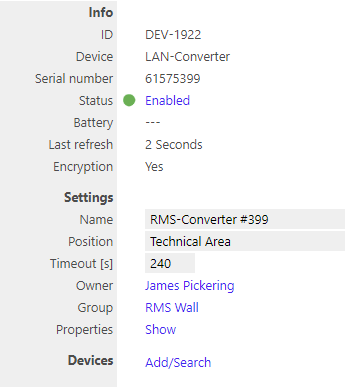 |
|---|---|
| Step 2 | Select the device type in the drop down menu. It is possible to type the IP address or host name into the "IP address" field. IMPORTANT: If the field stays empty, RMS will not search automatically. 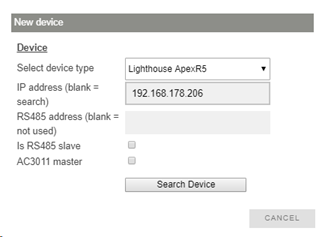 |
| Step 3 | The device appears: configure accordingly. 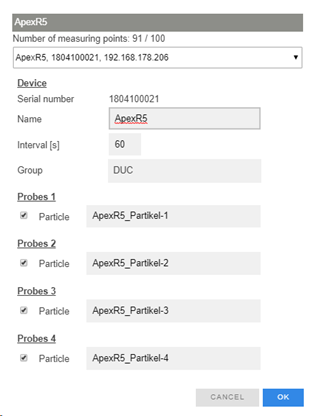 NOTE: The interval cannot be shorter than the interval of the RMS-CONVERTER-100. IMPORTANT: If all check marks for measurement points are not set during initial installation and you wish to expand it later, then the same device needs to be added again with the same identification and IP address (there is no need to delete the device before adding it). The desired check marks can then be set. After completing this process, the added or updated measurement points will appear. NOTE: If settings are changed with another software further to the initial installation into RMS, then RMS will not note the change. However, such a change would cause RMS to not work correctly. |
| Step 4 | The device is added. 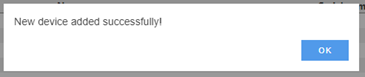 |
Functionality within RMS
| Step 1 | Device settings: log in to the RMS software. Select "Tools" > "Setup" > "Devices". Select the device. 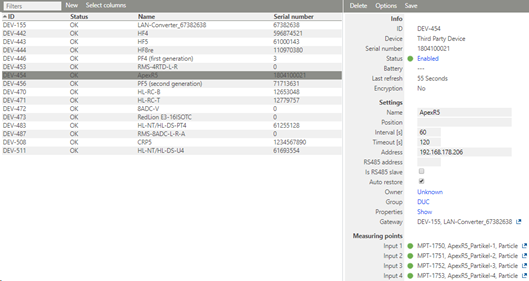  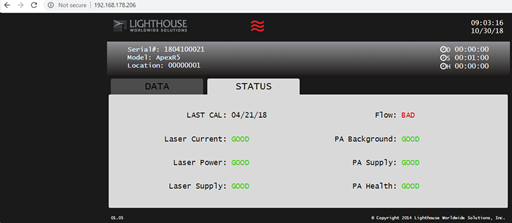 IMPORTANT: Under "Options", "the firmware update", "import firmware file", "import device definition" and "device inventory" are not supported for this device. |
|---|---|
| Step 2 | Measurement point settings: log in to the RMS software. Select "Tools" > "Setup" > "Measuring point". Select the measuring point: 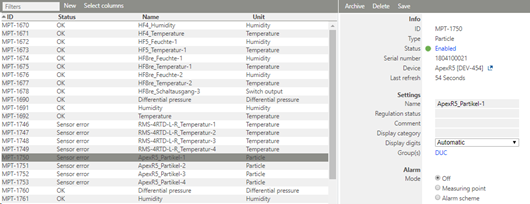 NOTE: If the measurement values are out of range RMS displays a sensor error! |
| Step 3 | Adjustment: an adjustment of the Lighthouse Apex R5 is not possible. |
| Step 4 | Data logging: The Lighthouse Apex R5 has no device memory supported by RMS. The Lighthouse Apex R5 has no internal memory, the Lighthouse Apex R5 is not battery powered. So the Lighthouse Apex R5 cannot log during a power interruption. In case of a communication interruption to the RMS Server, the RMS-CONVERTER-100 logs the data of the Lighthouse Apex R5. After the interruption, RMS requests the data from the RMS-CONVERTER-100. In case of a communication interruption between the RMS-CONVERTER-100 and the Lighthouse Apex R5, the Lighthouse Apex R5 would not log the data. |
| Step 5 | Sensor error: If the particle concentration of the air is out of range of the device, RMS displays a Sensor error.  |