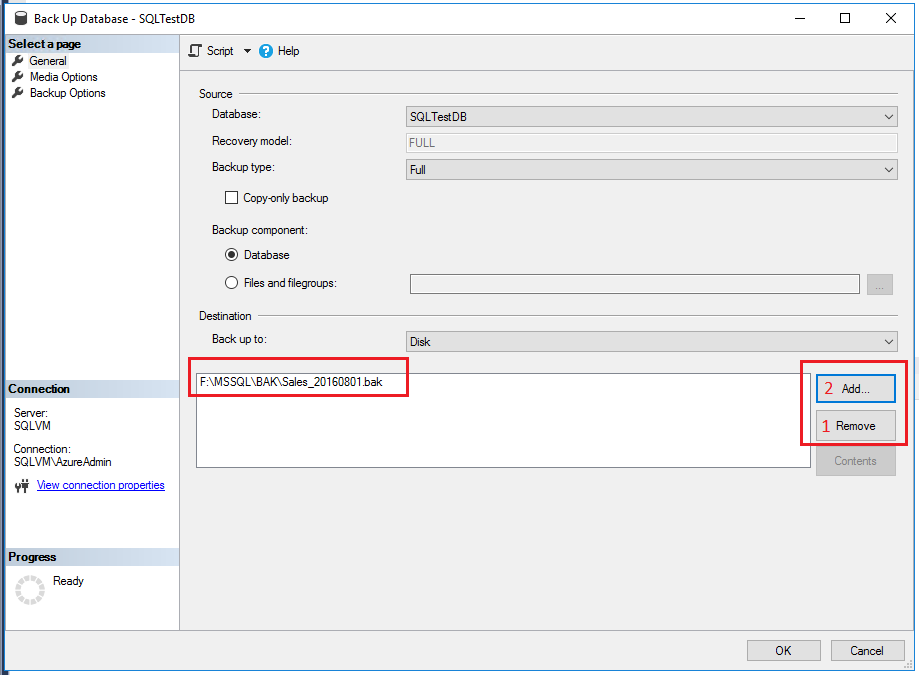
Full back up to disk to non-default location
In this example, the SQLTestDB database will be backed up to disk at a location of your choice.
- After connecting to the appropriate instance of the Microsoft SQL Server Database Engine, in Object Explorer, expand the server tree.
- Expand Databases, right-click SQLTestDB, point to Tasks, and then select Back Up....
- On the General page in the Destination section select Disk from the Back up to: drop-down list.
- Select Remove until all existing backup files have been removed.
- Select Add and the Select Backup Destination dialog box will open.
- Enter a valid path and file name in the File name text box and use .bak as the extension to simplify the classification of this file.
- Select OK and then select OK again to start the backup.
- When the backup completes successfully, select OK to close the SQL Server Management Studio dialog box.