Windows Authentication
| Step 1 | When connecting with Windows Authentication, please follow the following steps. 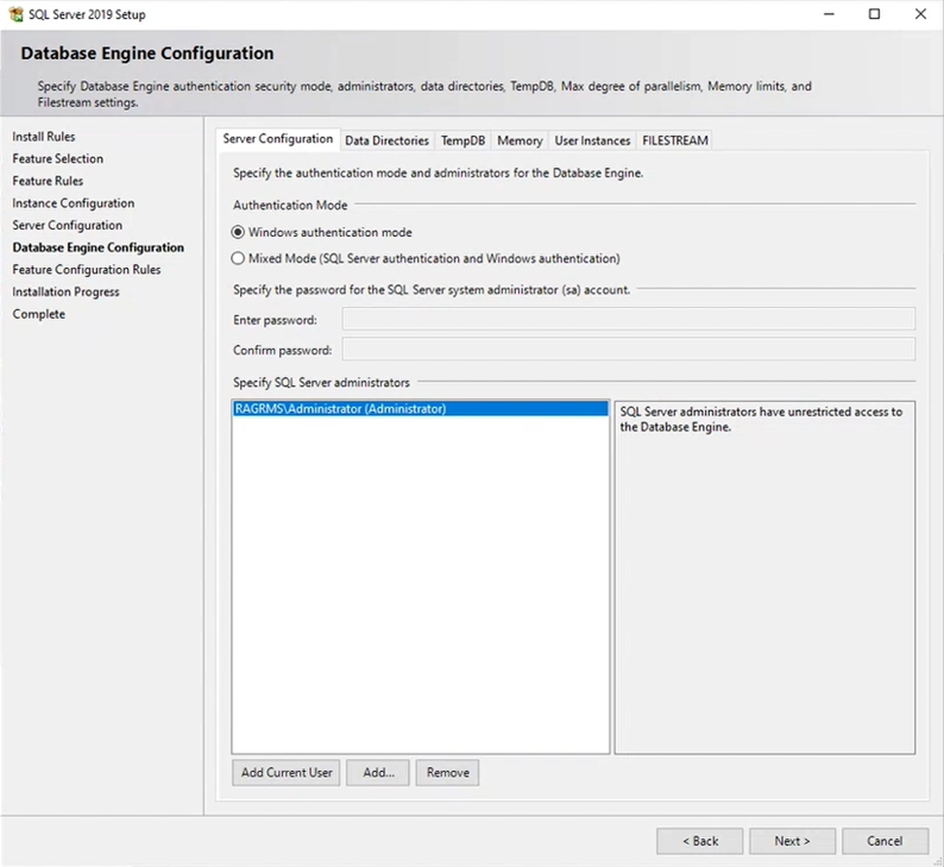 |
|---|---|
| Step 2 | Under the ServiceManager, update the Connections.config files as follows: 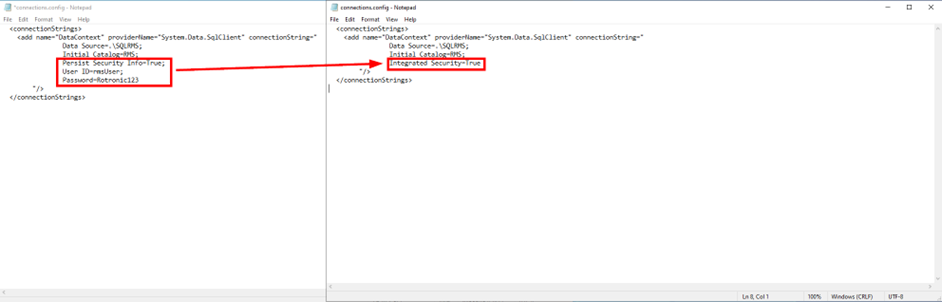 |
| Step 3 | Open the "Services" as Administrator and right click on the server RMS Service Manager (Instance: RMS_8091) and click on Properties: 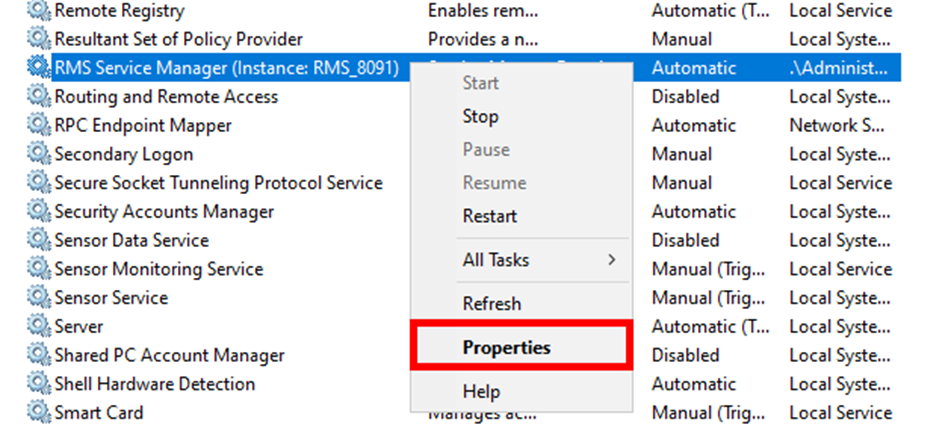 |
| Step 4 | Select Log On and select This account and add the Admin user and password for an account that has access to the SQL-Server: 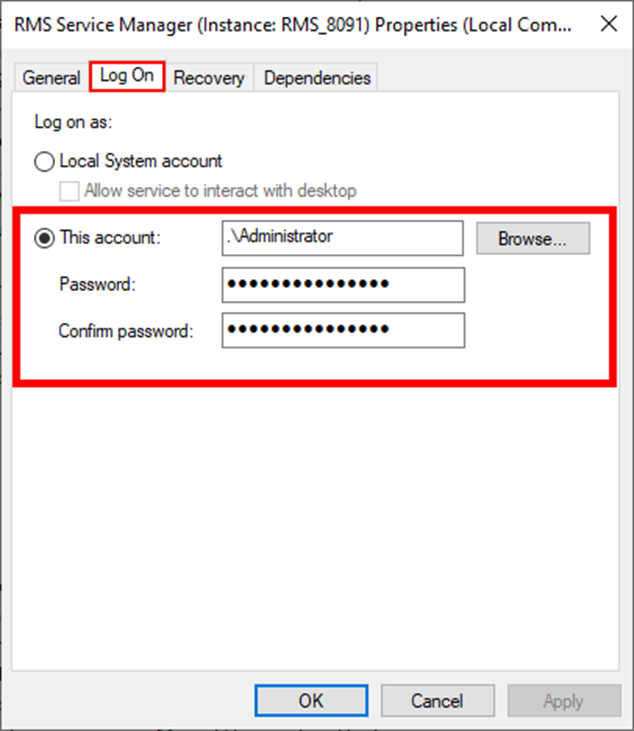 |
| Step 5 | Under the IIS under Application Pools, right click on RmsAppPool and click on Advanced Settings: 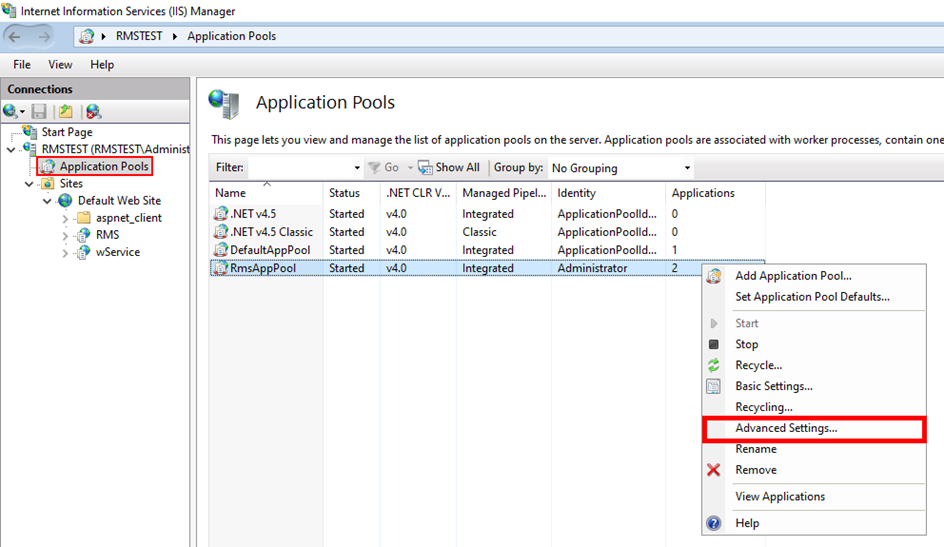 |
| Step 6 | 1. In Advanced settings, open Identity. 2. Select Custom account and click on Set... 3. Add an Admin user and password for an account that has access to the SQL server. 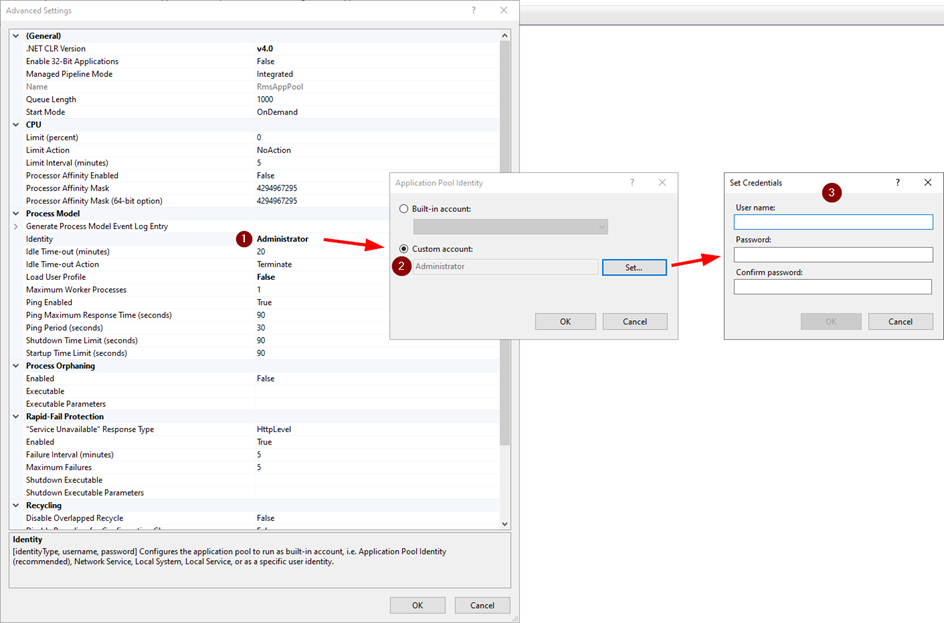 |
Update date: 24.07.2023