Add a Probe Inventory Number
In order to import a probe inventory number to RMS, the user will require the following:
- Measuring point serial number defined by the device.
- Probe inventory number defined by the user.
- The ProbeInventoryImport.csv file.
The user must complete fill out the ProbeInventoryImport.csv file with the following data:
- Measuring point serial number
- Corresponding user defined probe inventory number.
Example:
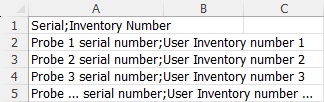
Once the ProbeInventoryImport.csv file completed follow the steps below.
| Step 1 | From the start page, click on "Tools" > "Setup": 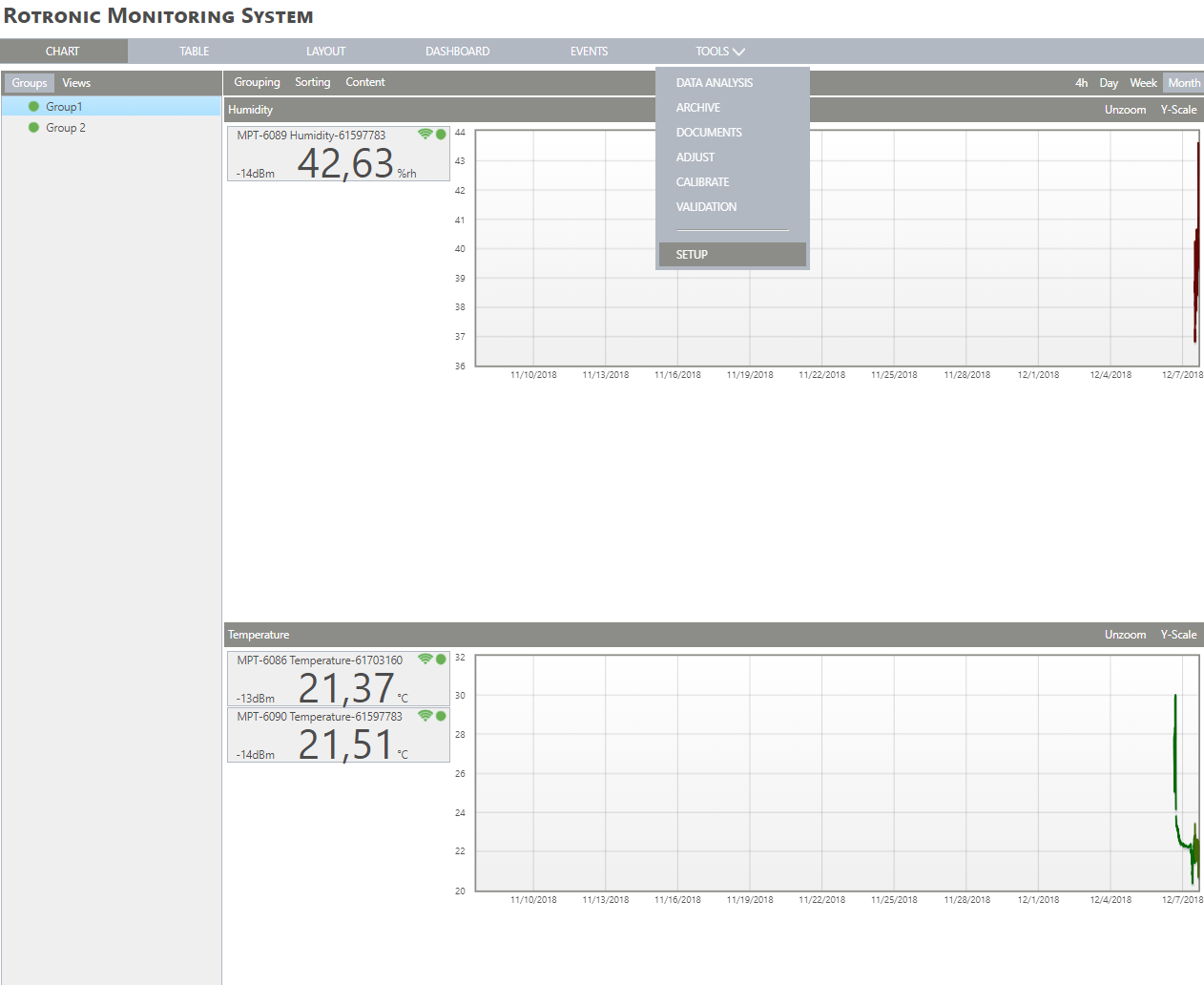 |
|---|---|
| Step 2 | On the left side, select "System": 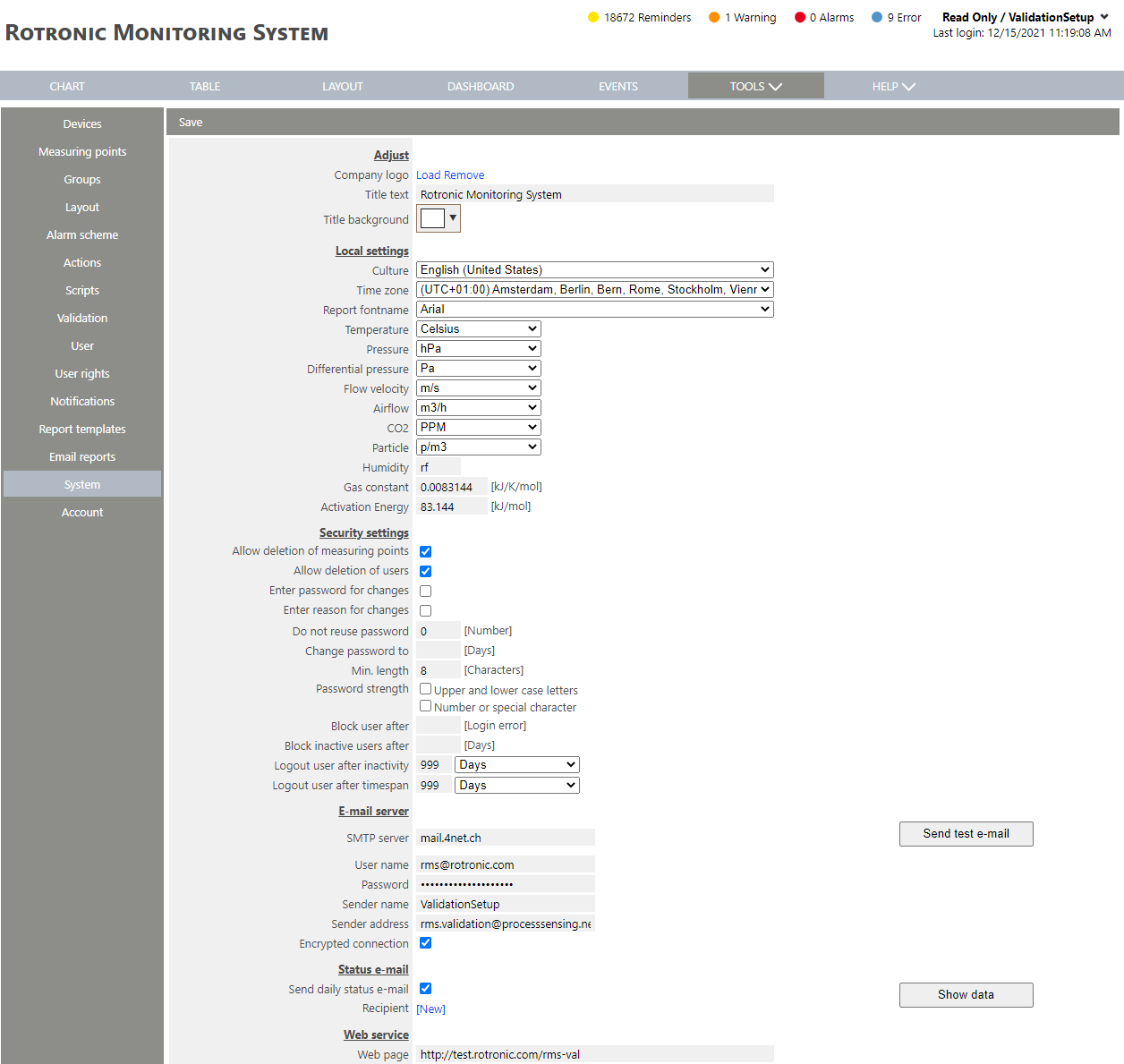 |
| Step 3 | Scroll down and to Import data and Click on "Probe inventory numbers and choose file": 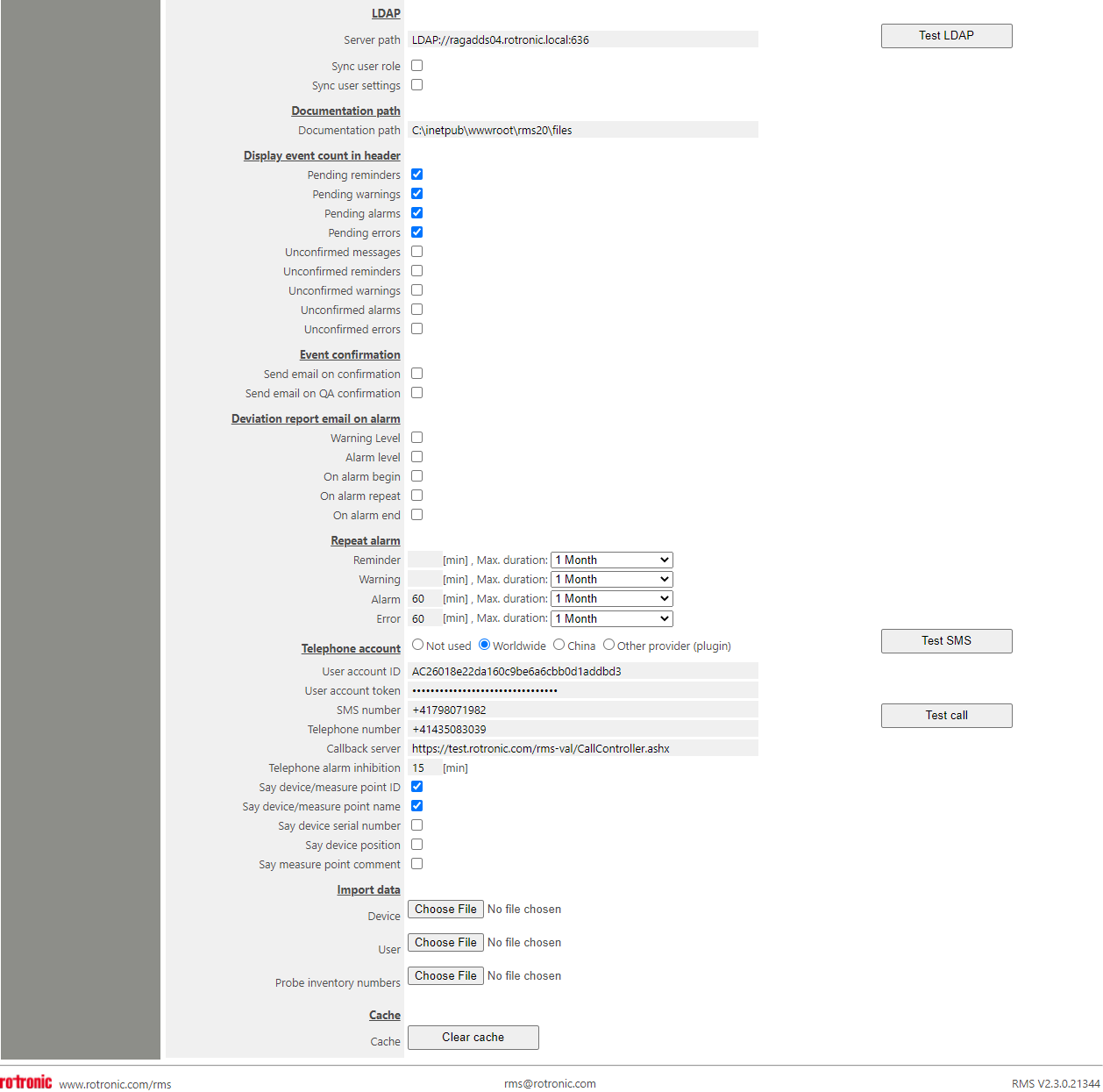 |
| Step 4 | Select the csv file. 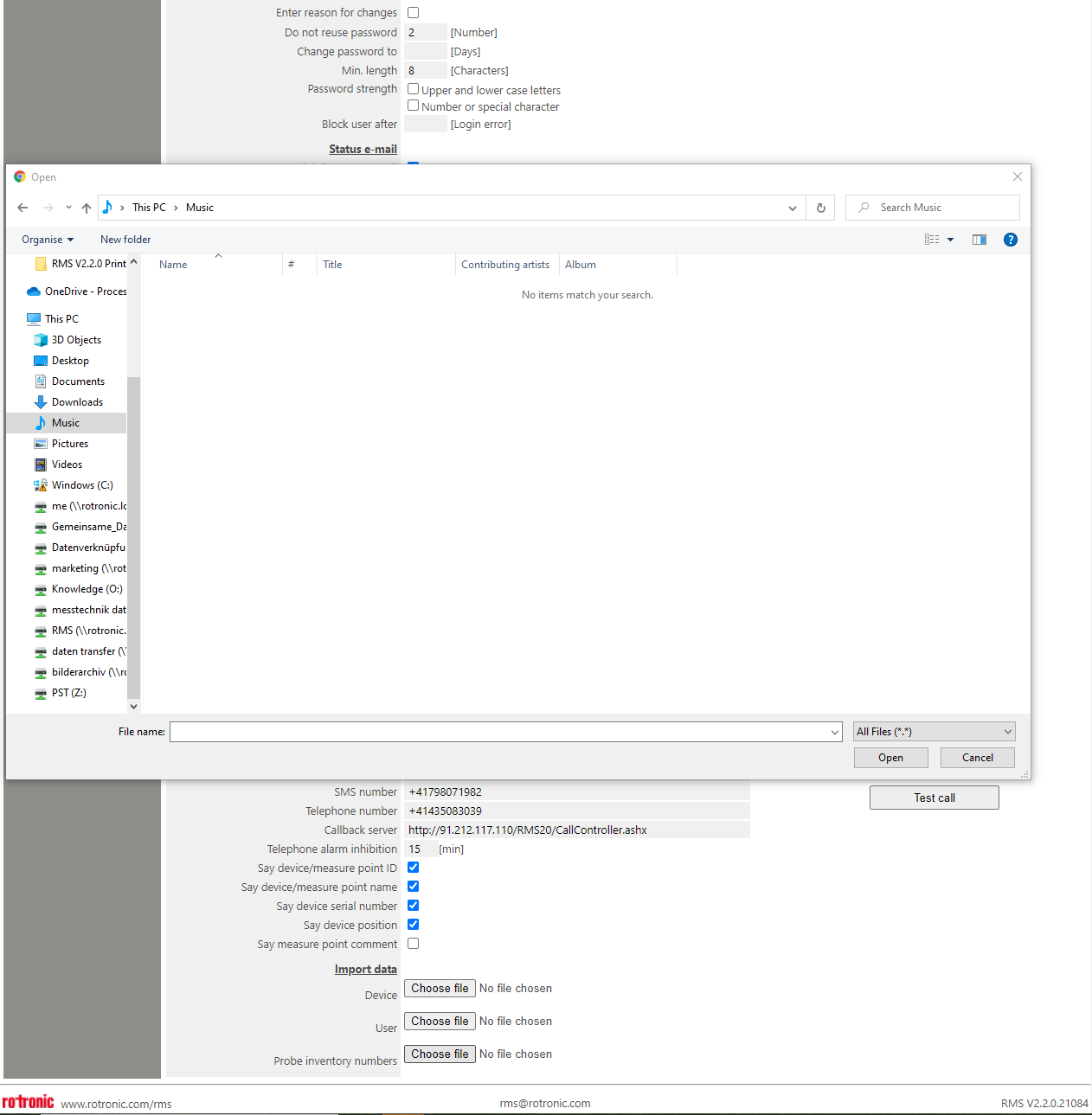 |
| Step 5 | RMS will show the amount of probe serial numbers imported: 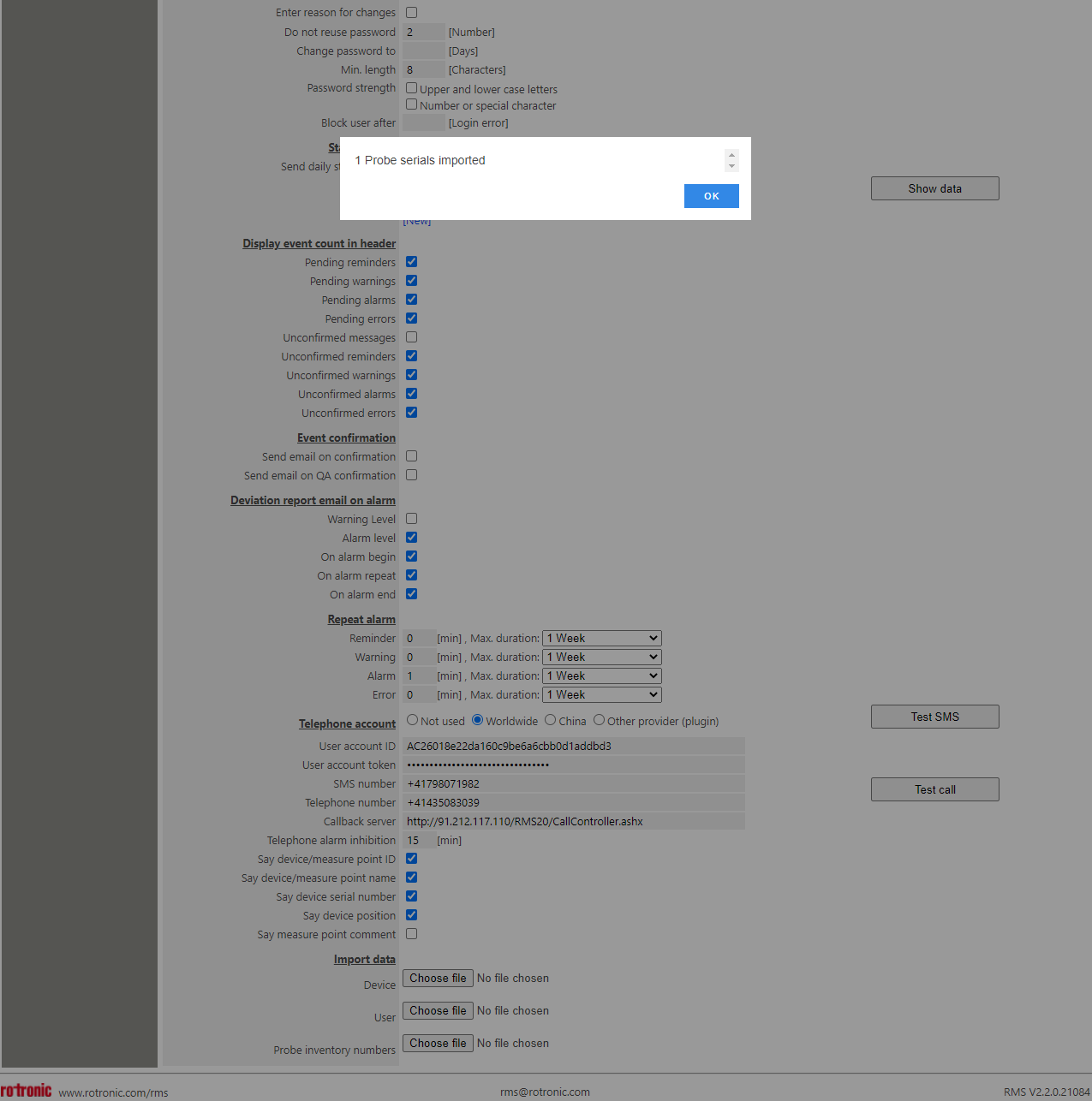 |
| Step 6 | The audit trail will show that a probe inventory number has been imported: 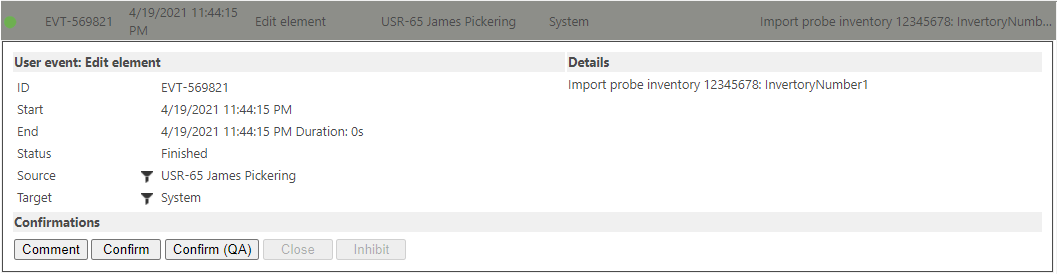 The user can also search for the probe inventory number in the audit trail. |
| Step 7 | The probe inventory number will be shown under the measuring point serial number in brackets: 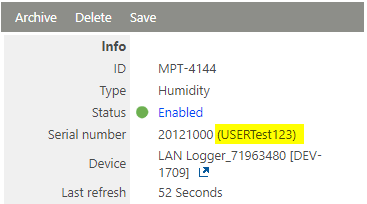 |