First operation
| Step 1 | Open the battery cover using a screw driver: 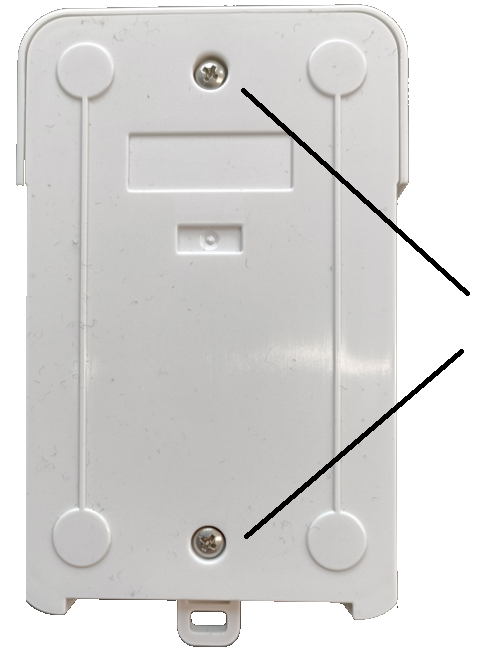 |
|---|---|
| Step 2 | Place the batteries (the minus pole should be connected with the springs). 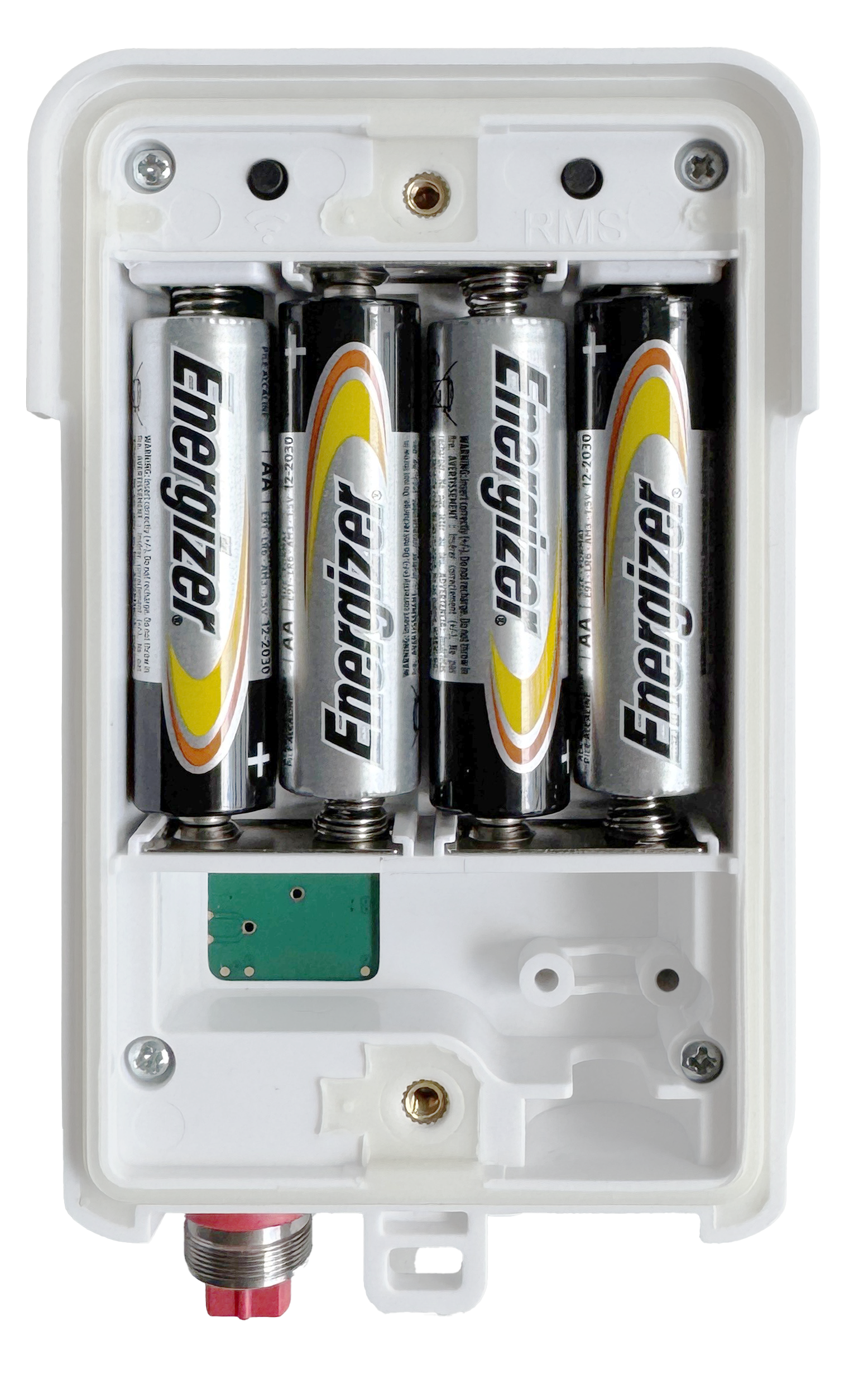 |
| Step 3 | Connect the digital probe sensor, please see also chapter Electrical Characteristic. |
| Step 4 | WiFi pairing: The device paired to the WiFi network (SSID) by two ways, via WPS (button press) or via RMS-App WiFi pairing via WPS: - Please press the left black button with the WiFi symbol (see picture above) shortly (<1s). The WiFi symbol is rolling on the device display. - Please press during the next 30s the WPS button on the WiFi router/access point. - The device will be paired into the WiFi network automatically. WiFi pairing via RMS-App: - Please click on Extras -> WiFi setup and define the WiFi network settings following the instructions. - Please press the WiFi Button (backside under the battery cover) for 5s - Please click on Scan-WiFi and on Add. 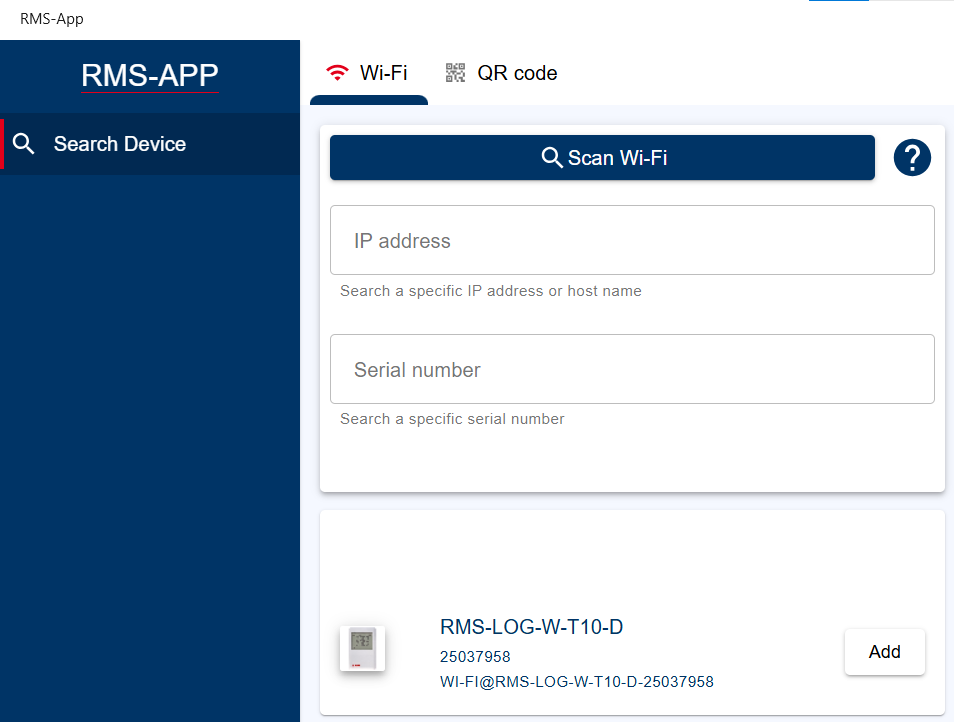 The device appears on the device list (left). - Please click on the wished device and on Connection with Logger and follow the instructions for a successful communication with the device. 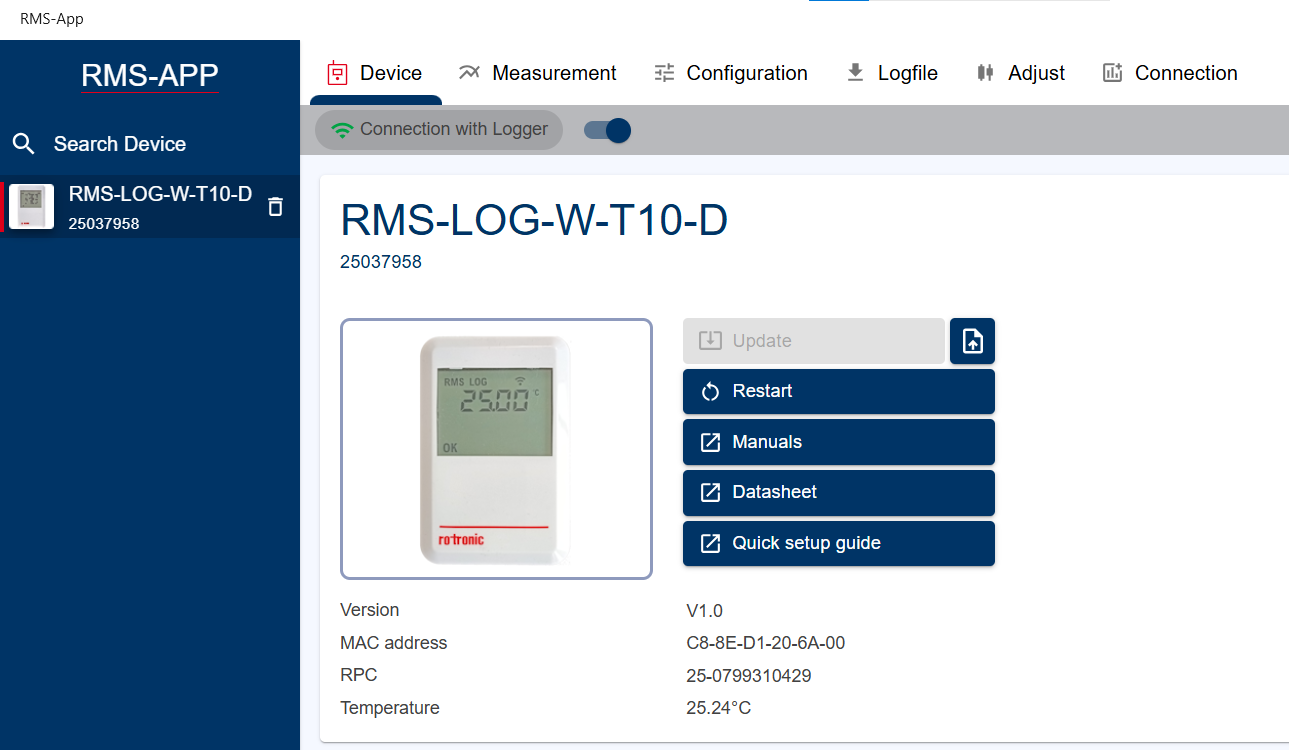 The first information about the device appear. |
| Step 5 | Integrate the Logger into RMS. There are two ways in integrate the device into the RMS-SW, by RMS-App or within the RMS-SW. Option 1: Integration into RMS via RMS-App - Please see chapter RMS-APP Configuration Option 2: Integration into RMS via WPS Pairing and manuell integration into RMS-SW WiFi pairing via WPS: - Please press the left black button with the WiFi symbol (see picture above) shortly (<1s). The WiFi symbol is rolling on the device display. - Please press during the next 30s the WPS button on the WiFi router/access point. - The device will be paired into the WiFi network automatically and the WiFi symbol appears permanently. Integrate the device into RMS-SW: - Please open the RMS-SW and click on Tools -> Setup -> Devices - Please click on New -> WiFi device 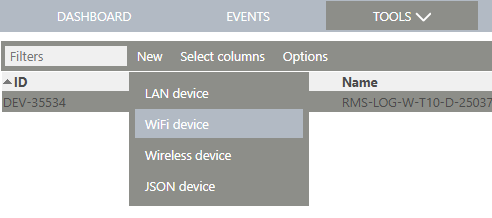 - and follow the next instructions. 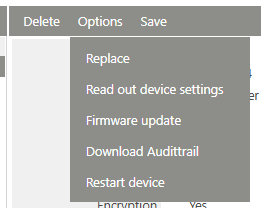 |
| Step 6 | Rotronic advices to check whether a new firmware is available. - Please click on Tools -> Setup -> Devices -> Options -> Firmware update |
Updated: 28.05.2025