Wireless logger is in timeout status and not recovering
An existing wireless logger is in timeout status and not recovering:
- The timeout can be seen as an error in the system and audit trail.
- The timeout time can be set under the device settings. The Rotronic recommendation is 4x the measurement interval.
Solution:
Check the audit trail for events prior to the timeout: Audit Trail Events Overview:
- If "measuring time not valid" appears: the battery is too low and needs to be replaced.
- If lots of "read out data" appear: the wireless communication could be causing issues: Wireless Installation - Hardware. A wireless monitoring can be setup: Wireless Installation - Software Settings.
- Push on the loggers button, the LED should blink:
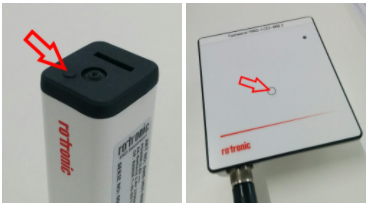
- Green states that all is working correctly.
- 1*Orange states that there is no communication with the gateway.
-
1*Orange states that the logger is in communication mode and is no longer connected to the software.
-
1*Red states that the battery is low.
- 2*Red states that there is a sensor alarm.
Based upon the audit trail and the status LED: change the battery (RMS-BAT only) or move the device closer to the gateway. The logger should reconnect, if not it can be reconnected manually.
Manual reconnection of the logger:
A manual reconnection of the logger can be carried out by carrying out the following steps:
| Step 1 | Push on logger button for >8 seconds: The LED should blink 3*Red: the logger is then unpaired. |
||||
|---|---|---|---|---|---|
| Step 2 | Once logged in to your company, click on "Tools" > "Setup": 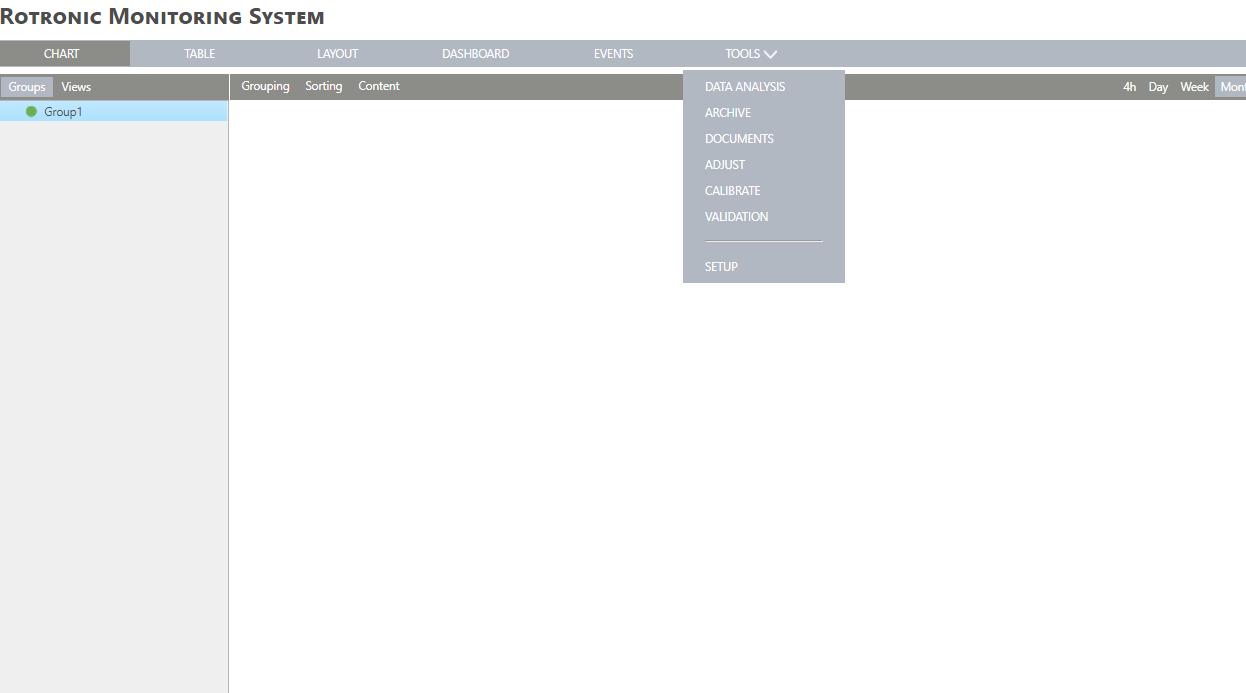 |
||||
| Step 3 | Under the device's menu, add your wireless device by selecting "New" > "Wireless device": 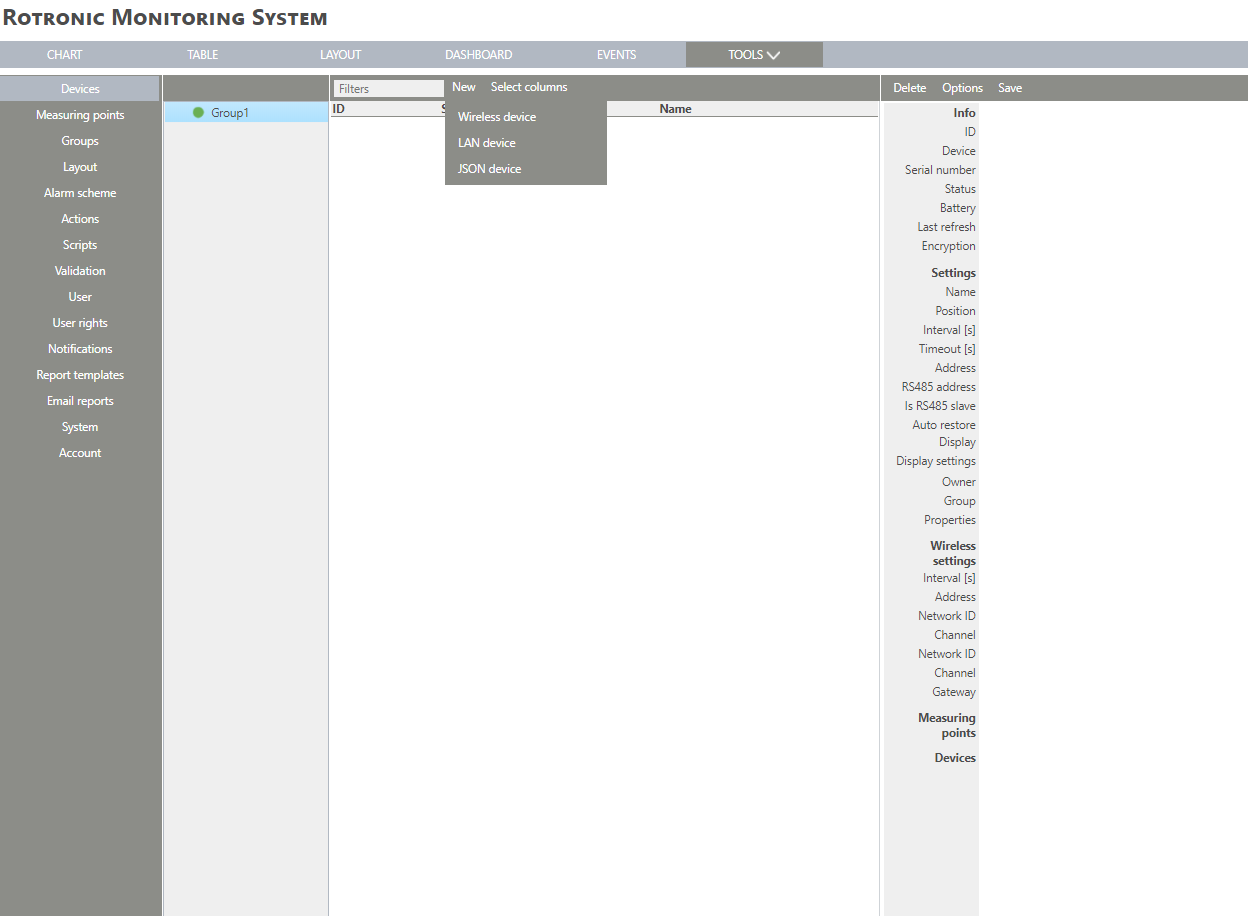 |
||||
| Step 4 | Select the gateway from the menu. Click on "OK": 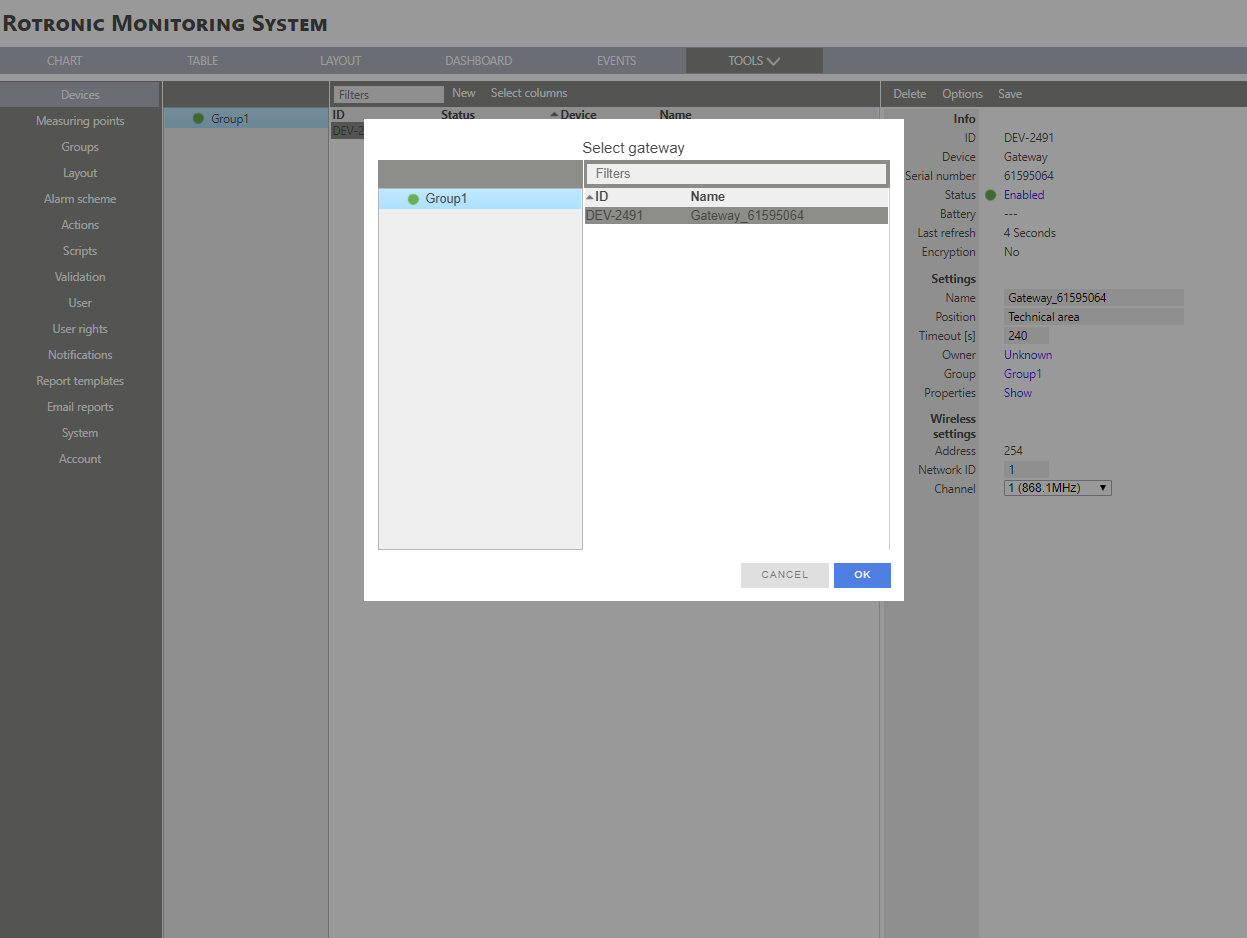 |
||||
| Step 5 | The software will search for the new wireless device. 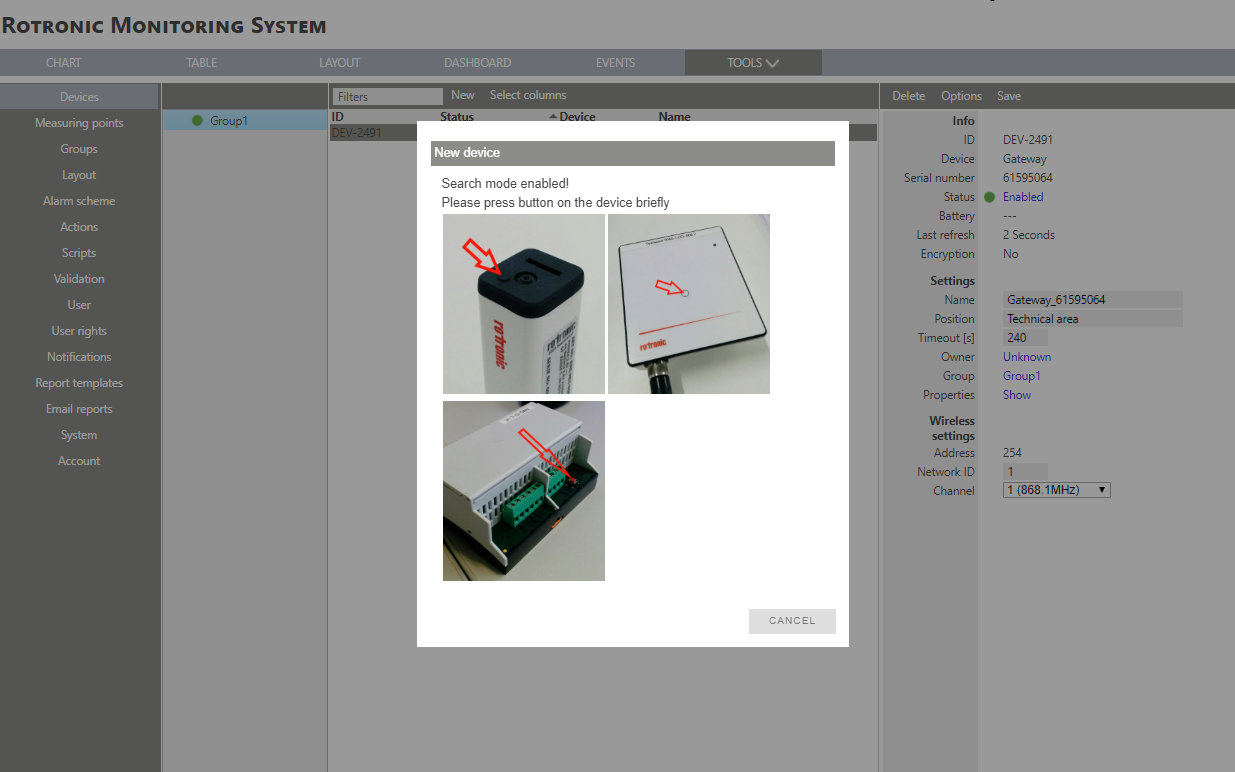 |
||||
| Step 6 | Push once on logger button: The LED should blink >1*Orange: the logger is in pairing mode. |
||||
| Step 7 | RMS will find the device and based upon the serial number, will pull the previous settings that were previously configured: 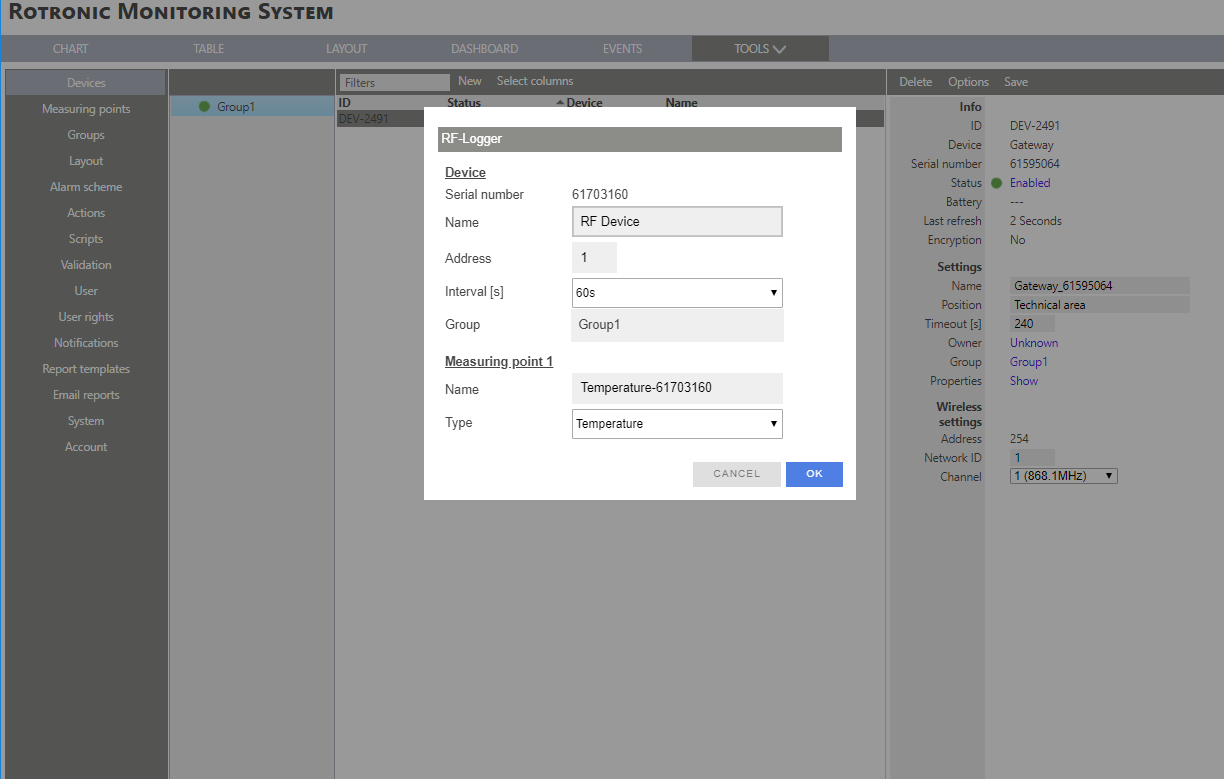 |
||||
| Step 8 | Click on "OK" and the device is added to RMS. 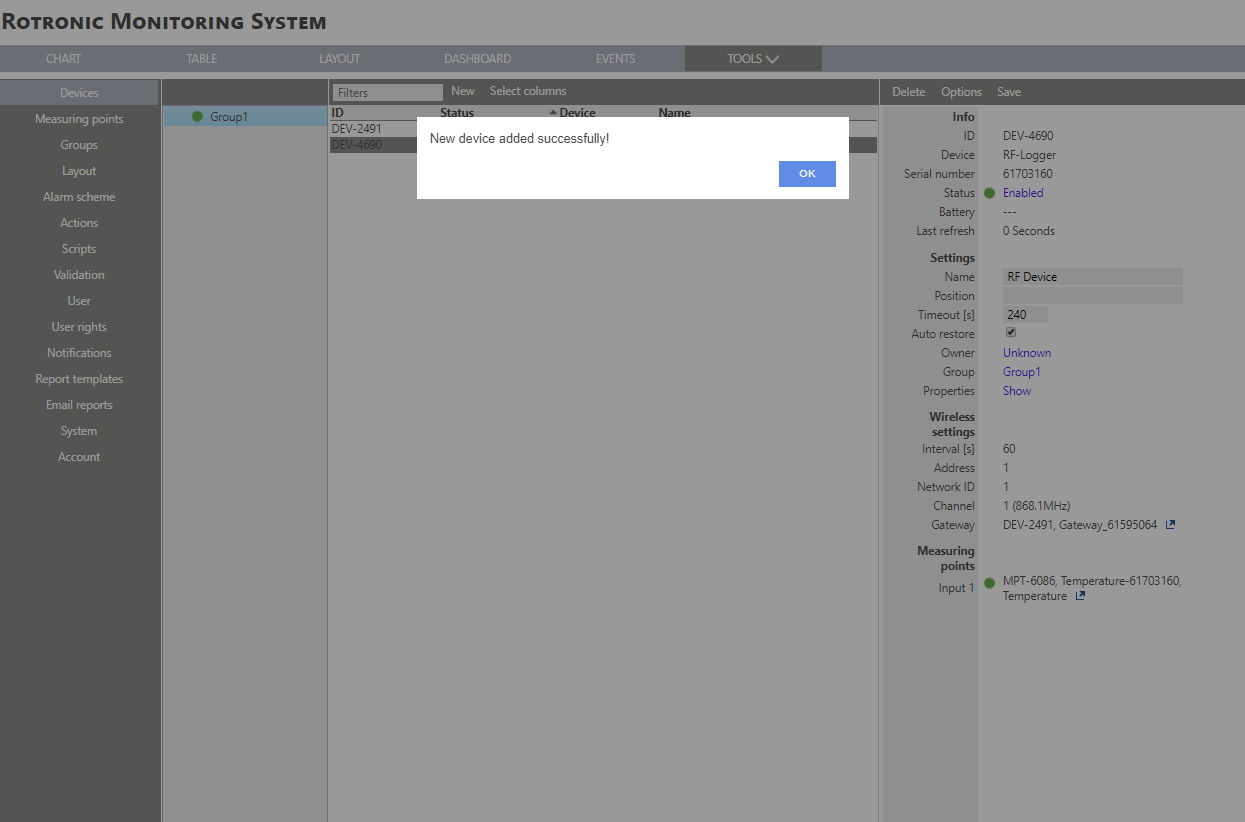 \ |
Important: Due to the existing status of the logger and open commends in RMS, it may be that the step 8 fails (Device Initialization Failed). Push on the loggers button: If the LED blinks >1*Orange, then start at step 2. If the LED blinks anything else than >1*Orange, then start at step 1. \ |
\ | --- \ | |
| Important: Due to the existing status of the logger and open commends in RMS, it may be that the step 8 fails (Device Initialization Failed). Push on the loggers button: If the LED blinks >1*Orange, then start at step 2. If the LED blinks anything else than >1*Orange, then start at step 1. |
|||||
| Step 10 | The LED should blink 1*Green: the logger is paired to again. | ||||
| Step 11 | The "timeout" error should end or will end on the next refresh. |