Add a LAN Device
| Step 1 | Once logged in to your company, click on "Tools" > "Setup": 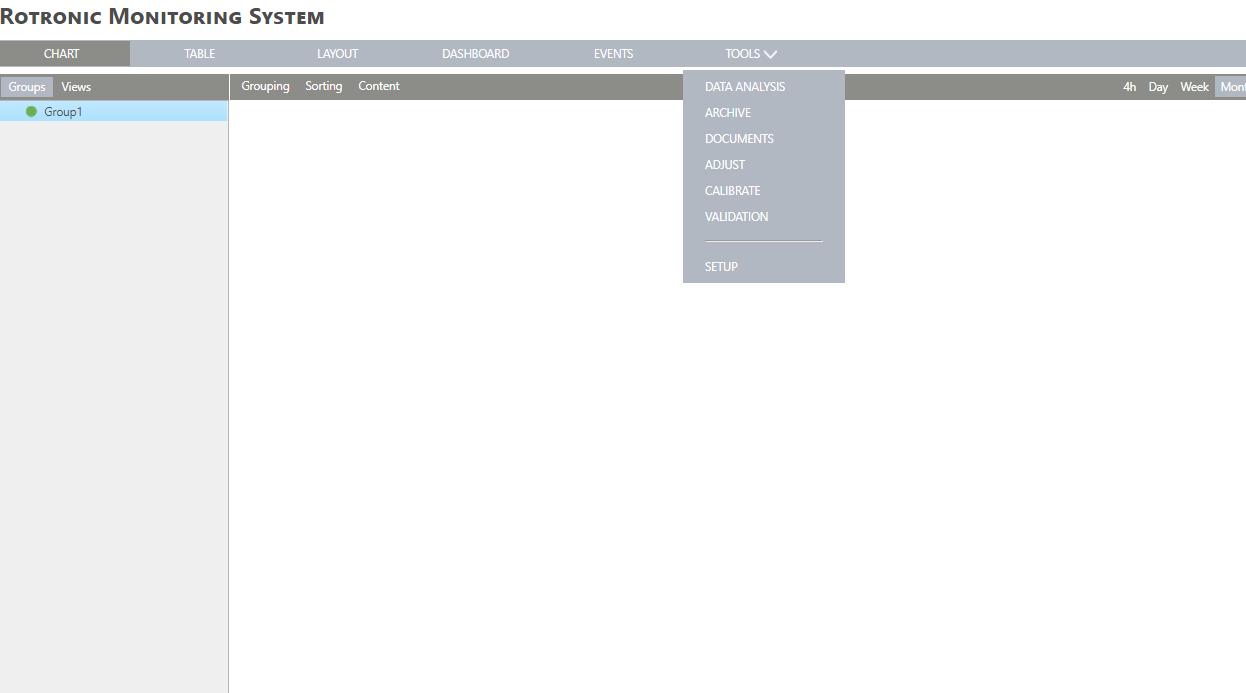 |
|---|---|
| Step 2 | Under the device's menu, select "New" > "LAN device": 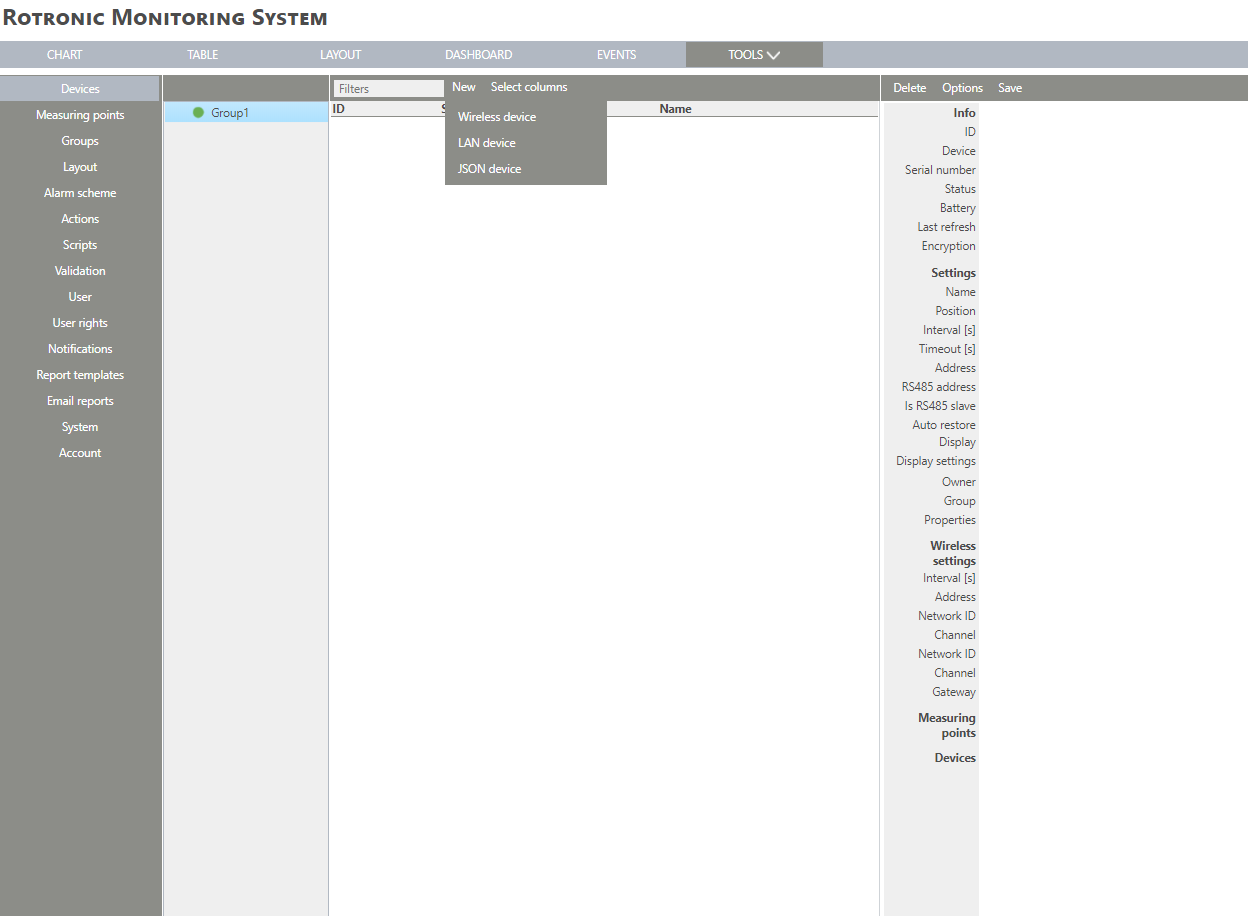 |
| Step 3 | For a LAN device, enter the serial number: 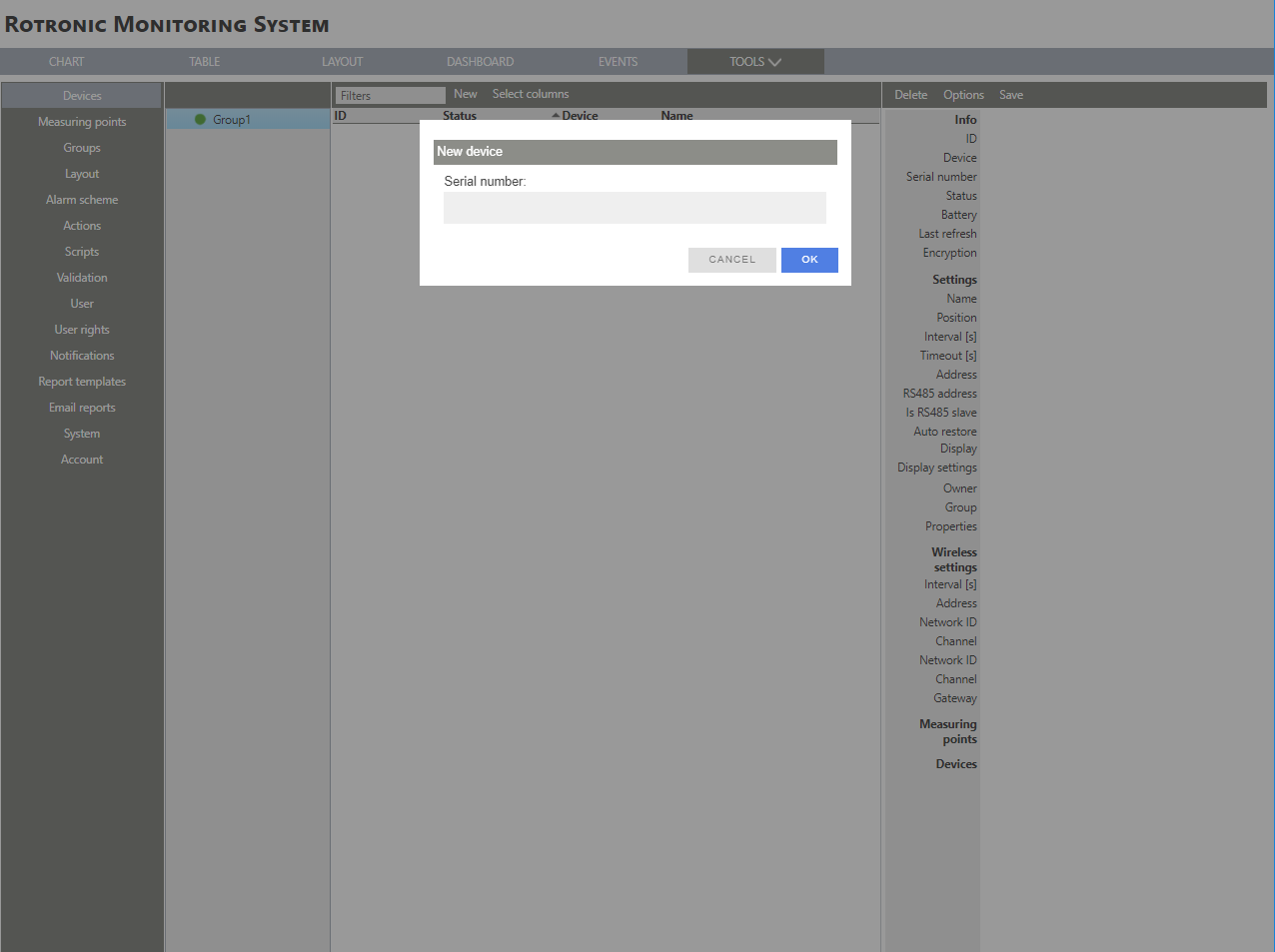 |
| Step 4 | Once the serial number added to the software, the device's LED will start blinking orange. The software says to push on the device's button: push on the button. 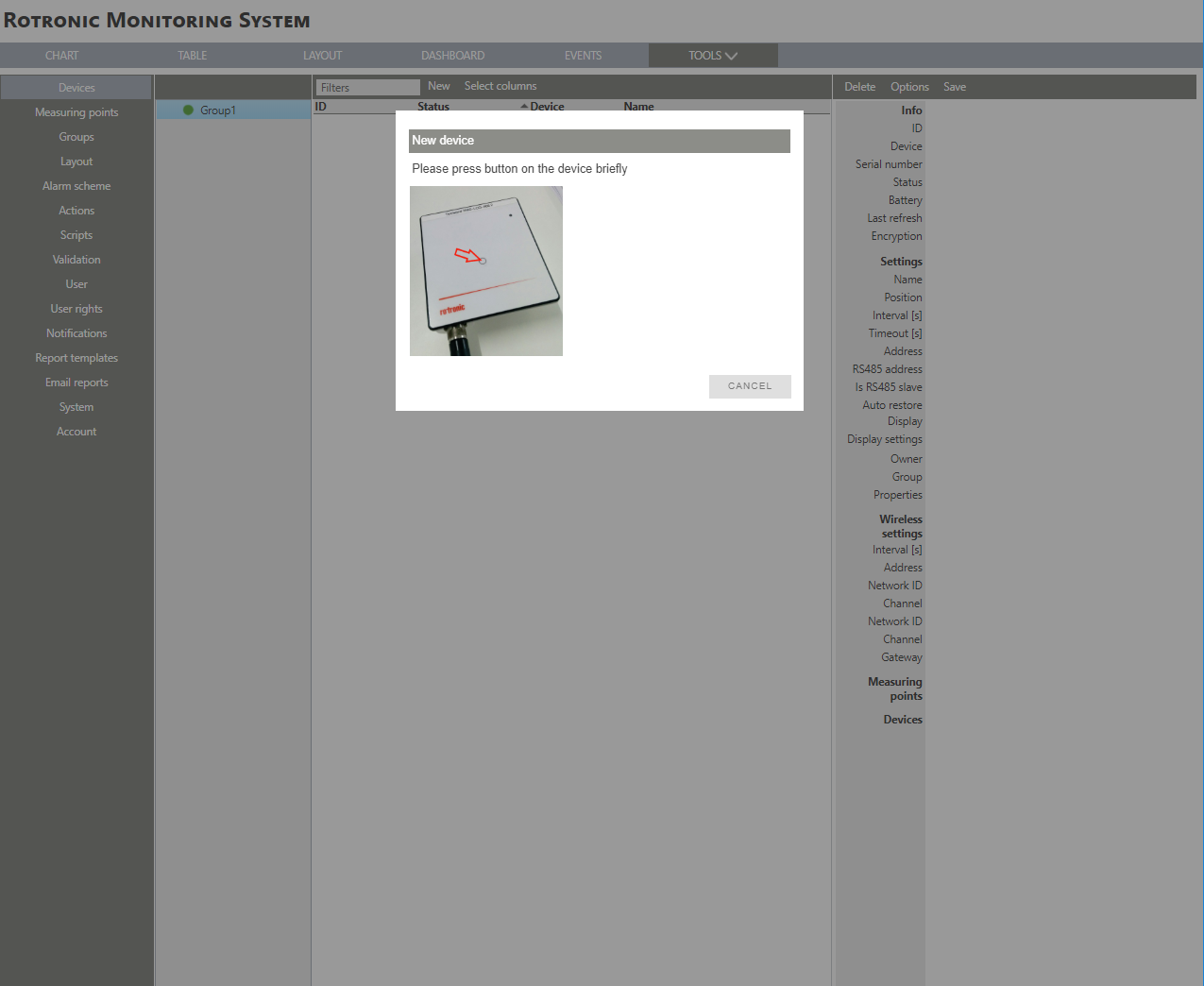 |
| Step 5 | The device configuration window will open within RMS: 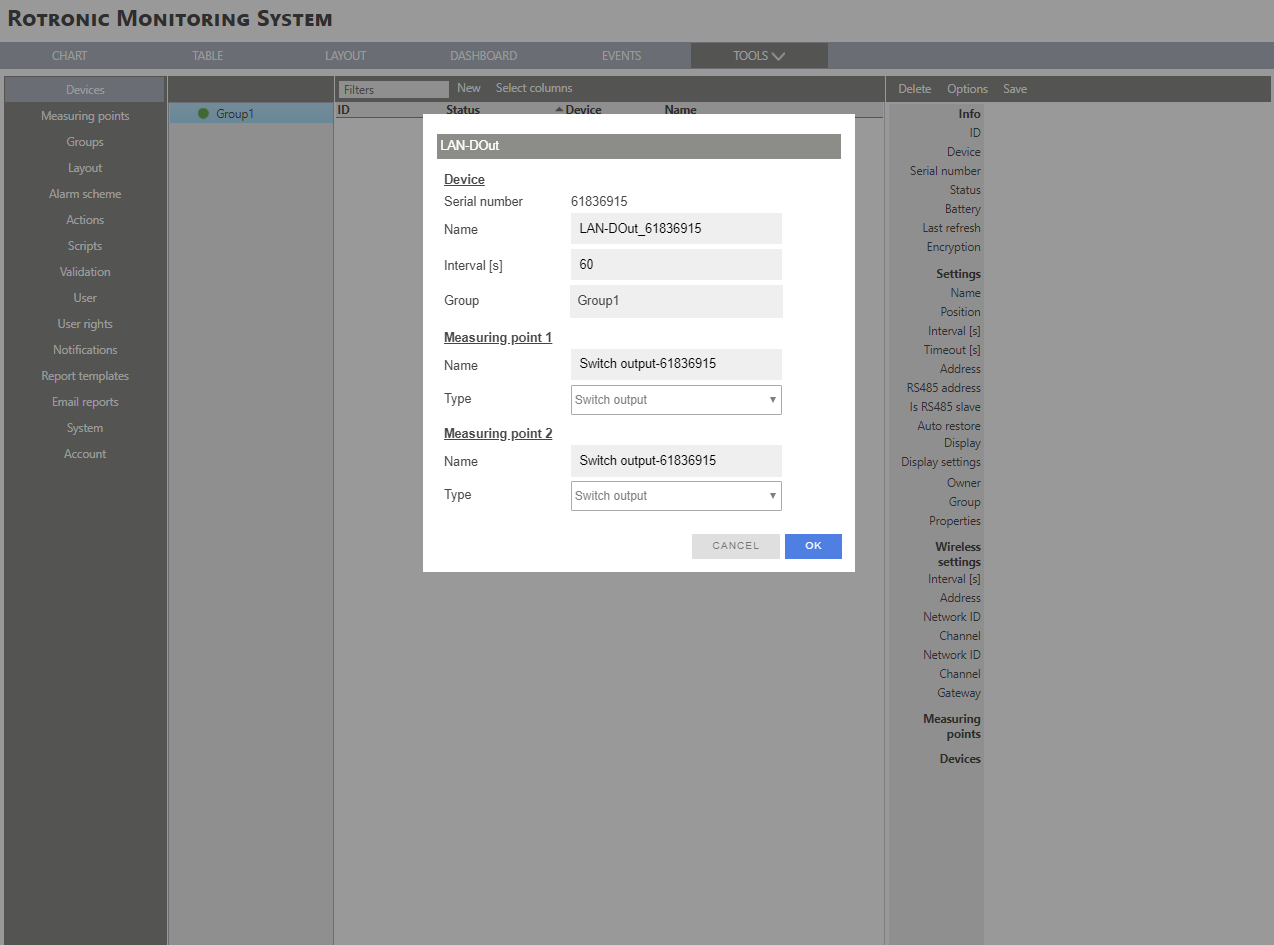 |
| Step 6 | Serial number: This is the device's serial number. Name: Give a name to the device. Interval [s]: Defines the log interval. Group: Defines which group the device is attributed to. IMPORTANT: The following options are device specific. Please see the specific devices for more information about how to add them to RMS. |
| Step 7 | Click on "OK" and the device is added to RMS. 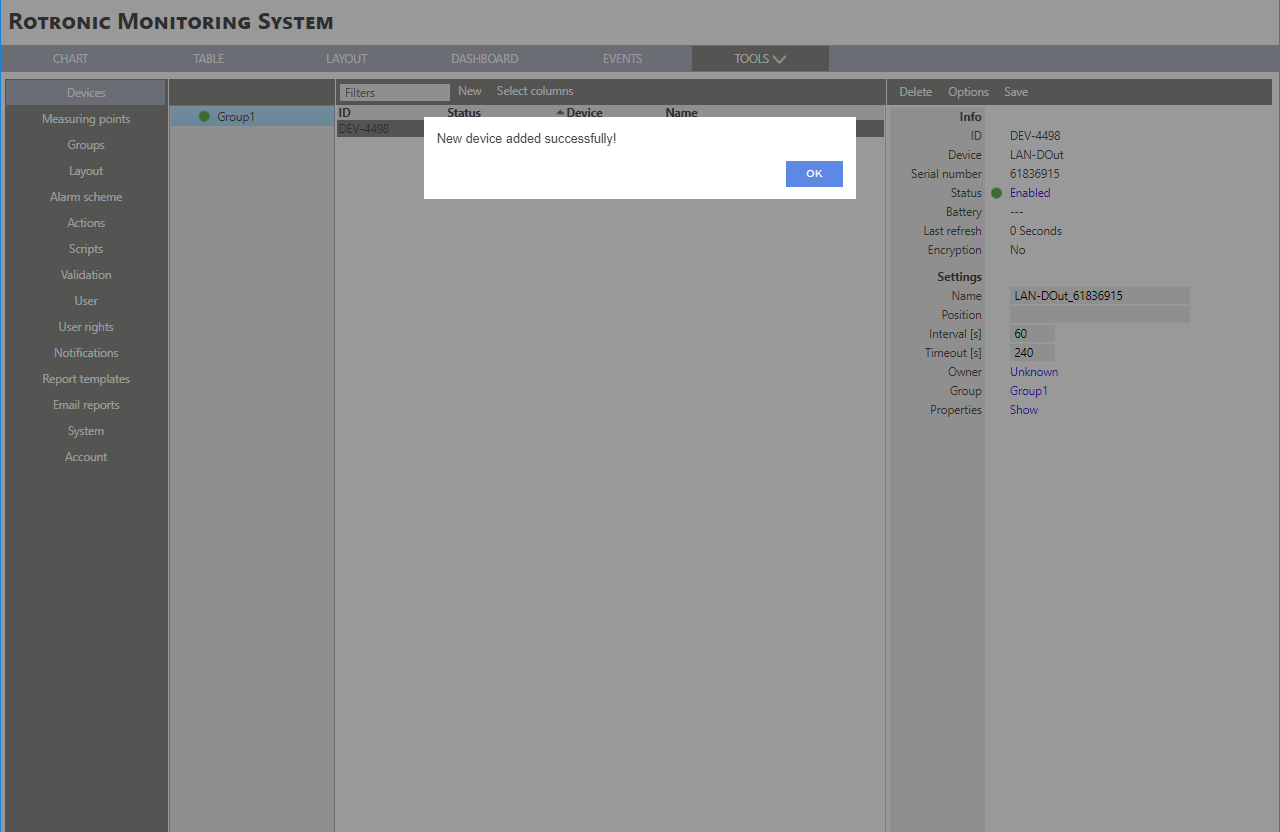 |