Installation and Configuration of the SQL Server Express Using Windows Authentication Mode
| Step 2 | The following window will appear, select Download Media: 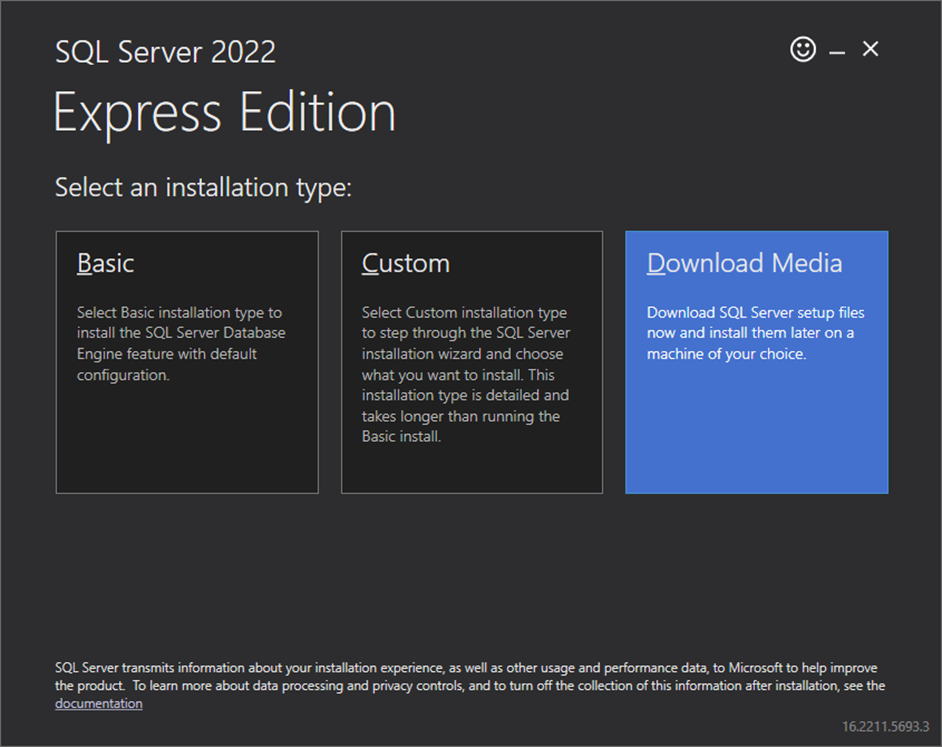 Select the following following language, package and download location and click on download: 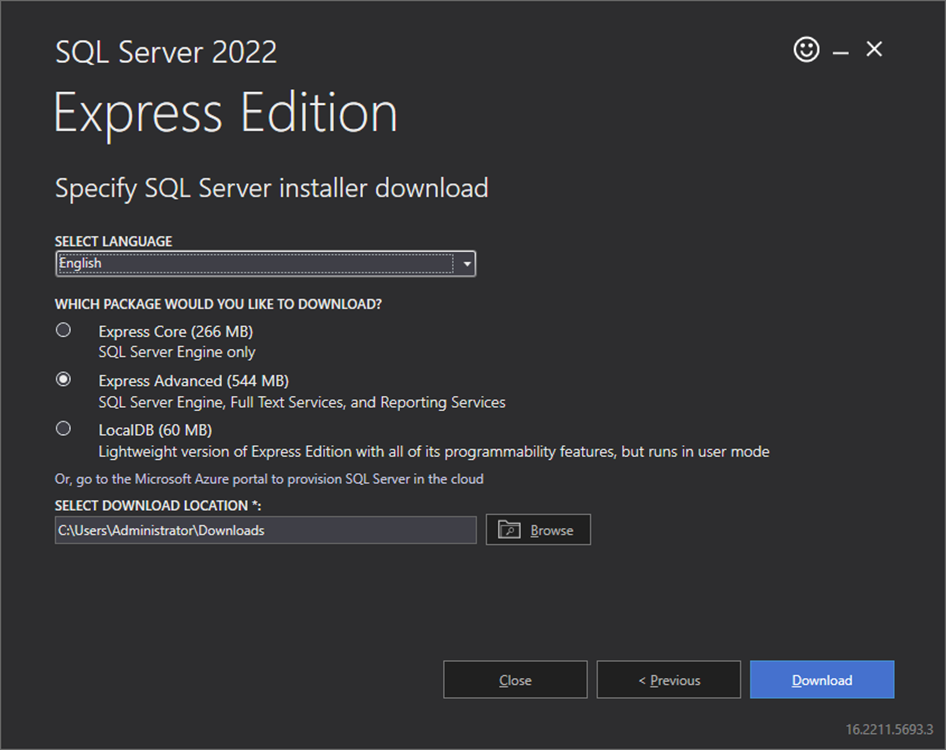 The download will commence: 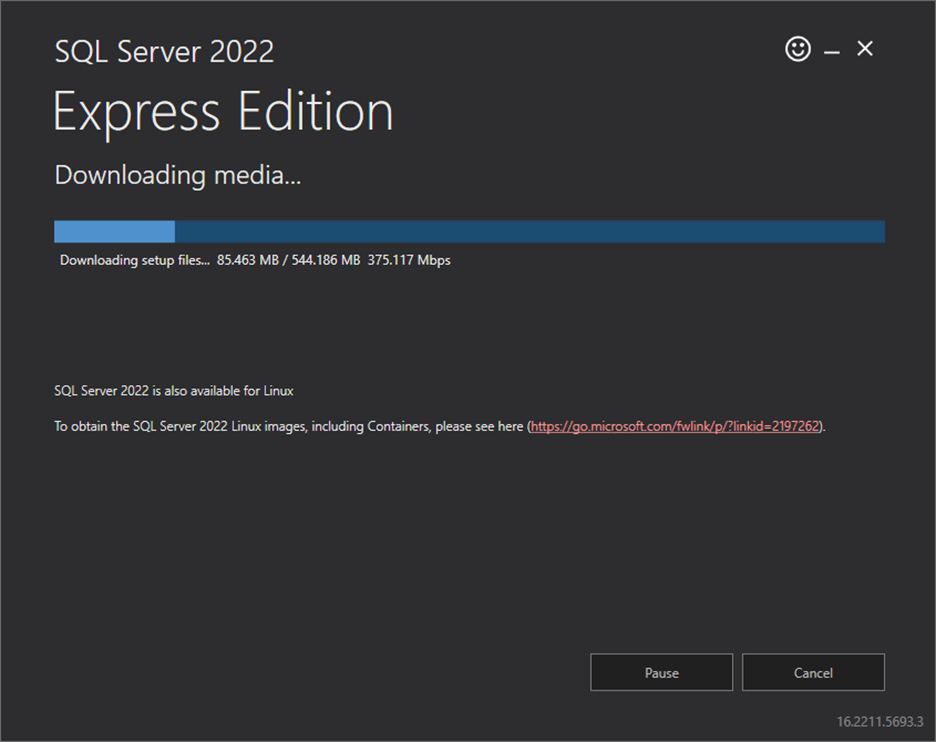 Once the download was successful, click on open folder: 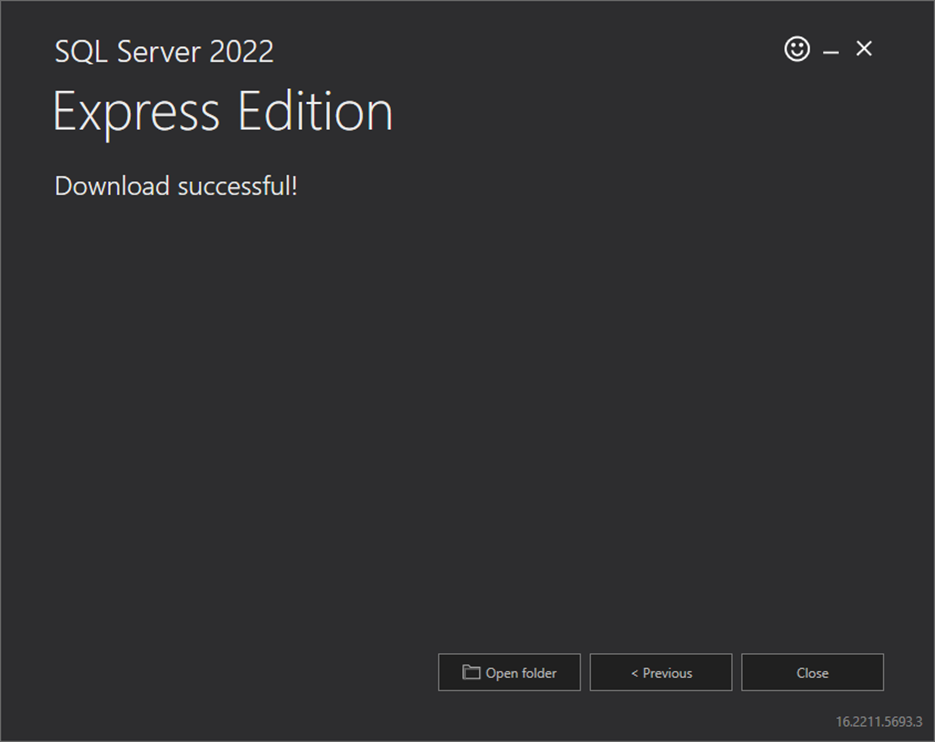 |
|---|---|
| Step 3 | Under the download folder, a new file is available: "SQLEXPRADV_x64_ENU.exe". Right click on the "SQLEXPRADV_x64_ENU.exe" file and run as administrator: 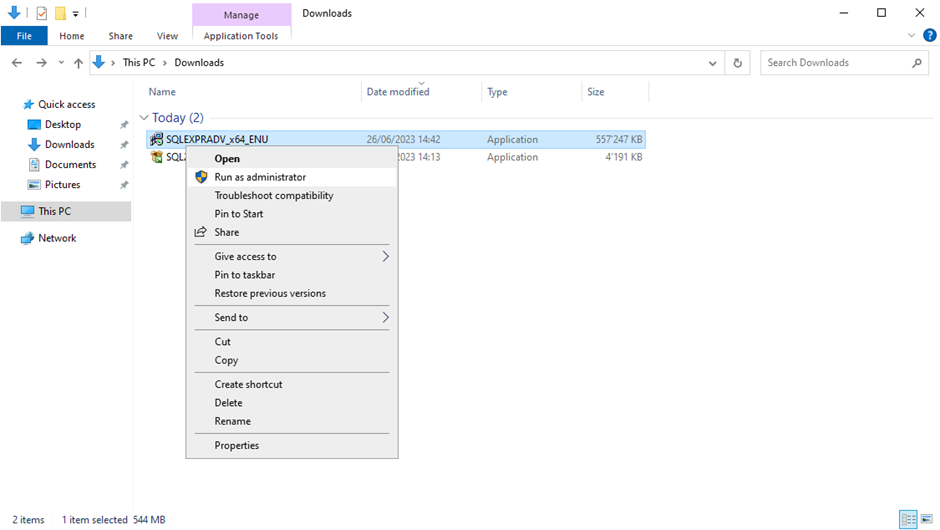 |
| Step 4 | Choose the directory for the extracted file: 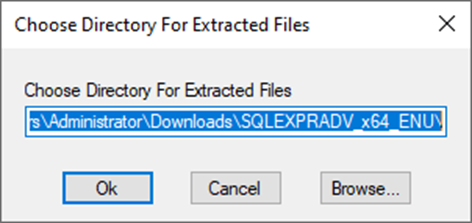 Click on OK and the extraction will start: 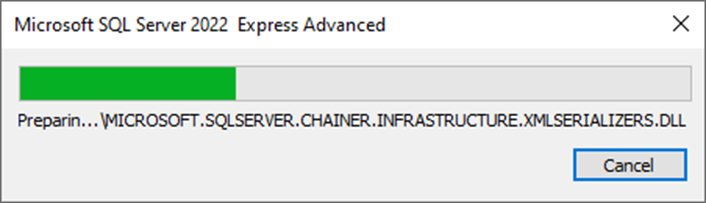 |
| Step 5 | The following window will open, select "New SQL Server stand-alone installation or add features to an existing installation": 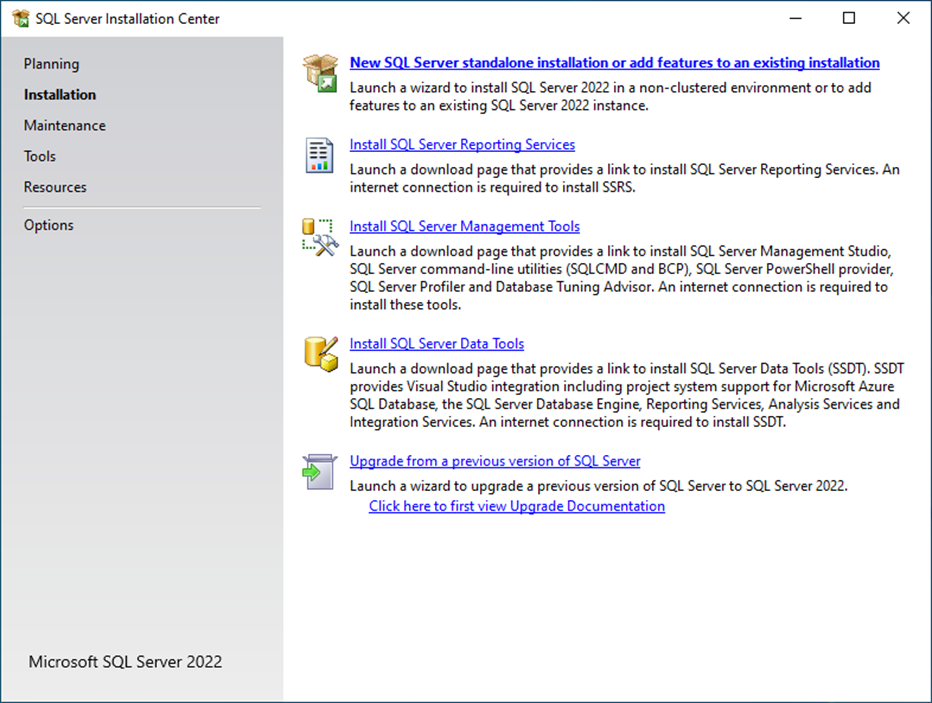 Read the License Terms and tick "I accept the license terms". Then click on "Next". 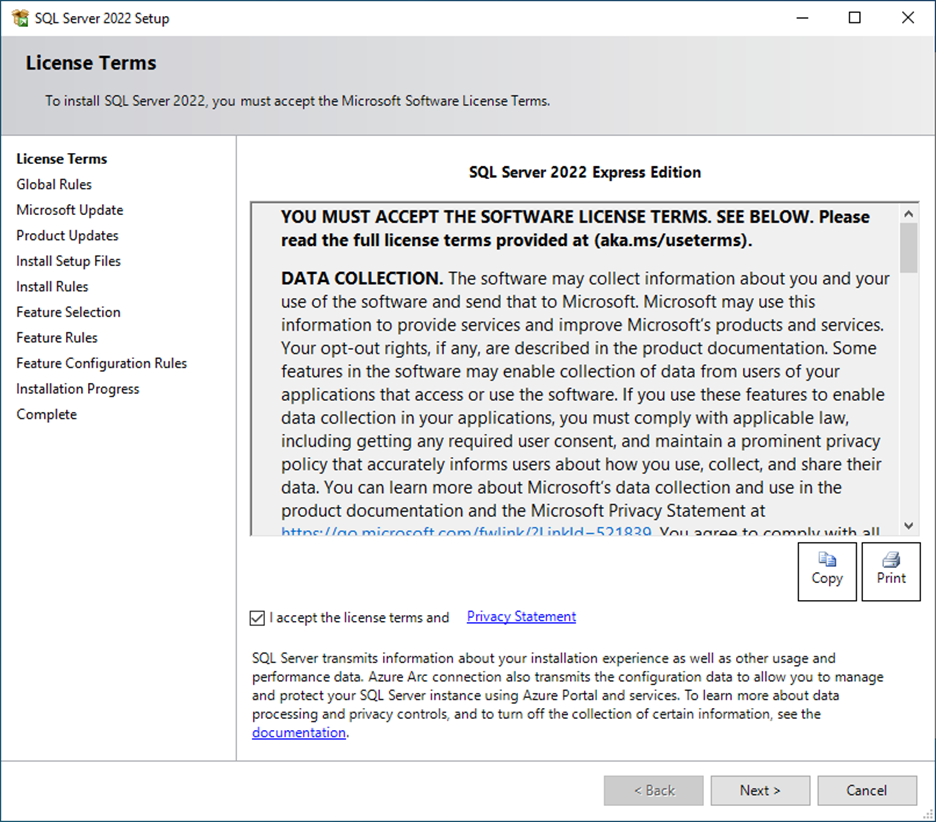 If needed, "Use Microsoft Update to check for updates" can be selected. Then click on "Next". 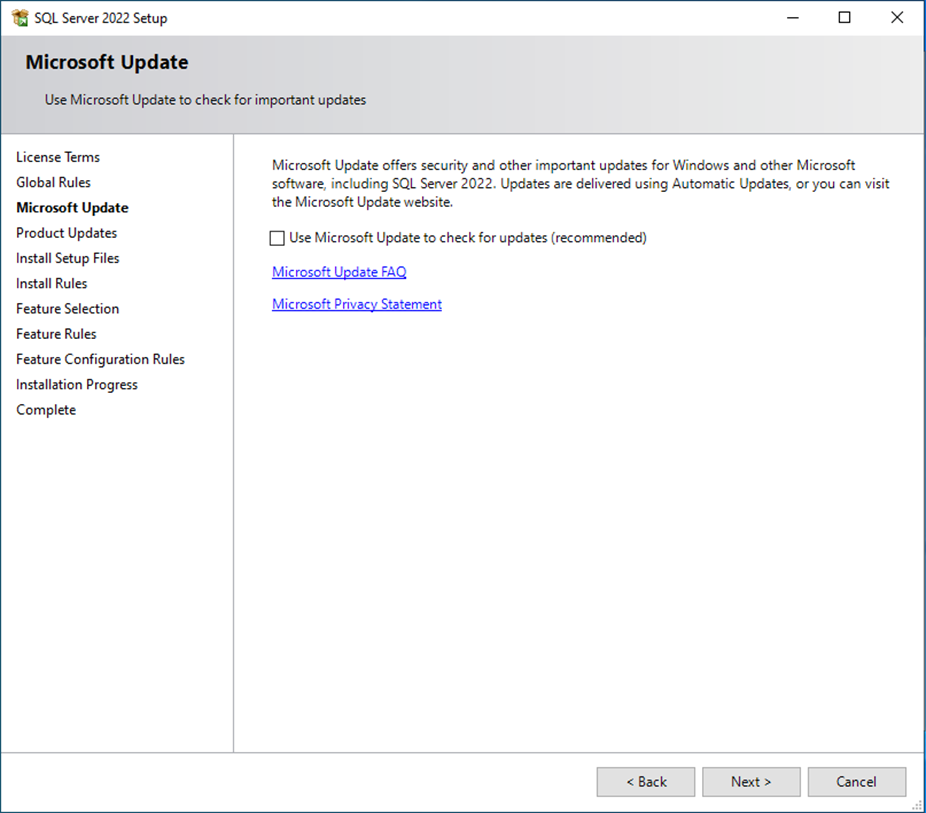 The following window will open. Click on "Next". 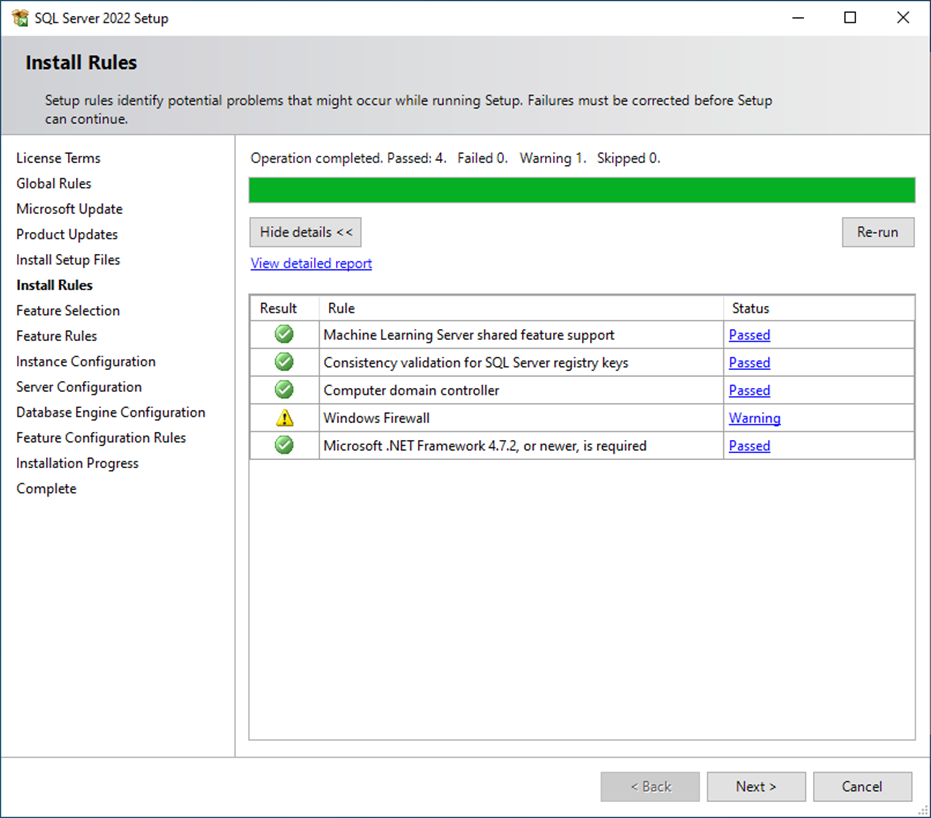 |
| Step 6 | Feature Selection: Select the features seen in the print screen (these are the standard features already offered by SQL when carrying out the setup). Then click on "Next". IMPORTANT: If the data of the SQL server should be added to another location, update the instance root directory now as this cannnot be changed afterwards! 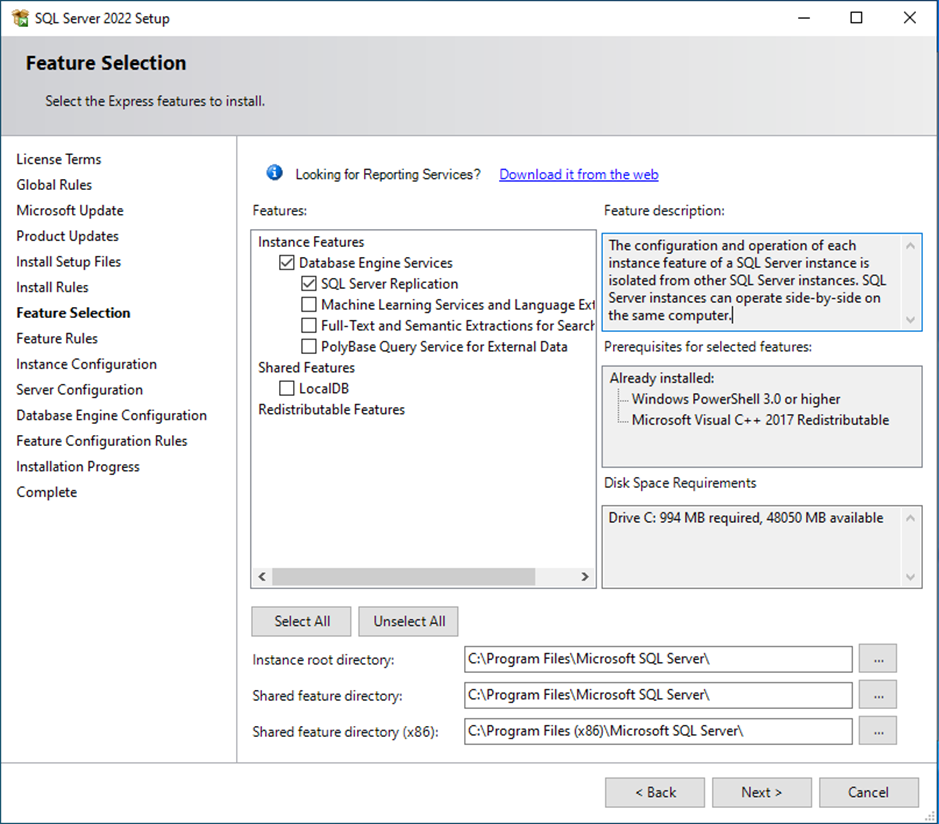 |
| Step 7 | Instance Configuration: Change the named instance to SQLRMS and go to "Instance ID" with the tab key. SQL Server Setup will fill in the ID automatically with the named instance name. Then click on "Next". 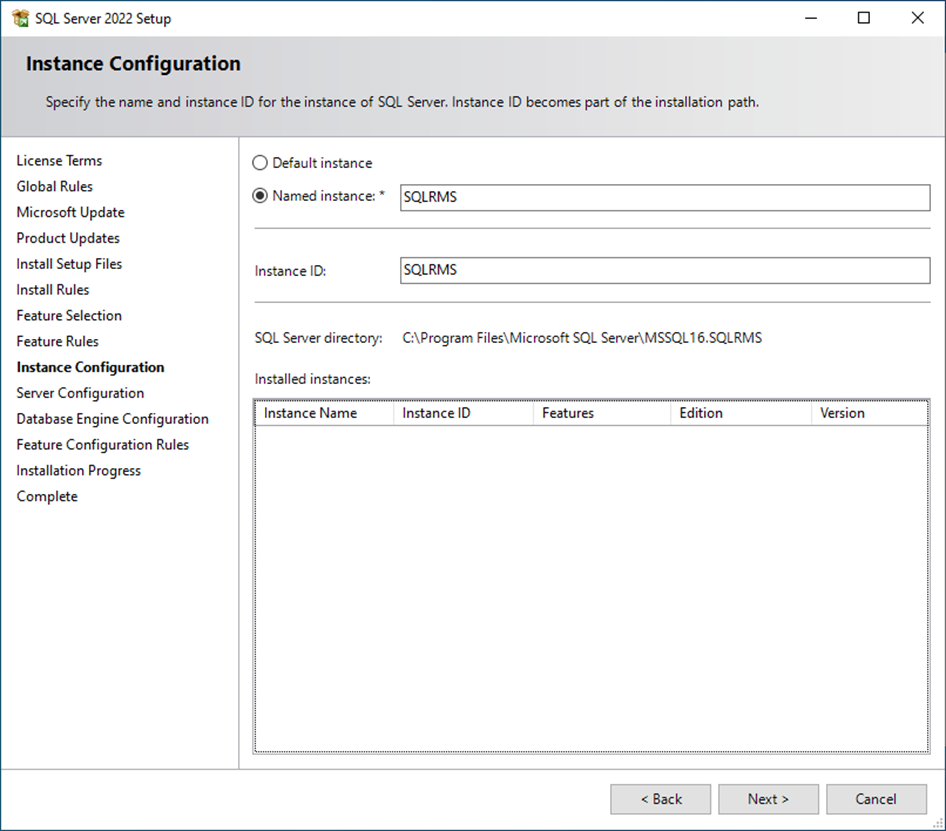 |
| Step 8 | Server Configuration: Make sure that the SQL Server Browser is set to Automatic. Then click on "Next". 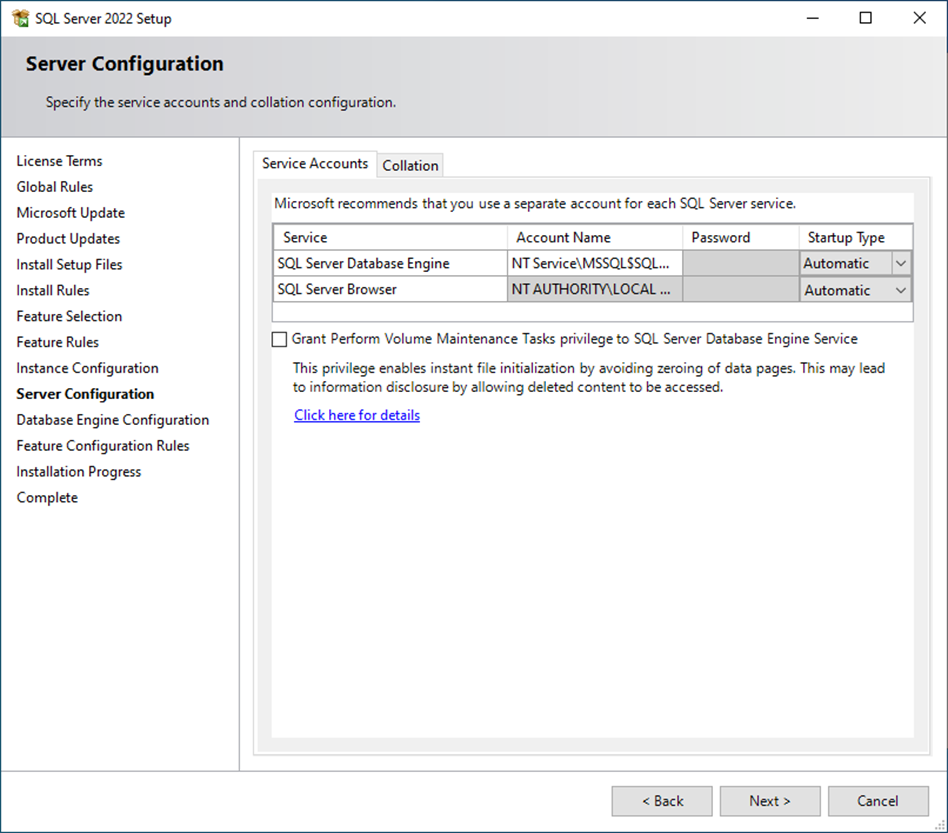 |
| Step 9 | Database Engine Configuration: Select the Windows Authentication mode. Then click on "Next". 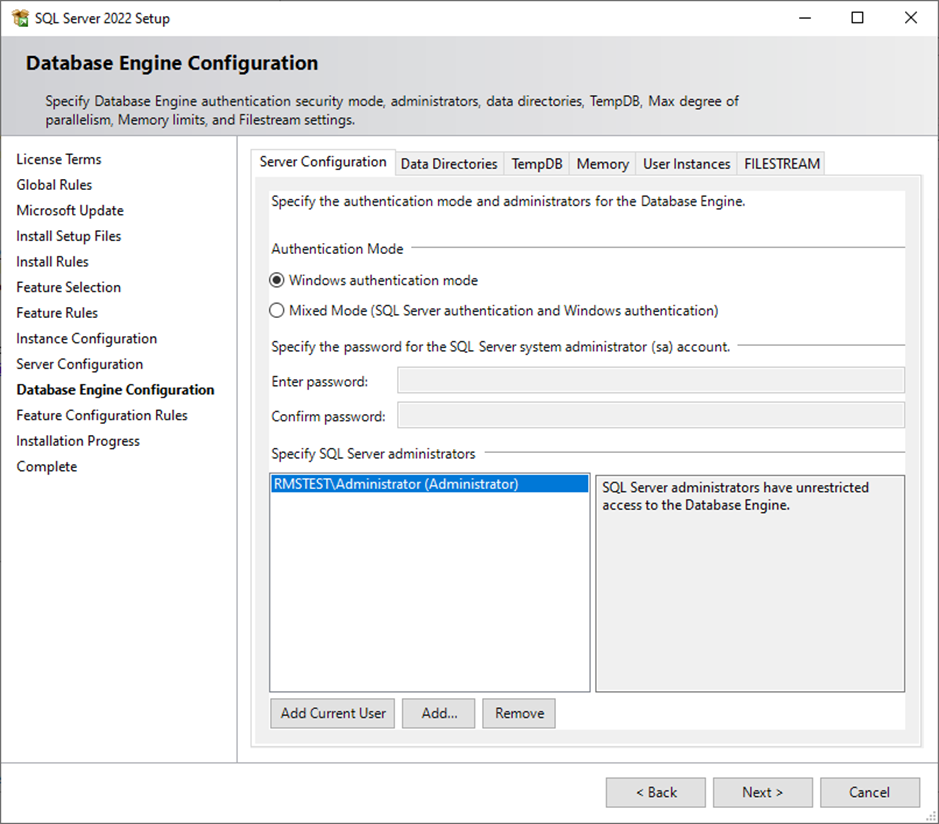 If using Mixed Authentication mode, then please follow the following chapter: Installation and Configuration of the SQL Server Express Using Mixed Authentication Mode If there are further questions, please reach out to [email protected]. The installation will then start: 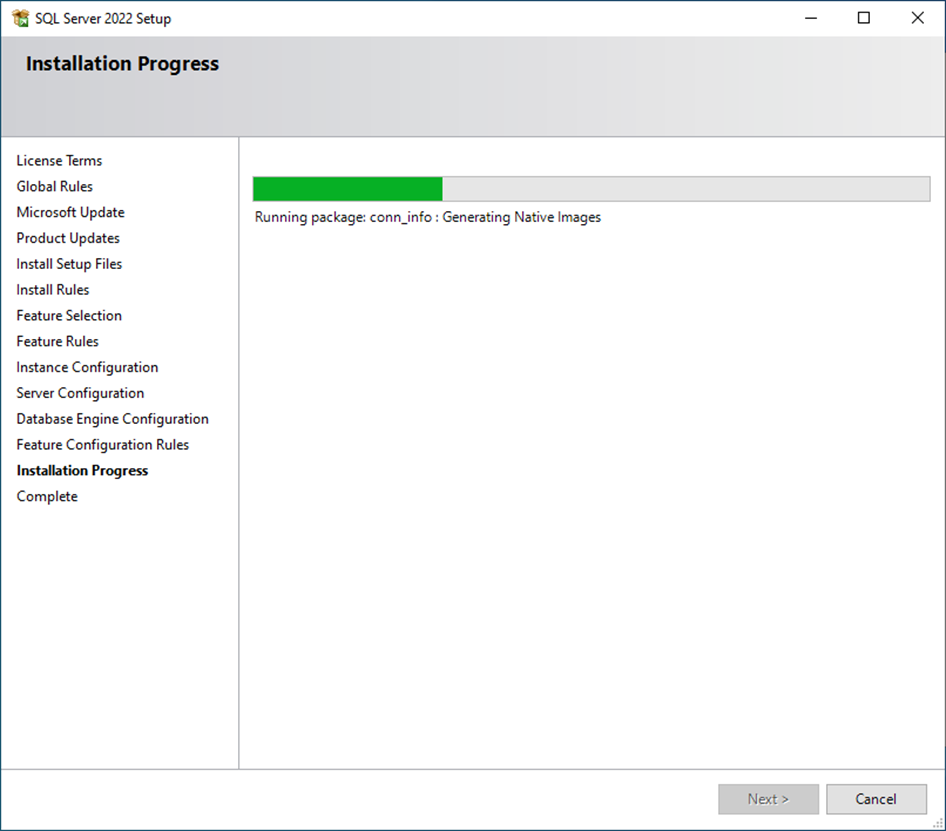 |
| Step 10 | The SQL Server 2022 Setup is now complete. Click on "Close". 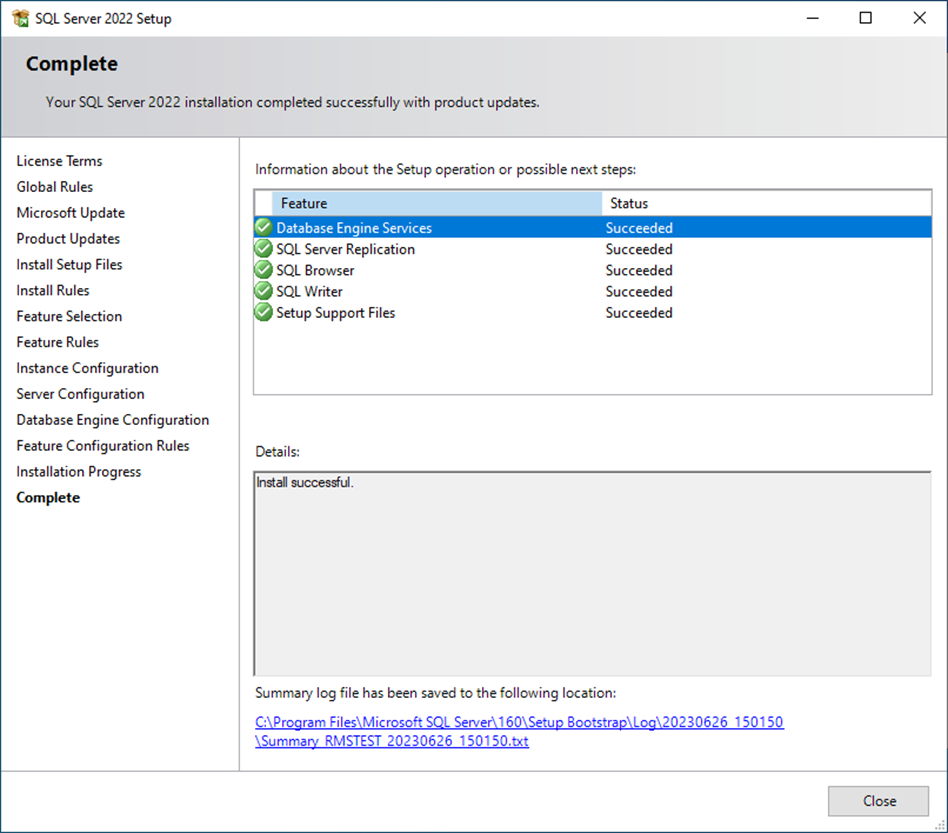 |
| Step 11 | Download and Install SQL Server Management Studio (SSMS). |
Updated: 05.03.2024.