Digital Device - RMS-CONVERTER
Third party digital devices can be added via the RMS-CONVERTER.
| Important: Make sure that the digital device's network settings have been configured according to the network requirements. |
|---|
| Step 1 | Once logged in to your company, click on "Tools" > "Setup" > "Devices", select the RMS-CONVERTER: 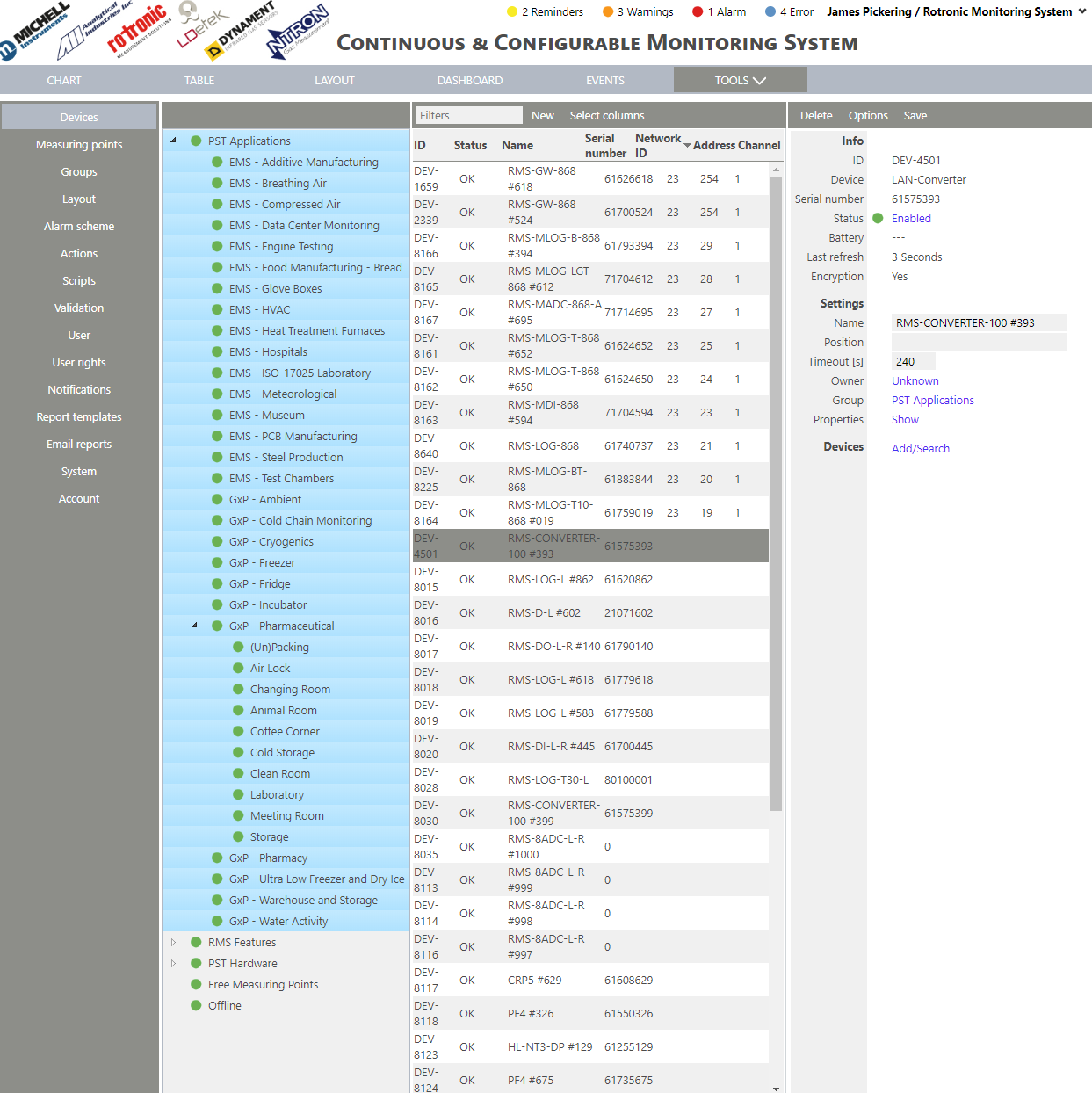 |
|---|---|
| Step 2 | On the right side of the screen, select "Devices" > "Add/Search": 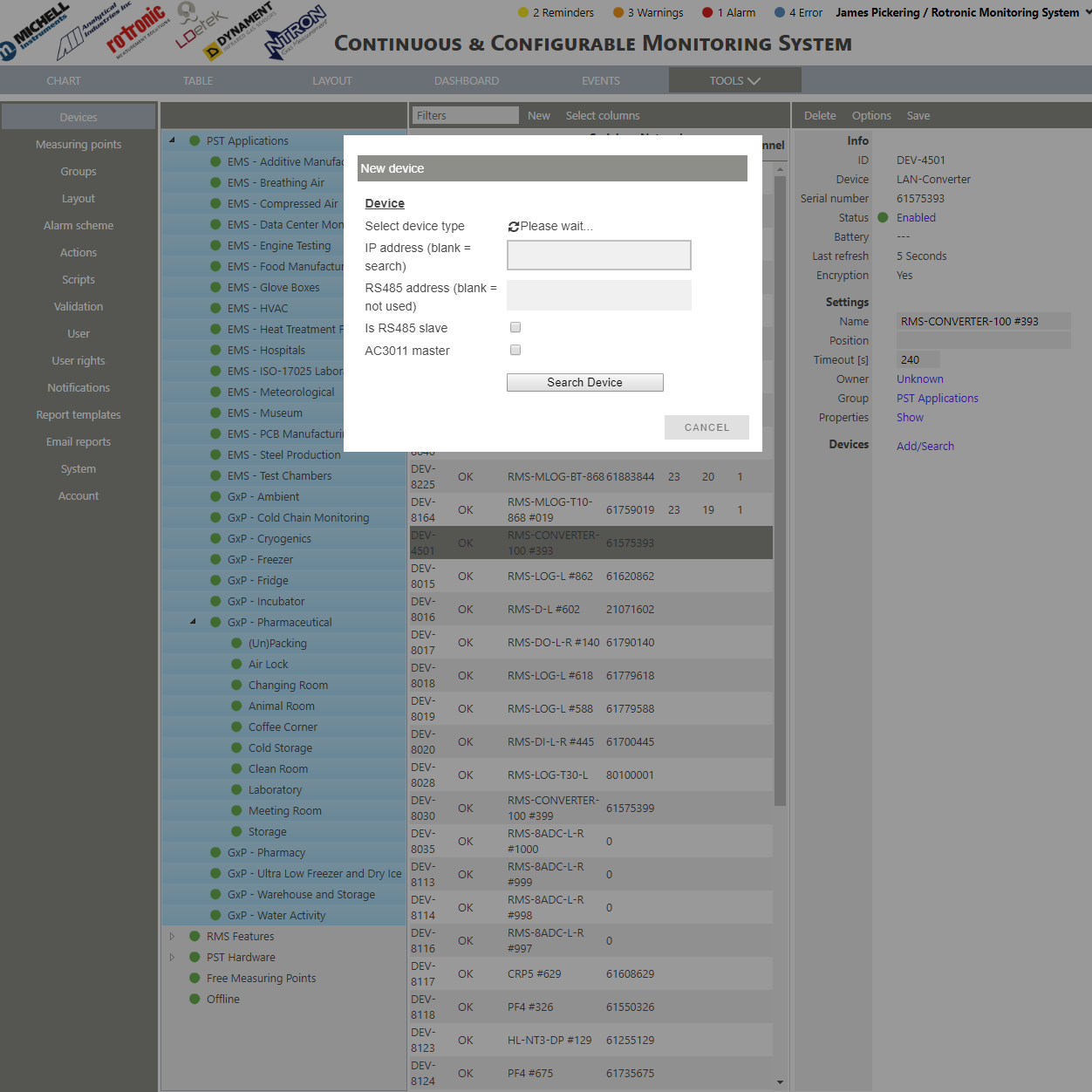 |
| Step 3 | Select the digital device: - AirChip3000 device (Rotronic conventional products), - HL-NT/HygroLog NT, - HL-RC, - Lighthouse APEX R5, - RMS-8ADC-L-R-A, - RMS-8ADC-L-R-V, - RMS-4RTD-L-R, - Redlion E3-16ISOTC, - MODBUS TCP devices. |
| Step 4 | Add the device's IP address. IMPORTANT: When adding third party digital devices, use only static IP addresses. If a device is unplugged or a DHCP IP address is changed, the RMS-CONVERTER will no longer be connected to the third party device! |
| Step 5 | |
| Step 6 | Then click on "Search Device". The device will appear in RMS: 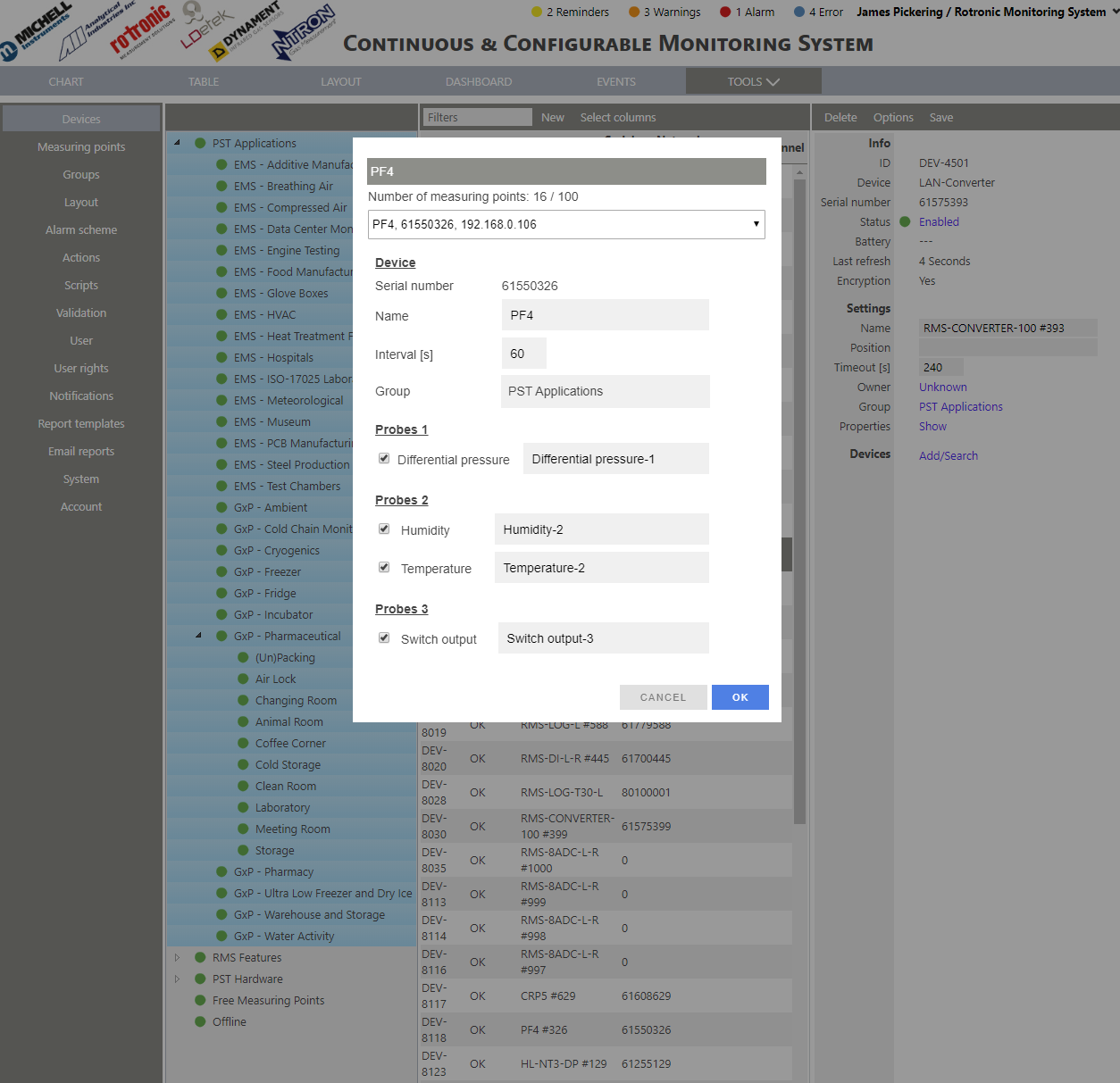 IMPORTANT: Ensure that the correct measuring point is selected when adding a particle counter within RMS: Particle Monitoring within RMS. |
| Step 7 | Carry out the device setup and click on "OK". The device is then added to the RMS account. Each different device will have its own setup. |