Export data via the data analysis function
The data analysis offers the possibility to extract data via .PDF, .csv or JSON reports.
| Step 1 | From the start page, click on Tools>Data Analysis: 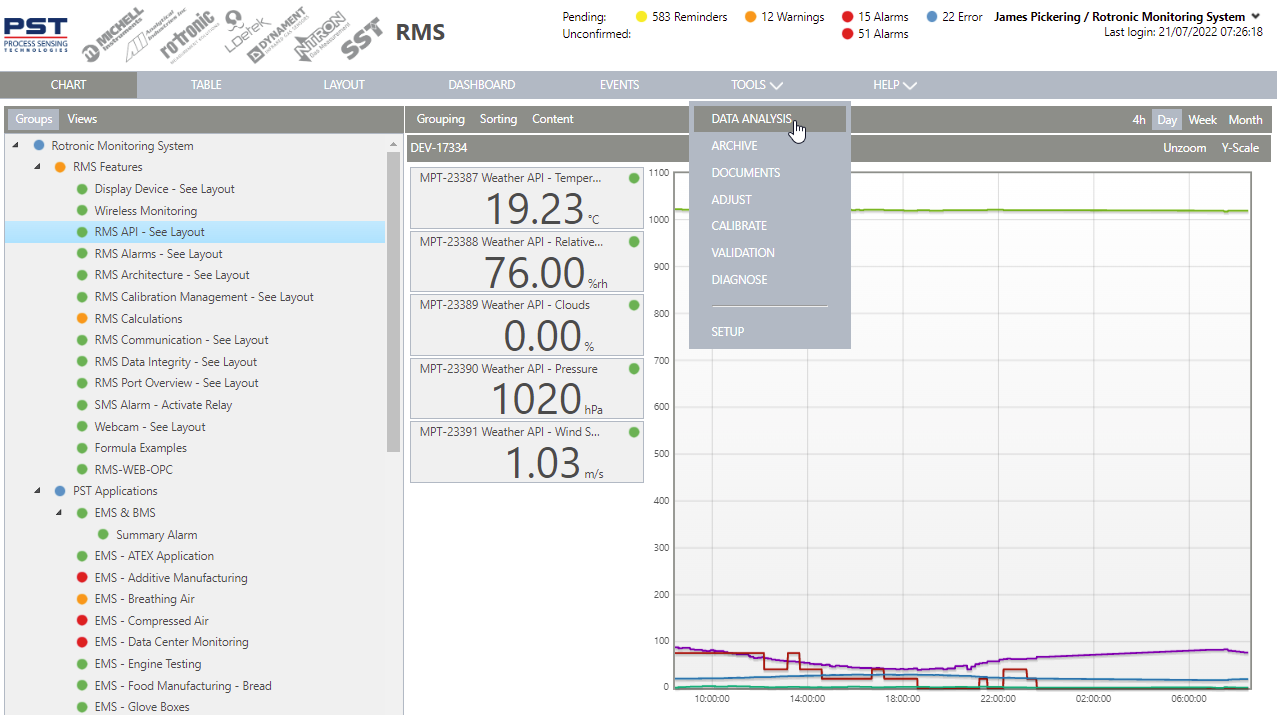 |
|---|---|
| Step 2 | Under navigation, select the required time frame, either via the predefined ranges or select the required range via the from/to function: 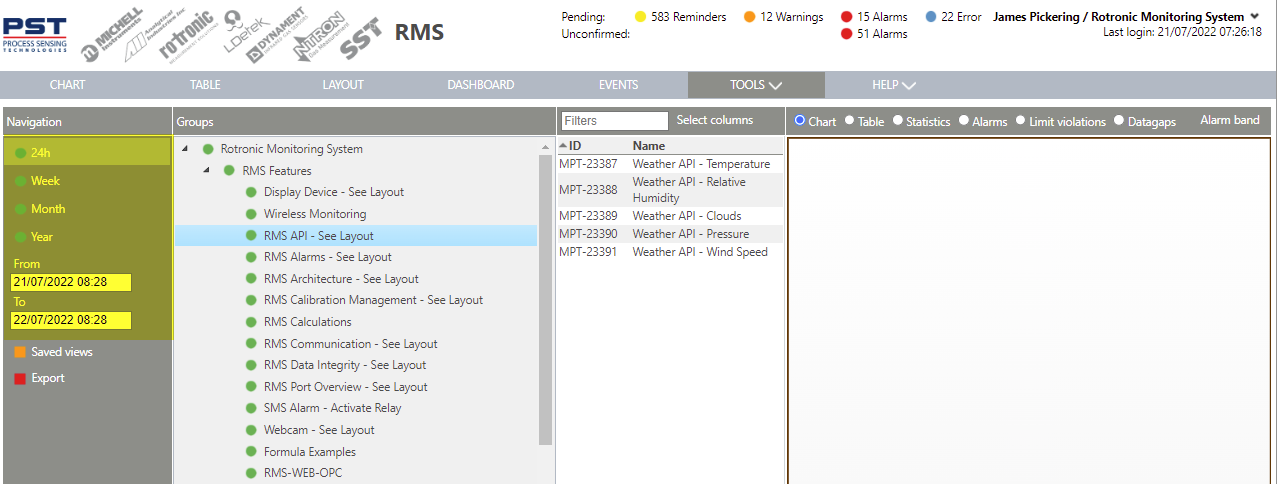 |
| Step 3 | Under groups, select the group where the measuring point(s) is/are located: 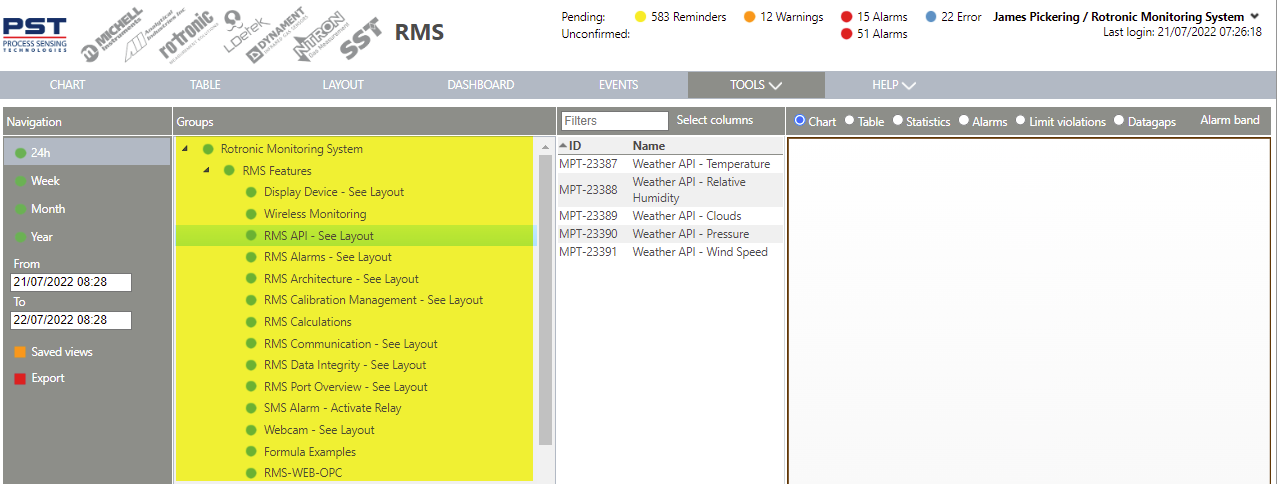 Under groups the user can select one or more groups (SHIFT or CONTROL). |
| Step 4 | Select the measuring point(s) required: 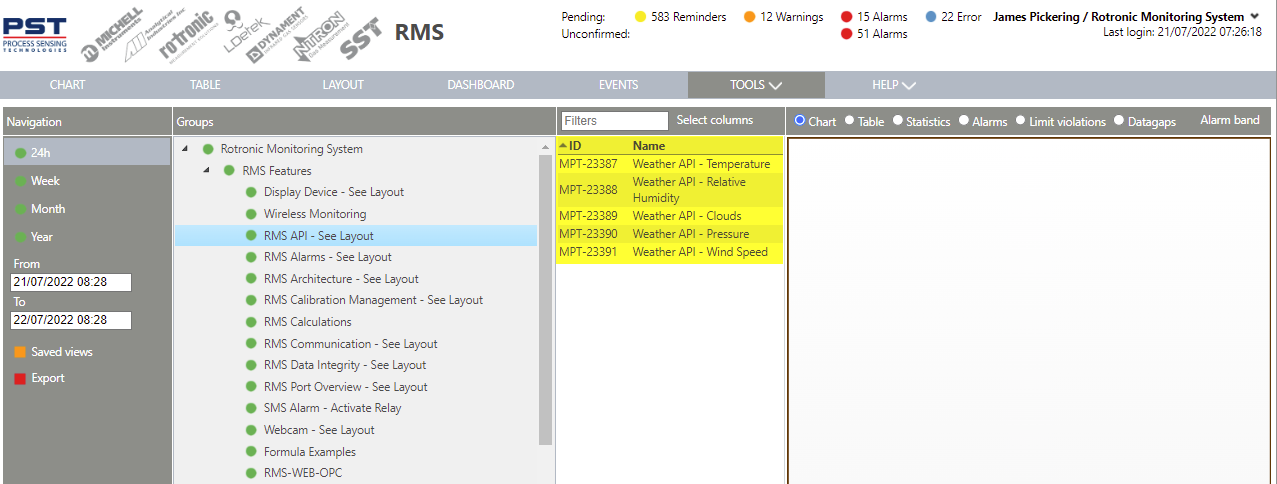 The user can then select one or more measuring points (SHIFT or CONTROL). |
| Step 5 | Once the require measuring point(s) selected, go to Export and select either CSV, PDF or JSON report: 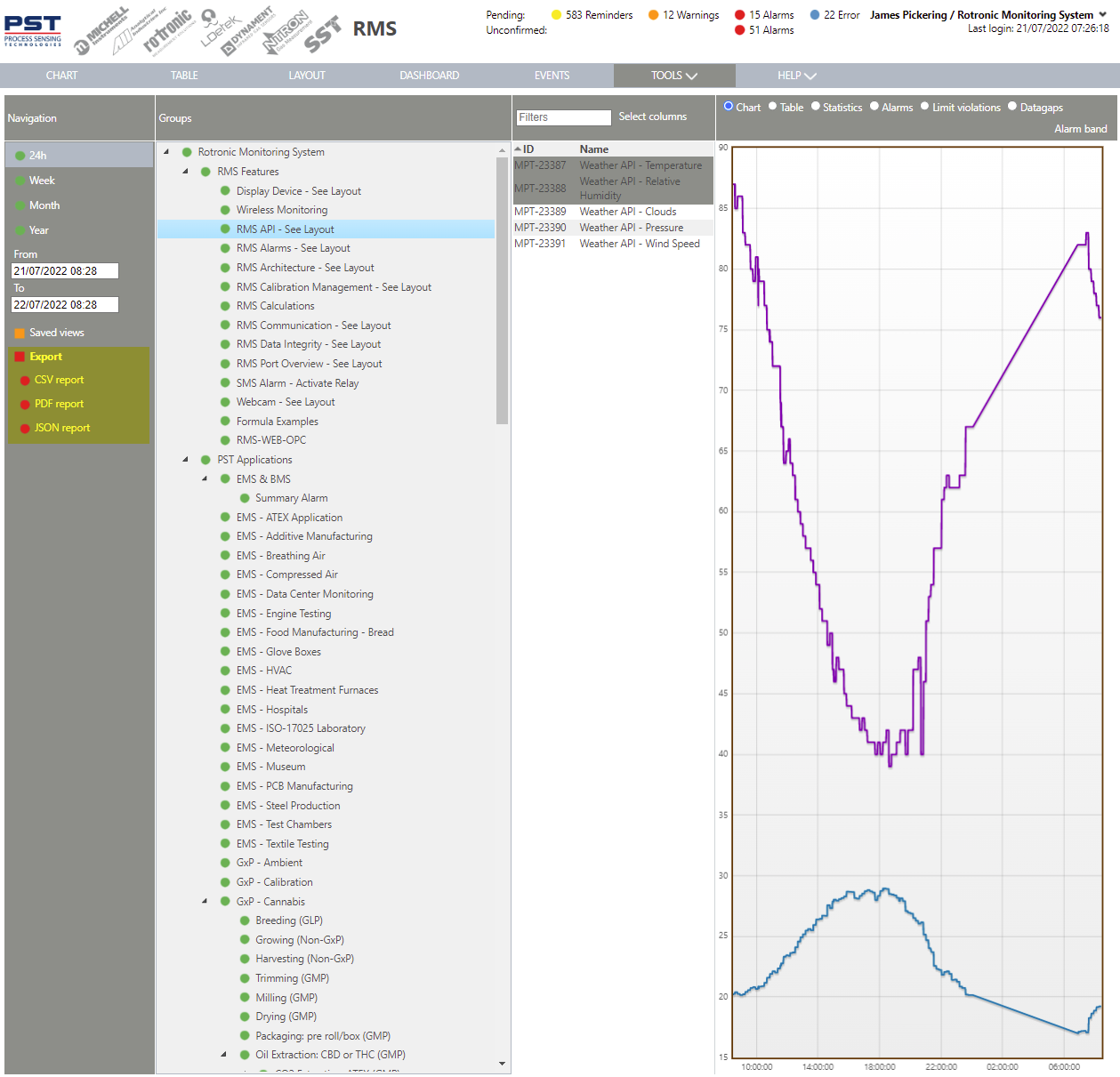 Once selected, the report will download/open. |
| Step 6 | Example of a CSV report: 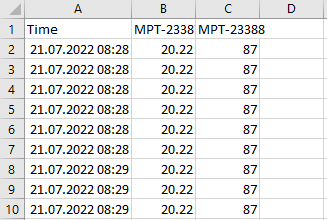 |
| Step 7 | When extracting via PDF: 1. Add a name for the report. 2. Select a template: Tools>Setup>Report Templates Explained. 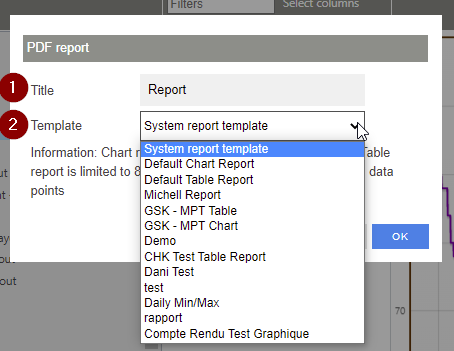 Click on OK to generate the PDF report. |
| Step 8 | Example of a PDF report: 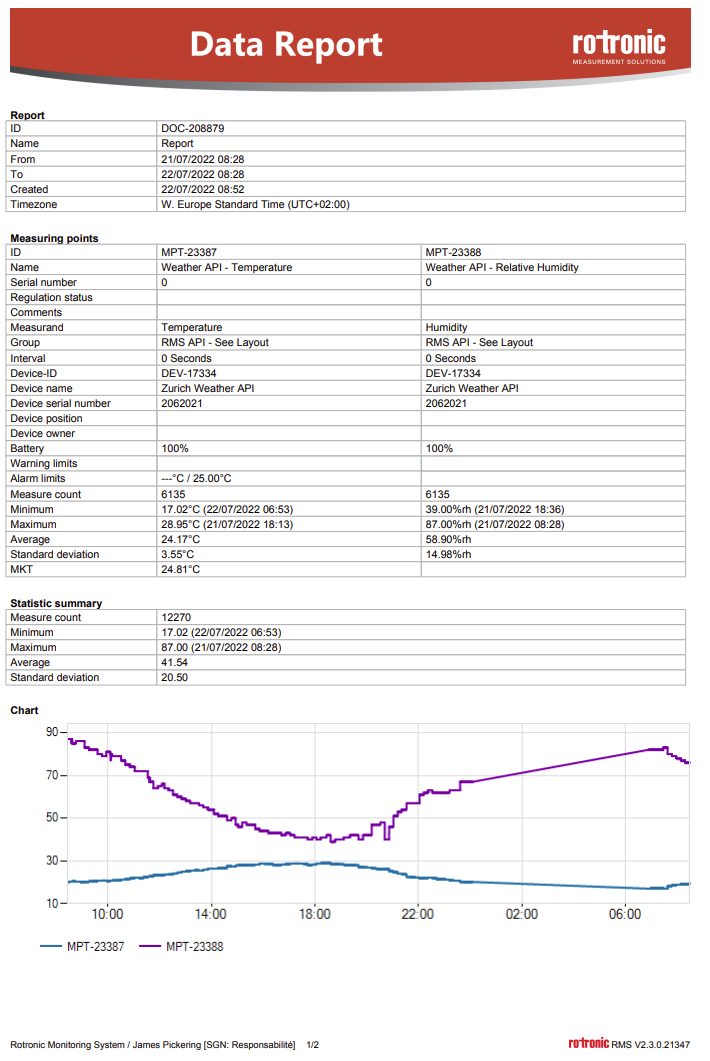 |
| Step 9 | When a PDF report is created, this will appear within the audit trail: 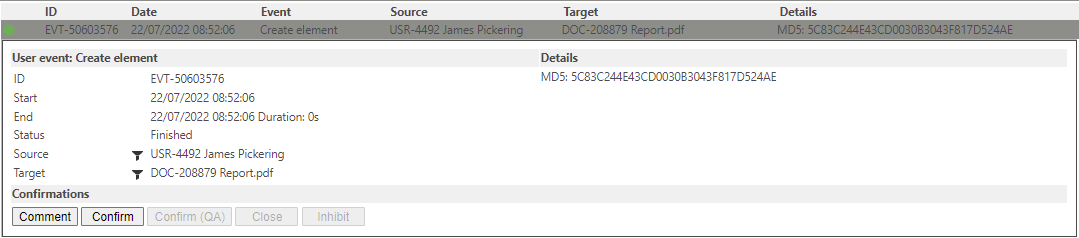 |
| Step 10 | The PDF is saved on the server and can be found under Tools>Documents: 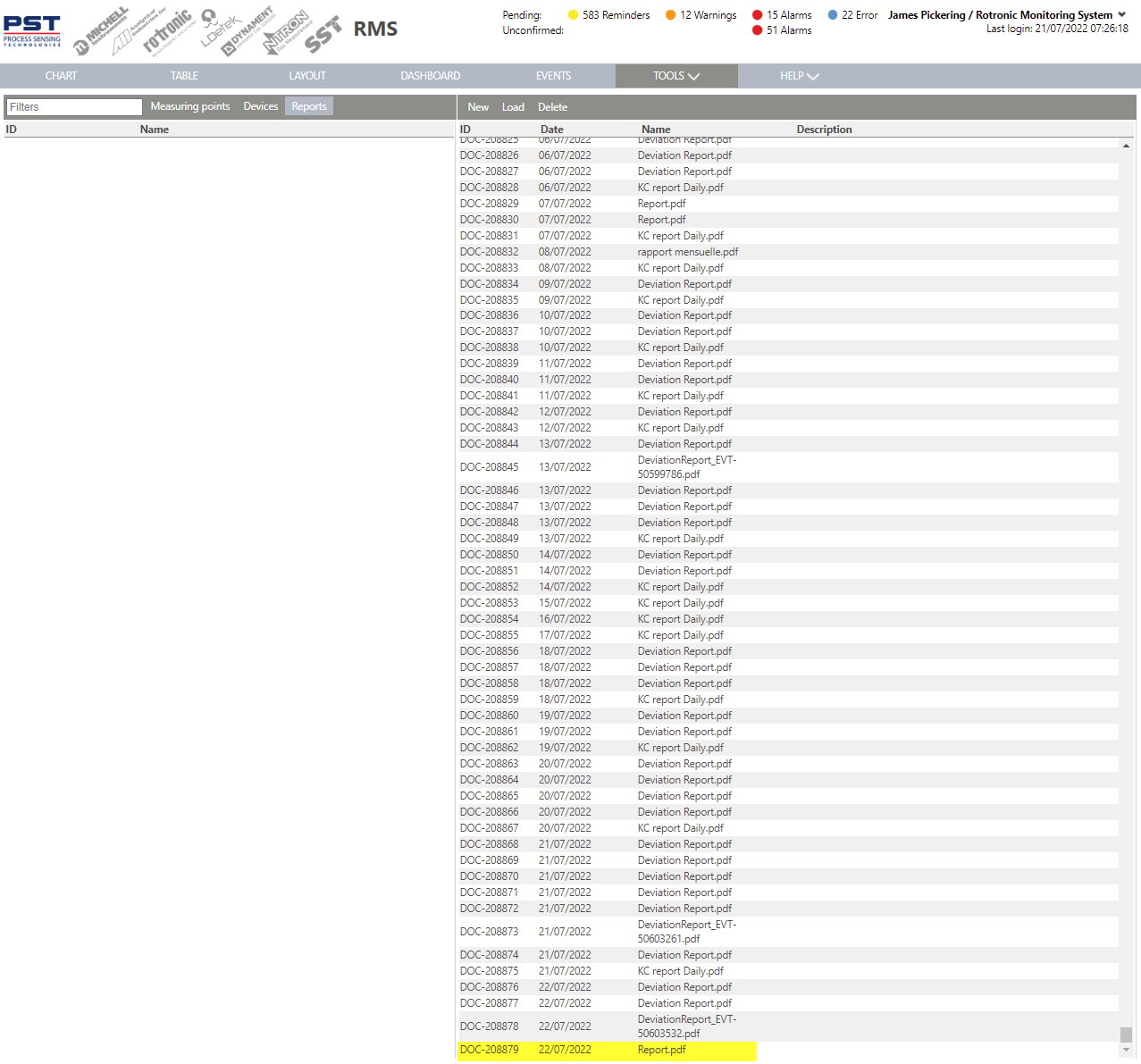 |
| Step 11 | Example of a JSON report, that will open in the browser:  |