Chart View
Display of the current measured values graphically and numerically. All kinds of measuring points can be shown in "Chart" view:
There are two buttons in the navigation bar. "Groups" and "Views".
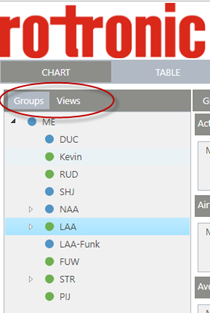
Figure 1: Navigation bar in "Chart" view
Groups view
By choosing "Groups" (see Figure 1), the tree of the system defined groups will be displayed. By selecting a group, all measure points pertaining to the group will be displayed. It is possible to select multiple groups. An example:
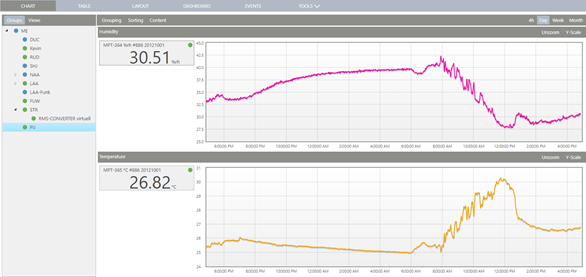
Figure 2: Graphic and numerical display of measured values in the "Groups" view
Main menu:
| Grouping | Automatic creation of Categories depending on: |
|---|---|
| Sorting | Sorting of the measure point panels (inside category) by: |
| Content | Displayed Information for a measure point inside panel: Synchronize X-axis for all charts if one chart is zoomed |
| Chart Range (right) | Select time range for chart (all visible categories) |
Category Menu:
| Unzoom | Zoom back in the zoom history (if chart is zoomed) |
|---|---|
| Y-Scale | Select automatic or manual scale range for the Y-axis |
User defined view
By choosing "Views" (see Figure 1), the "User defined" views will be displayed. An example:
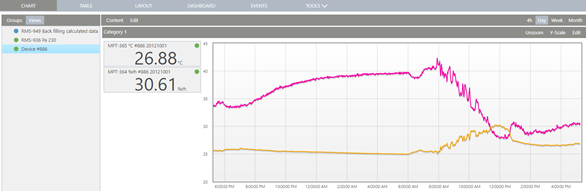
Figure 3: Graphic and numerical display of measured values in the "User defined" view
Main Menu
| Content | Displayed Information for a measure point inside a panel: |
|---|---|
| Edit | Create a new (empty) User view - Rename Rename the current user view - Save as Save a copy of the current user view - Delete Remove the current user view - Add Category Adds a new Category at the bottom |
"Category Edit" Menu
| Select Measure points | Opens a dialog to select measuring points for the current category |
|---|---|
| Rename | Rename the current category |
| Delete | Delete the current category |
Move measure point panels
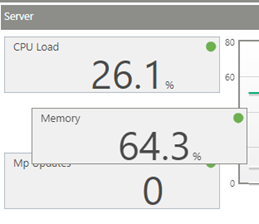
Figure 4: Drag and drop panels to reorder or remove measuring points