Download and Install SQL Server Management Studio (SSMS)
| Step 2 | Double click on the "SETUP.EXE": 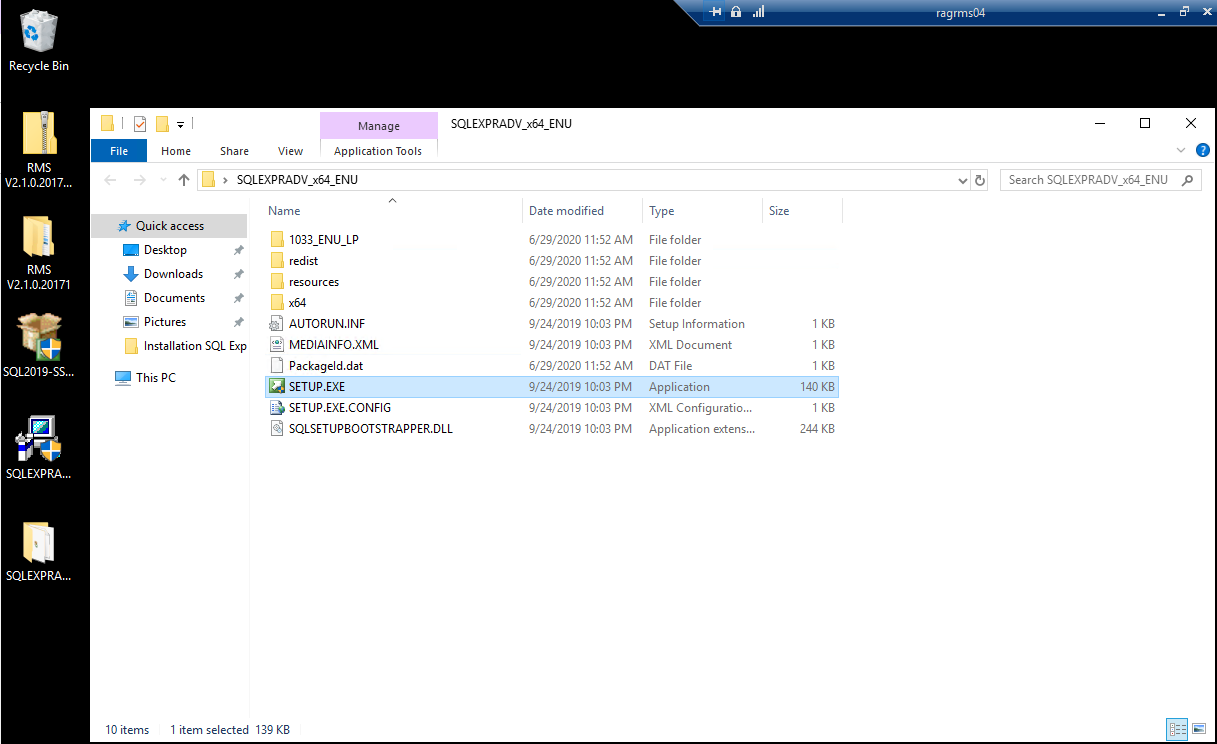 |
|---|---|
| Step 3 | Click on Install SQL Server Management Tools: 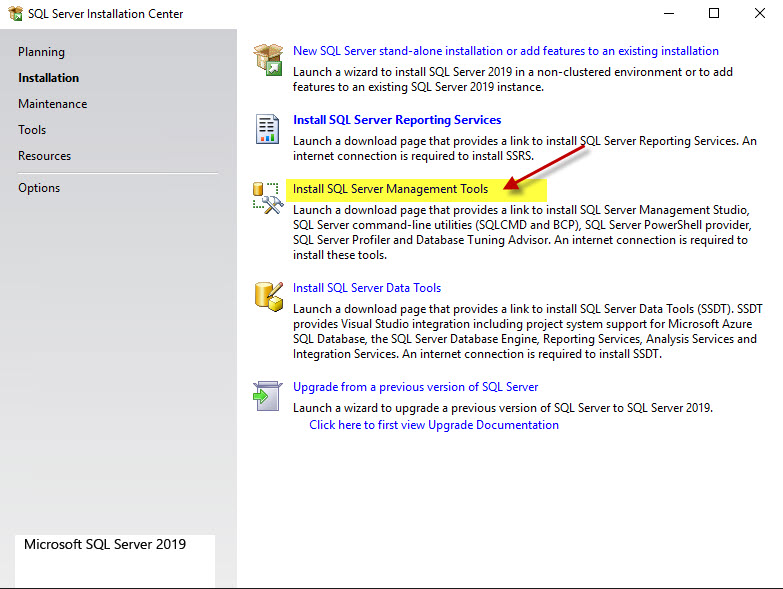 |
| Step 4 | The follow Microsoft website / link will appear: https://docs.microsoft.com/en-us/sql/ssms/download-sql-server-management-studio-ssms?redirectedfrom=MSDN&view=sql-server-ver15 Download the SQL Server Management Studio (SSMS) and save it to the desktop or download folder. 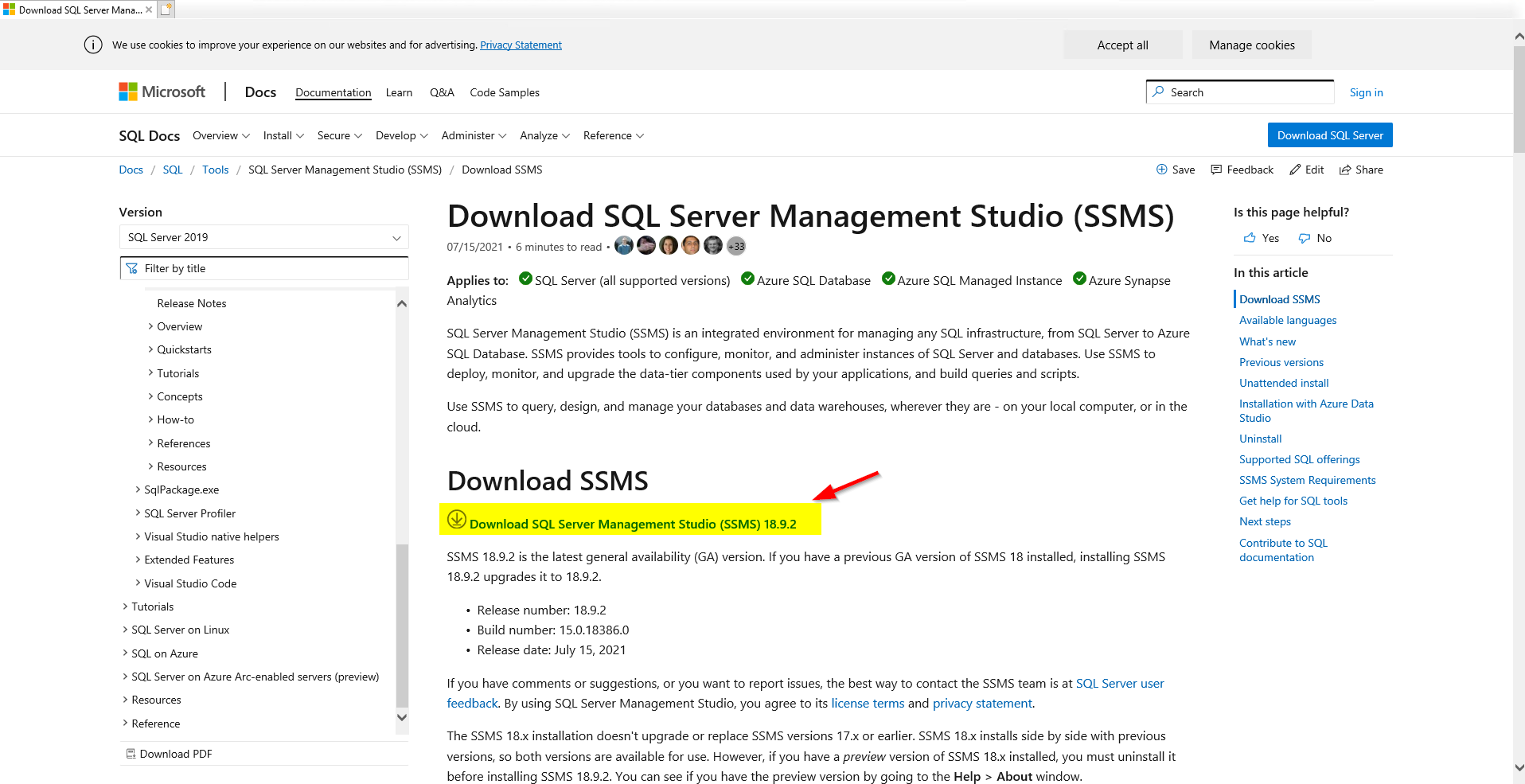 |
| Step 5 | Open the folder and execute the SSMS-SETUP-ENU.exe: 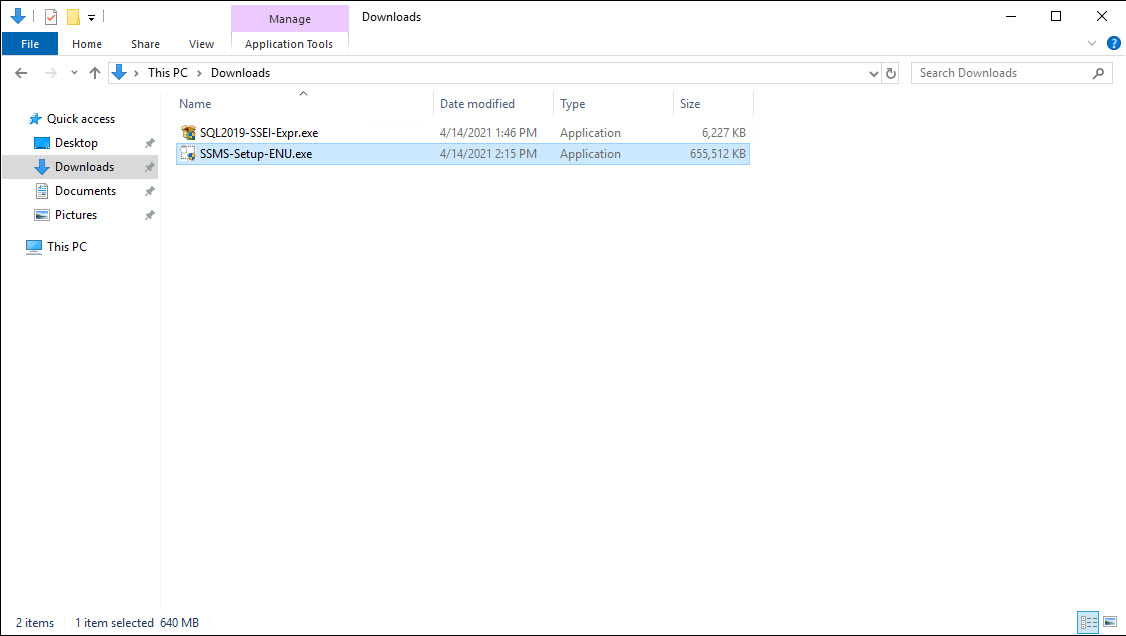 |
| Step 6 | Click on Yes: 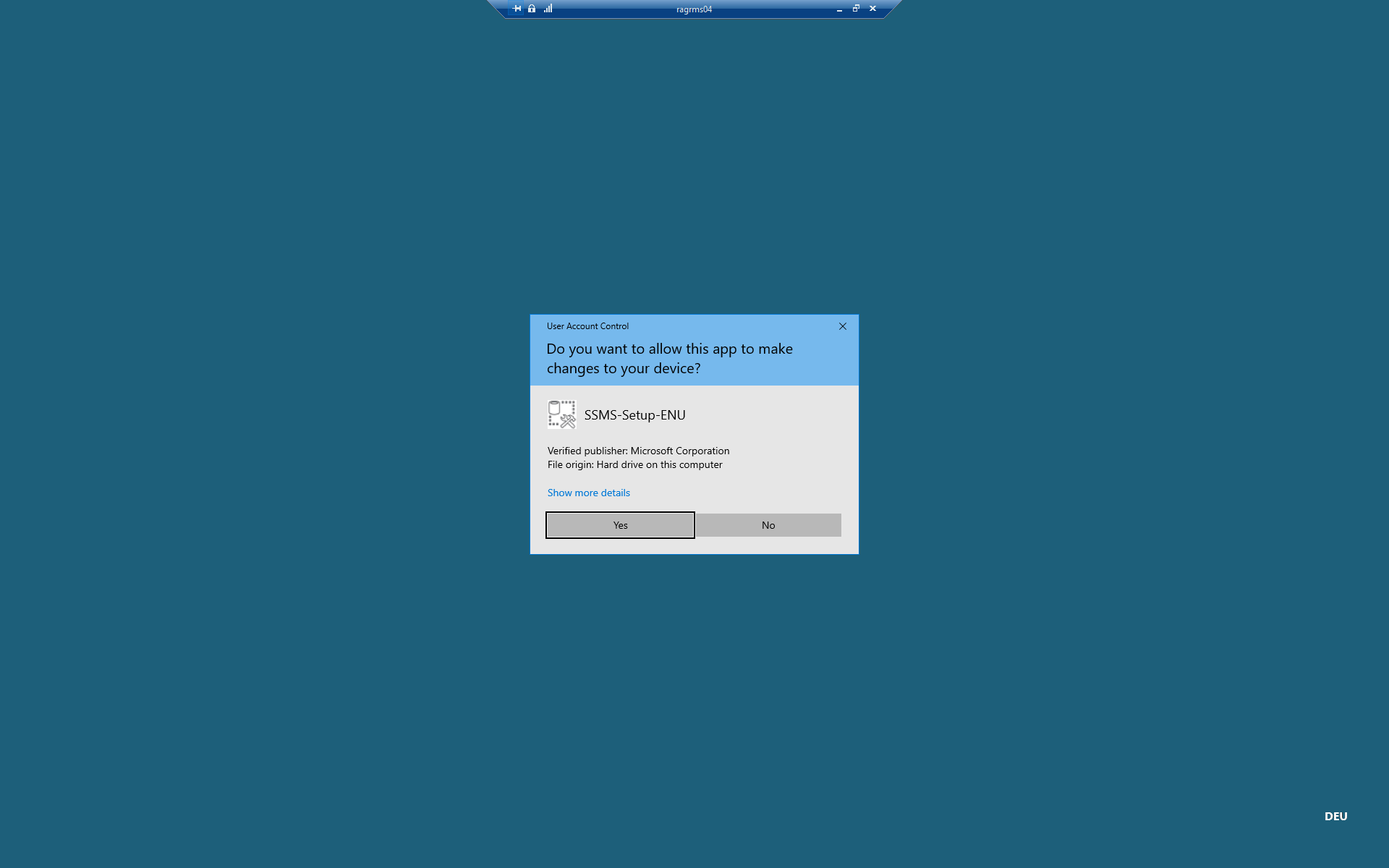 |
| Step 7 | Install the SQL Server Management Studio: 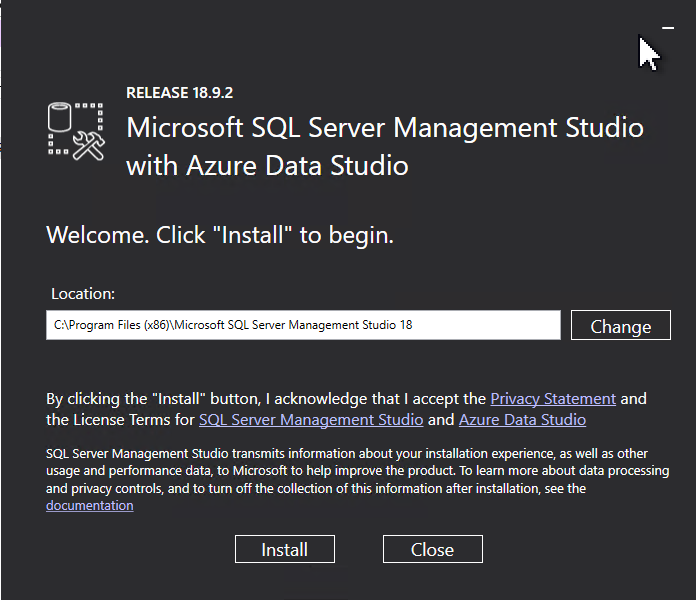 |
| Step 8 | Click on "Restart" to finish the installation: 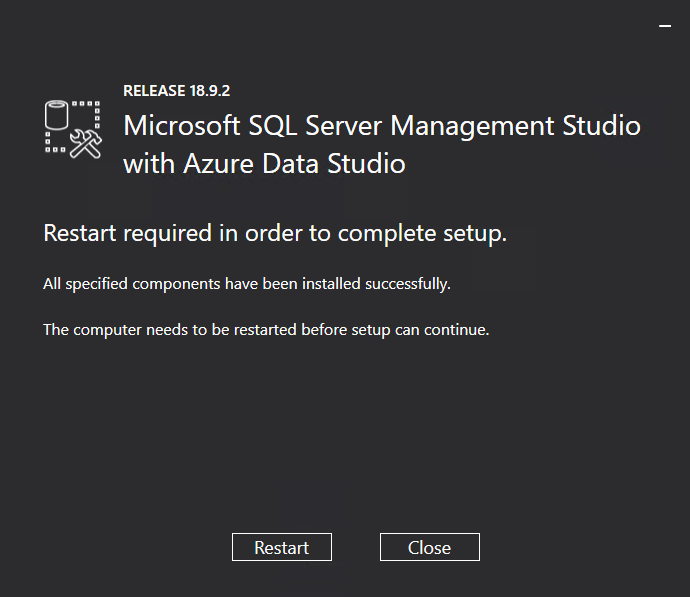 |