Enable IIS Web Server
| Step 1 | In the Server Manager Dashboard, start "Add Roles and Features Wizard" 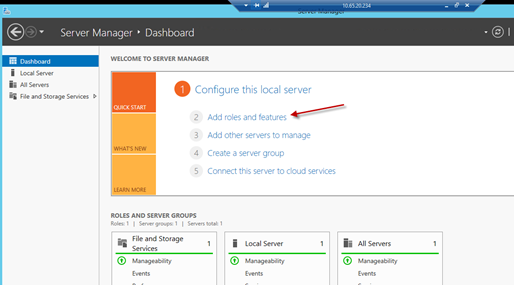 |
|
|---|---|---|
| Step 2 | There are no special settings needed for "Before you begin", "Installation Type" and "Server Selection" | No special settings needed in this screen 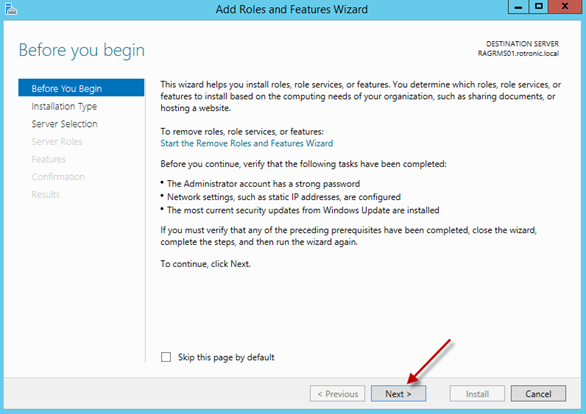 |
Selection of the installation type 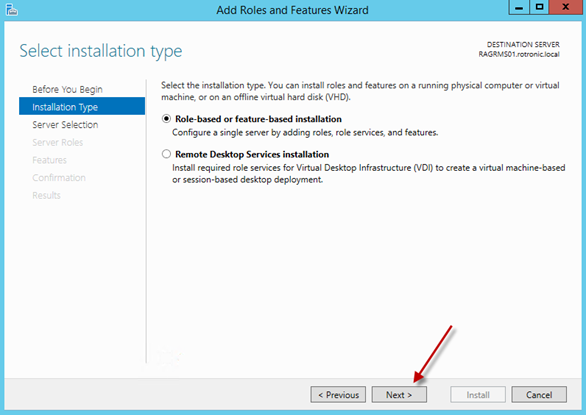 |
||
Selection of server 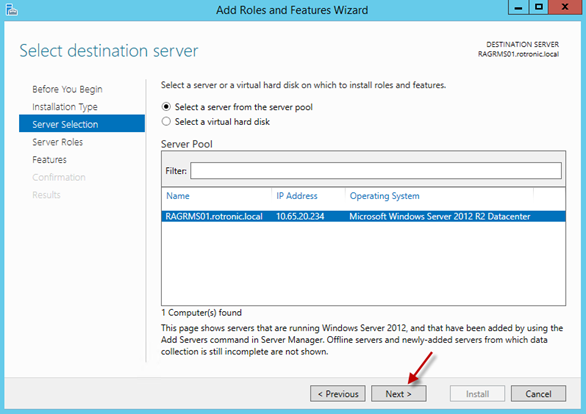 |
||
Enable IIS Web Server. Click "Add feature" to install IIS 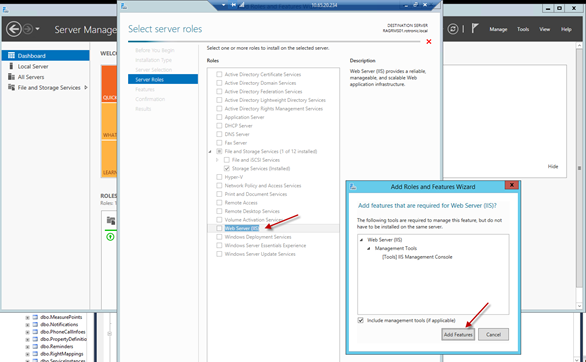 |
- Configure the IIS web service as shown below.
| Note: The settings in following figures represent mostly the standard settings. For RMS installation, the following settings are important: |
|---|
| Step 1 | Configuration of features and IIS web service, part 1 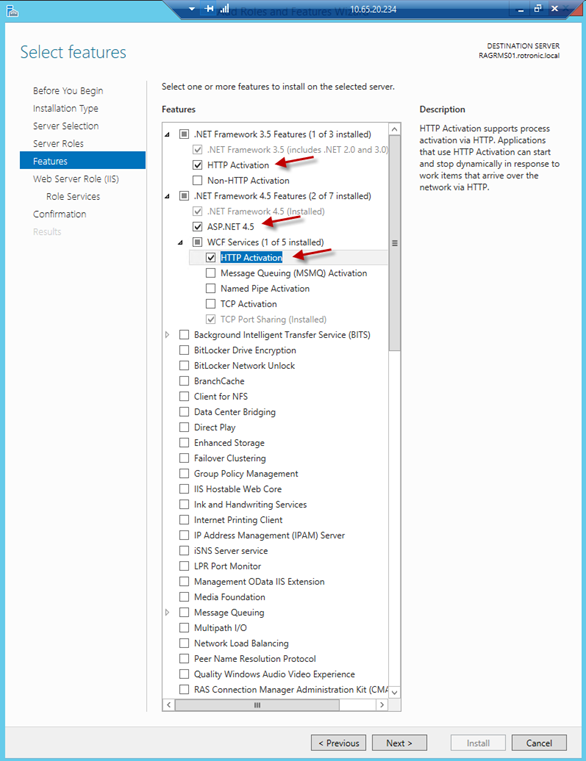 |
|---|---|
| Step 2 | Configuration of features and IIS web service, part 2 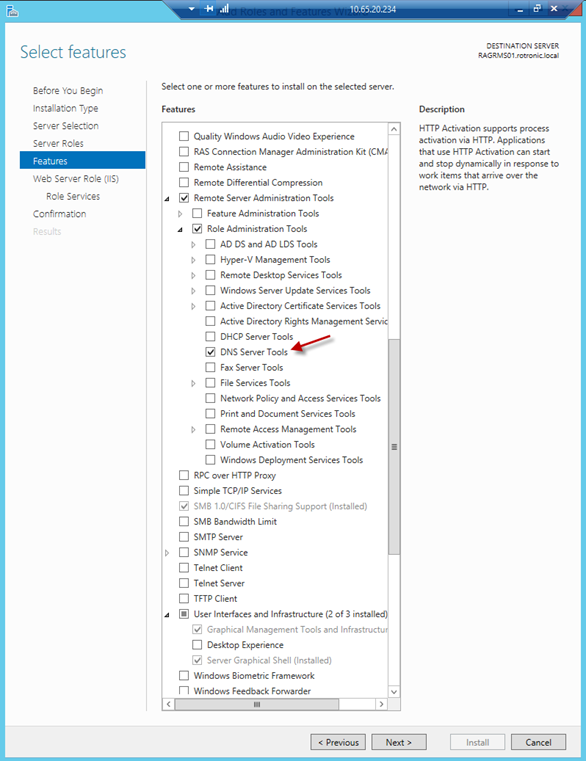 |
| Step 3 | Configuration of features and IIS web service, part 3 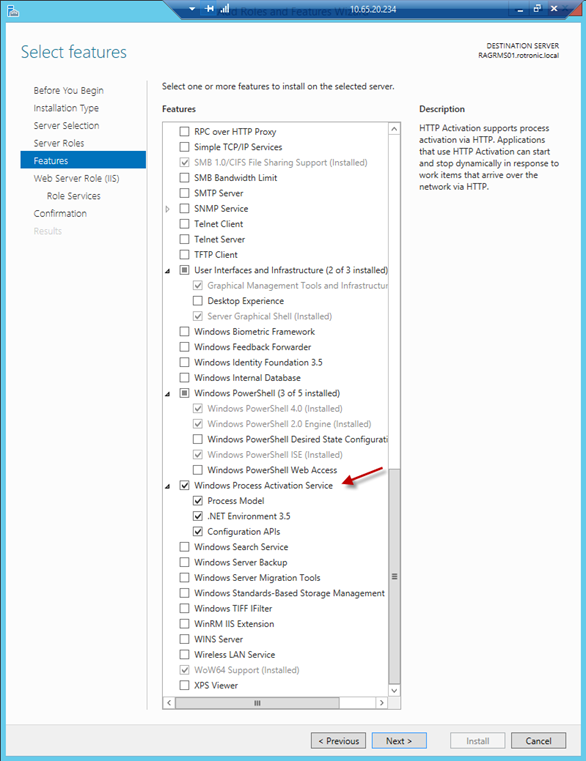 |
| Step 4 | Configuration of features and IIS web service, part 4 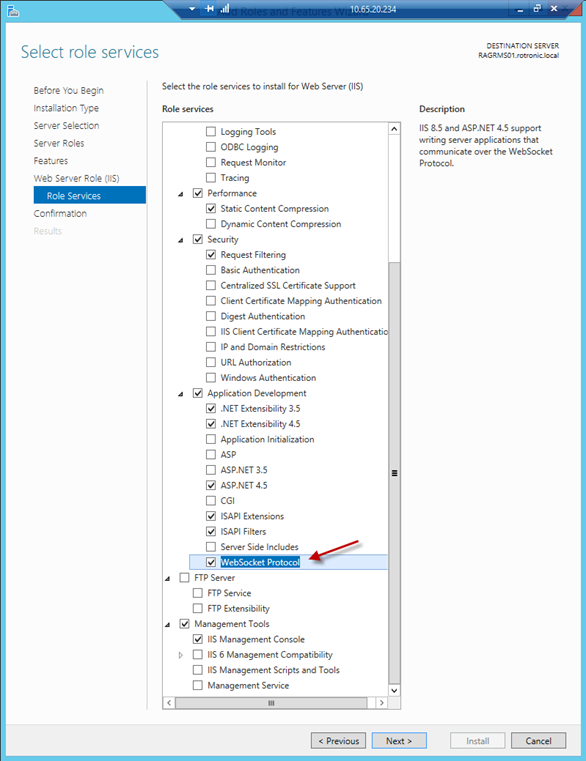 |