Maintenance
Firmware update
The RMS-CONVERTER-100 firmware update can be done either via RMS or with the RMS-CONFIG software. The actual version of the firmware can be found at www.rotronic.com.
| Important: In order to carry out a firmware update with RMS-CONFIG the RMS-CONVERTER-100 must be disabled within RMS. |
|---|
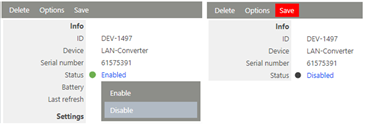
Figure 1: Disable the device in RMS
Firmware Update via RMS
| Step 1 | Log in to the RMS software > "Tools" > "Setup" > "Device" and select the RMS-CONVERTER-100 for the firmware update. |
|---|---|
| Step 2 | Select "Options" and click on "Firmware update". 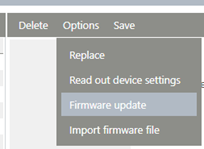 |
| Step 3 | The RMS software compares the actual firmware version with the latest firmware version and devices if a firmware update is required or not. Click on "OK". 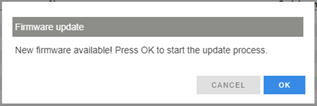 |
| Step 4 | Firmware will update:  |
| Step 5 | Firmware updated successfully:  |
| Important: 1. For customer with a On-premise server solution, the actual firmware file of the RMS-CONVERTER-100 might be download before (https://www.rotronic.com/de-ch/rms/downloads-rms) and integrated into the RMS (Please click Tools -> Documents -> Firmware files -> New). For Cloud customers, the actual device firmware is already available. 2. Only firmware updates are possible. |
|---|
Firmware Update via RMS-CONFIG
| Step 1 | Add the RMS-CONVERTER-100 to RMS-Config: "Device" > "Search" > "Network devices". |
|---|---|
| Step 2 | Choose the device and select "Add". |
| Step 3 | The login window of RMS-Config appears: 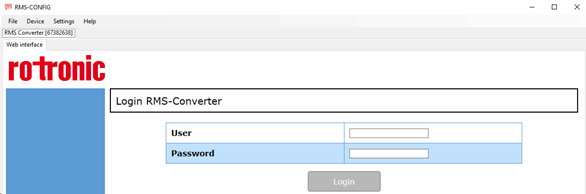 |
| Step 4 | Select "Settings" and click on "Update Firmware". 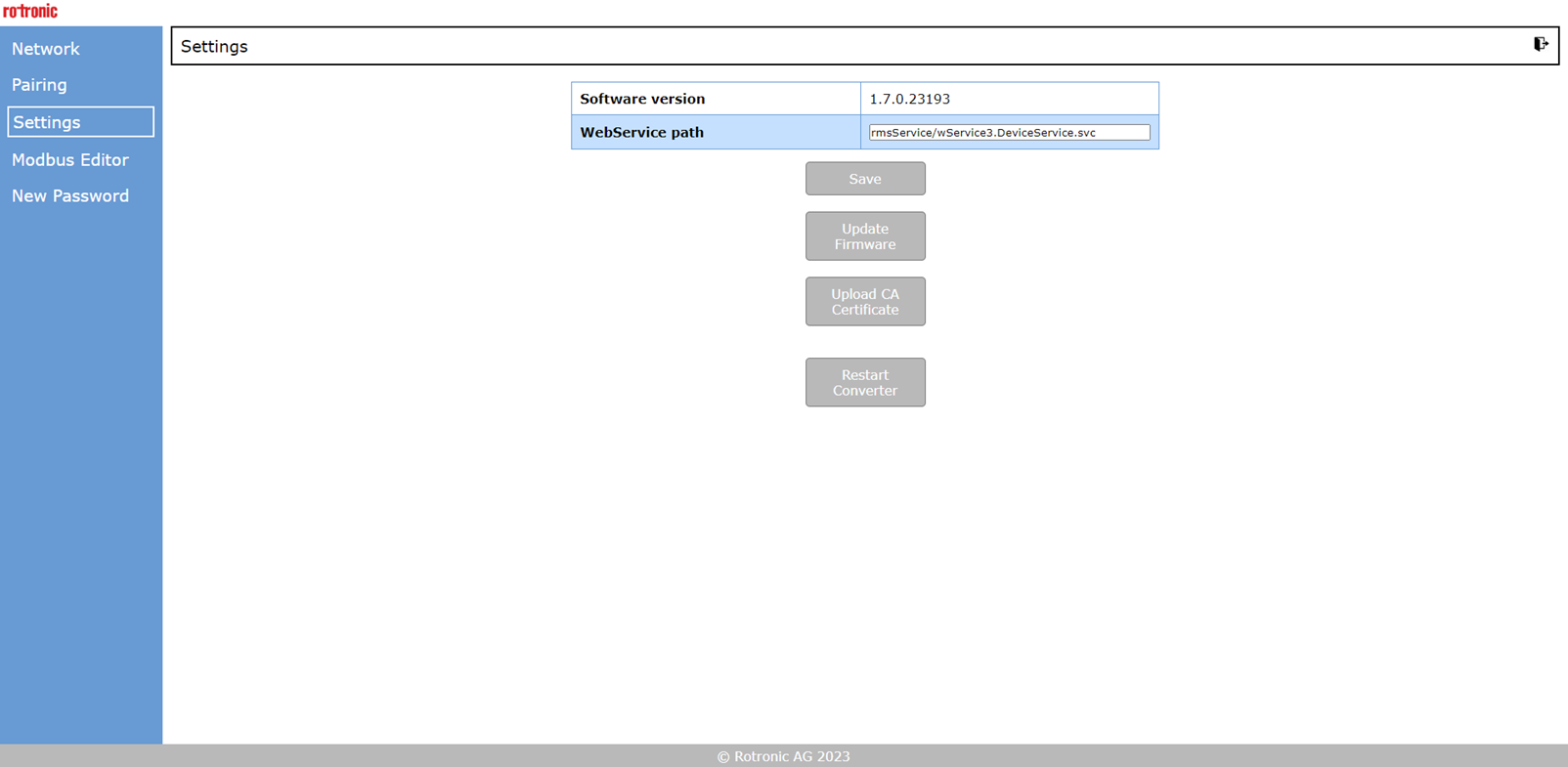 |
| Step 5 | A dialog window open, select the ".bin" firmware and open. |
| Step 6 | Firmware update complete. 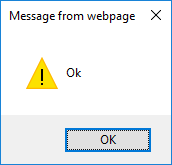 |
| Important: 1. Firmware updates and downgrades are possible. |
|---|