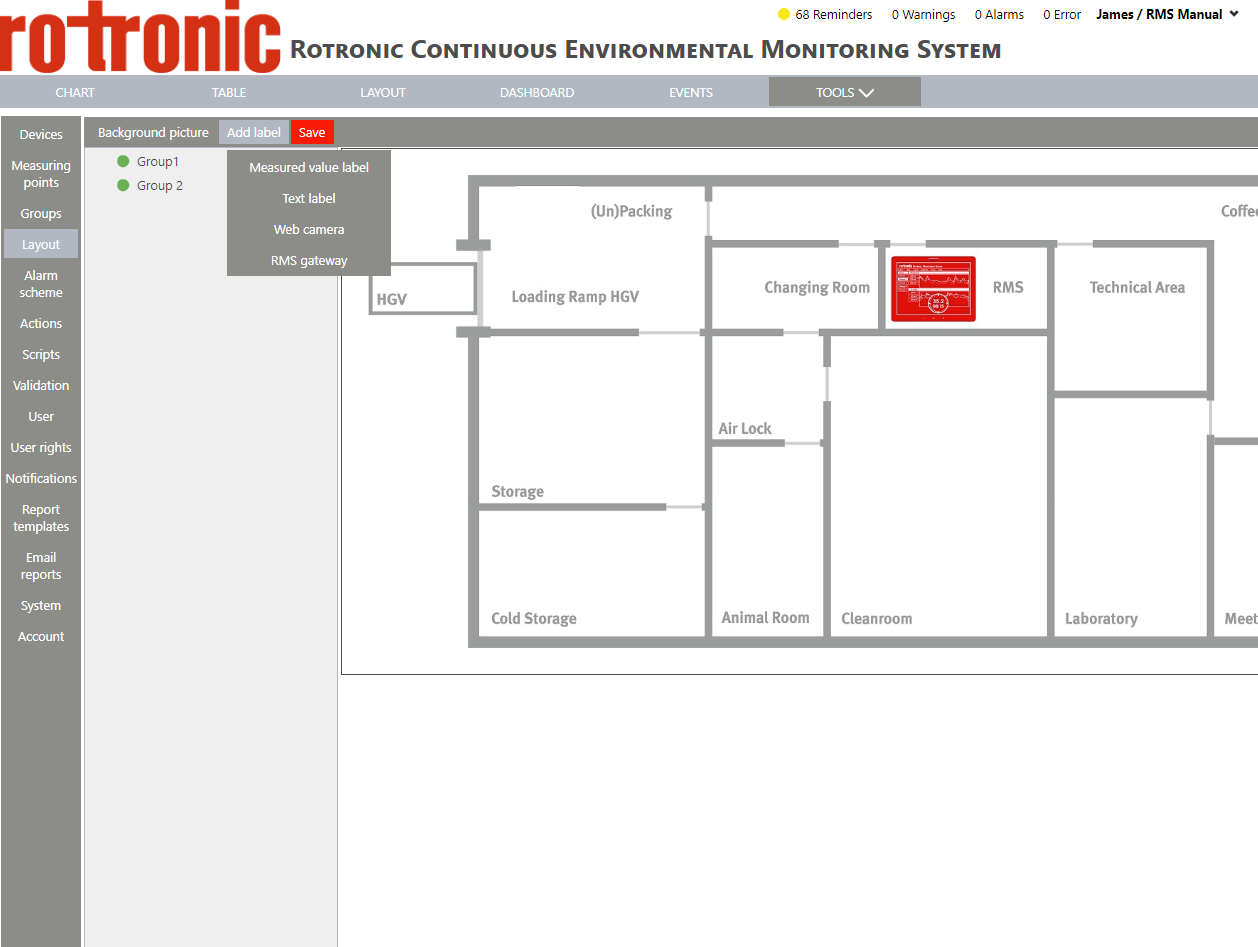
| Step 2 |
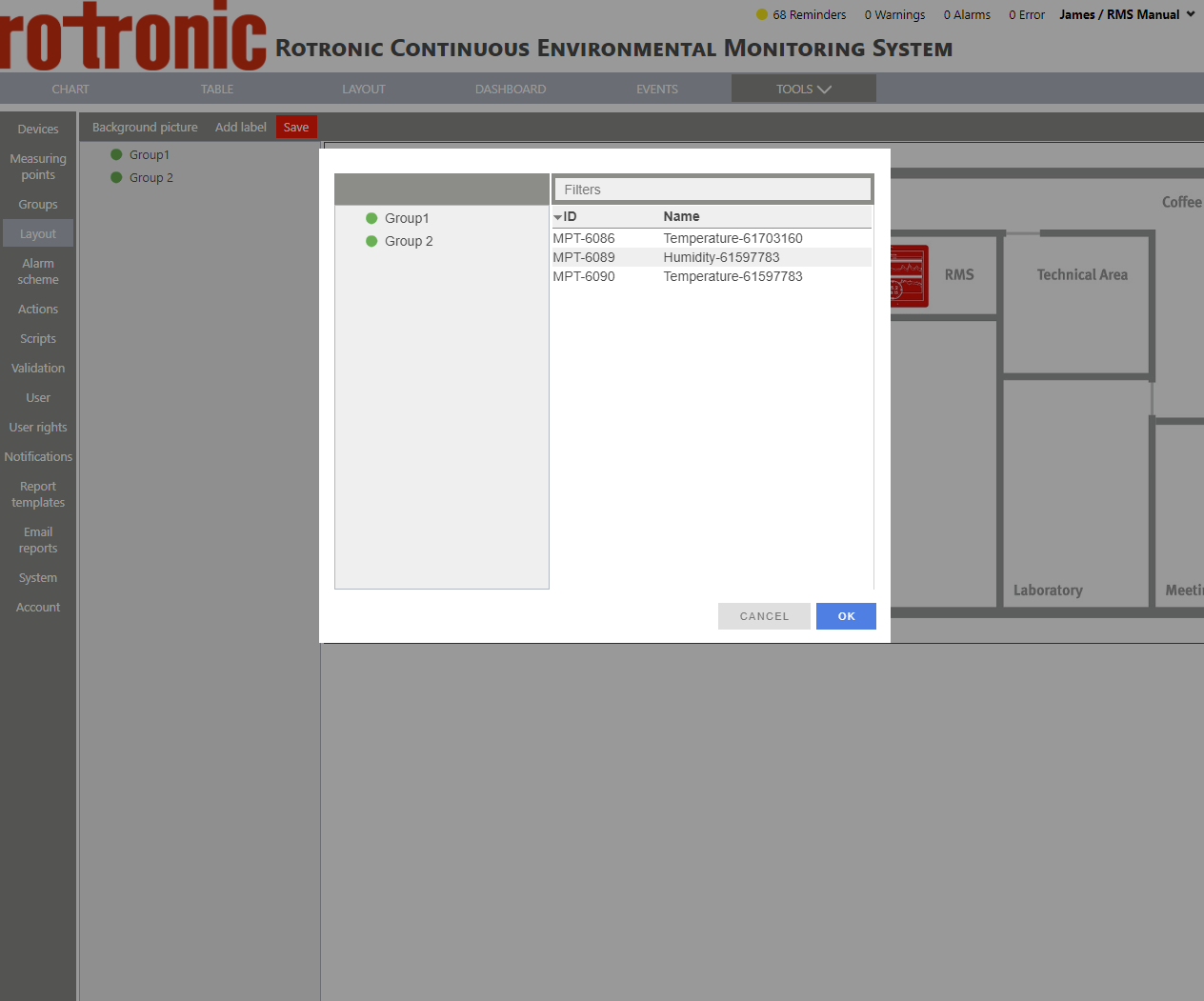
Select the required measuring points (holding "shift" or "alt" to add various measuring points)
 |
| Step 3 |
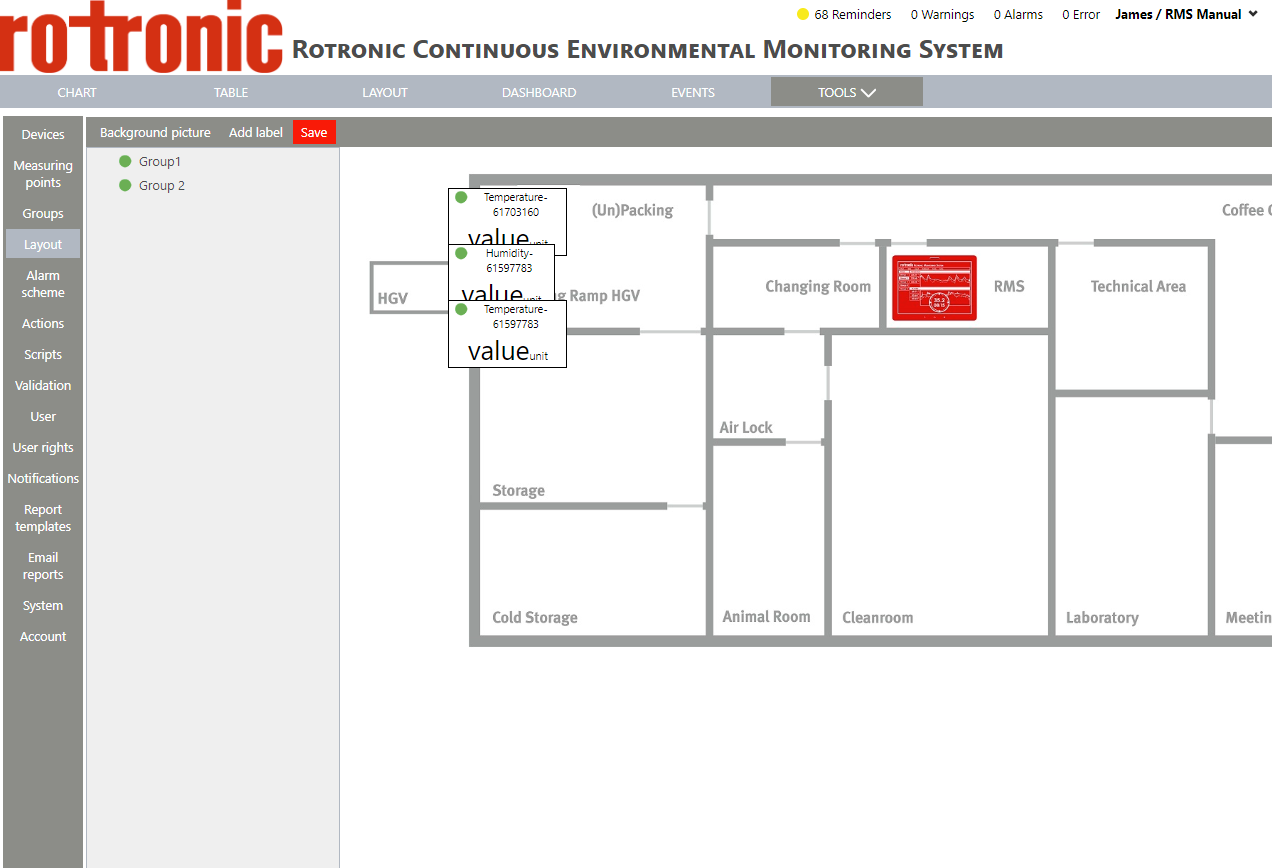
Click on "OK":
 |
| Step 4 |
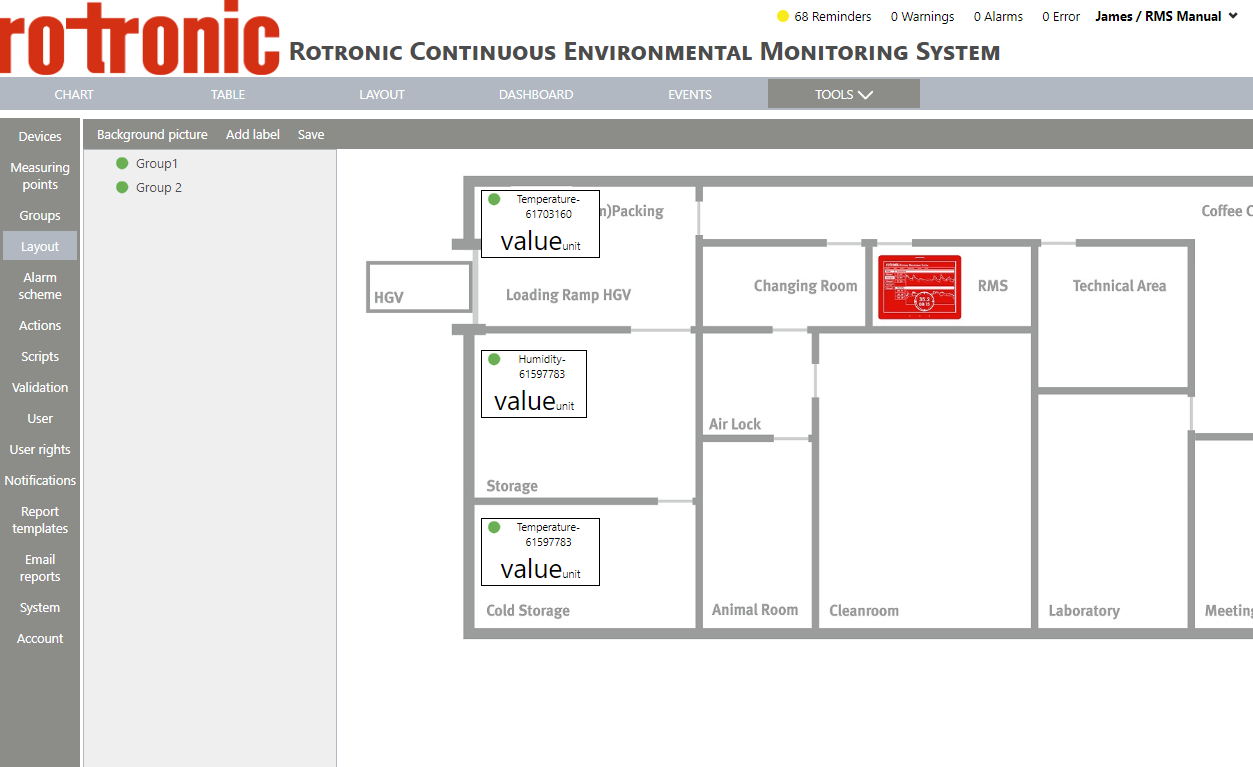
Using the mouse, click on the measuring point box and drag and drop the box to the desired location:
 |
| Step 5 |
Click on the measuring point box for more options:
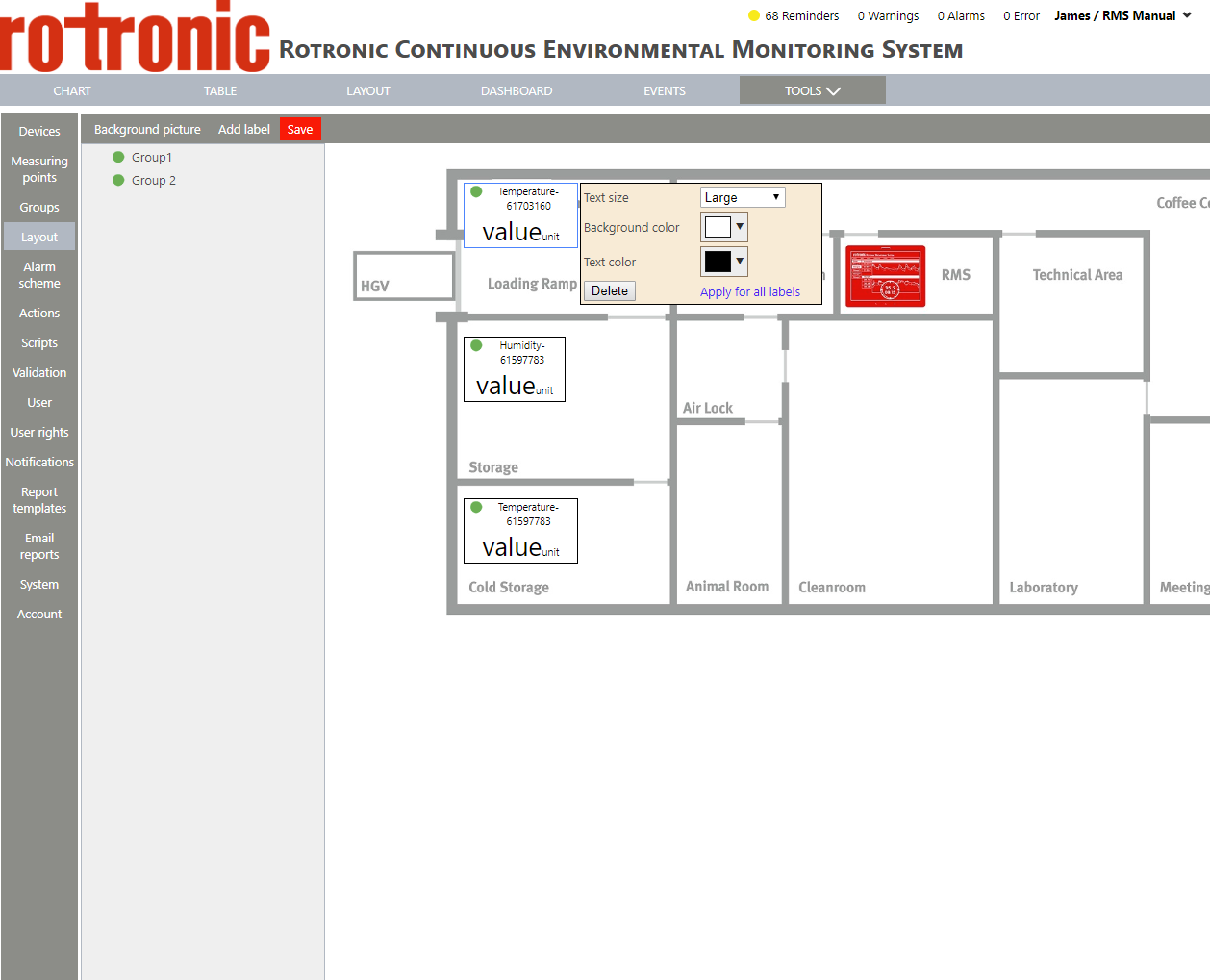 |
| Step 6 |
Text size: select between "Alarm icon", "normal", "large" and "extra large" and click on "OK".

 |
| Step 7 |
Background color: select a color for the background and click on "OK":
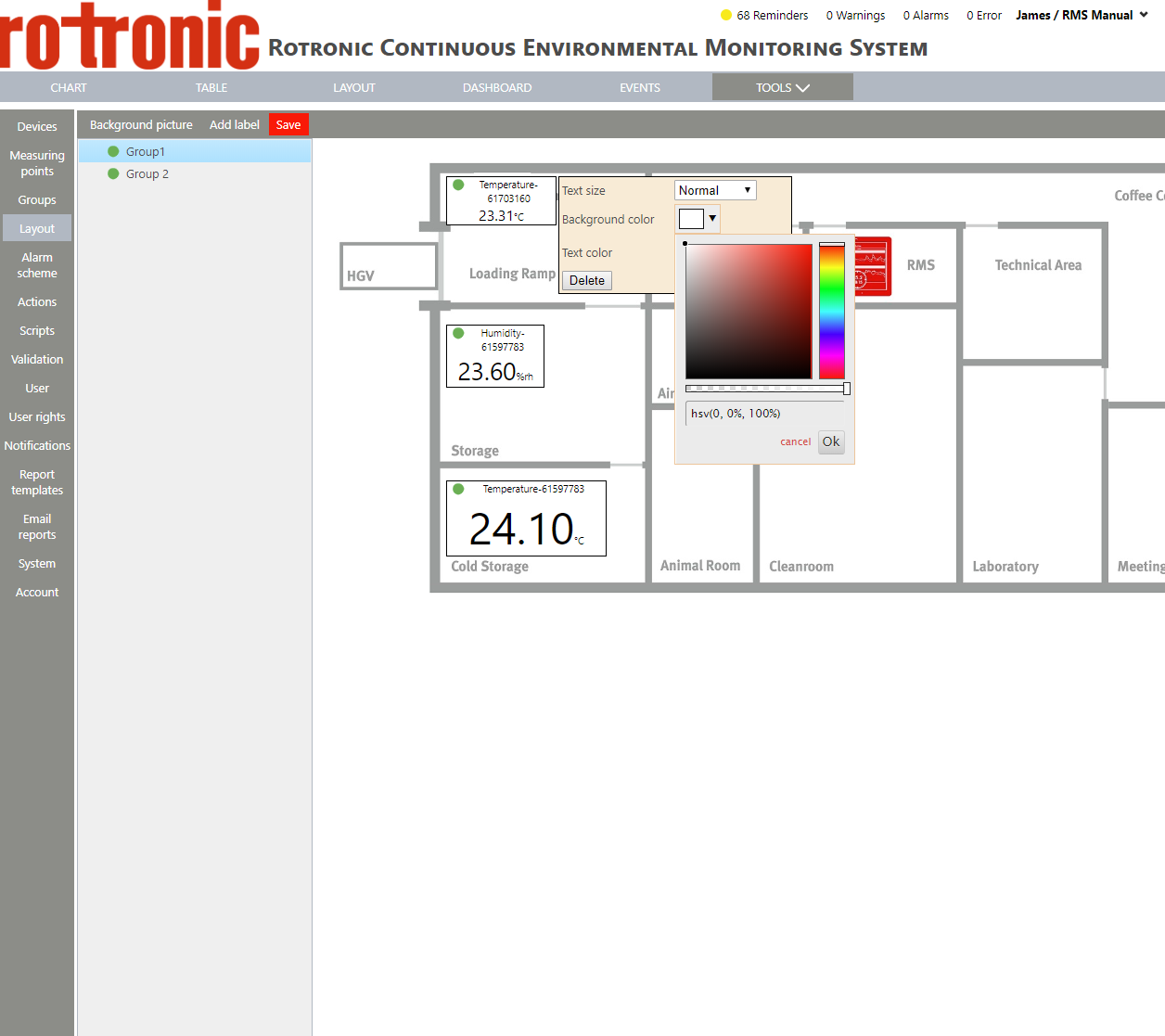 |
| Step 8 |
Text color: select a color for the text and click on "OK"
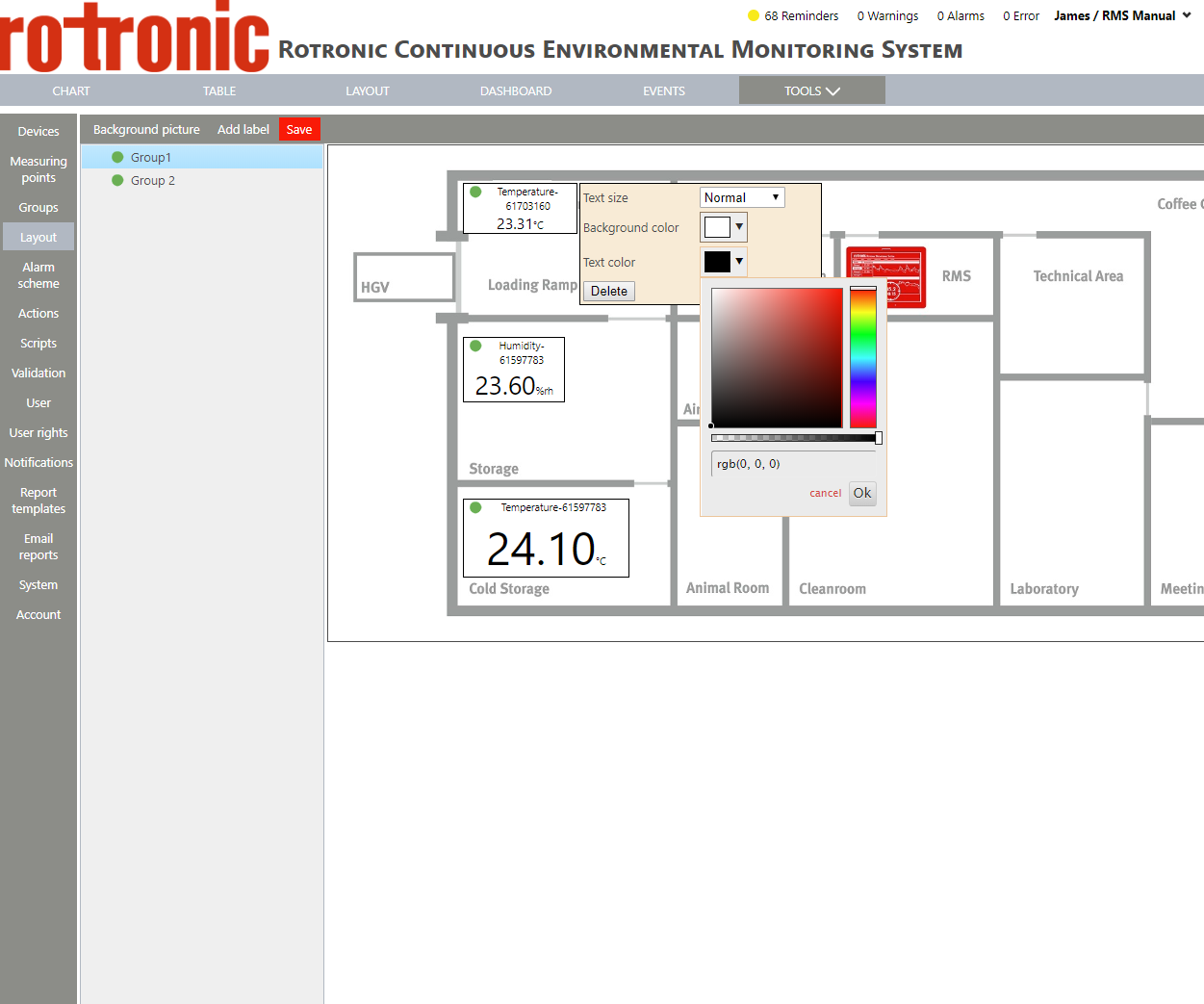 |
| Step 9 |
Delete: click on "Delete" to delete the measuring point box. |
| Step 10 |
Apply for all labels: click on "Apply for all labels" to apply the settings for all labels. |
| Step 11 |
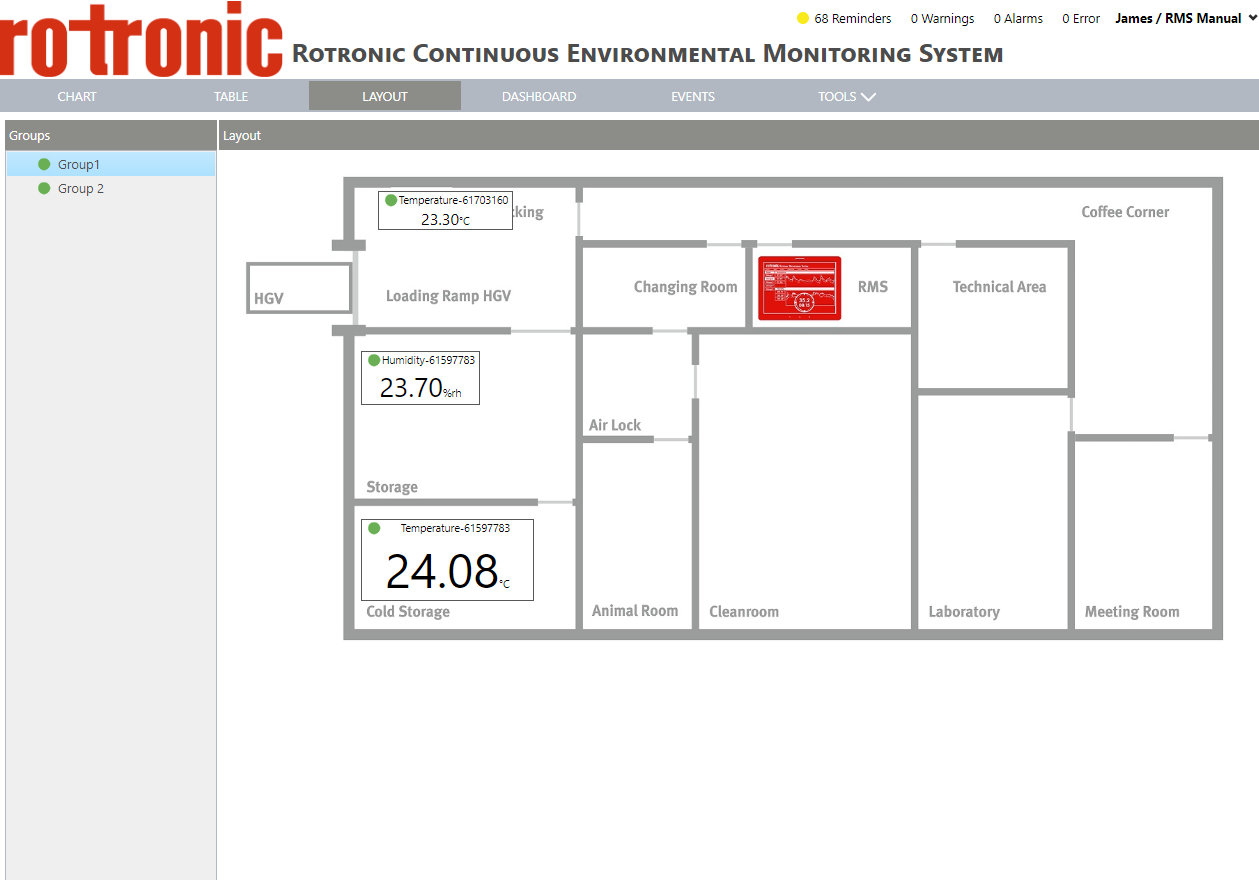
Visualization of the layout: Using the mouse, hoover over the desired measuring point label and details appear.
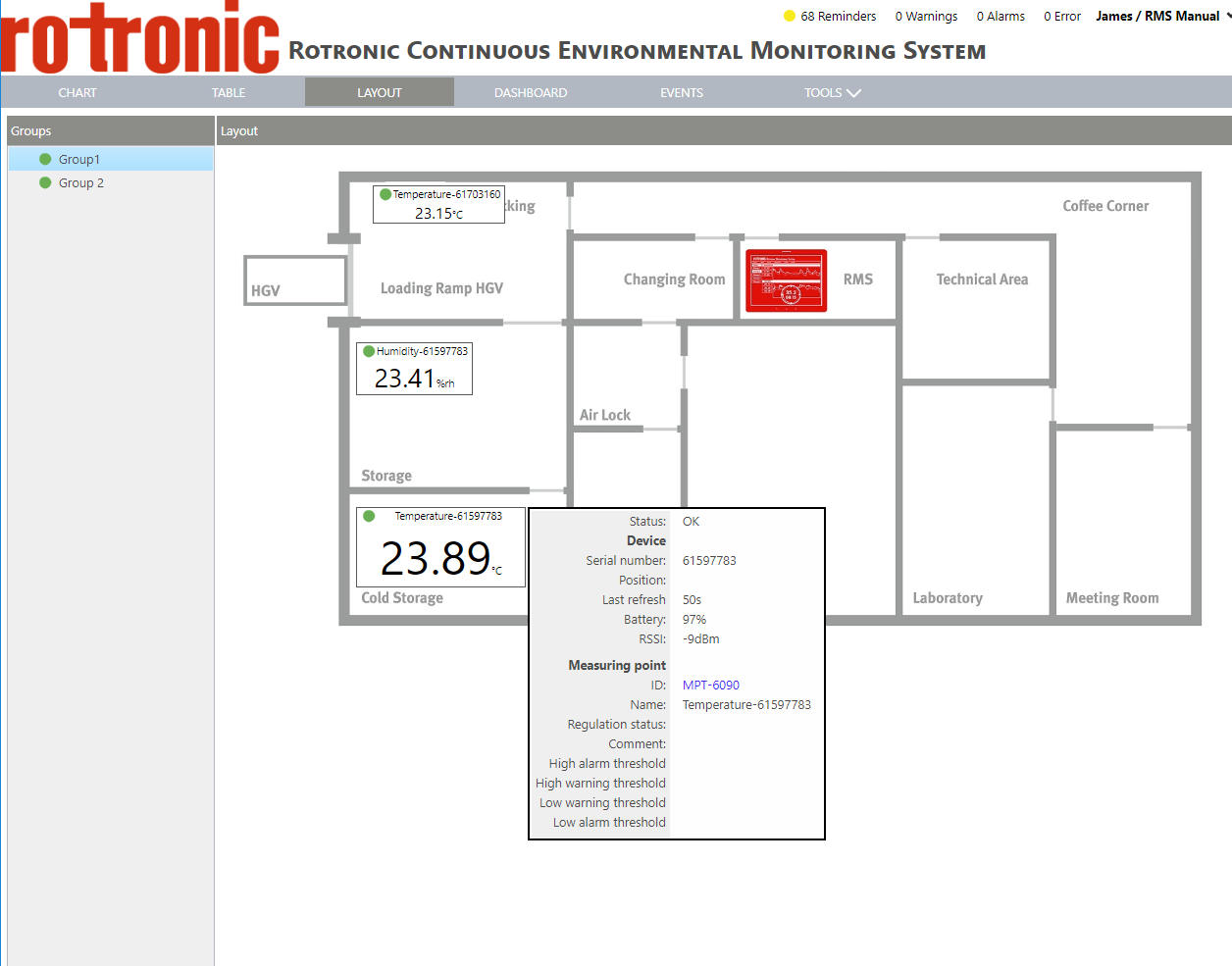 |