Add a Text Label
| Step 1 | Add a text label by selecting "Add label" > "Text label": 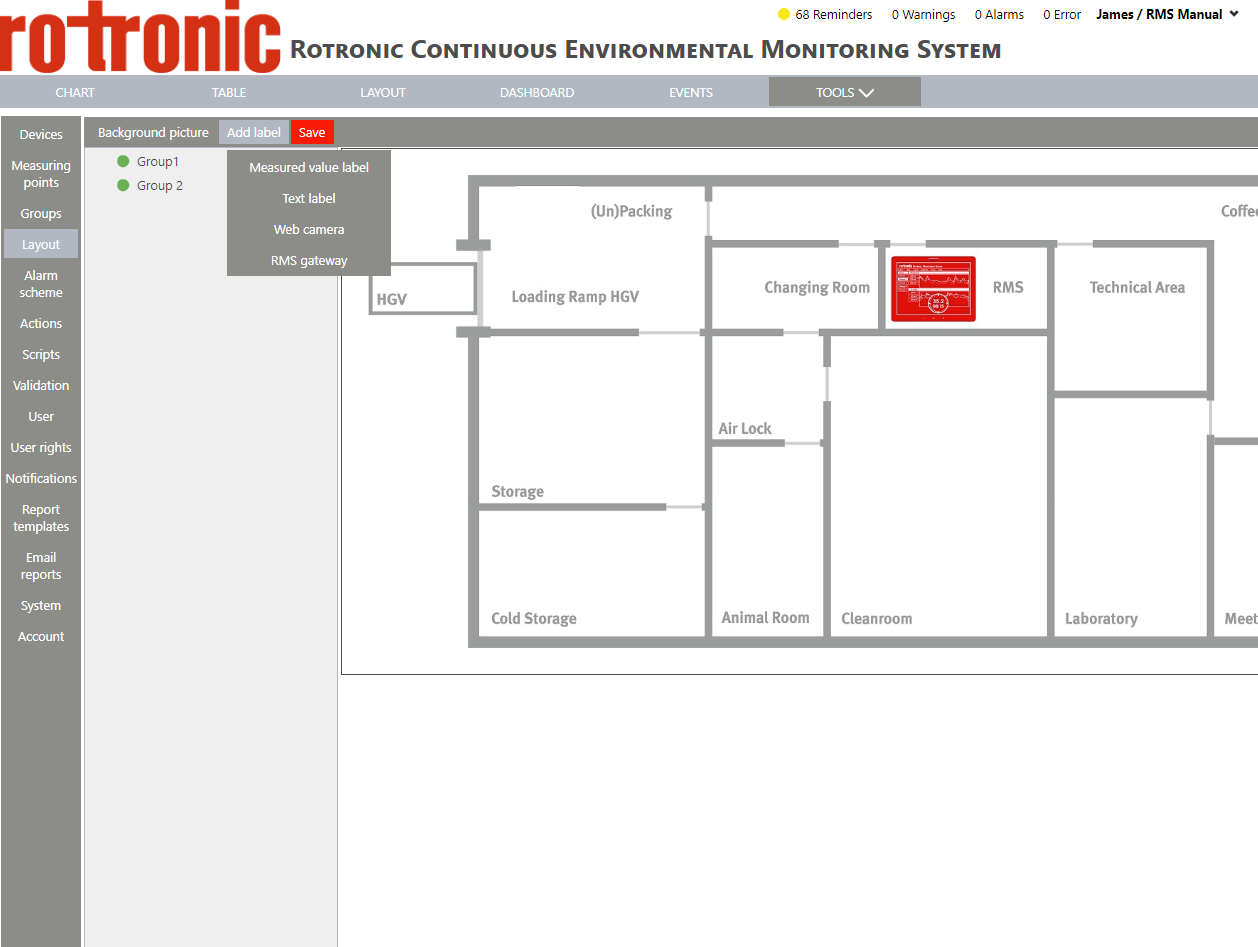 |
|---|---|
| Step 2 | The label appears on the background: 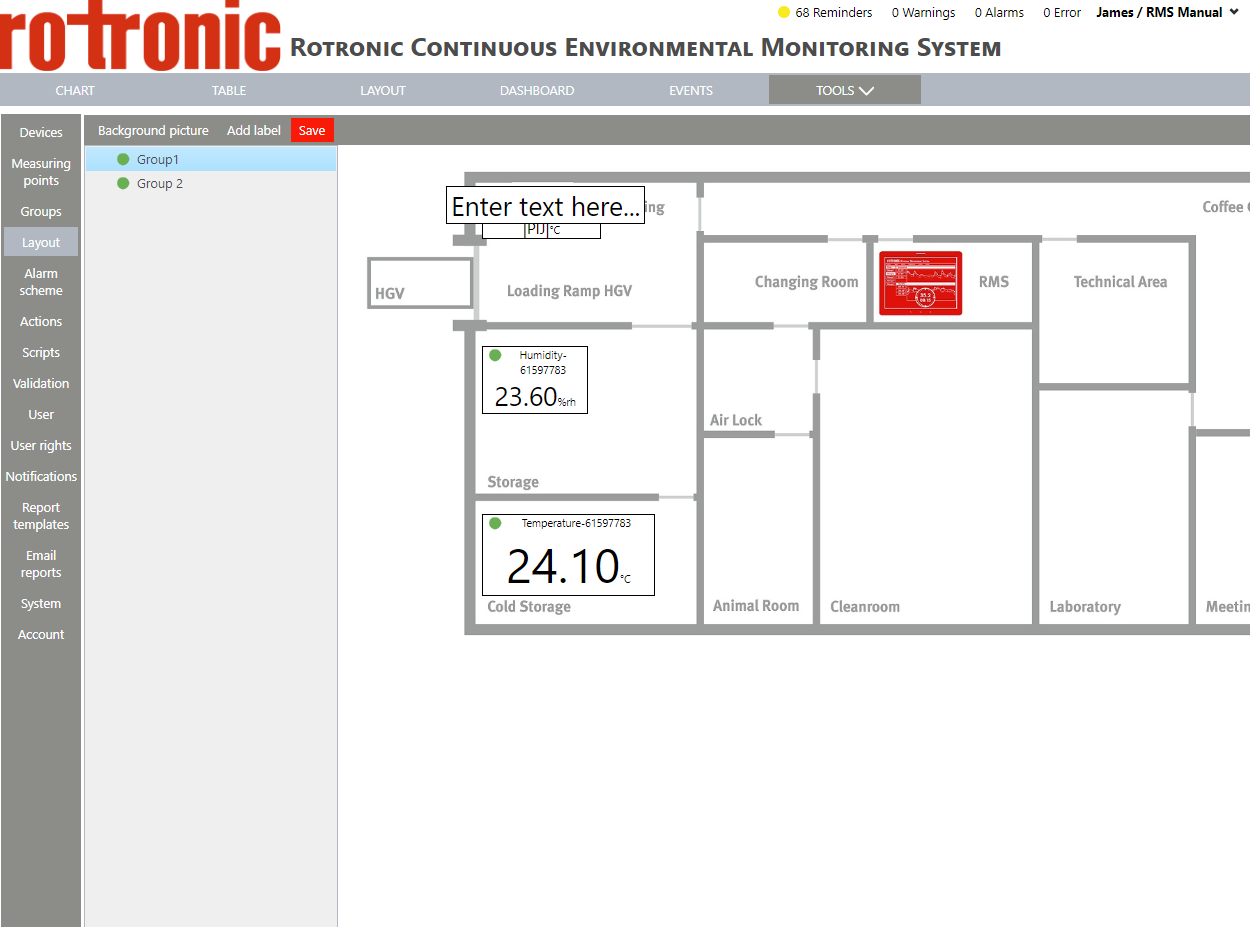 |
| Step 3 | Using the mouse, click on the measuring point box and drag and drop the box to the desired location: 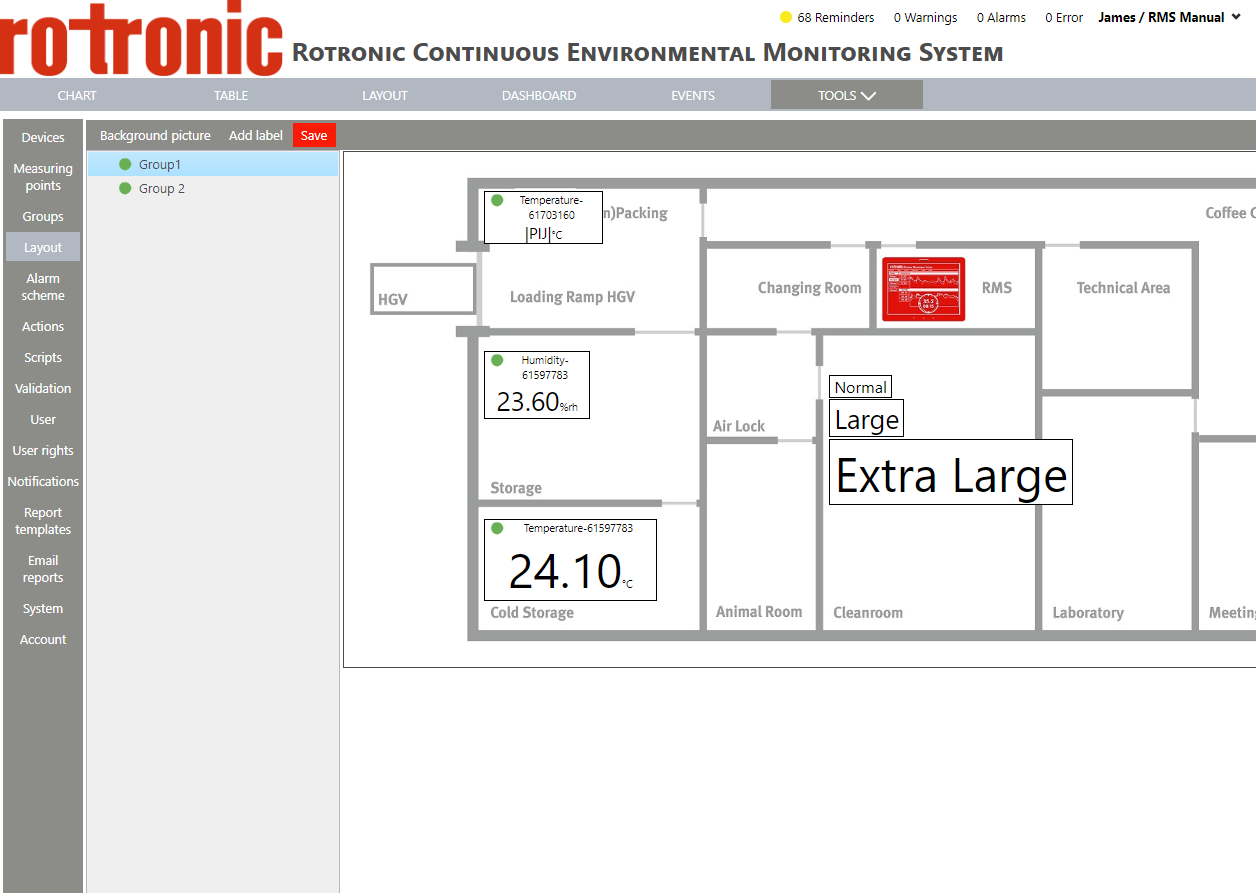 |
| Step 4 | Click on the text within the dialog box saying "Enter text here..." to open up the label's menu: 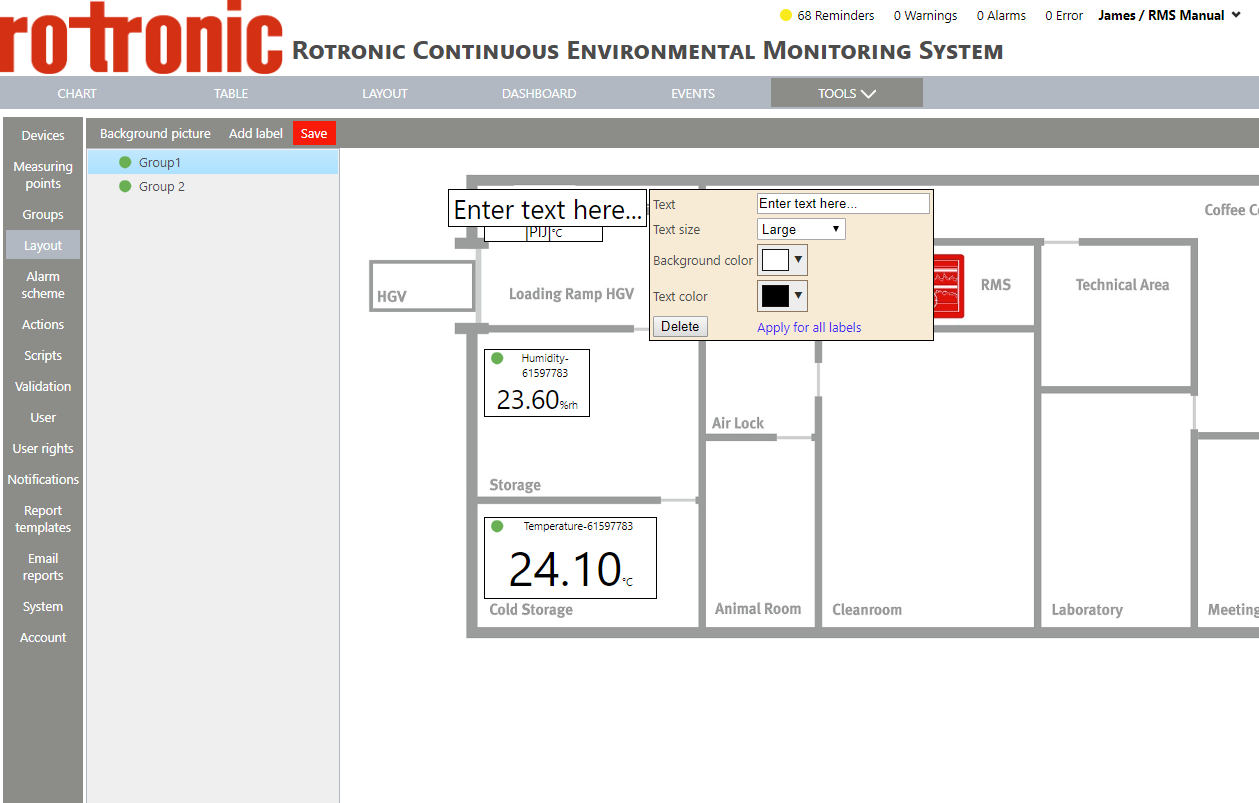 |
| Step 5 | Text: Click on text to enter the desired text. |
| Step 6 | Text size: select between "normal", "large" and "extra large" and click on "OK". "Normal", "large" and "extra large" are shown in the same order below: 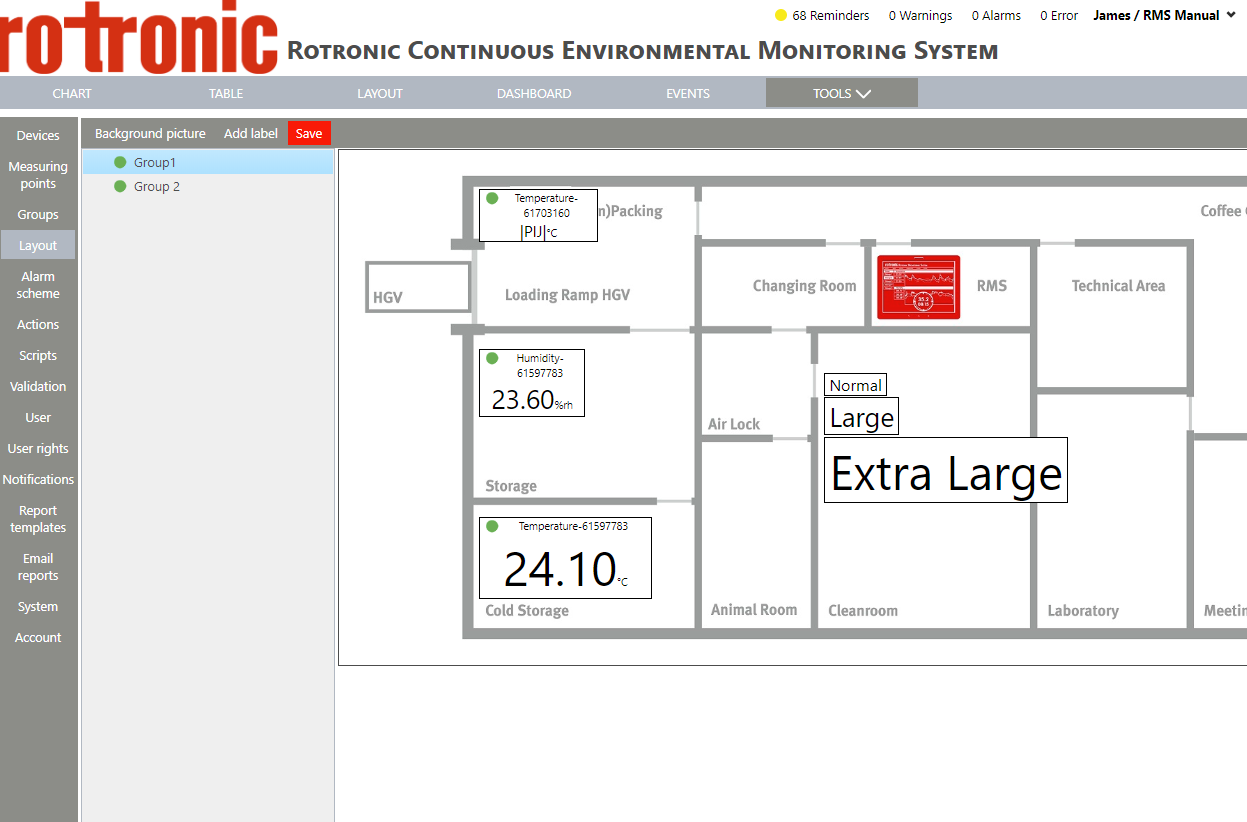 |
| Step 7 | Background color: select a color for the background and click on "OK" 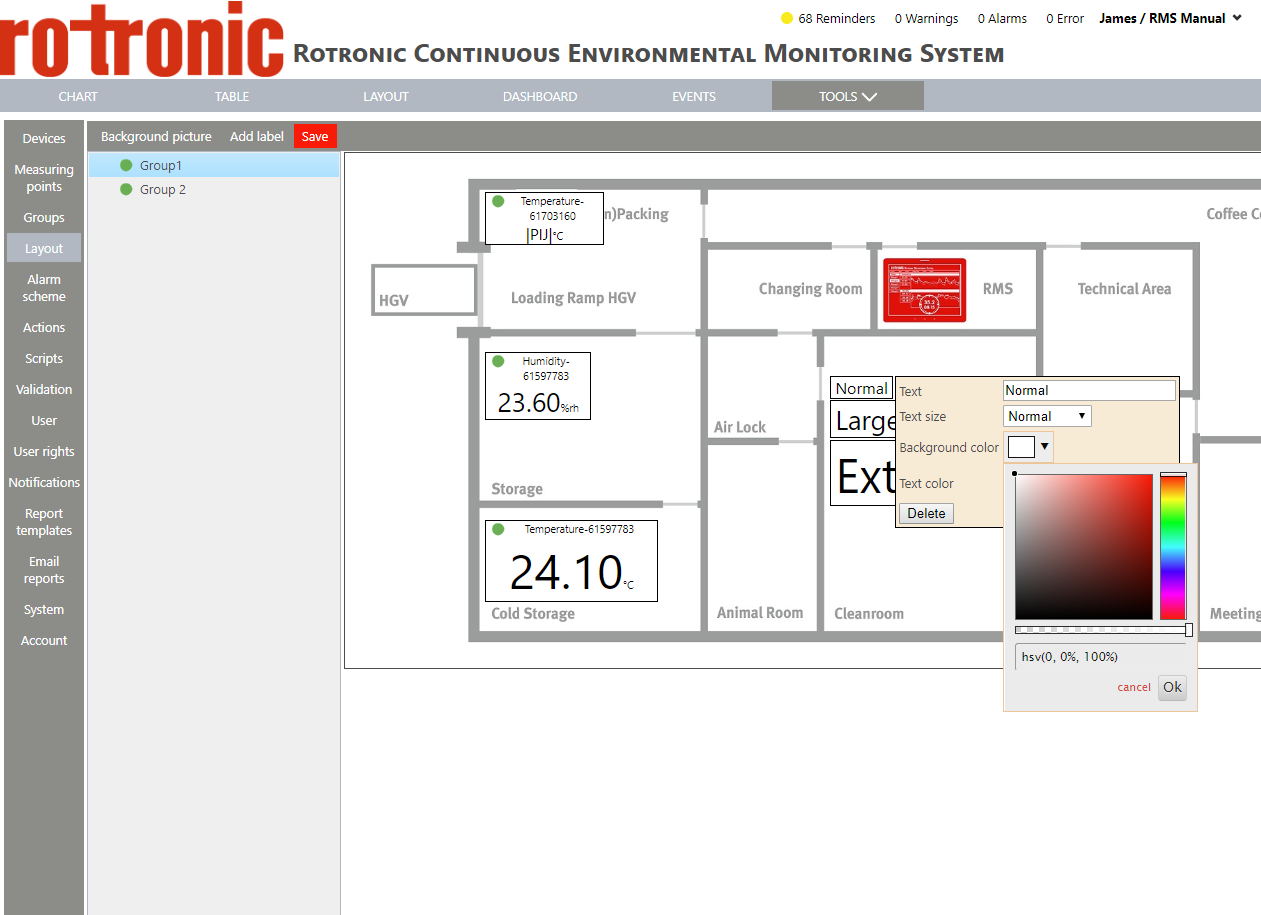 |
| Step 8 | Text color: select a color for the text and click on "OK" 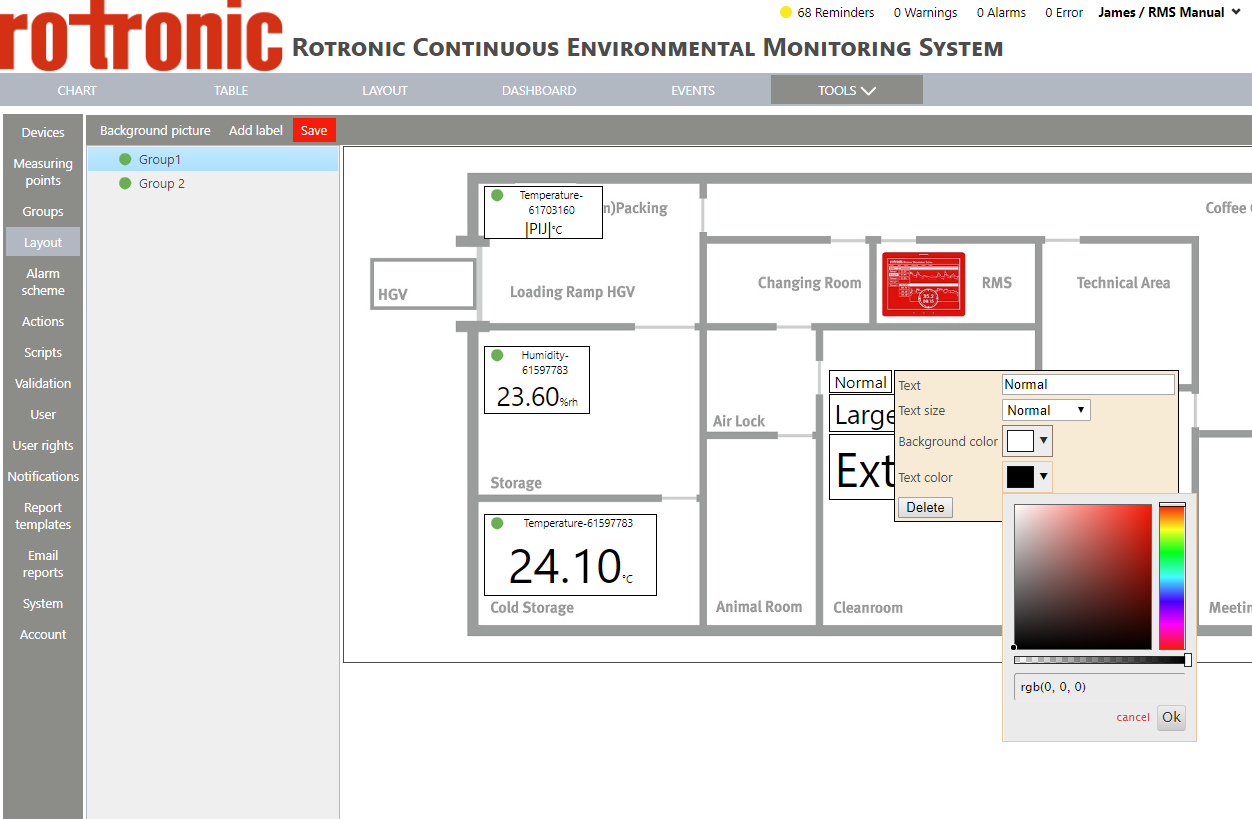 |
| Step 9 | Delete: click on "Delete" to delete the text label. |
| Step 10 | Apply for all labels: click on "Apply for all labels" to apply the settings for all labels. |