Add a Web Camera Label
| Important: An RMS-Converter is required to add a Webcam to RMS. |
|---|
| Step 1 | Add a Webcam label by selecting "Add label" > "Webcam": 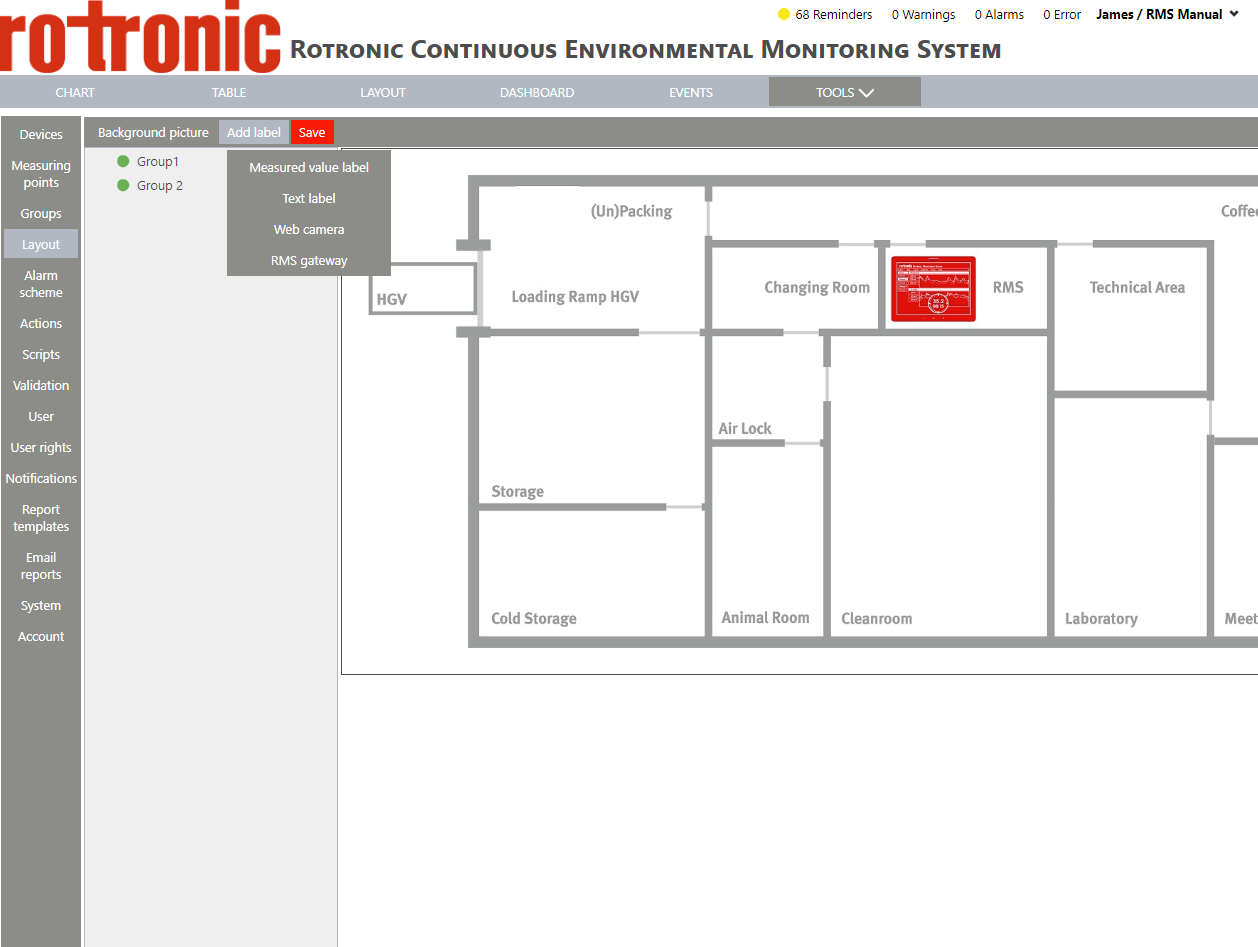 |
|---|---|
| Step 2 | The label appears on the background: 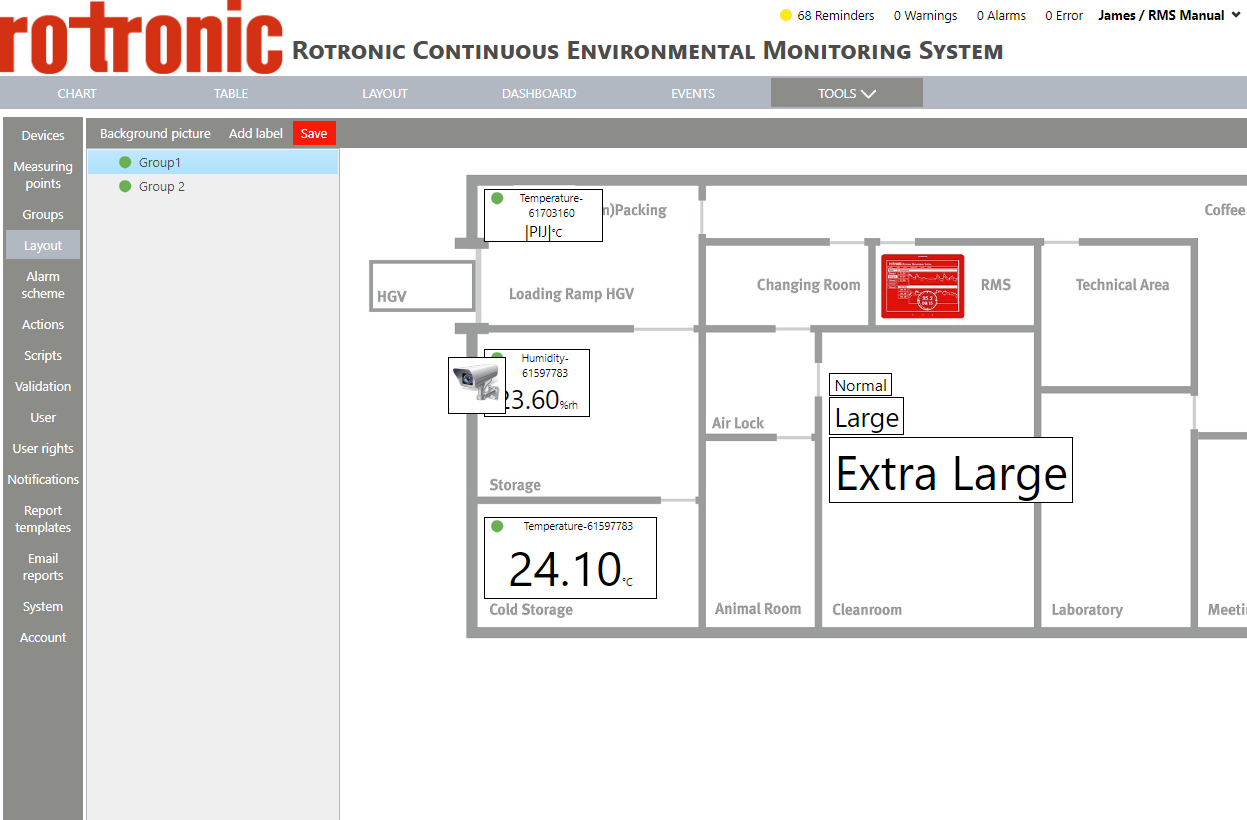 |
| Step 3 | Using the mouse, click on the measuring point box and drag and drop the box to the desired location: 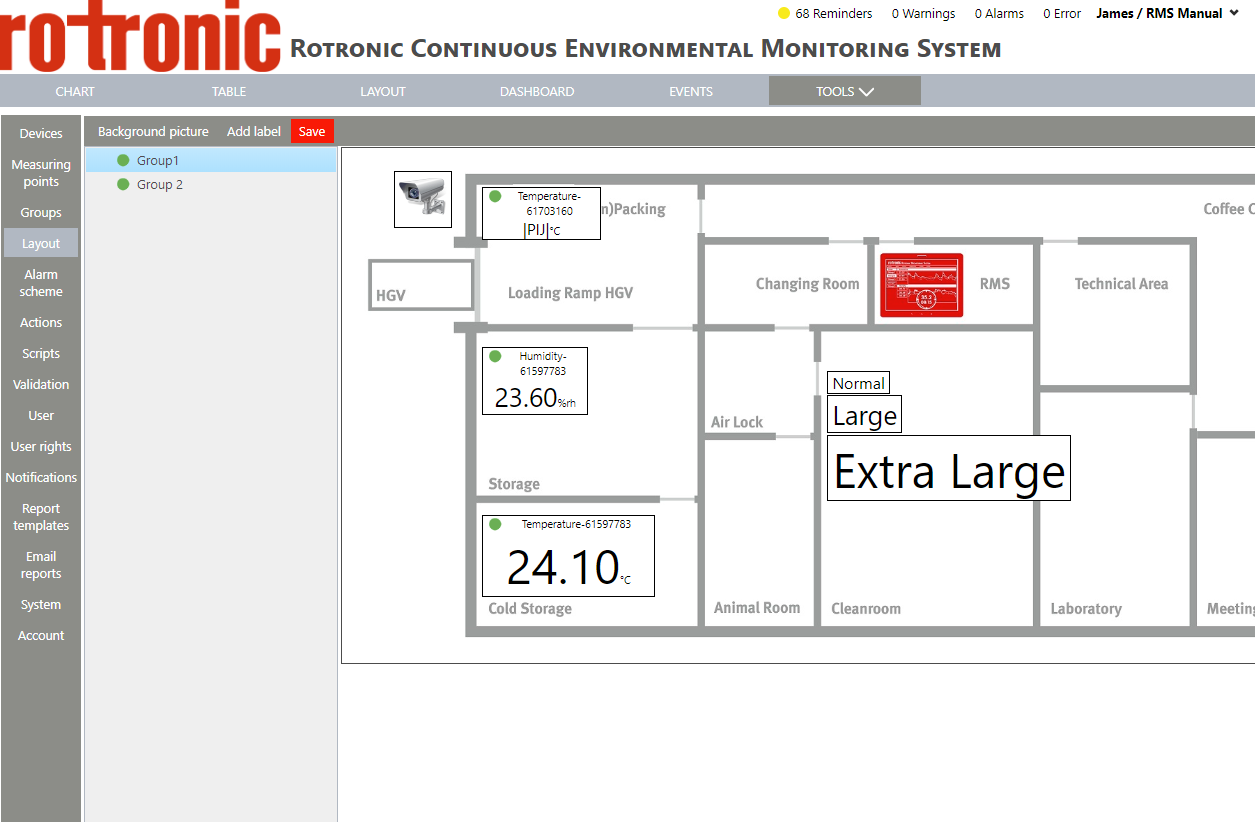 |
| Step 4 | Click on the Webcam to open up the label's menu: 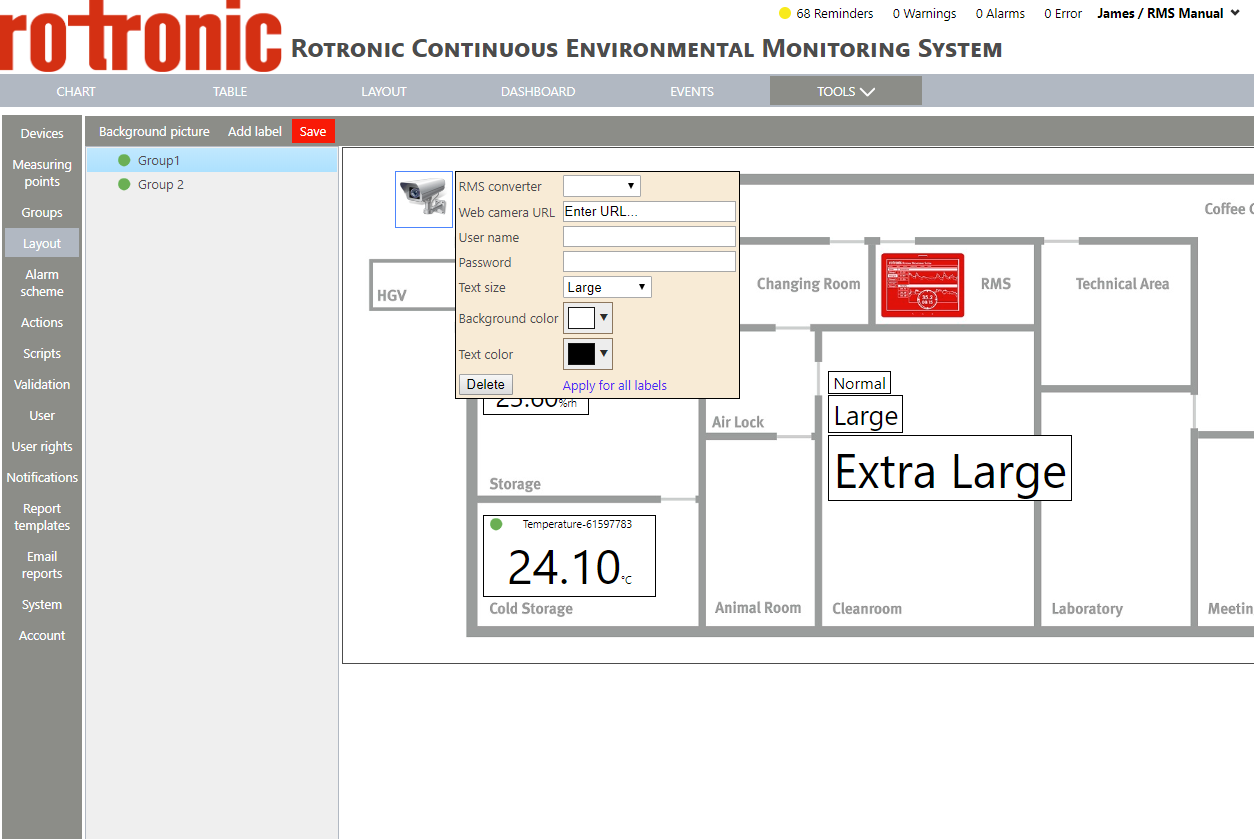 |
| Step 5 | Click on RMS-Converter to add the RMS-Converter used. 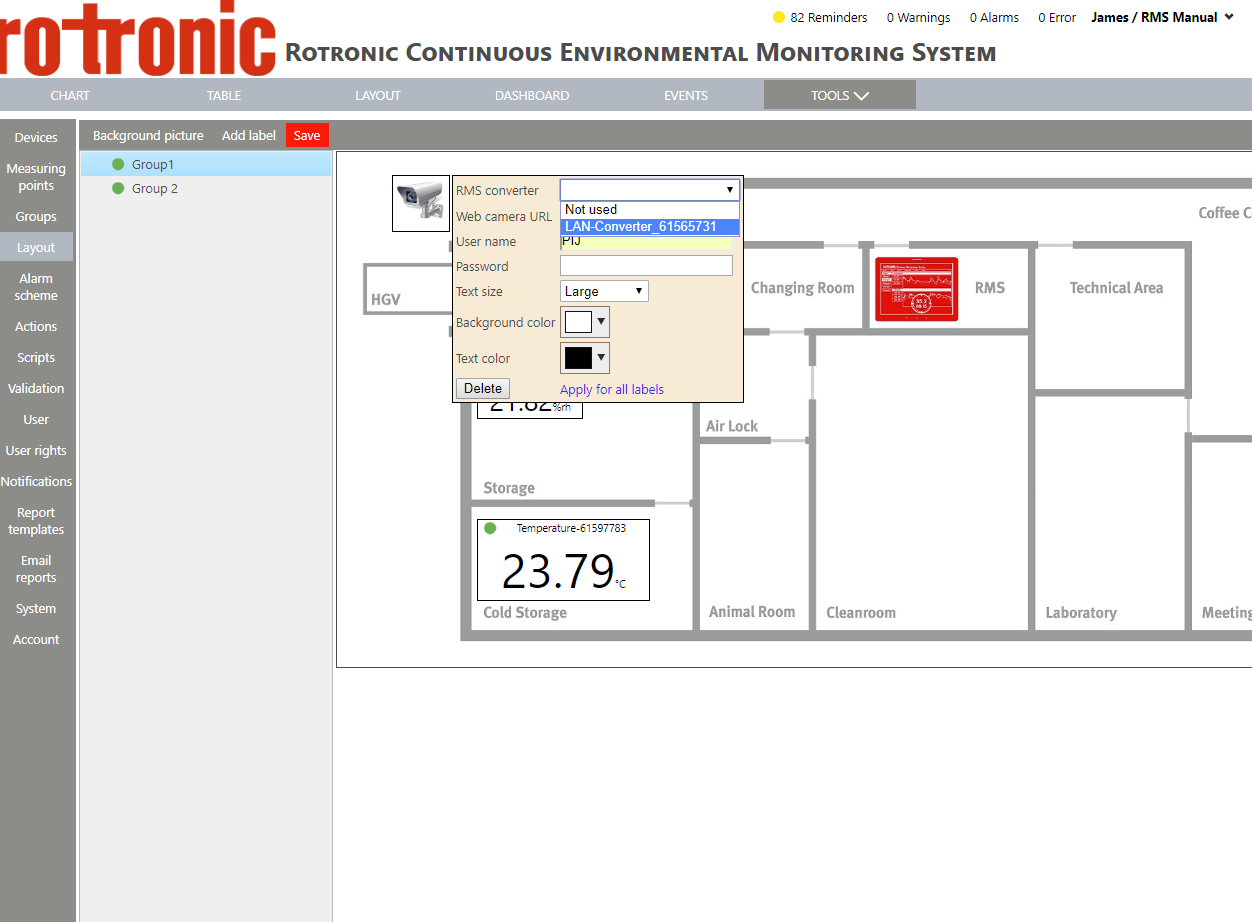 |
| Step 6 | Webcam's URL: add the Webcam's URL here. User name: add the user name used to access the Webcam. Password: add the password used to access the Webcam. |
| Step 7 | Text size: the text size has no function on the Webcam. |
| Step 8 | Background color: select a color for the background and click on "OK" 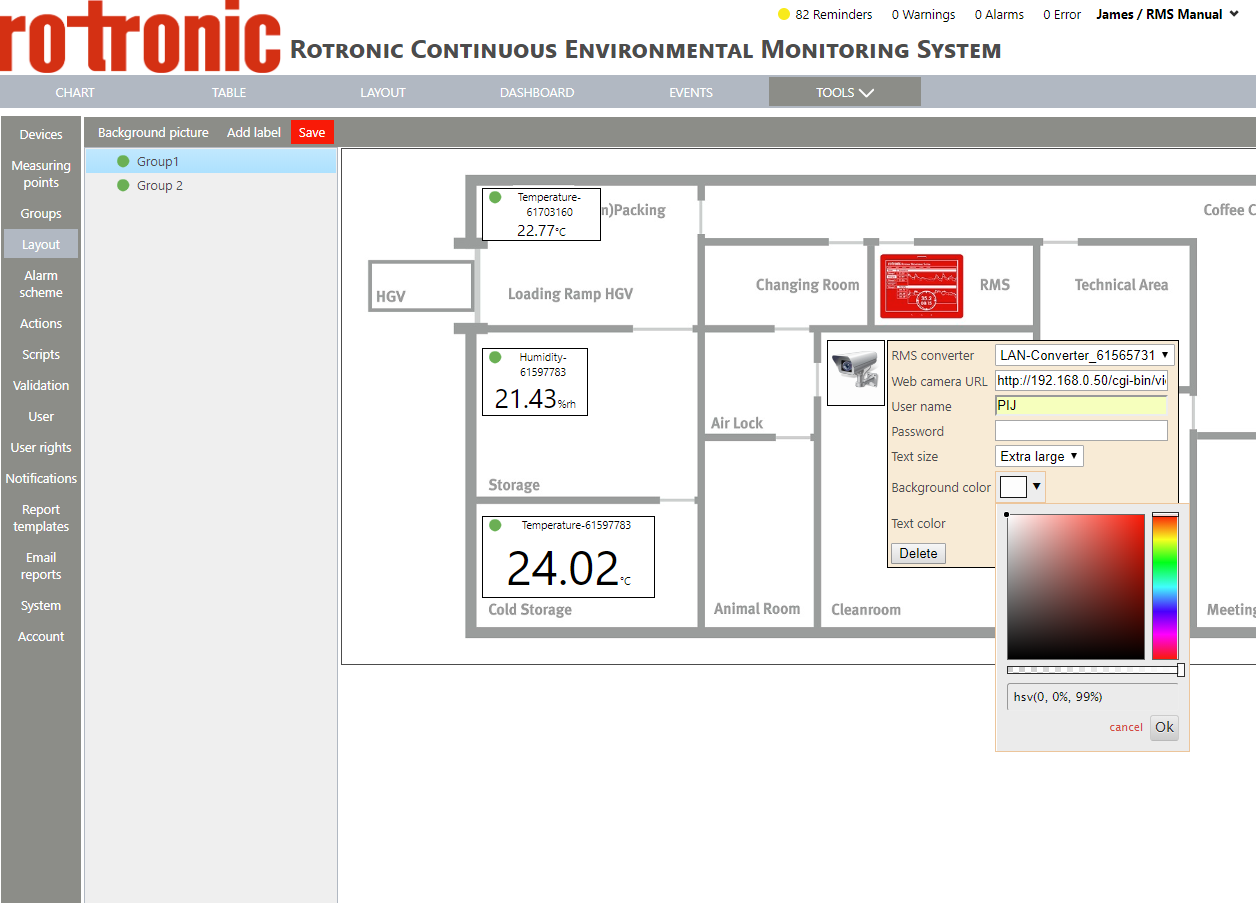 |
| Step 9 | Text color: the text color has no function on the Webcam. |
| Step 10 | Delete: click on "Delete" to delete the Webcam label. |
| Step 11 | Apply for all labels: click on "Apply for all labels" to apply the settings for all labels. |
| Step 12 | Visualization of the layout: Using the mouse, hoover over the Webcam label and a snapshot appears. 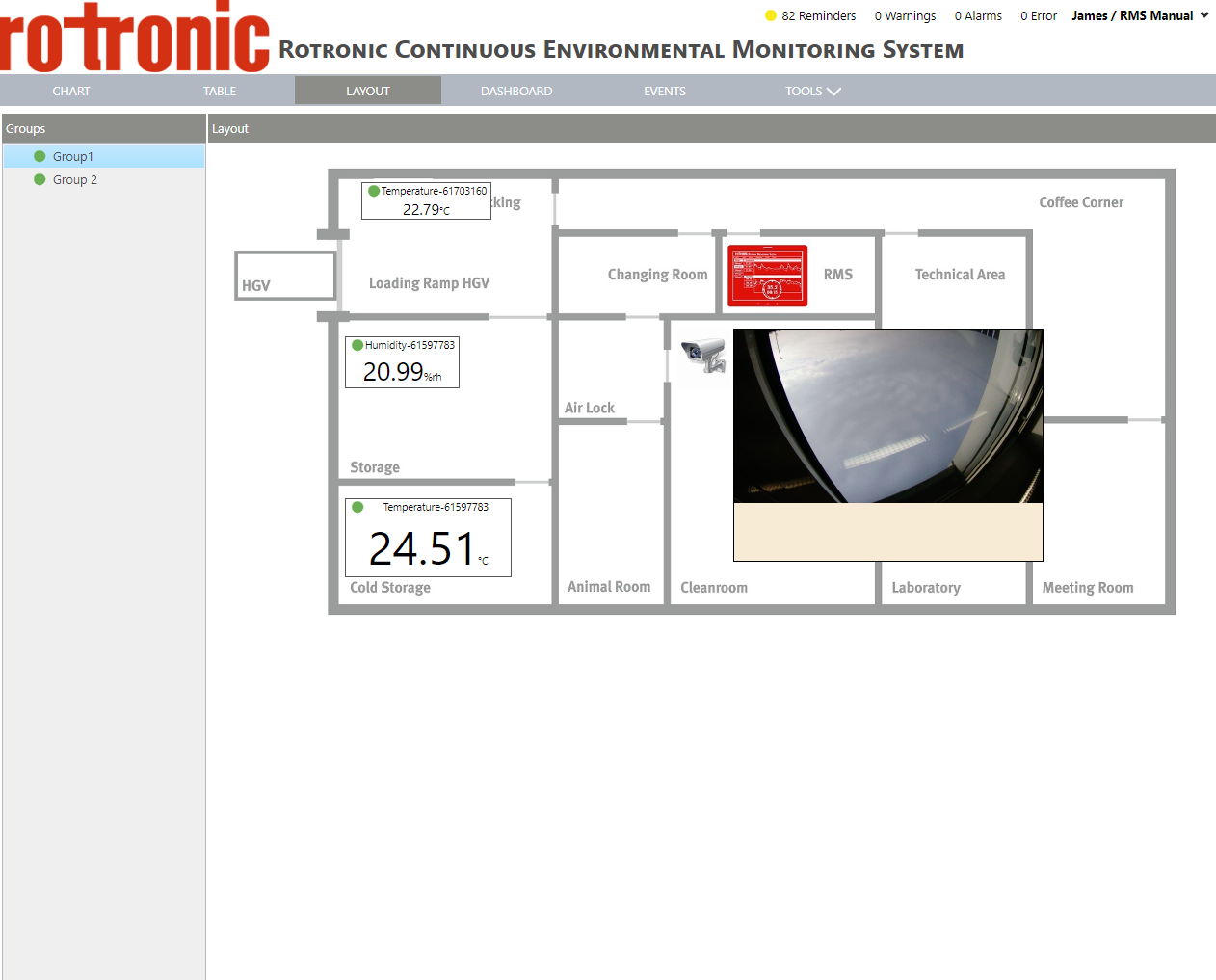 |