Add a Psychrometric Calculation
| Step 1 | From the start page, click on "Tools" > "Setup": 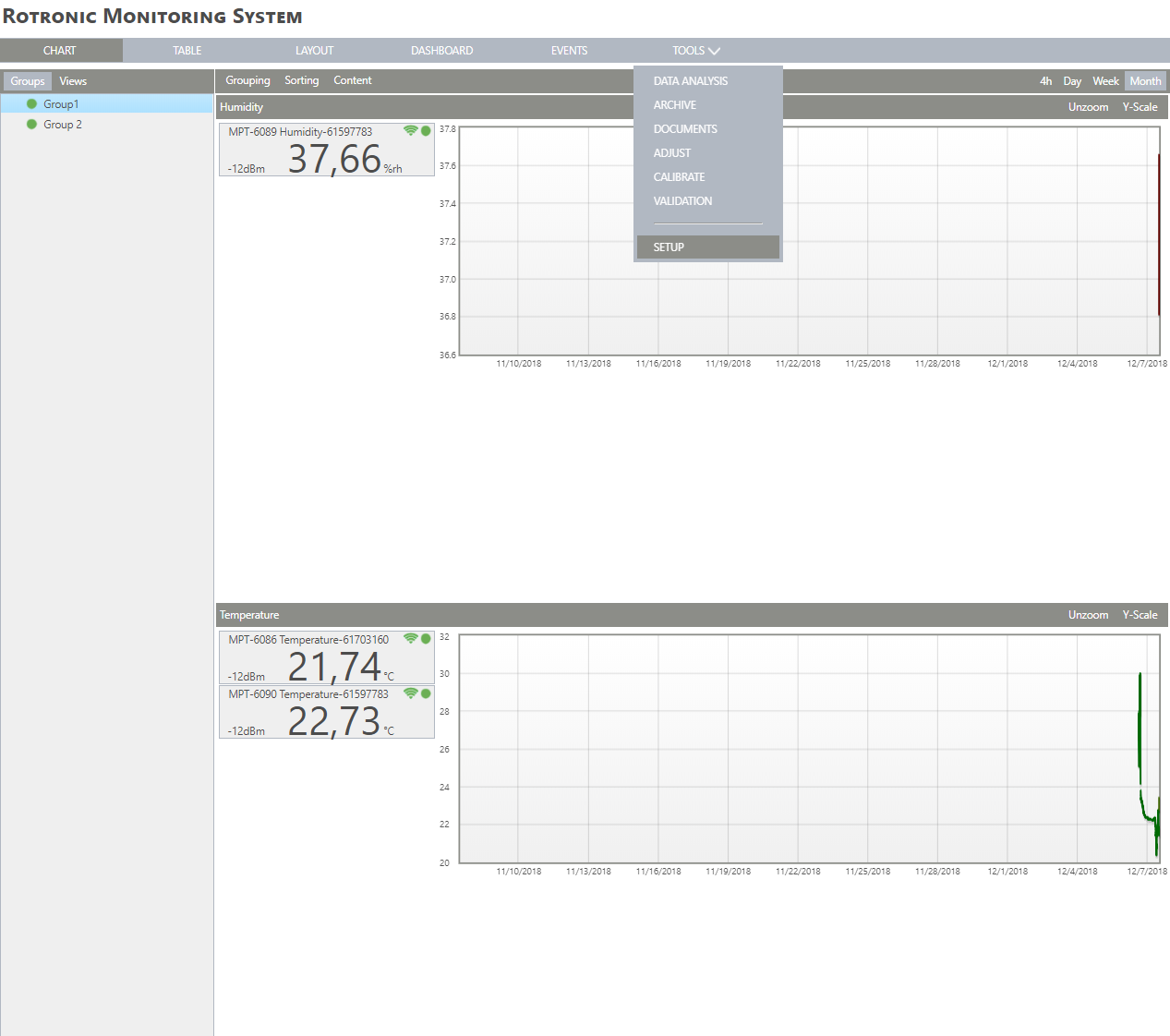 |
|---|---|
| Step 2 | On the left side, select "Measuring points": 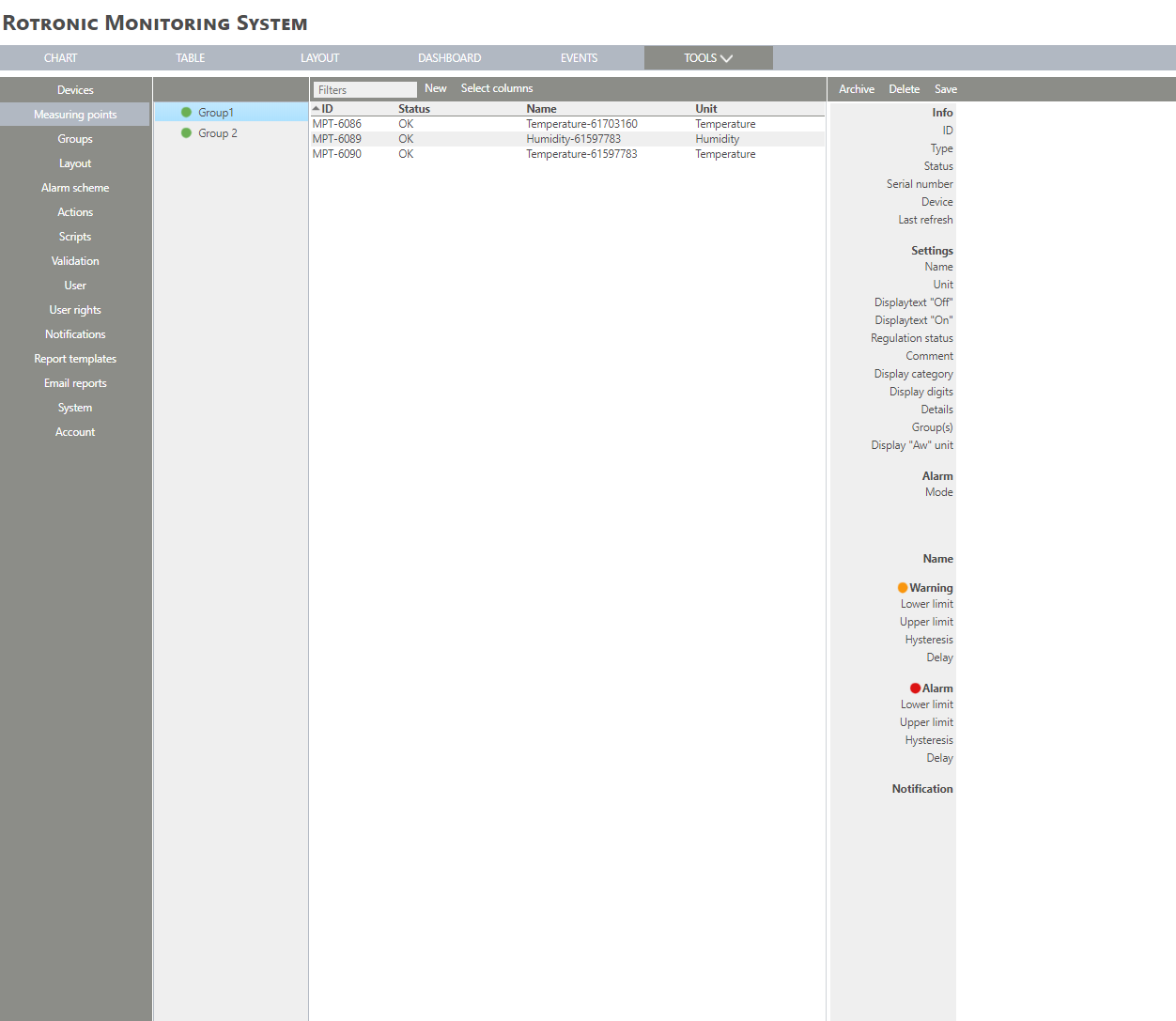 |
| Step 3 | Click on "New" > "Psychrometric calculation": 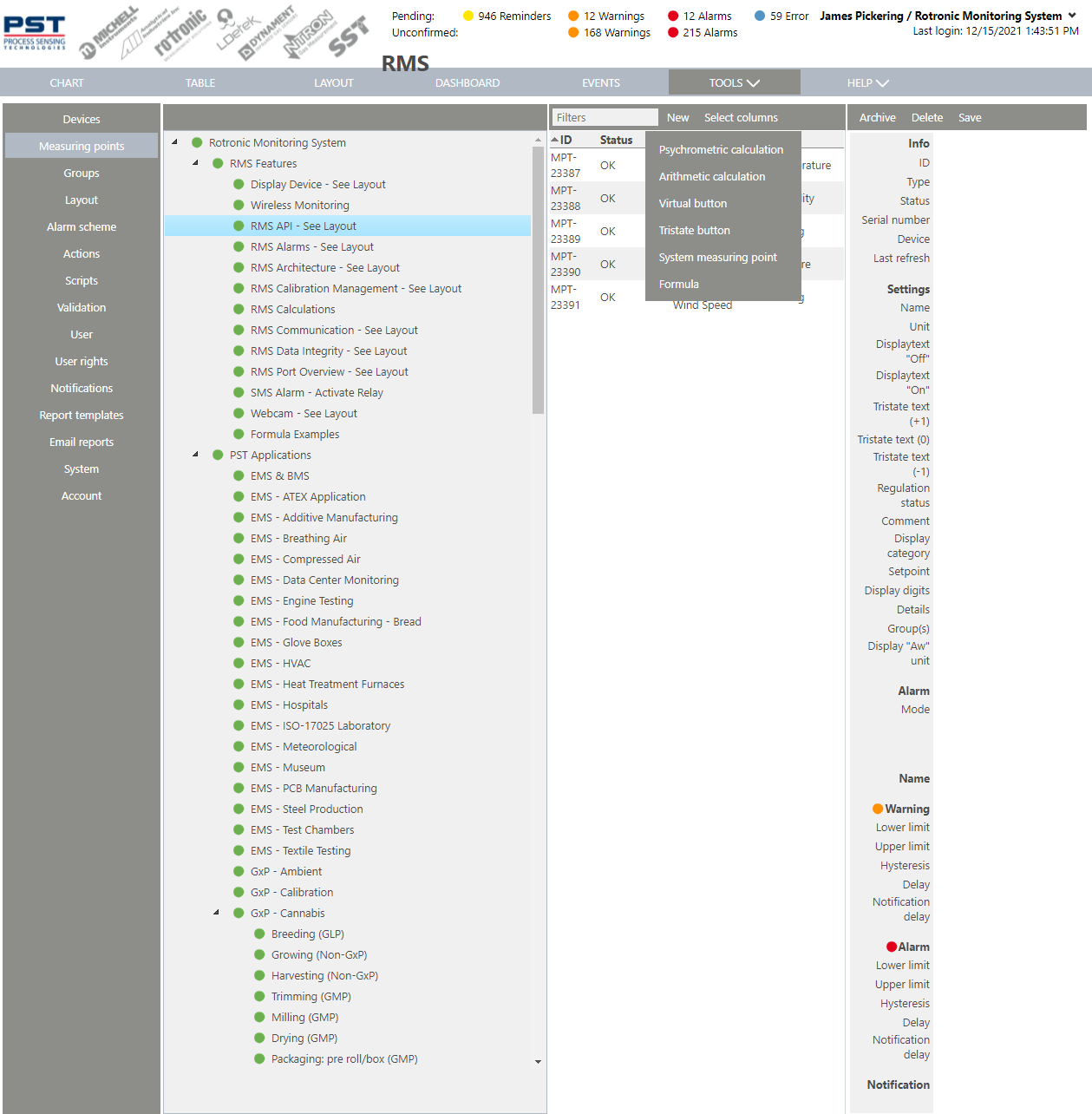 |
| Step 4 | The following window appears: 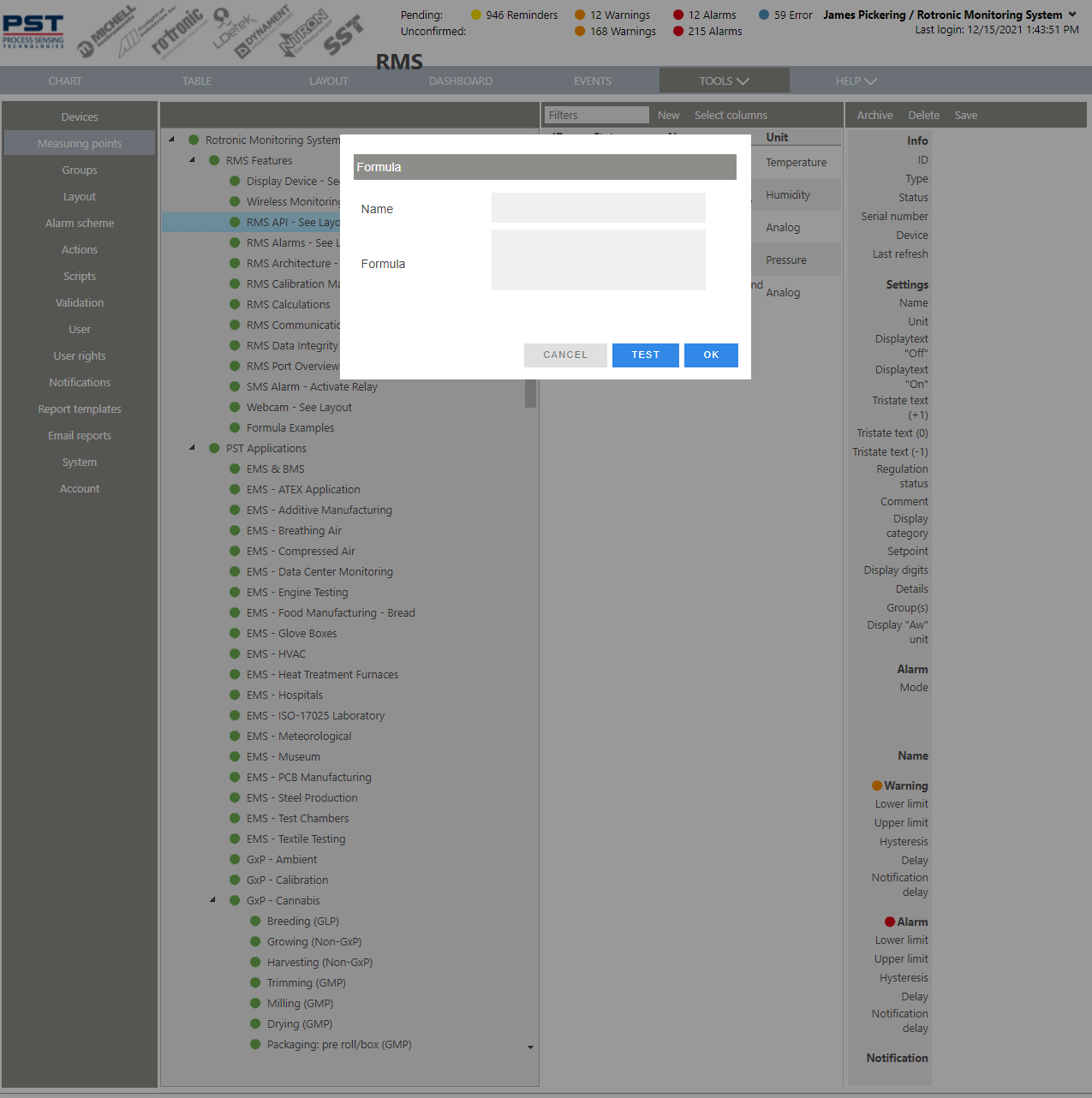 |
| Step 5 | The following psychrometric calculations are available: |
| Step 6 | Name Choose a name for the psychrometric calculation. Type Select a psychrometric calculation from the drop down menu. Temperature and Humidity Select a measuring point from within the system. Pressure Either select a measuring point from within the system or set a fixed value. All fields need to be filled out. |
| Step 7 | Add a temperature measuring point from within the various groups: 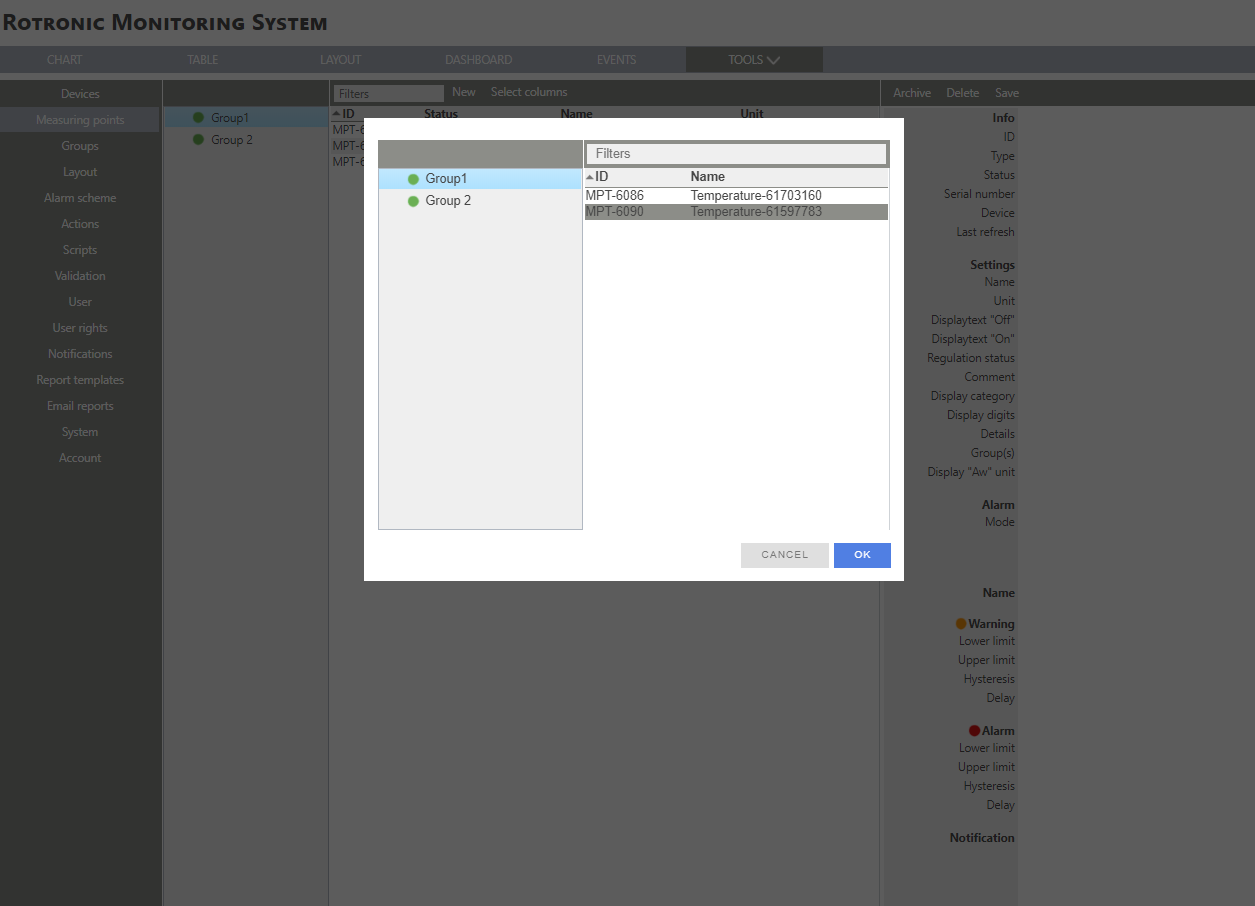 |
| Step 8 | Add a humidity measuring point from within the various groups: 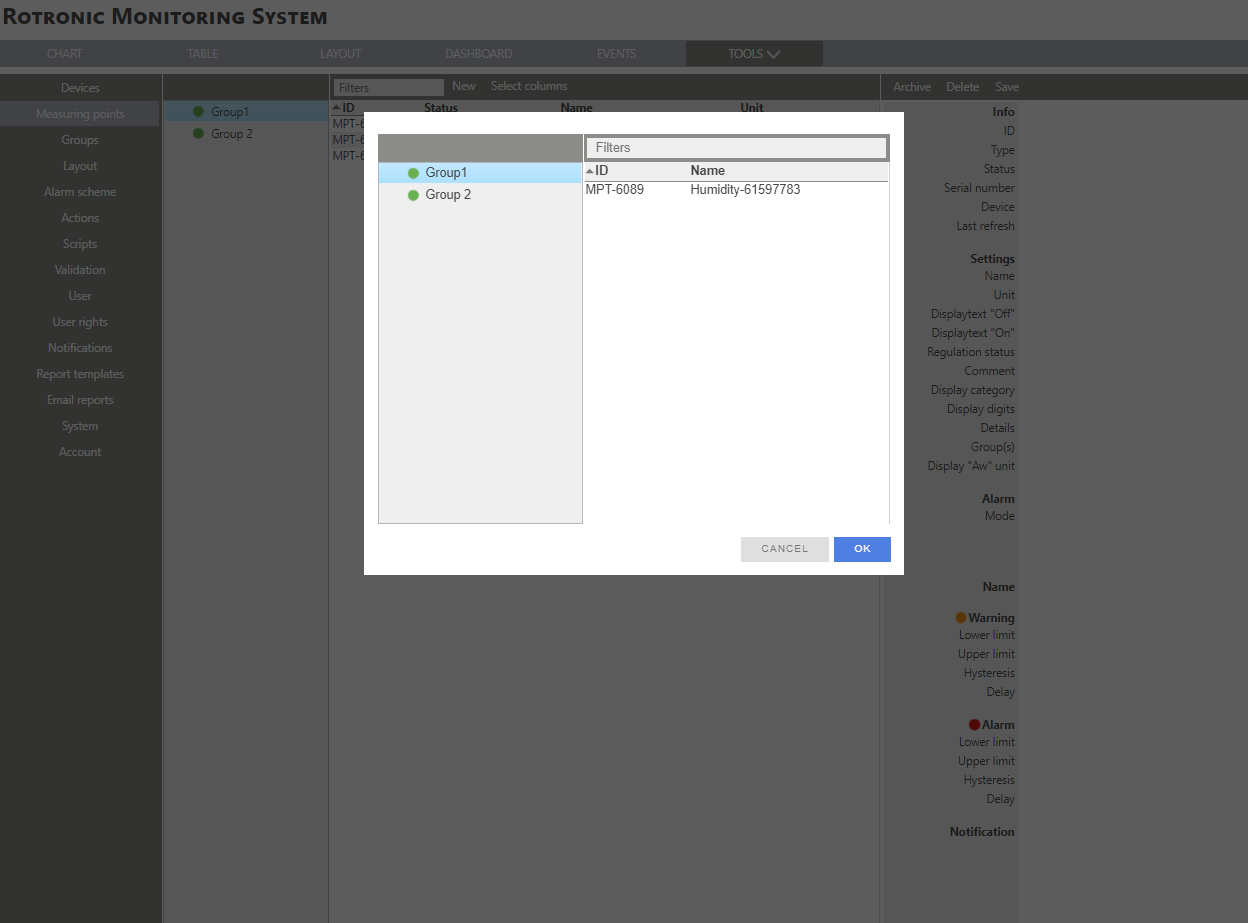 |
| Step 9 | Add a pressure measuring point from within the various groups (if available) or select a fixed value: 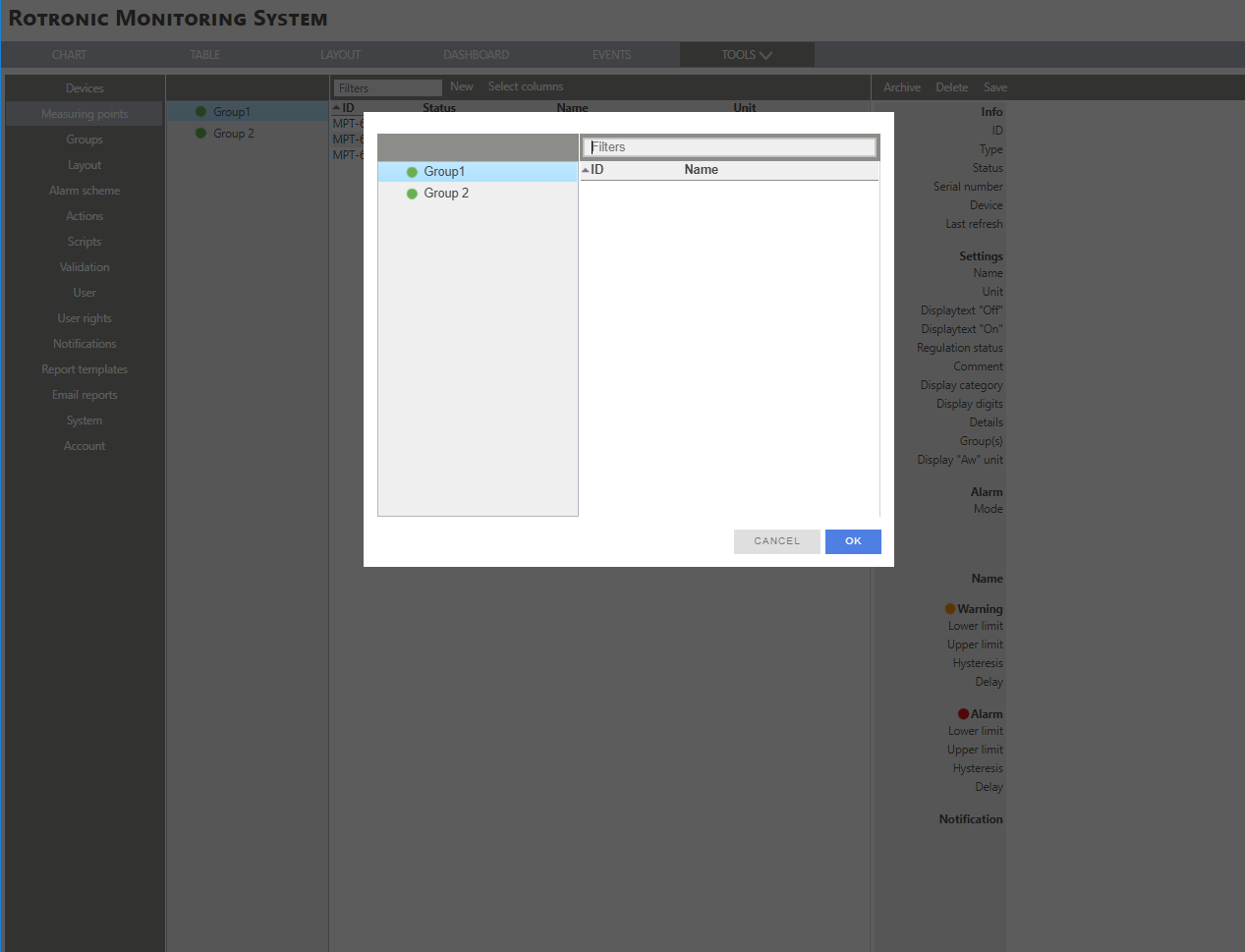 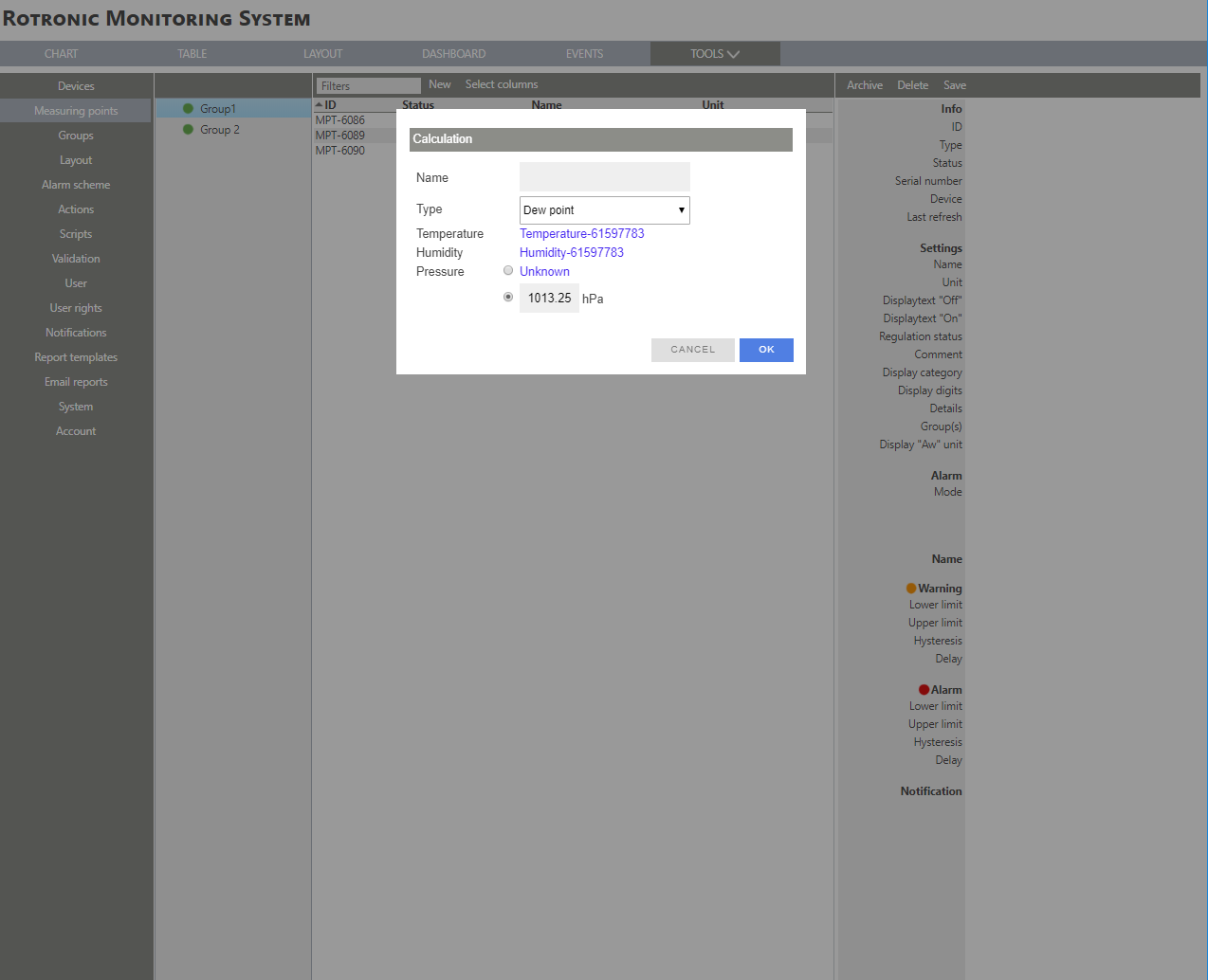 |
| Step 10 | Click on "OK" to generate the psychrometric calculation: 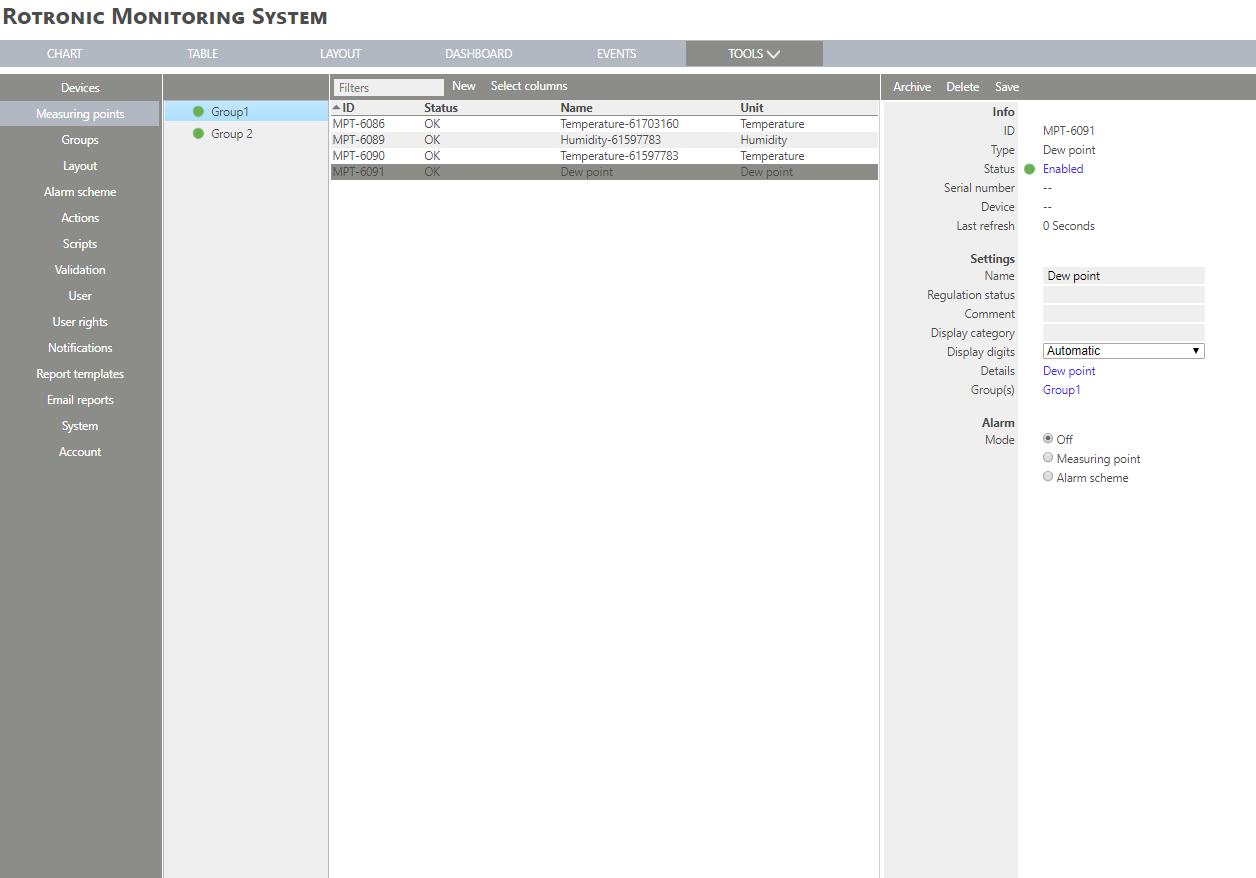 |
| Step 11 | The psychrometric calculation measuring point is added. The measuring point is also added to the chart. |