Add a Formula
| Step 1 | From the start page, click on "Tools" > "Setup": 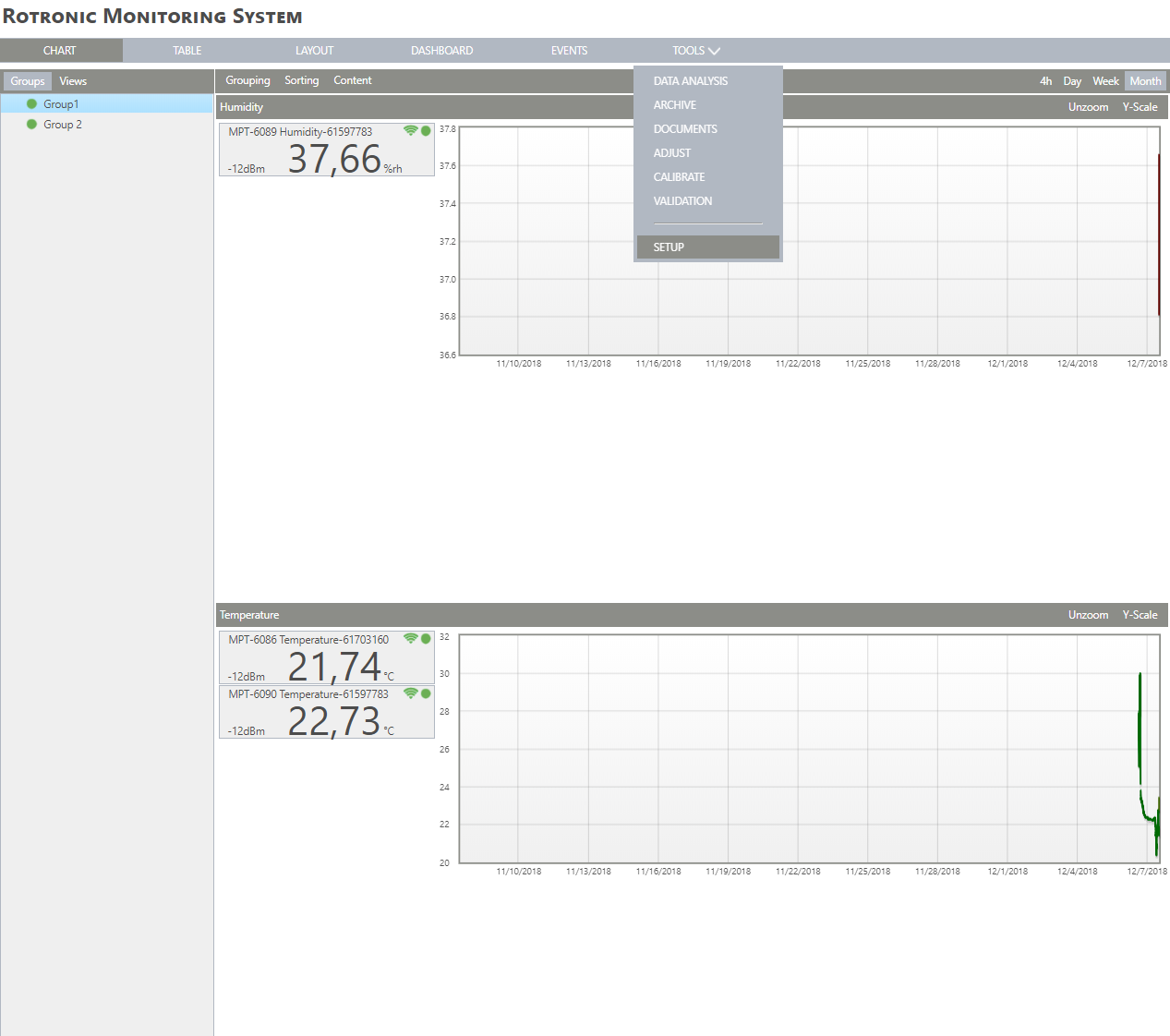 |
|---|---|
| Step 2 | On the left side, select "Measuring points": 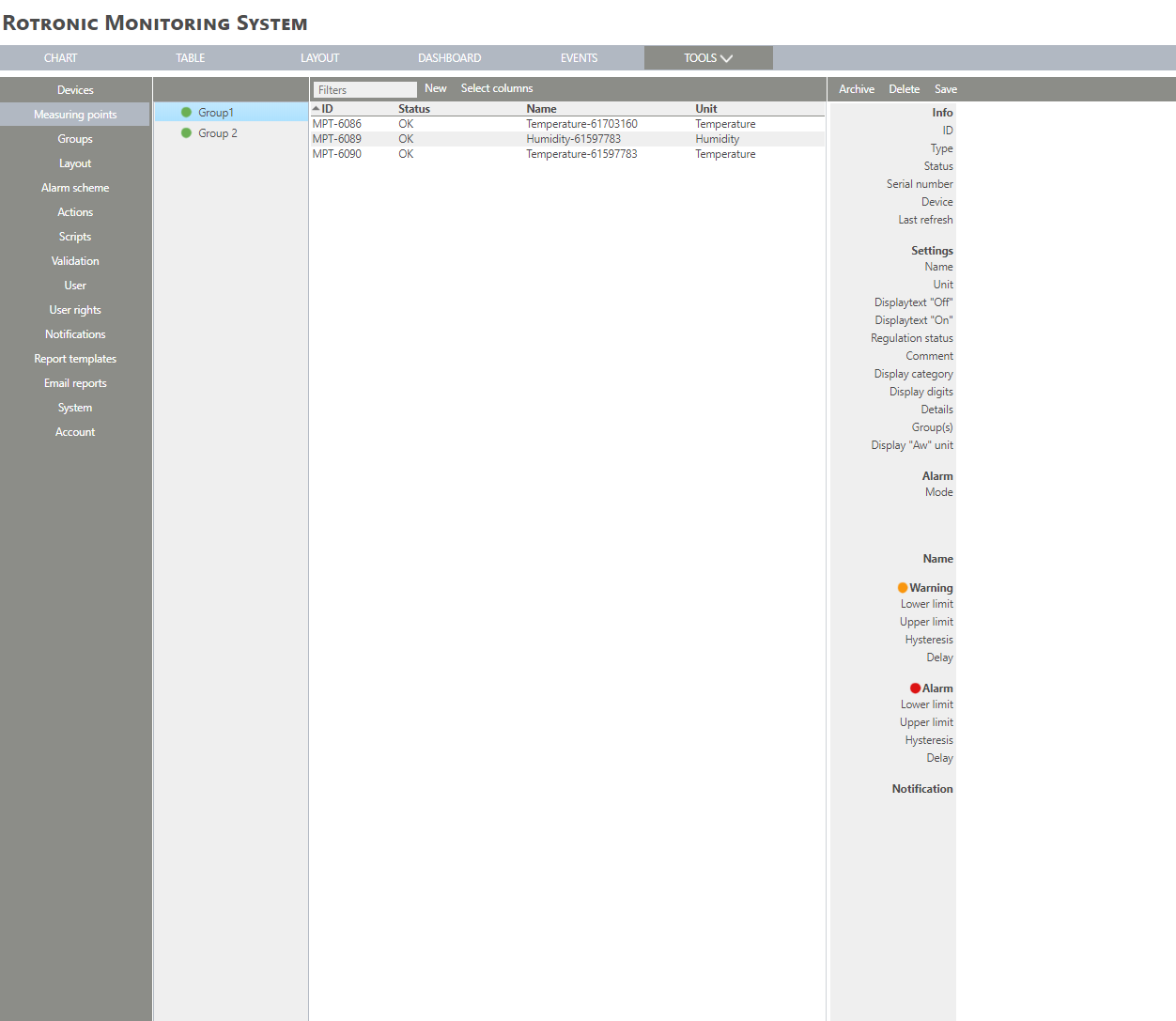 |
| Step 3 | Click on "New" > "Formula": 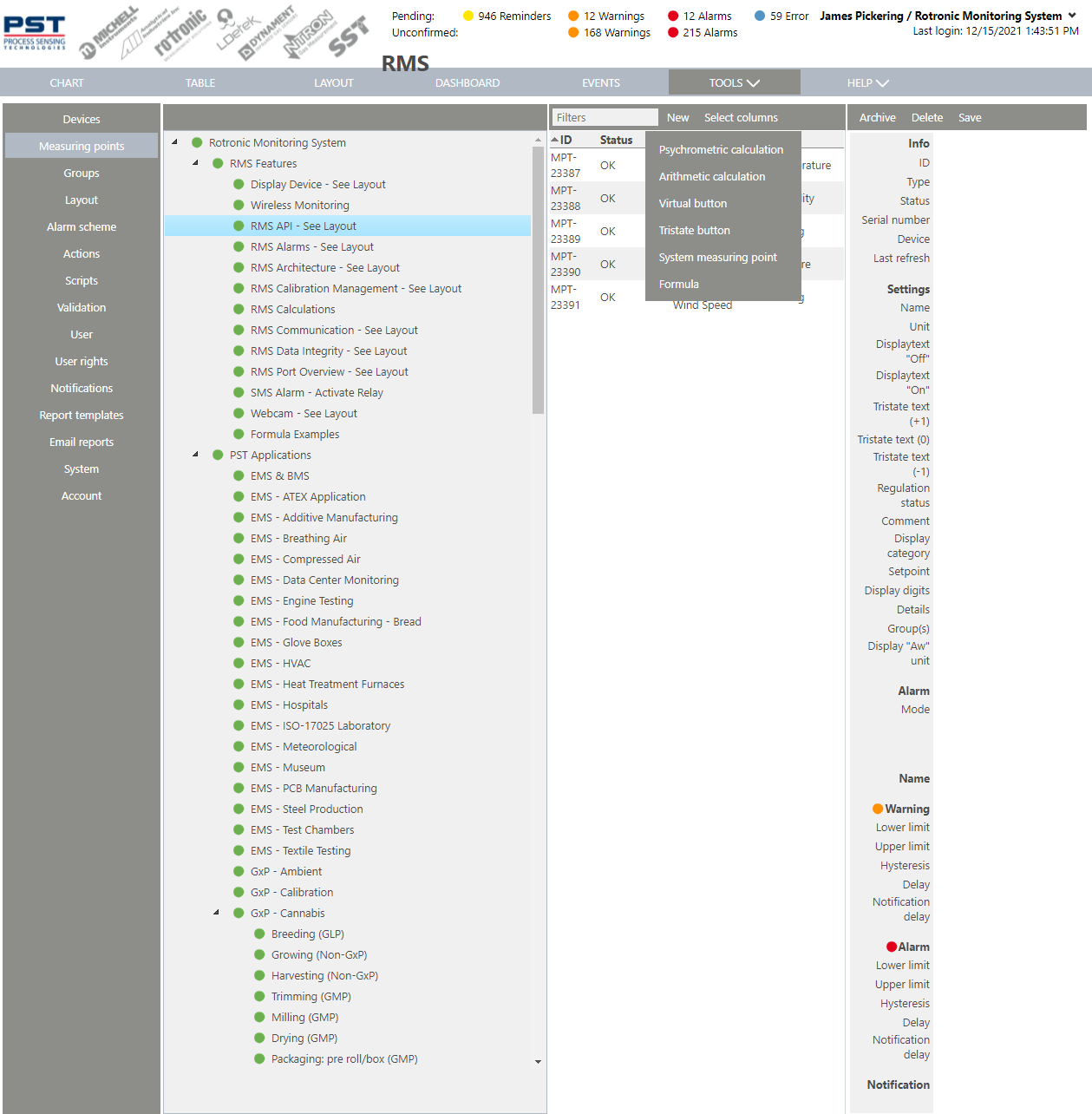 |
| Step 4 | The following window appears: 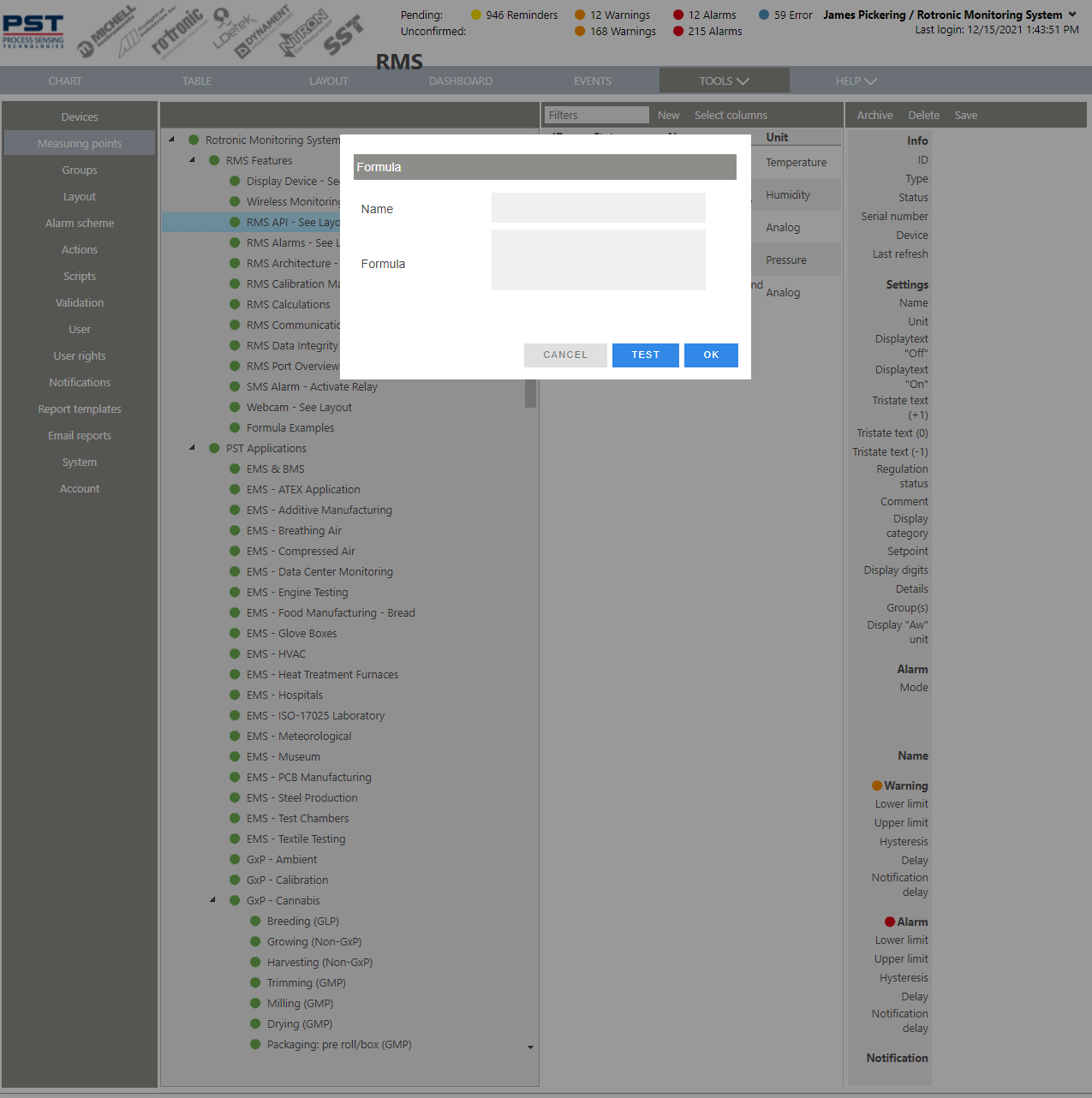 |
| Step 5 | Please see the Formula Detailed Overview to see what functions are possible. |
| Step 6 | Name Choose a name for the formula. Formula Enter the formula. |
| Step 7 | Click on test to test the formula (errors will appear in red): 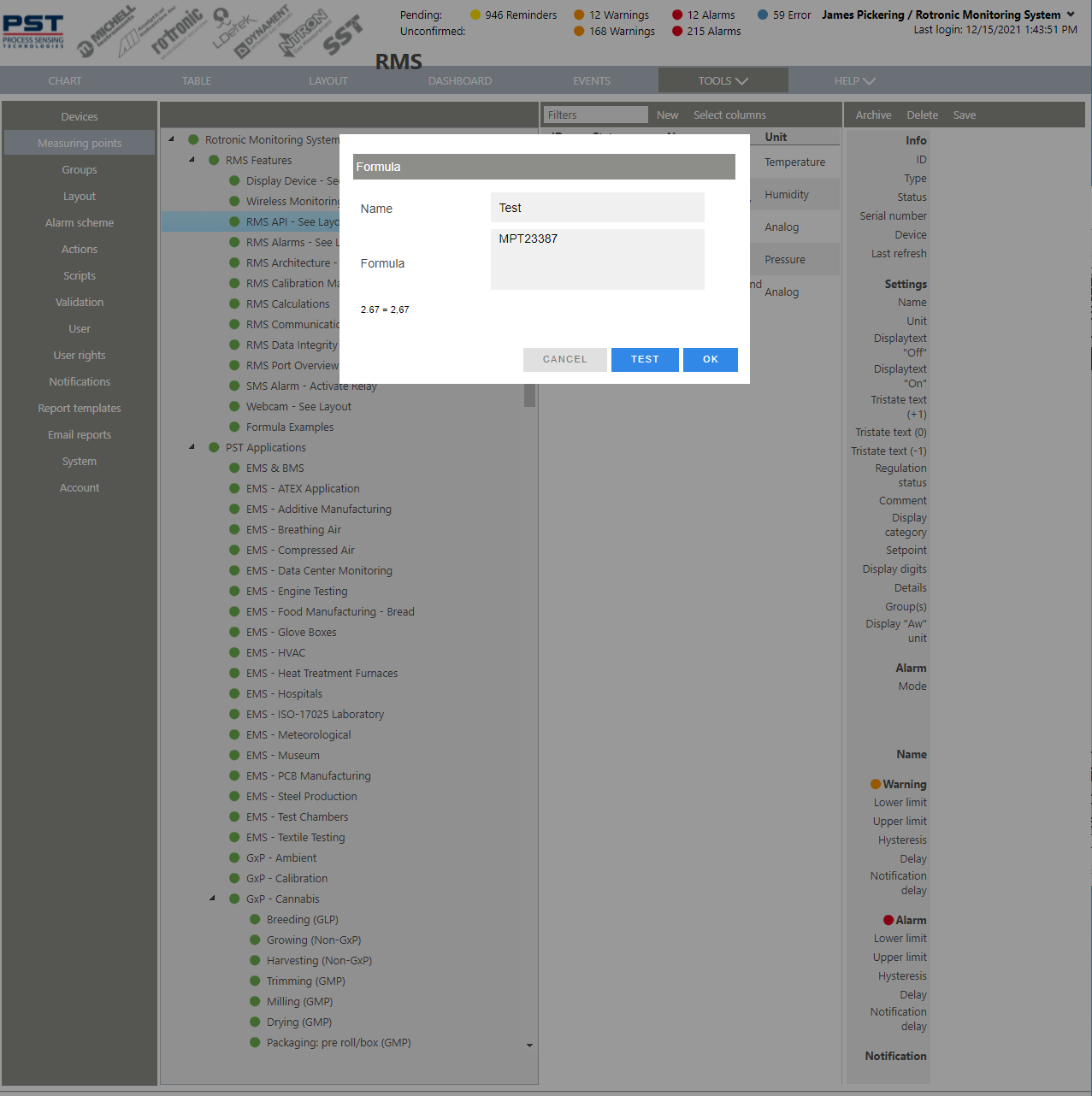 |
| Step 8 | Click on "OK" to generate the Formula: 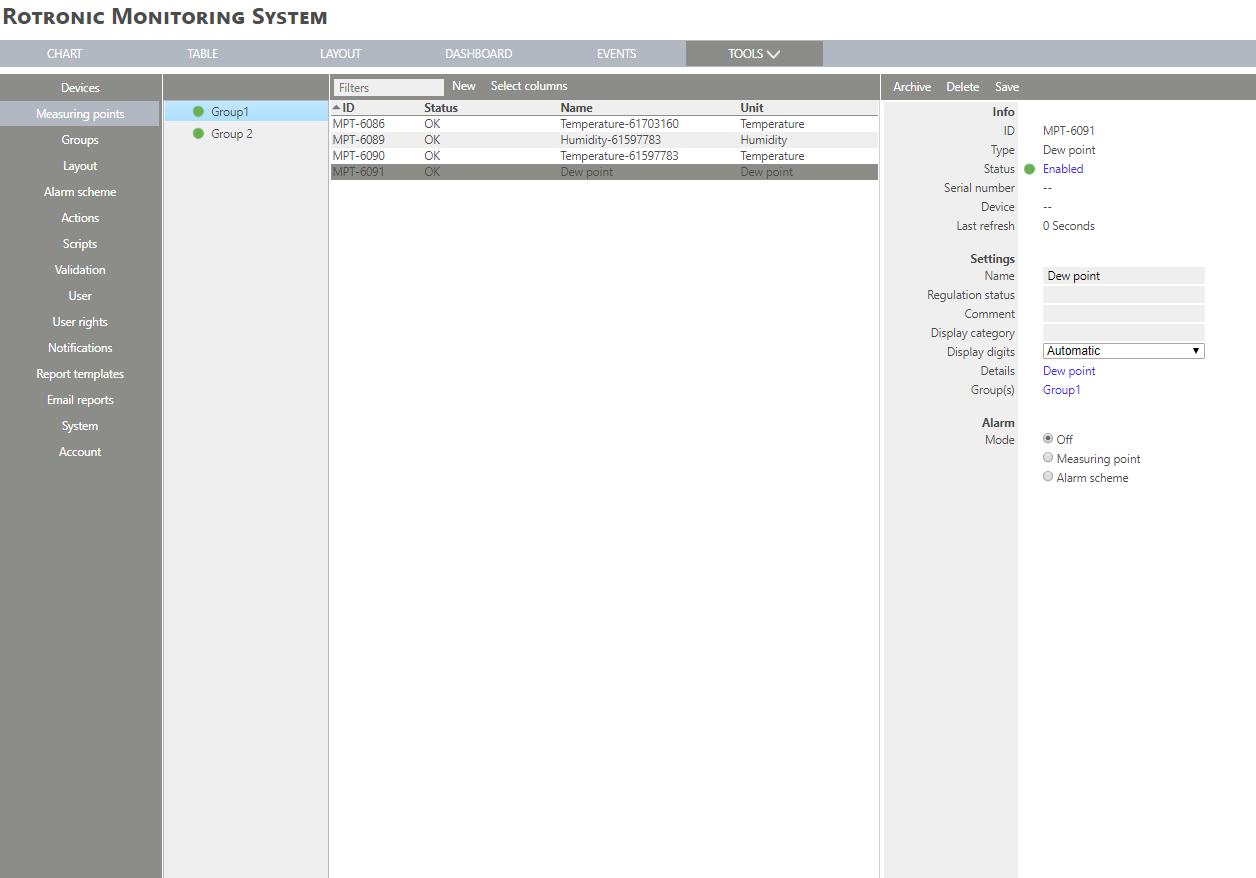 |
| Step 9 | The formula measuring point is added. The measuring point is also added to the chart. |