Add Wireless Device
Add new wireless or LAN devices in the menu "Tools" > "Setup" > "Devices". If you want to add wireless devices, you first need to set up a gateway in the system.
- Add Gateway
| Step 1 | Add LAN device 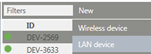 |
|---|---|
| Step 2 | Enter the serial number of the gateway 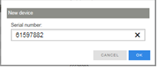 |
| Step 3 | Press the button on the device for clear identification 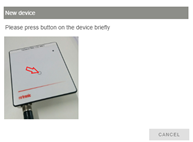 |
| Step 4 | Setting of: 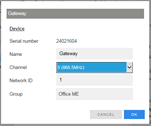 |
| Step 5 | Finish procedure  |
1 It must be avoided that devices with the same network ID and same address can interfere with each other.
- Add Wireless Device
| Step 1 | Add wireless device 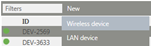 |
|---|---|
| Step 2 | Select gateway to which the wireless device is to be connected 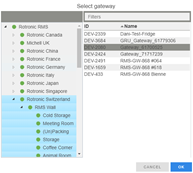 |
| Step 3 | Press the button on the device for clear identification14 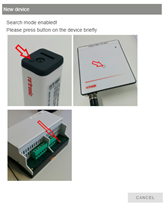 |
| Step 4 | Setting of: The default address is automatically provided by the system. Every device must have its own address per channel3. It may not be higher than 60 and may not exceed the length of the interval4. - Select interval (recommended: 60 s) - Select group - Specify measuring point name and unit 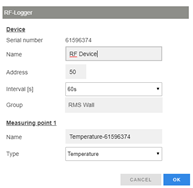 |
| Step 5 | Finish procedure 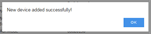 |
2 The dialog must be confirmed within 2 minutes because otherwise the device will switch back to standby.
3 It must be ensured that the wireless address is unique for the frequency of the gateway in order to prevent collisions.
4 For example: interval 30 seconds, highest device address is 30.
When all devices have been added, add the measured value labels to the measuring points in the menu "Tools" > "Setup" > "Layout".