Configure your Event Confirmation (2-Step Confirmation)
| Step 1 | From the start page, click on "Tools" > "Setup": 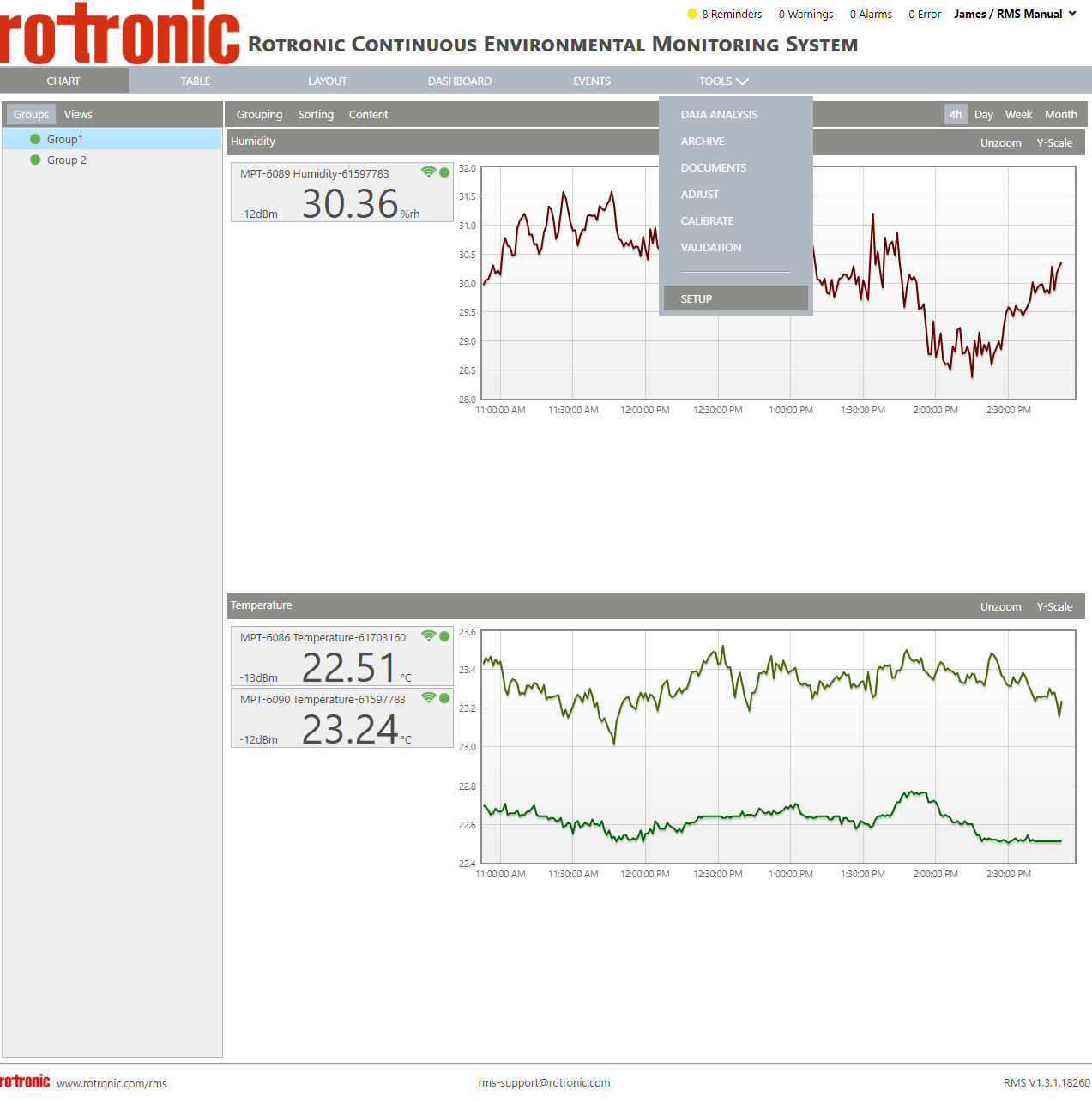 |
|---|---|
| Step 2 | On the left side, select "System": 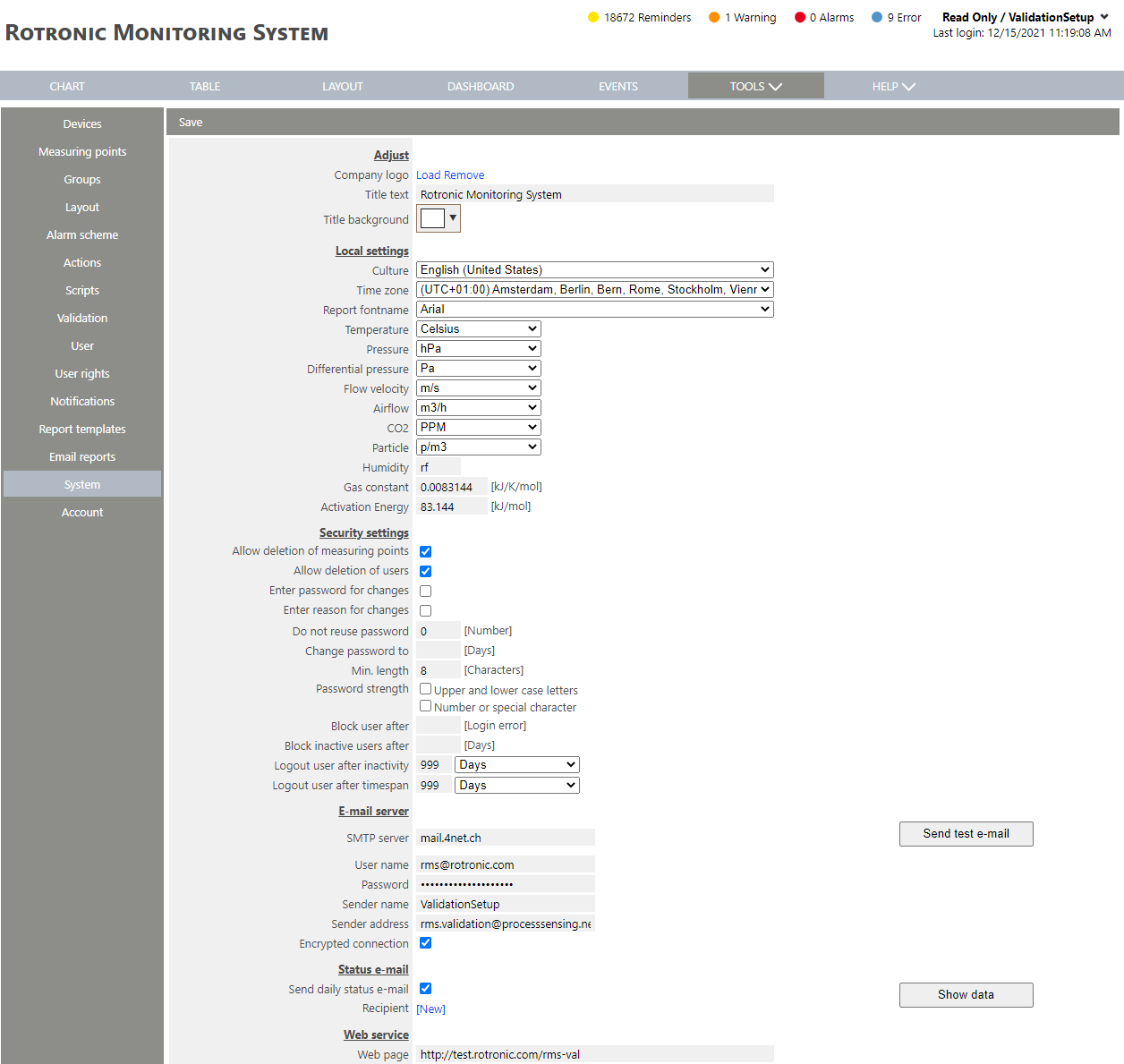 |
| Step 3 | Scroll down to event confirmation: 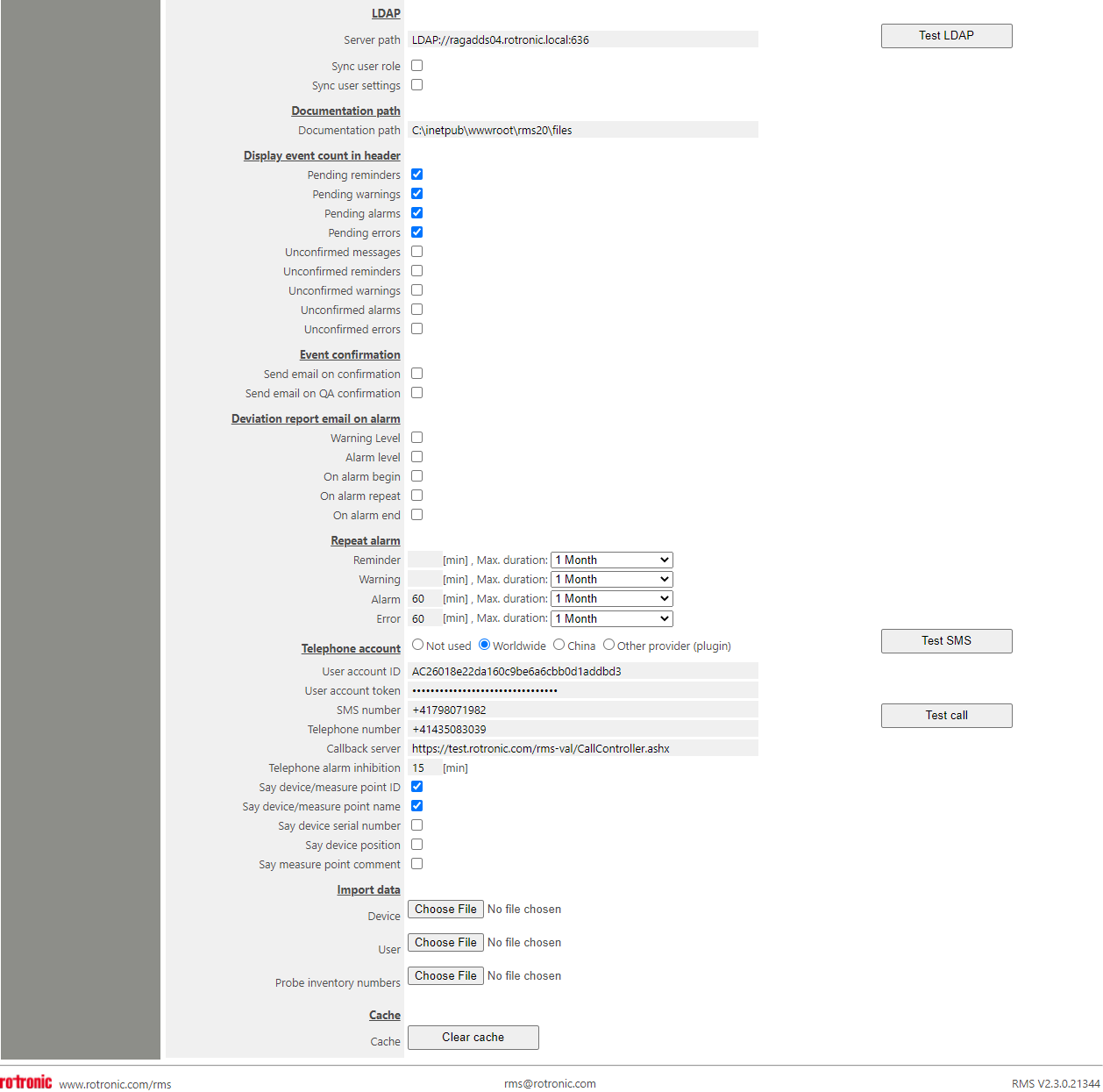 Under "Event confirmation", it is possible to configure automatic E-Mailing between a user and the QA team. - Send E-Mail on Confirmation: Send an E-Mail to QA when an event is confirmed. - Send E-Mail on QA Confirmation: Send an E-Mail to the original user who confirmed the event once confirmed by QA. |
| Step 4 | Click on "Save" to save the settings. |
| Step 5 | Add User Rights where the user can confirm an event. Attribute this role to a user. |
| Step 6 | Add User Rights where the user can confirm QA an event. Attribute this role to a QA user. |
| Step 7 | Useful links: - Tools>Setup>User Explained. - Tools>Setup>User Rights Explained. - Tools>Setup>System Explained. - Events Explained. |