Events Explained
The events view is the audit trail of RMS with an export function.
The audit trail automatically documents everything that happens in the RMS software.
Important features:
- The information in the details column are always formatted for the company time zone.
- Within the events, it is possible to validate reports.
| Overview | The most current events will always appear in the audit trail. The user can select what events they wish to see thanks to the options. To fully understand the audit trail here is the Audit Trail Events Overview. 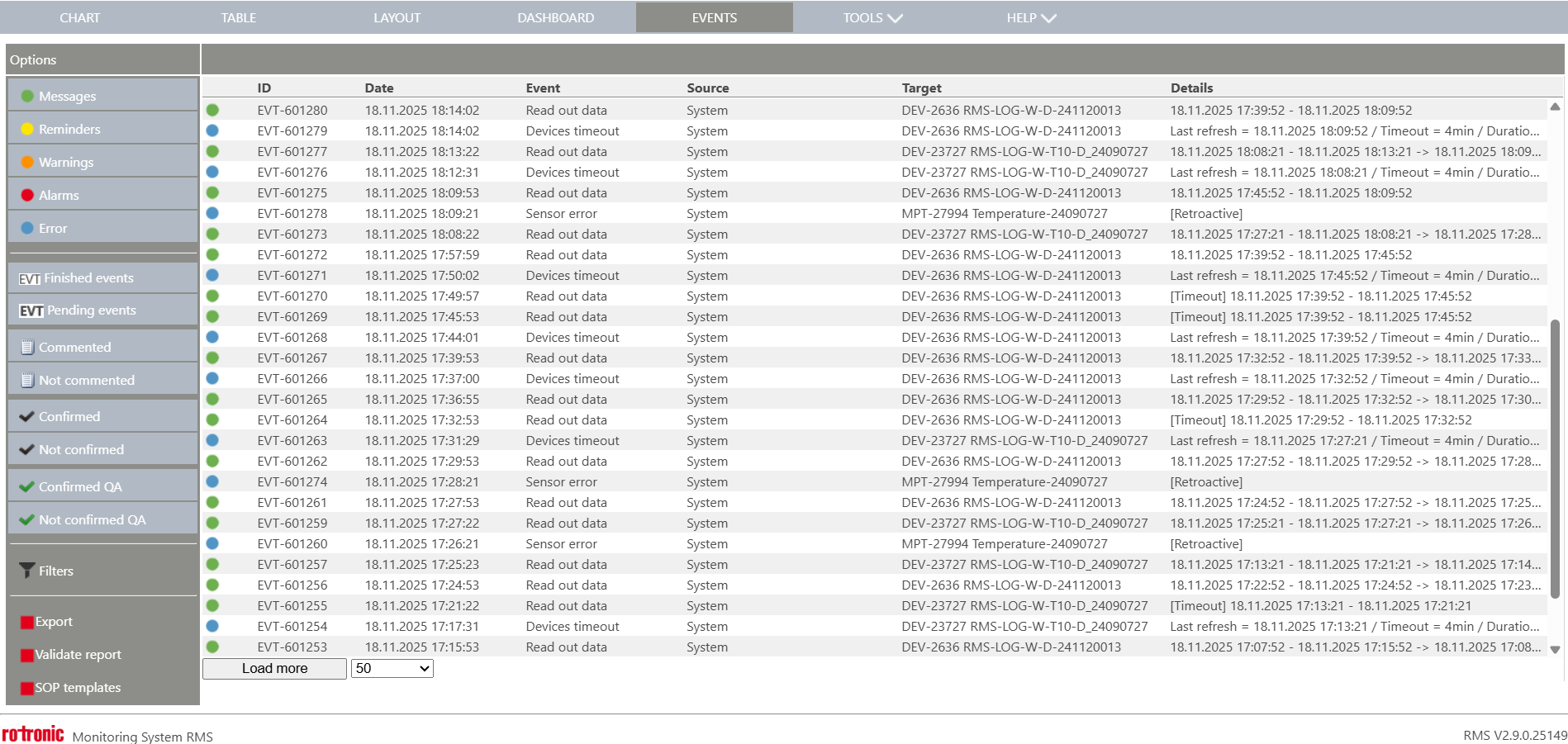 Options Overview: - Messages: Add/remove messages from the audit trail. - Reminders: Add/remove reminders from the audit trail. - Warnings: Add/remove warnings from the audit trail. - Alarms: Add/remove alarms from the audit trail. - Errors: Add/remove errors from the audit trail. - Finished events: Add/remove finished events from the audit trail. - Pending events: Add/remove pending events (in bold) from the audit trail. - Commented: Add/remove commented events from the audit trail. - Not commented: Add/remove non commented events from the audit trail. - Acknowledged: Add/remove acknowledged events from the audit trail. - Not confirmed: Add/remove non confirmed events from the audit trail. - Confirmed QA: Add/remove confirmed QA events from the audit trail. - Not confirmed QA: Add/remove non confirmed QA events from the audit trail. |
||||||||
|---|---|---|---|---|---|---|---|---|---|
| Individual Event | By clicking on the individual events, the user opens the event and various options are available for the user. 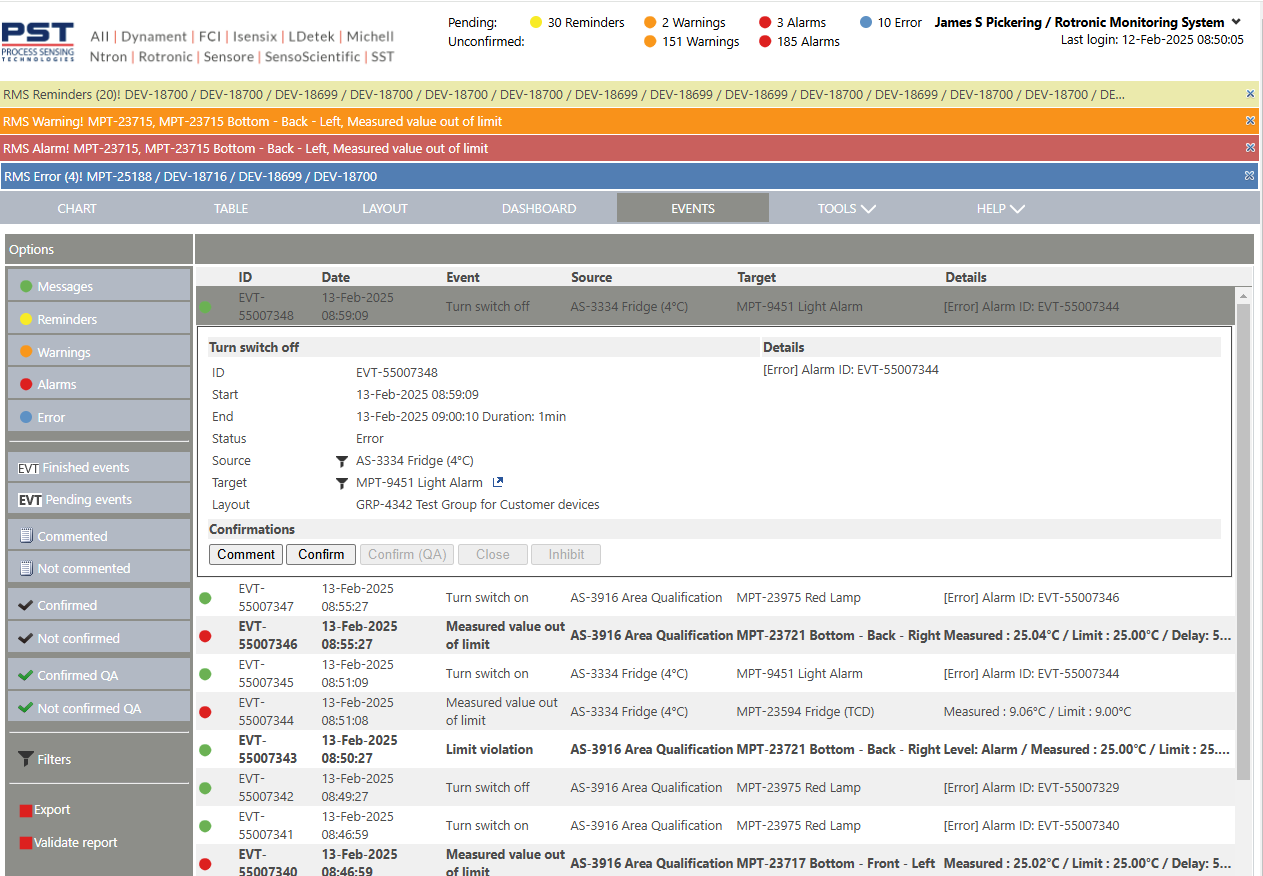 Each event will show the following data: System/Device/User Event: with the event type. - ID: EVT-xxx automatically given by RMS. - Start: Start date of the event automatically given by RMS. - End: End date of the event automatically given by RMS. - Status: Status of the event automatically given by RMS, can be opened or finished. - Source: Source of the event automatically given by RMS, can be the system, a user, a function, a device or a measuring point. - Target: Target of the event automatically given by RMS, can be the system, a user, a function, a device or a measuring point. - Layout: Link to the layout where the device or measuring point is located. Details: Details about the event automatically given by RMS, will always show the values before and after. Confirmations: Details about the confirmations carried out within the event will be shown. - Comment: A user can comment an event, a notebook will be shown within the audit trail once an event is commented. - Confirm: A user can confirm an event, a black tick will be shown within the audit trail once an event is confirmed. - Confirm QA: A user can confirm QA an event, a green tick will be shown within the audit trail once an event is confirmed QA. - Close: A user can close an event. If the reason for the event is still active, a new event will be created. - Inhibit: A user can inhibit an event. - Try again (only for data gaps): A user can try to download the data again. - Deviation report (only for warnings and alarms): A user can download a deviation report. |
||||||||
| Event selection | By selecting multiple events (SHIFT or CONTROL) an Options menu will appear. The same various options are available for the user. 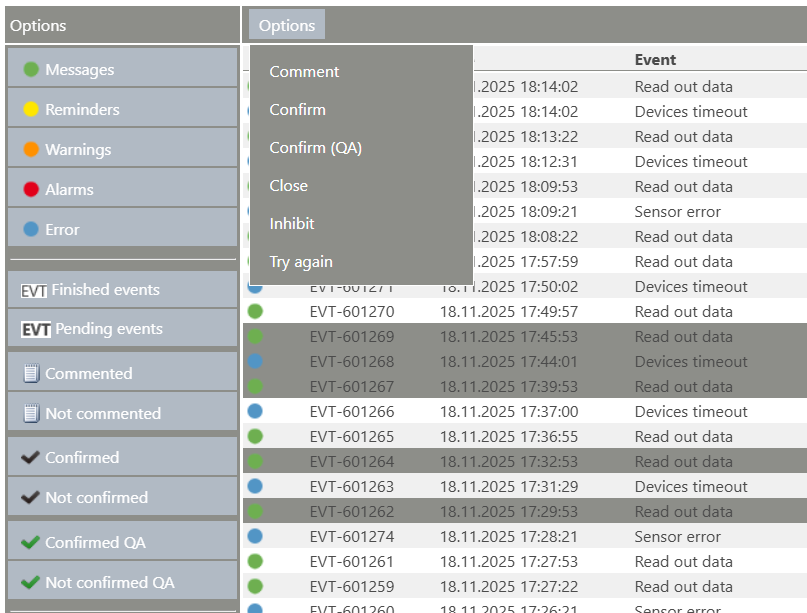 |
||||||||
| Filter | By selecting the filter option, filter fields will appear to simplify searching events within the audit trail. Also the Group tree will become visible, the user can select the joint group to see all events, or select a specific group to review the events of that specific group. Under Event, the user can put in a letter and a drop down menu will appear with the various events containing that letter. 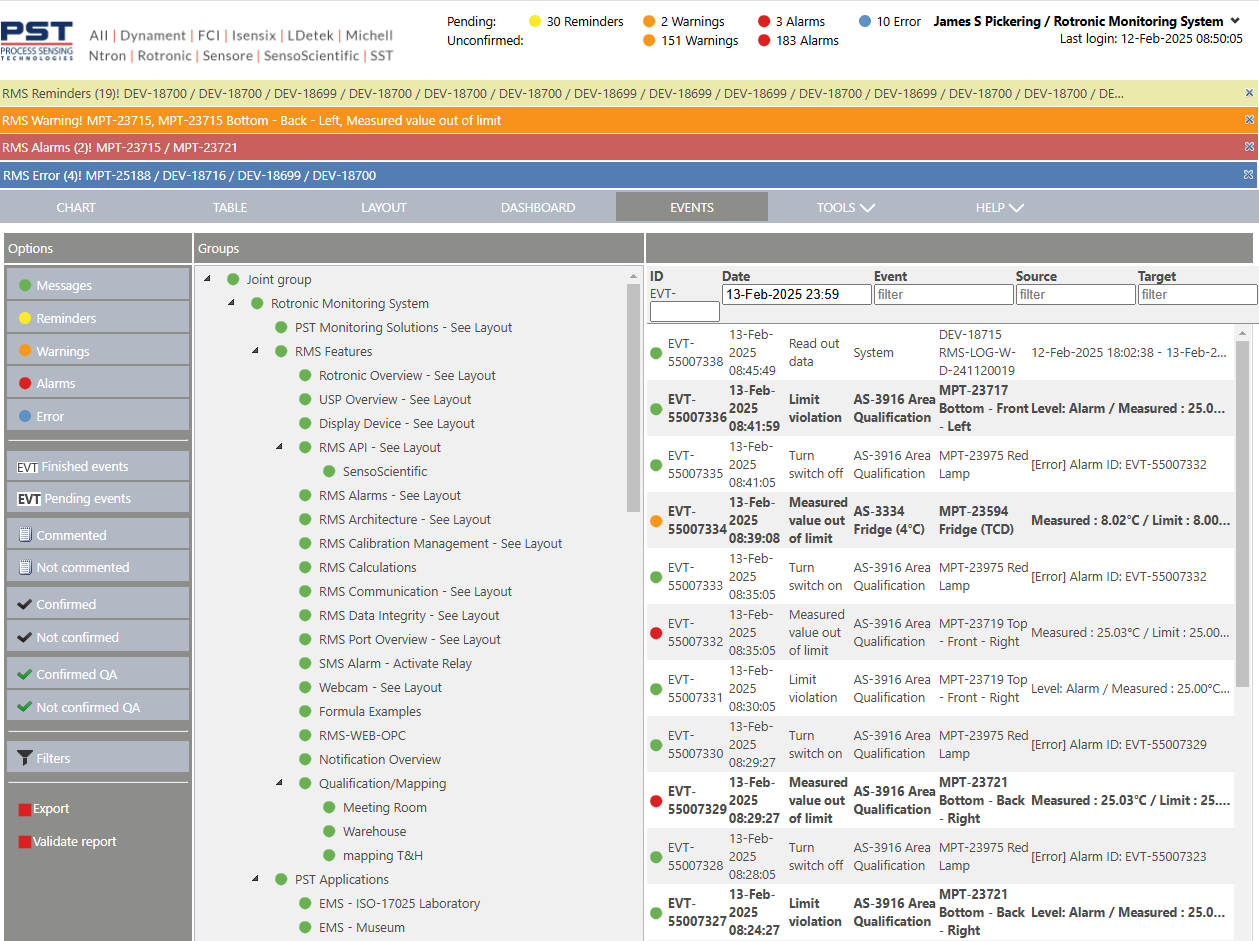 |
||||||||
| Export | By clicking on Export (bottom left on the screenshot), the user can export either a PDF (limited to 50'000 Events, Events that exceed this Number won't be included in the Report) or CSV of the events. Automatically generated (Daily, Weekly, Monthly) Reports are capped at 10'000 Events. 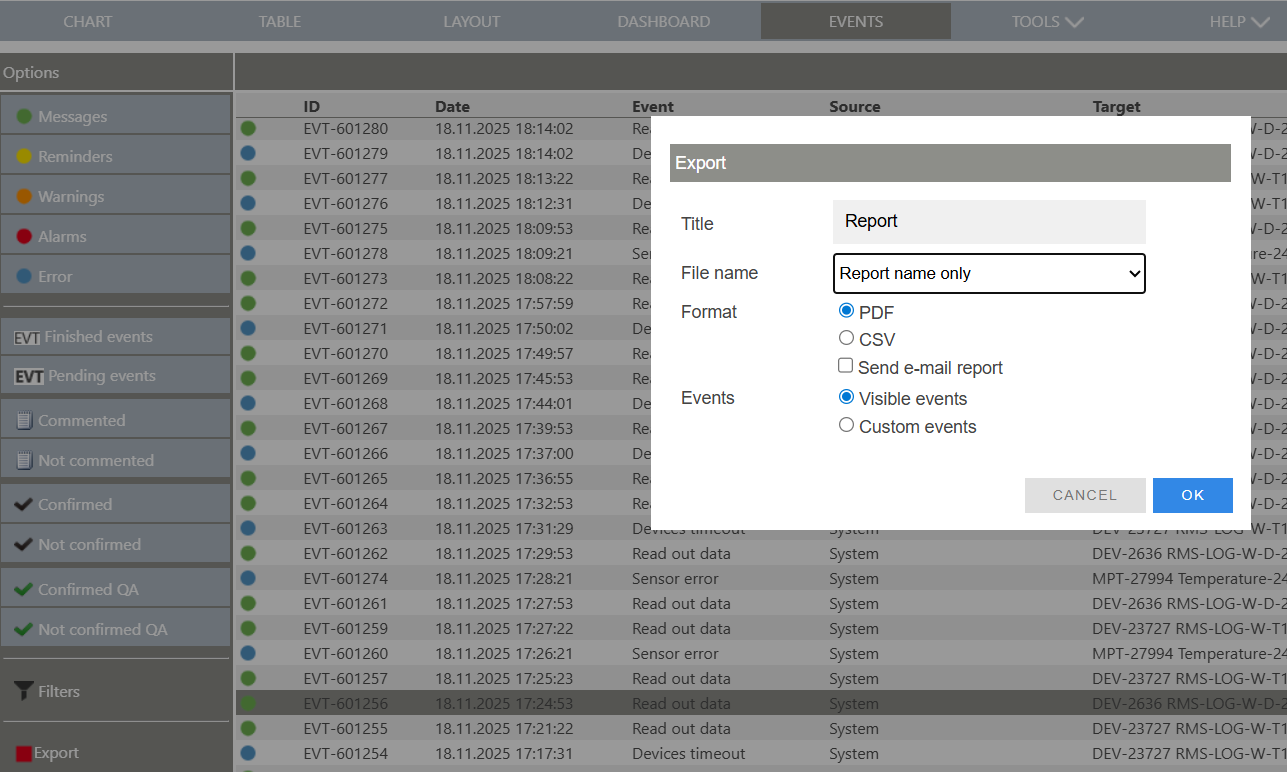 \ |
Important: Data export: - When a manual PDF is created with >10'000 events, an error message will be shown to the user. - When a manual CSV is created with >50'000 events, an error message will be shown to the user. - When an automated PDF is created with >10'000 events, multiple reports will be created and sent by E-Mail. Maximum number of reports: 50. \ |
\ | --- \ | |||||
| Important: Data export: - When a manual PDF is created with >10'000 events, an error message will be shown to the user. - When a manual CSV is created with >50'000 events, an error message will be shown to the user. - When an automated PDF is created with >10'000 events, multiple reports will be created and sent by E-Mail. Maximum number of reports: 50. |
|||||||||
| Export option | When clicking on Export>Custom events, the user can define exactly what events are to be exported, based upon predefined Event Report templates (Tools>Setup>Report Templates Explained): 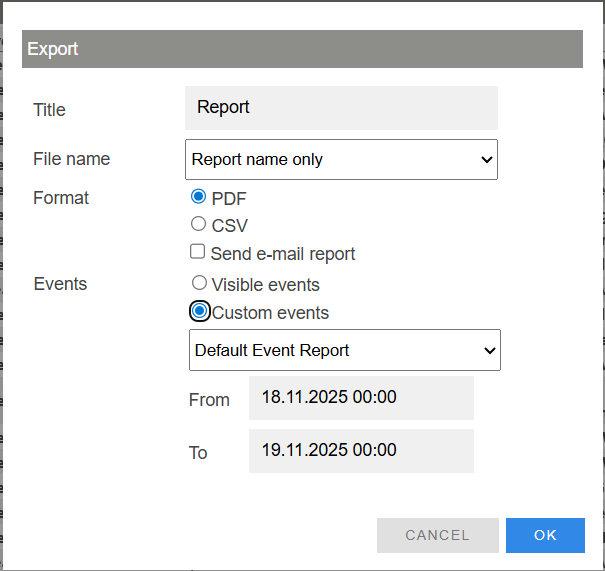 |
||||||||
| Validate Report | RMS offers a Validate Report function (click on Validate report, mid left in the screenshot). All reports generated by RMS are saved on the server and are hashed. By clicking on Validate report, the user has the possiblity to check a document saved locally to see if it has been manipulated. RMS will compare the file uploaded to the file on the server. 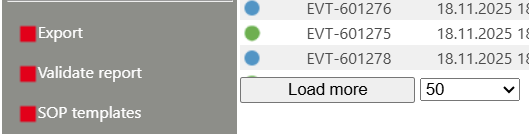 |
||||||||
| Inhibition | If a single event is selected by mouseclick, the customer can inhibit an active event.  Clicking on the button 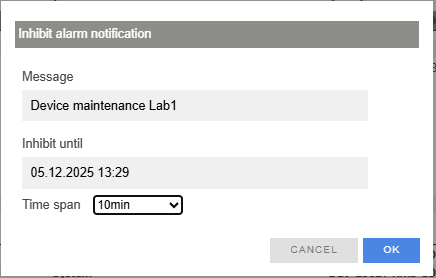 \ |
Note: An event of a device (e. g. Device timeout as the screenshot above) inhibits only the device but not its measurement points. Events like "measuring point reminder" or "sensor errors", must be considered separately. An event of a measurement point (see next screenshot) inhibits only the chosen measurement point. A further device event could cause (if configured) further notification, even if a measurement point is inhibited already. \ |
\ | --- \ |  \ |
Note: If the customer wants to inhibit device and measuring point events, he can click on the Tab TABLE, click on the colored circle of a related measurement point and can inhibit device and measurement time at once. Please see Inhibit alarm notifications via the table view \ |
\ | --- \ | |
| Note: An event of a device (e. g. Device timeout as the screenshot above) inhibits only the device but not its measurement points. Events like "measuring point reminder" or "sensor errors", must be considered separately. An event of a measurement point (see next screenshot) inhibits only the chosen measurement point. A further device event could cause (if configured) further notification, even if a measurement point is inhibited already. |
|||||||||
| Note: If the customer wants to inhibit device and measuring point events, he can click on the Tab TABLE, click on the colored circle of a related measurement point and can inhibit device and measurement time at once. Please see Inhibit alarm notifications via the table view |
|||||||||
| Update V2.8.0 | SOP comments on event - Settings / Setup - Usage Tools > System > Customization  Tools > User rights 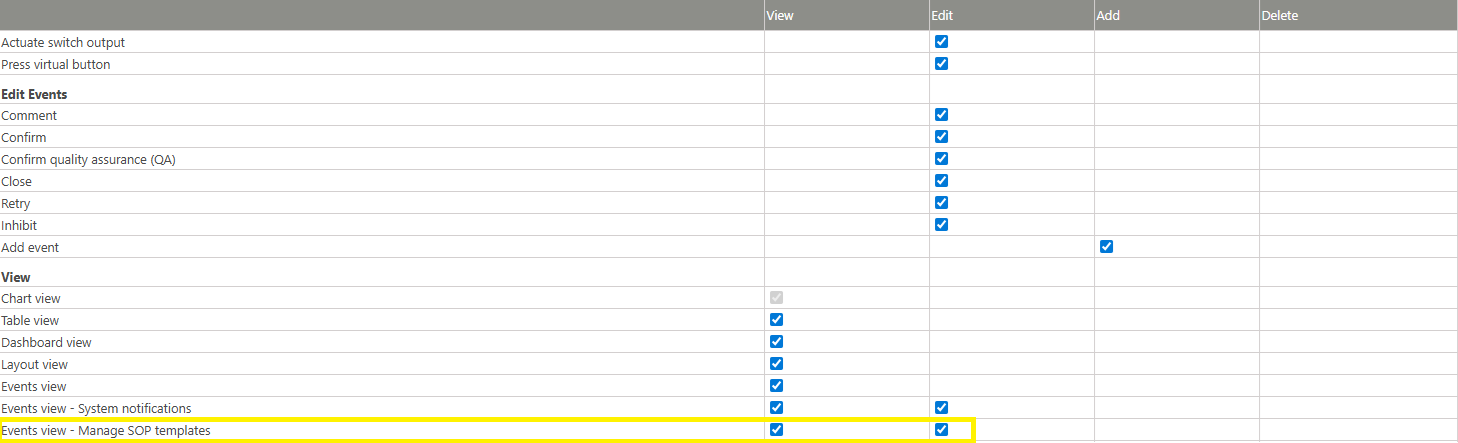 Events > SOP templates 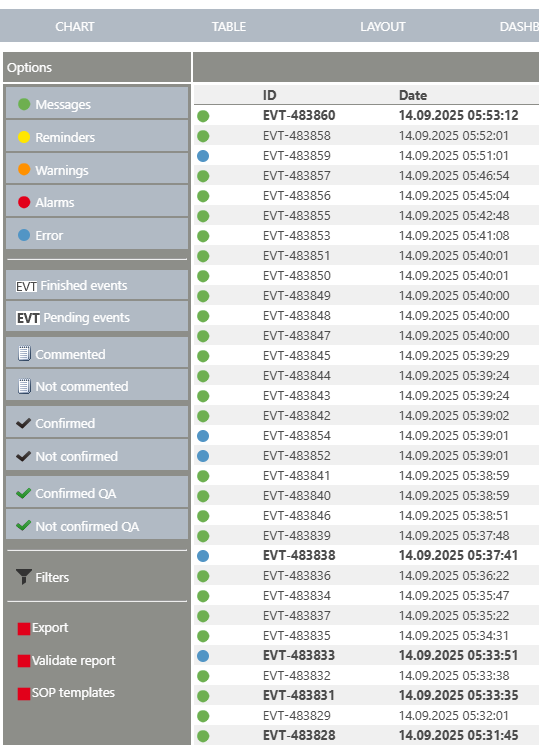 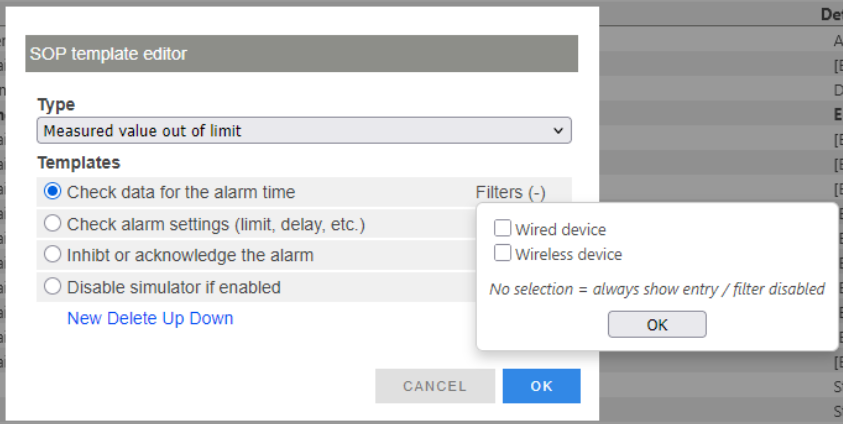 Click on SOP on an event 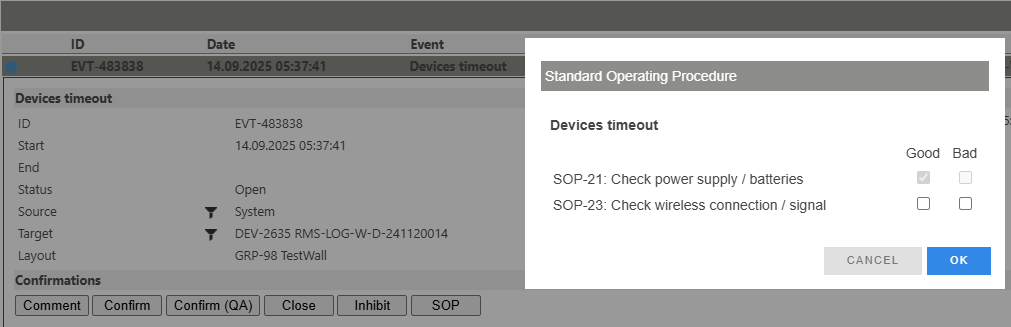 Confirmation message 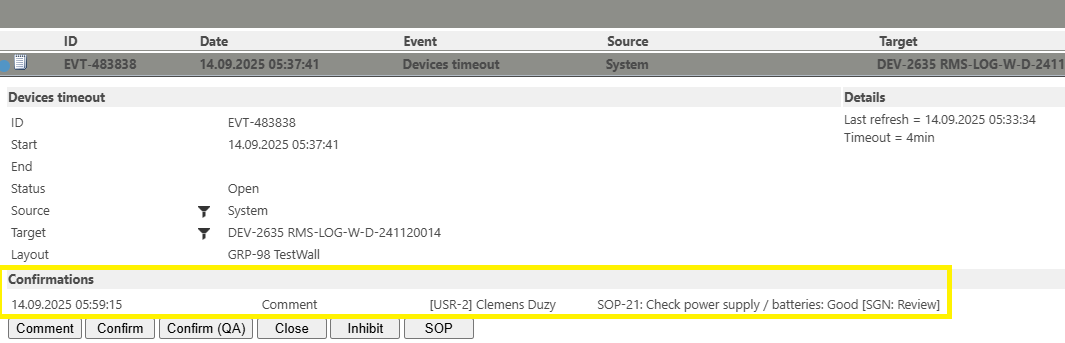 |
||||||||
| Update V2.9.1 | When an Sensor error is inhibited in the event table, the use can choose between an inhibition of a measurement point only or device and measurement point together. - Inhibition of a measurement point only -> Please do not enable the checkbox for Technical inhibition (as in the following screenshot) - Inhibition of device and measurement point -> Please enable the checkbox for Technical inhibition 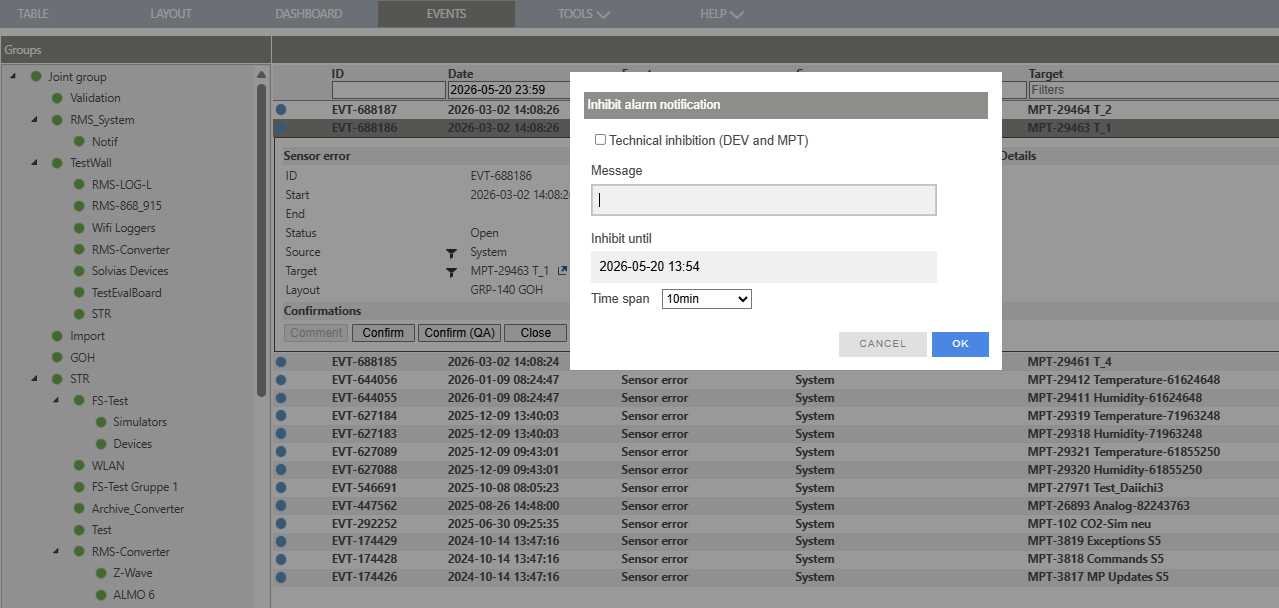 |
Updated: 20.05.2026