Tools>Documents Explained
The documents tool is a storage area with an export function.
Important feature: All firmware versions can be stored under documents. Ensure that the latest firmware versions are always uploaded to your system.
| Overview | At TOOLS>DOCUMENTS, the user can - add/upload new files and documents - download existing files and documents to a location on the PC and - delete files. Documents that can be handled are e. g.: - Device- and Measuring- documents, datasheets etc. - Reports (many types but also not RMS generated documents) - FW files 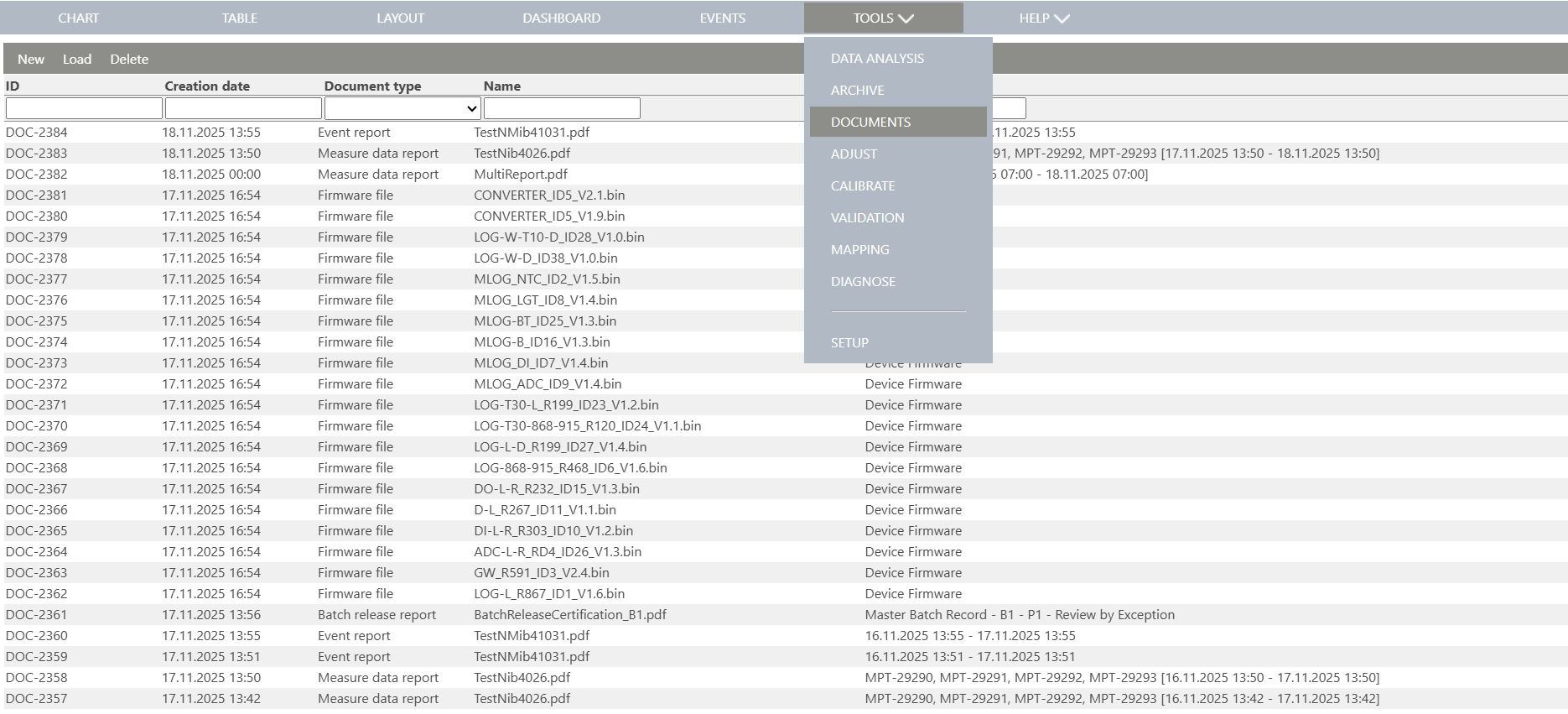 |
|---|---|
| New document | - By clicking on New, the user chose a file in the filesystem, defines the document type, selects a related device or measuring point and can add still an individual description. 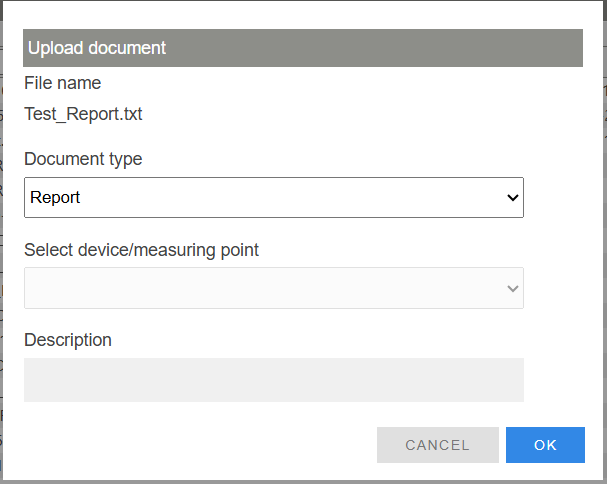 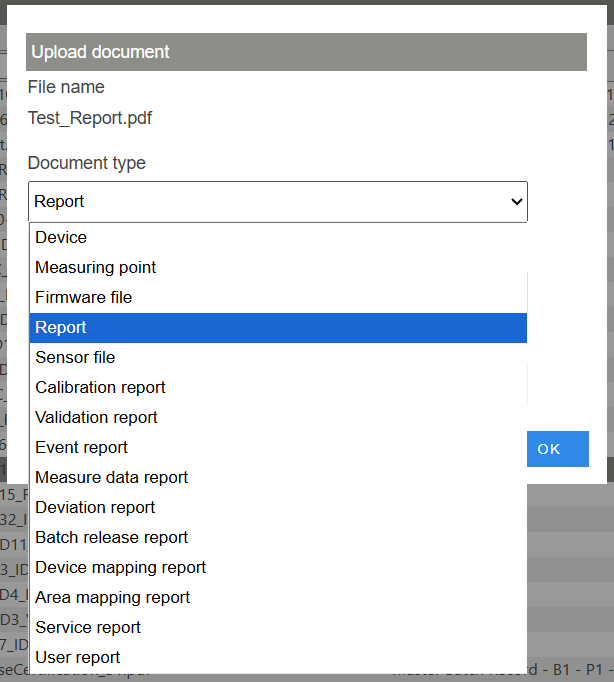 |
| Load document | - By clicking Load, the user can download an existing document. Please chose the document and click on Load.  |
| Delete document | - By clicking on Delete, the user can delete an existing document. Please chose the document and click on Delete.  |
| Review document | - Documents can also be marked as reviewed. First mark the document to be reviewed. By clicking on Options>Review, the user can add a comment and confirm the review. Please note, that Option only appears if a document is marked.  If a document is reviewed, then a new document will be created with a new DOC-XX number and the title will be adapted: DOC- The reviewed document will be the original document with an additional page at the beginning with the following details: - Document reviewed: The original DOC number. - Number of pages reviewed: x/x. - Name: Name of person that reviewed the document. - Comment: The comment added. - Date: Date and time that the document was reviewed. - Signature: User signature. At the bottom of the page, the user, signature and DOC number are adapted. |
| Filter function | The filter available can be used to simplify the list of documents. 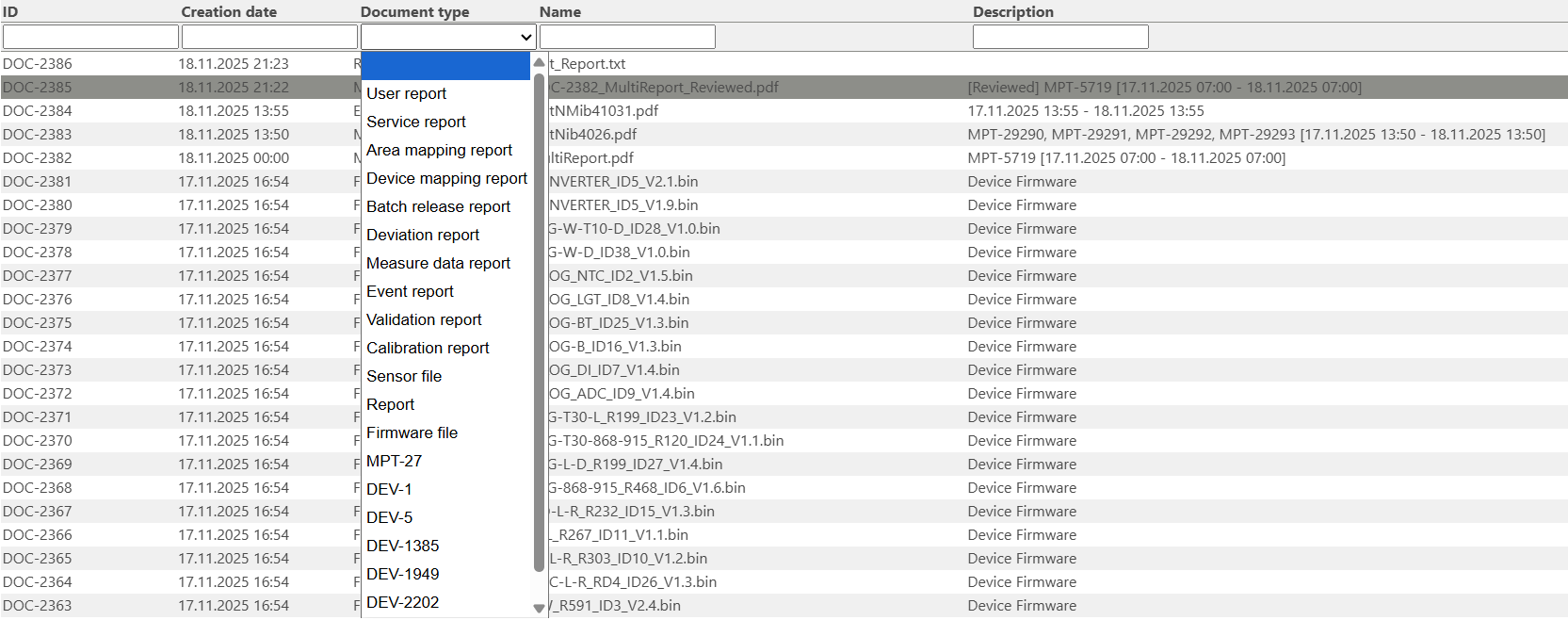 |
| Update V2.8.0 | Upload of calibration reports (pdf) A calibration report/certificate (pdf), made outside of RMS, can now be uploaded and stored in RMS. - Pls. click on Tools > documents > New - Choose the pdf document - Define the document type as Calibration report and - Add a description (optional) and - Click 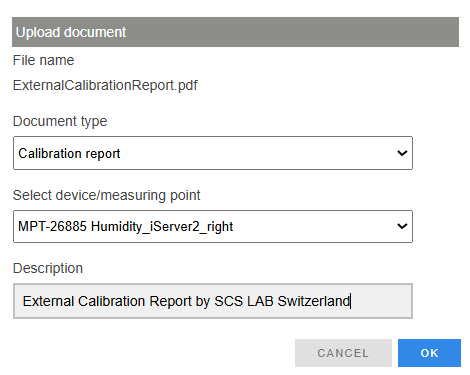 |
| Update V2.8.0 | Upload document - selectable document type When uploading a document, the user should have the possibility to select the type of report is being added from a list of all report types. Tools > Documentation > New ... The following document types can be chosen: 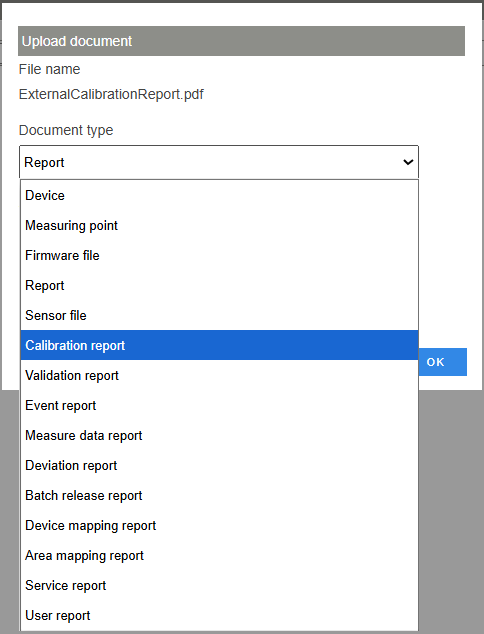 |
Updated: 18.11.2025