Tools>Setup>Layout Explained
The layout setup tool is a function to add pictures and details to the group layout.
Important feature: The mouse-over/mouse hover function can be used to view more details about the measuring points shown within the layout. A switch/button can directly be triggered from the layout.
| Print Screen 1 | The user can select what to do: - Click here to load a background picture. - Background picture: add or remove a background picture. - Add label: add a label. - Save: Save the configuration. 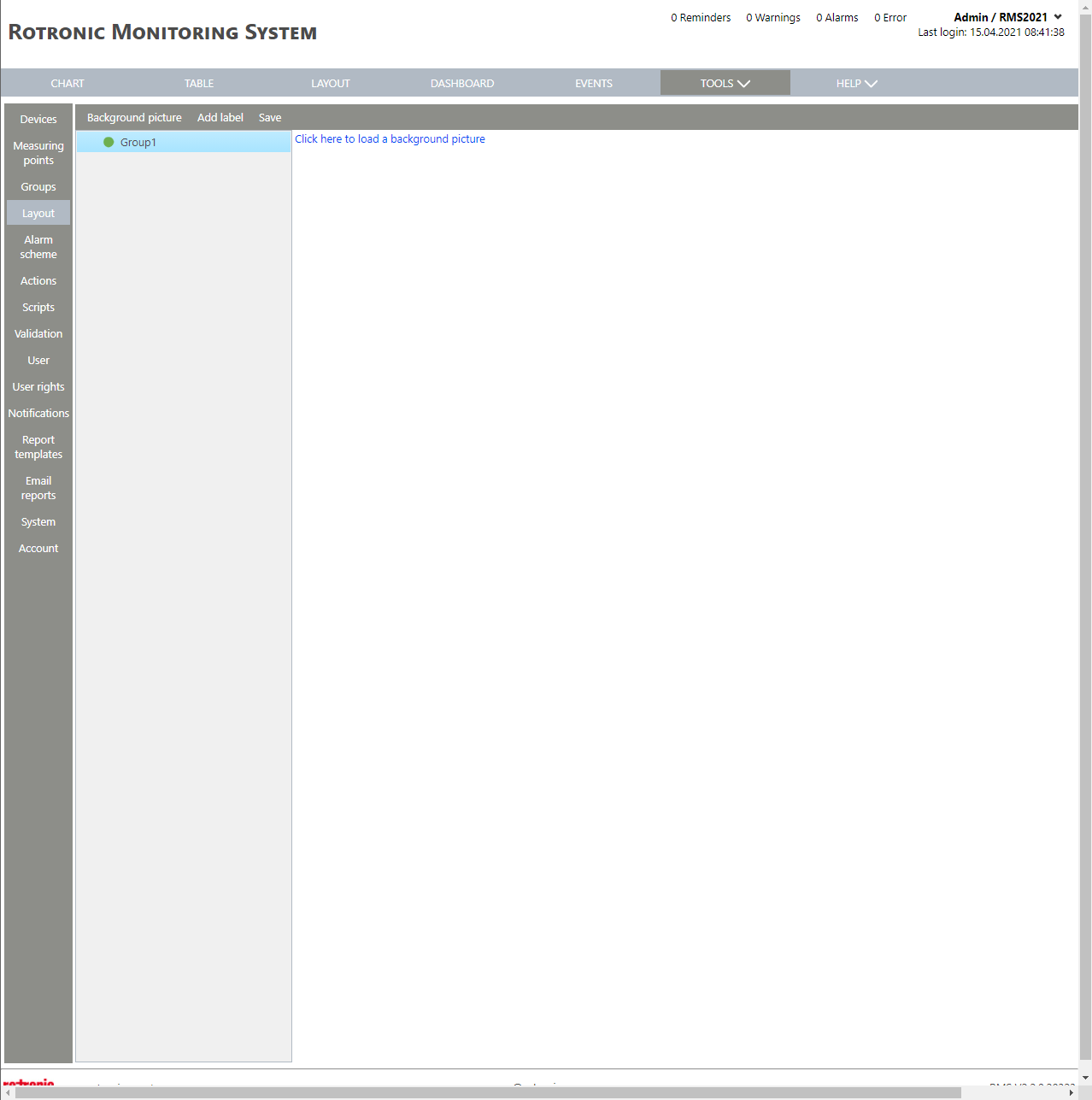 |
|---|---|
| Print Screen 2 | When the user selects background picture, an image can be loaded or removed. 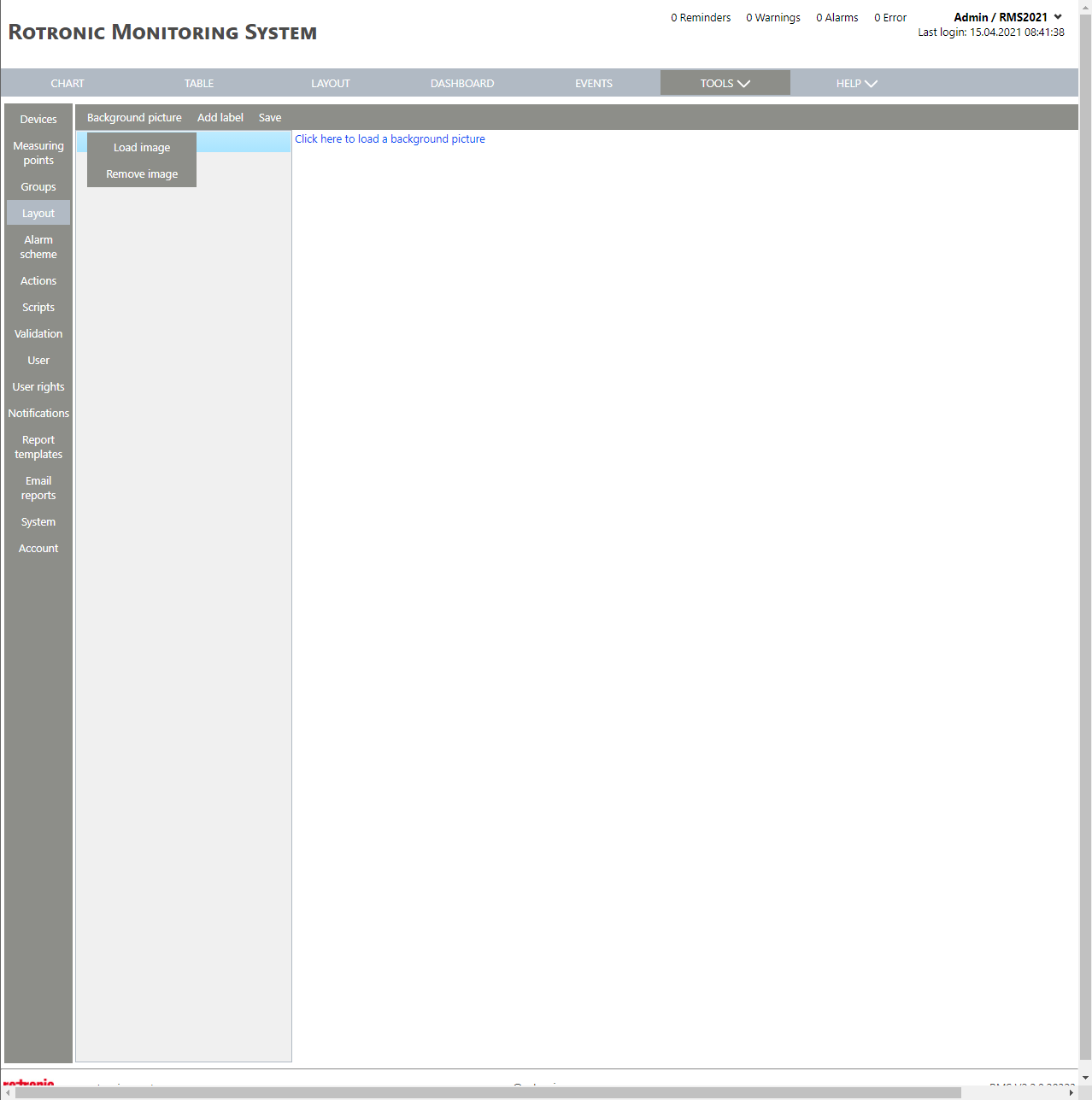 |
| Print Screen 3 | When the user load, a new explorer window opens where the image can be selected.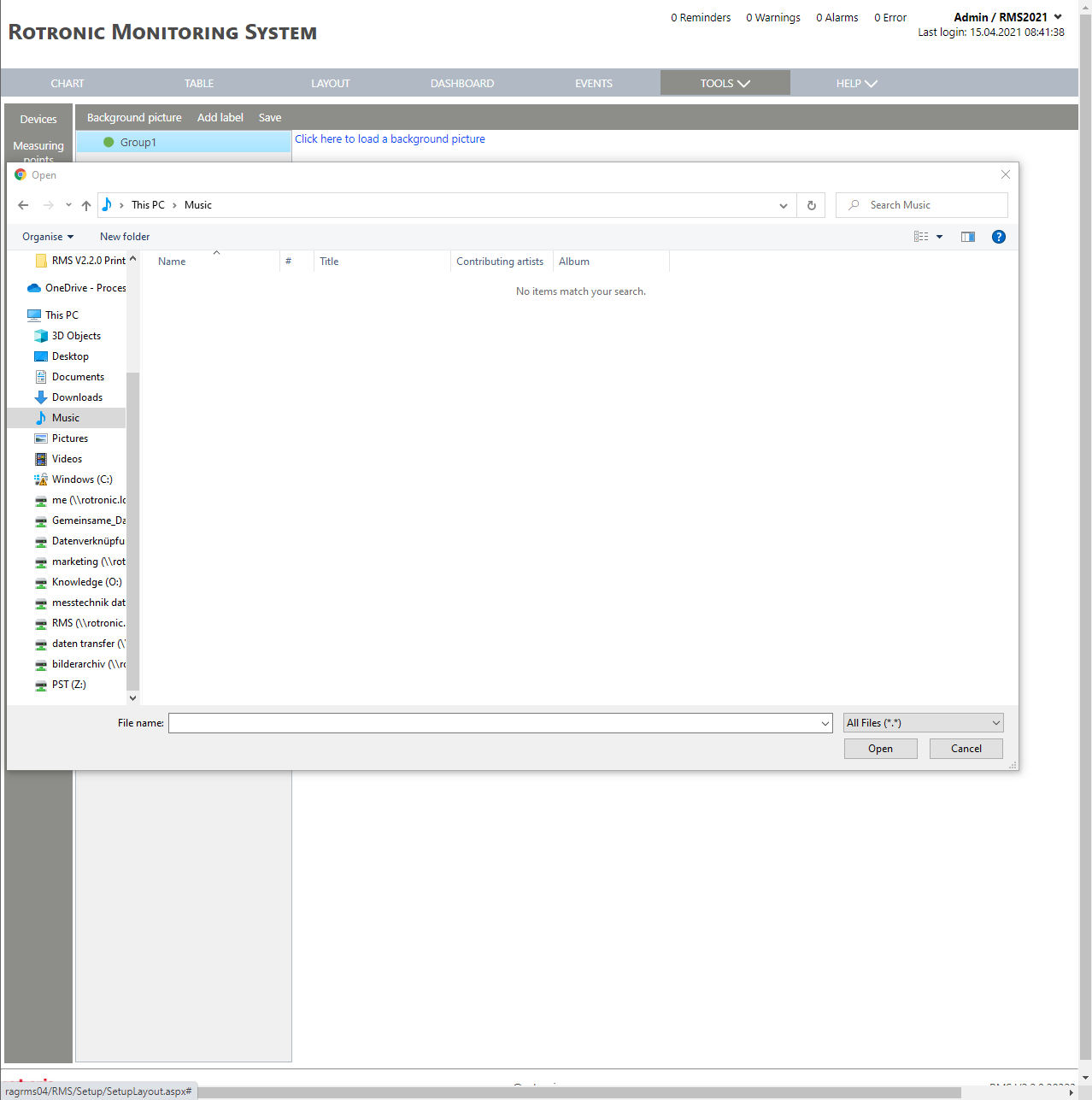 |
| Print Screen 4 | When the user selects add label, there are various options: - Measured value label. - Text label. - Web camera. - RMS gateway. 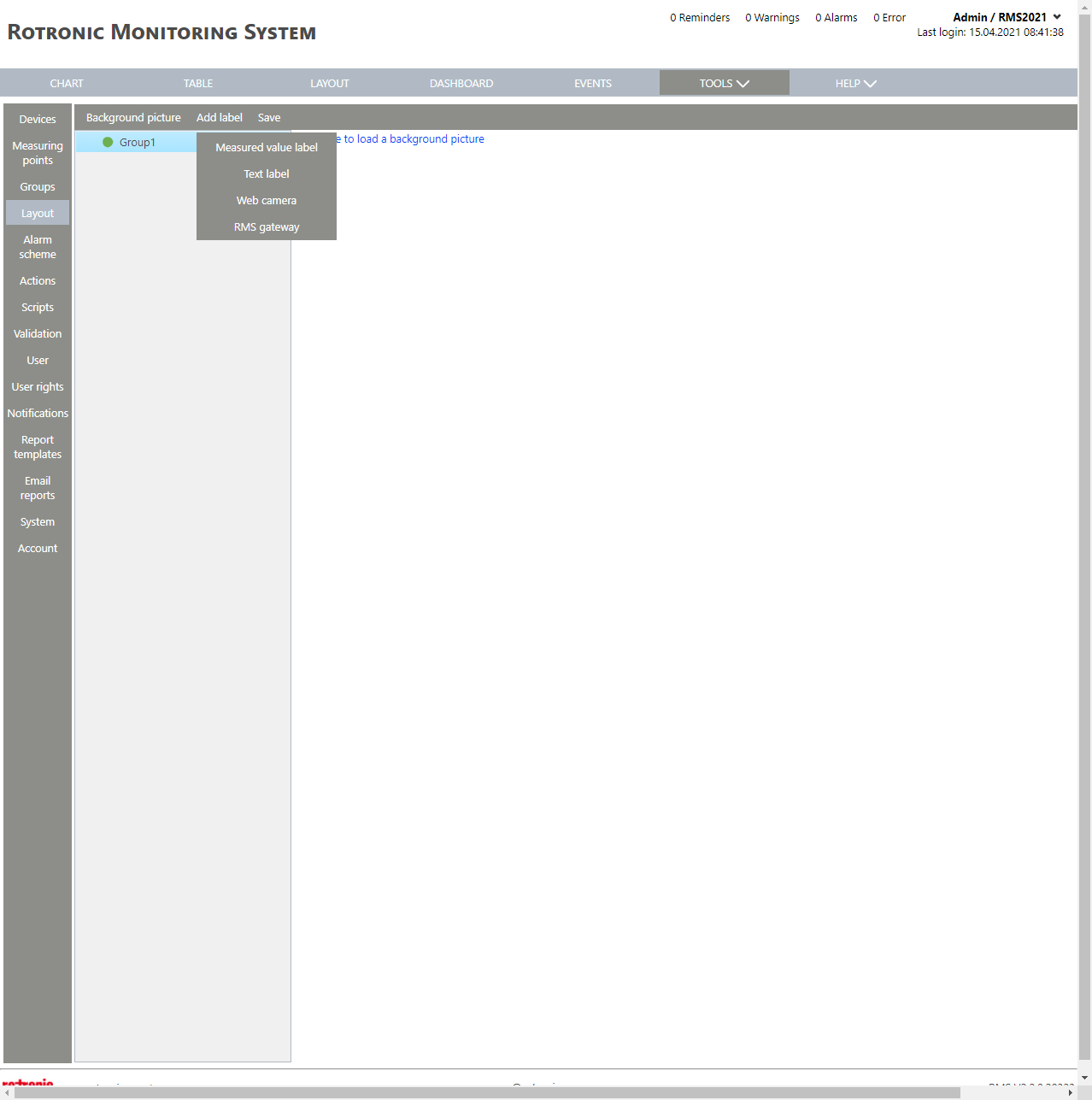 |
| Print Screen 5 | When the user selects measured value label, the user can then select the group where the desired measuring point is located. 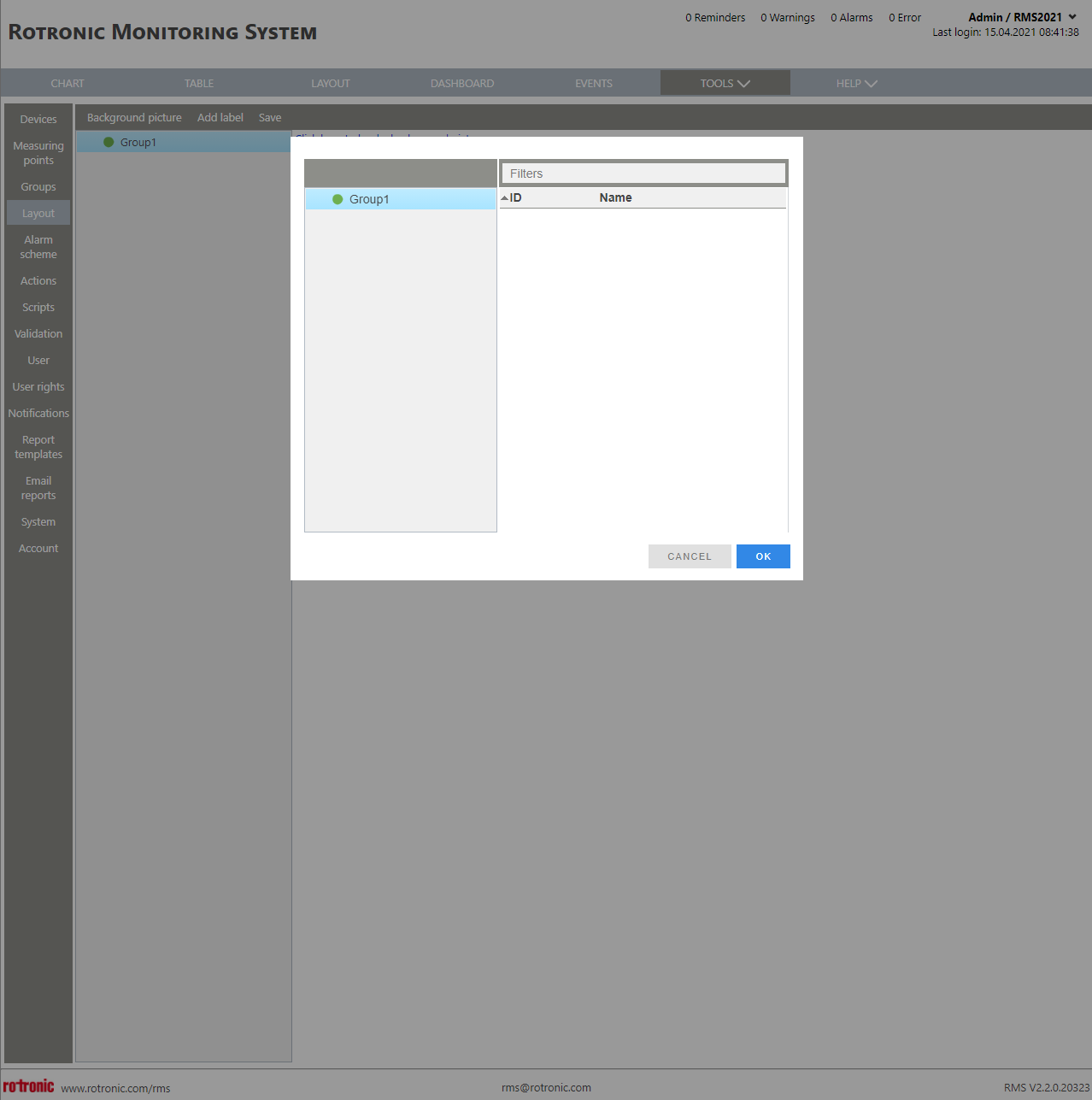 |
| Print Screen 6 | When the user selects text label and clicks on the text label, a window will open where the various label settings can be made. 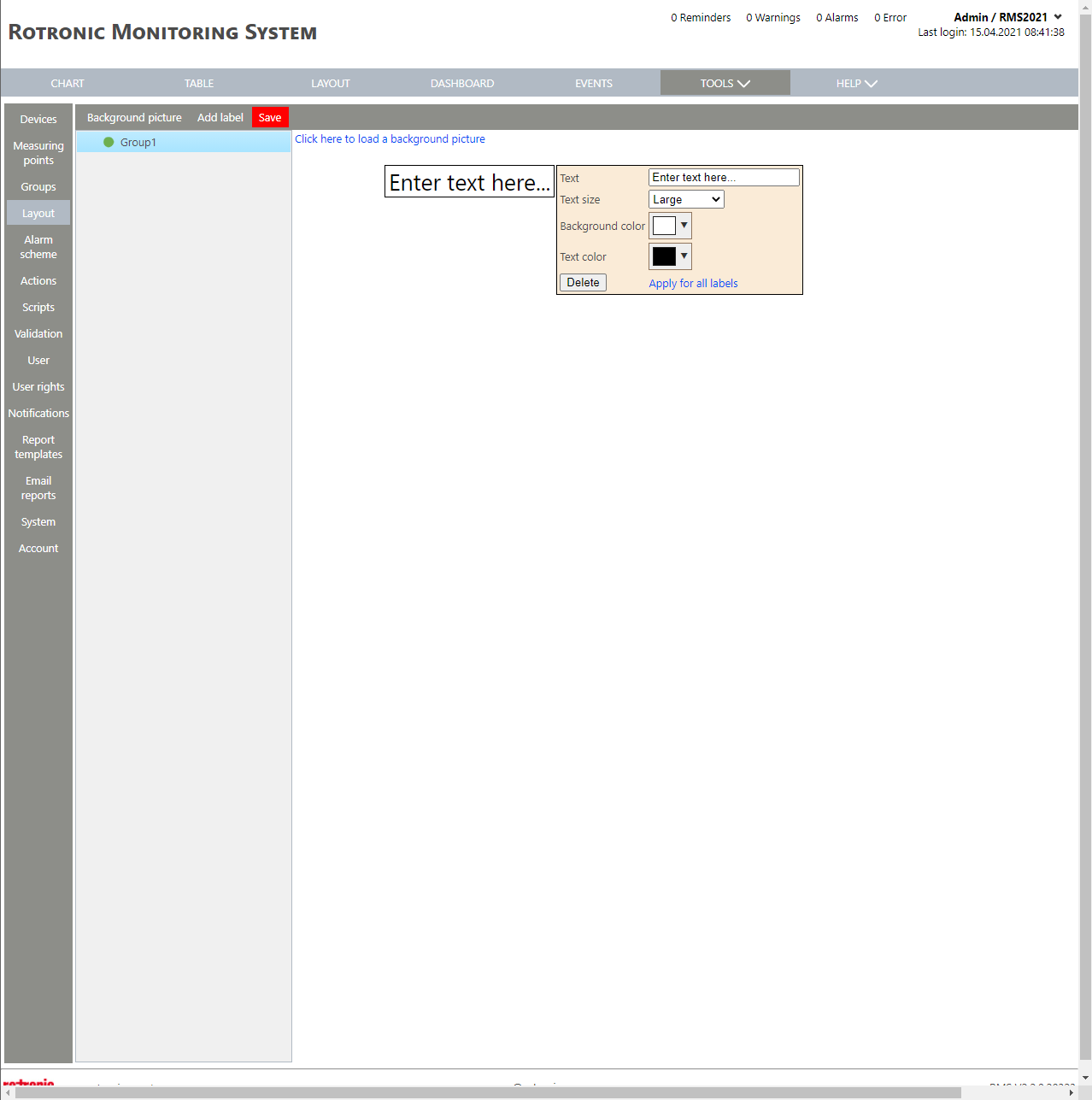 |
| Print Screen 7 | When the user selects web camera and clicks on the text label, a window will open where the various label settings can be made.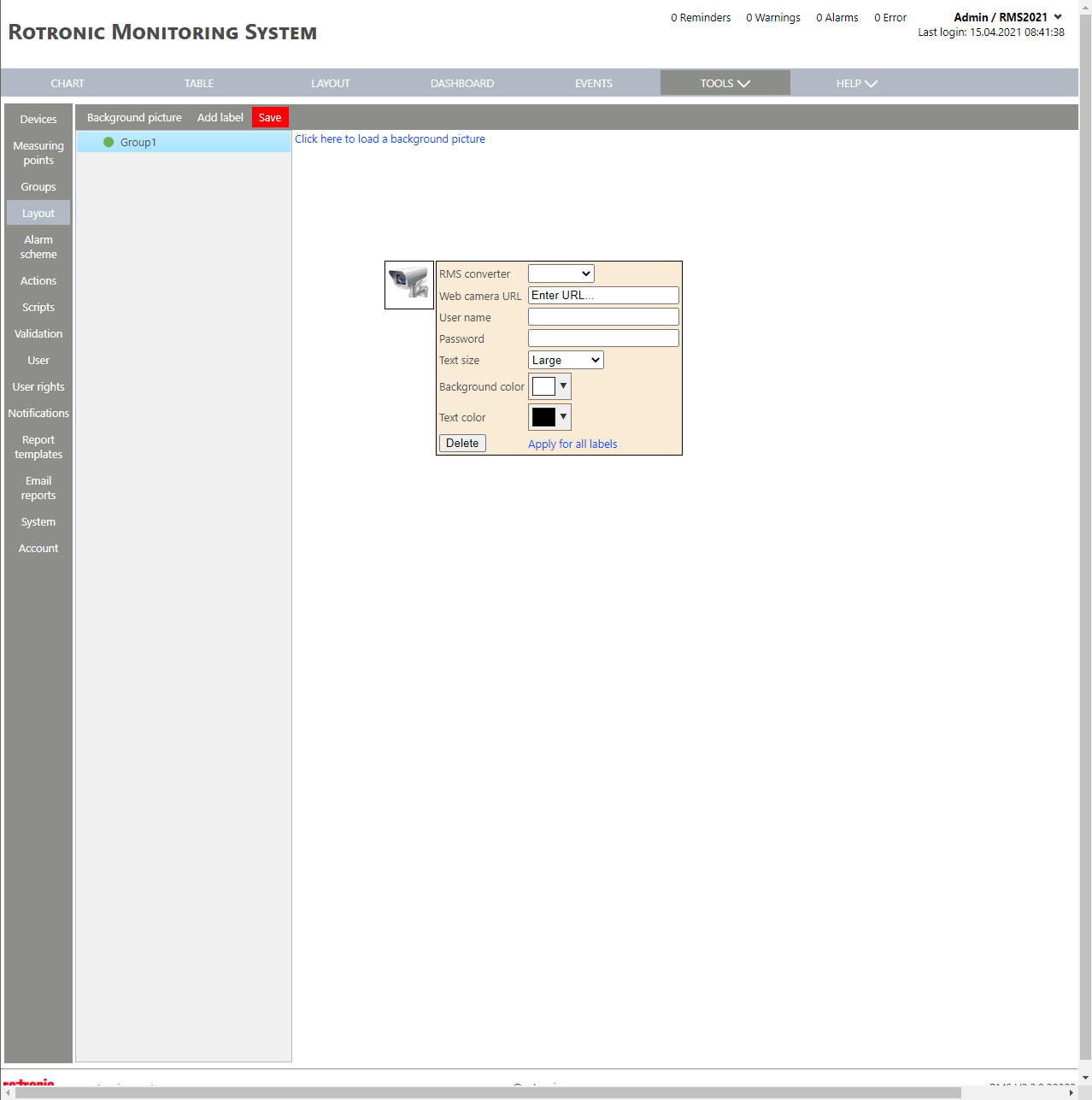 |
| Print Screen 8 | When the user selects gateway label, the user can then select the group where the desired gateway is located. |