Tools>Adjust Explained
The adjust tool is a function to adjust measuring points.
Important feature: Only specific RMS products can be adjusted in RMS. Third party products cannot be adjusted in RMS.
| RMS-MLOG-T-868/915 | Yes |
|---|---|
| RMS-MLOG-T10-868/915 | Yes |
| RMS-MLOG-B-868/915 | Yes |
| RMS-MLOG-BT-915 | Yes |
| RMS-MLOG-LGT-868 | Yes |
| RMS-MDI-868/915 | No |
| RMS-MADC-868/915-A/V | No |
| RMS-LOG-L | Yes |
| RMS-LOG-L-D | Yes |
| RMS-LOG-868/915 | Yes |
| RMS-LOG-T30-L | Yes |
| RMS-LOG-T30-868/915 | Yes |
| RMS-D-L | No |
| RMS-GW-868/915 | No |
| RMS-CONVERTER-100 | No |
| RMS-ADC-L-R | No |
| RMS-DO-L-R | No |
| RMS-DI-L-R | No |
| Print Screen 1 | Under Groups, the user can select the group where the measuring point is located. The measuring points will then appear in the window. By clicking on the desired measuring point and clicking on refresh now, the page will populate with the necessary details. Existing acquired points will show when refresh is pushed. Once the refresh button has been click new options will also appear: - Acquire: acquire an adjustment point (this acquired point can also be removed). - Adjust: carry out the adjustment. - Acquire + Adust: acquire an adjustment point and carry out the adjustment. - Delete user adjustment: delete the last user adjustment. 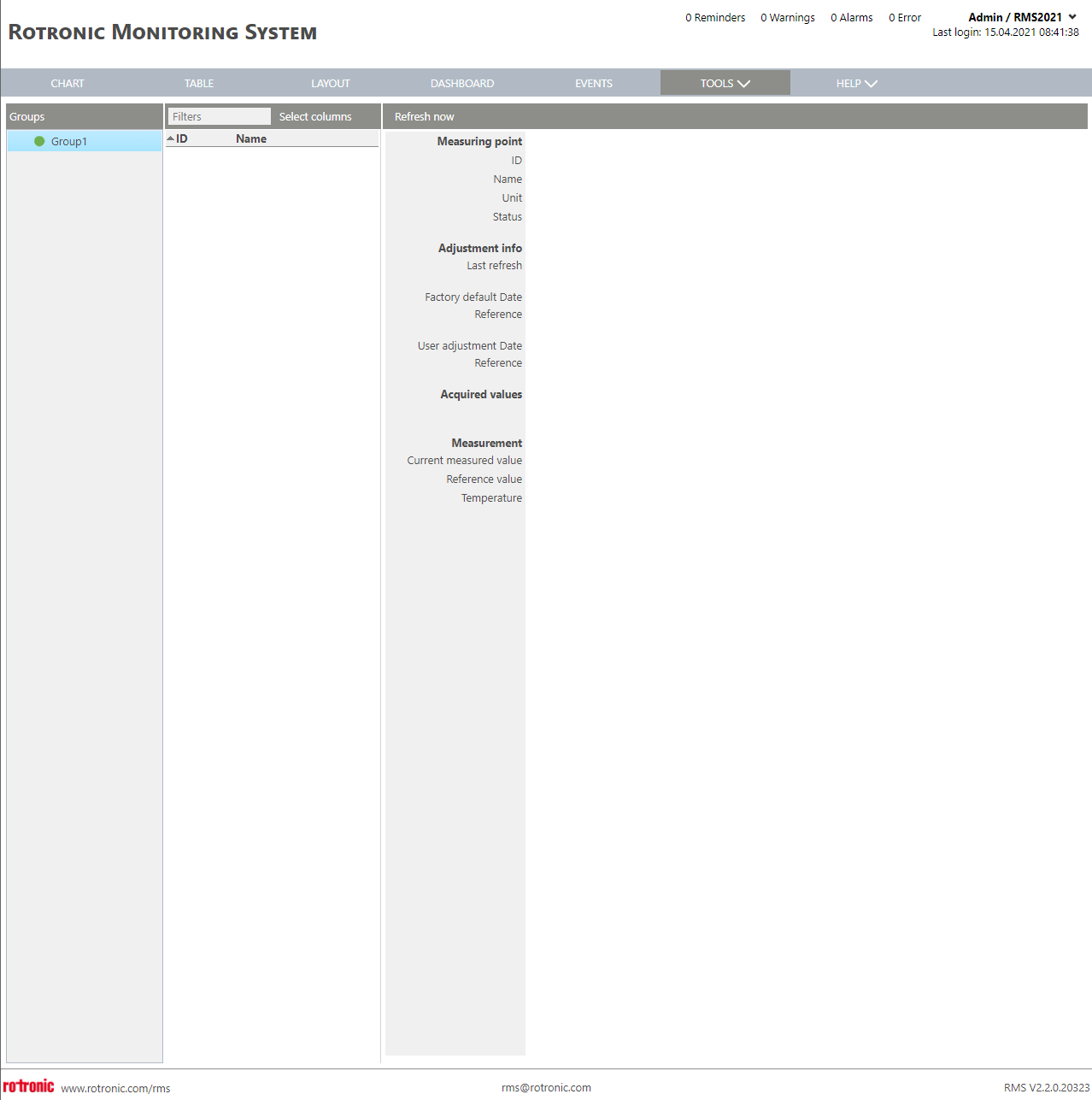 |
|---|---|
| Print Screen 2 | The columns shown in the measuring point overview can also be selected.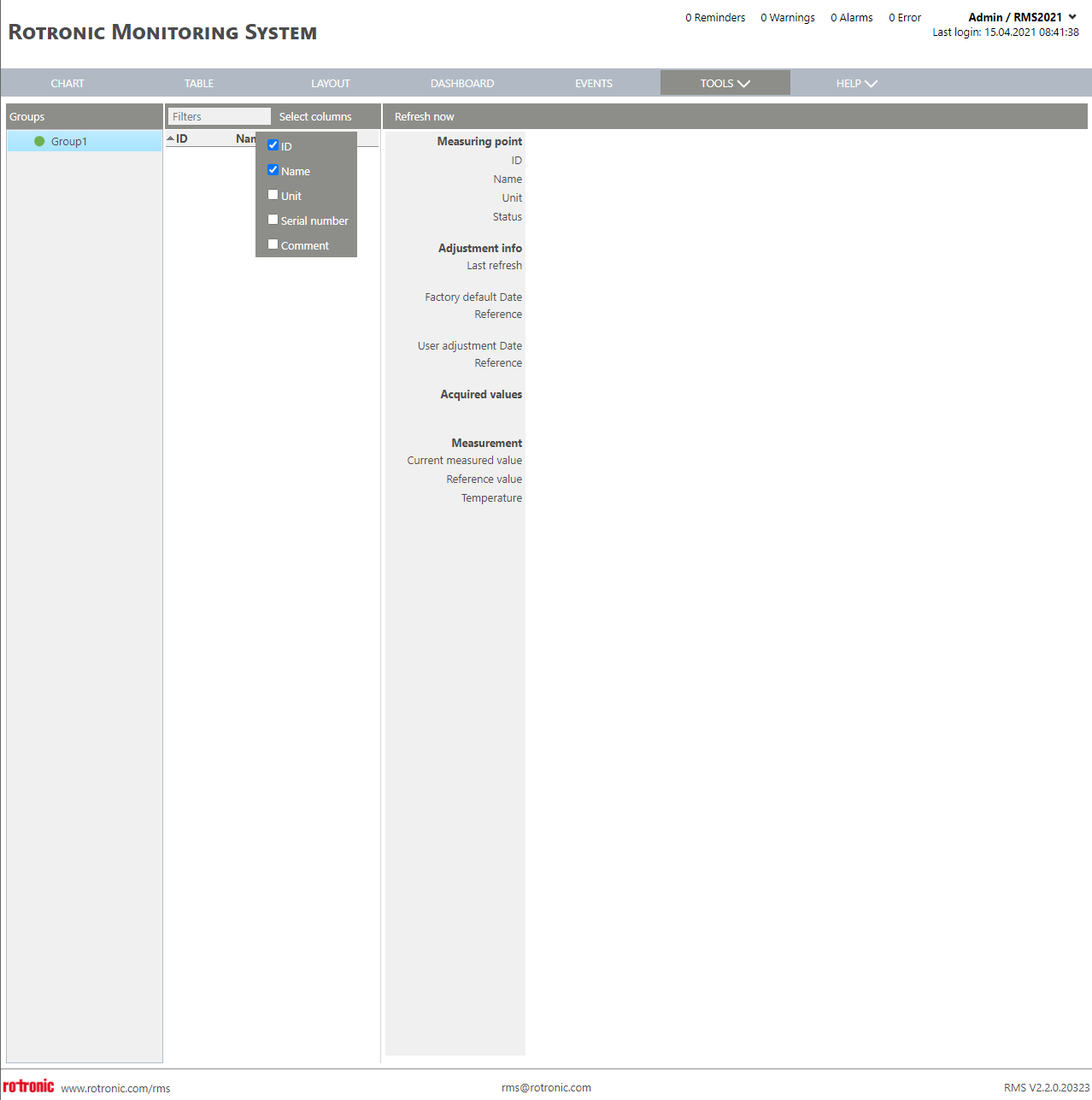 |
| Update V2.9.1 | Measurement points of RMS-MADC-x (RMS-Minilogger ADC) can be adjusted at TOOLS > ADJUST. |
Update 20.05.2026