Tools>Setup>E-Mail Reports Explained
The E-Mail reports setup tool is a function to add and configure automated reports.
| Important: Data export: - When a manual PDF is created with >10'000 events, an error message will be shown to the user. - When a manual CSV is created with >50'000 events, an error message will be shown to the user. - When an automated PDF is created with >10'000 events, multiple reports will be created and sent by E-Mail. Maximum number of reports: 50. |
|---|
| Print Screen 1 | The user also has the possibility to add a new or delete a template, test the report or save the configuration. 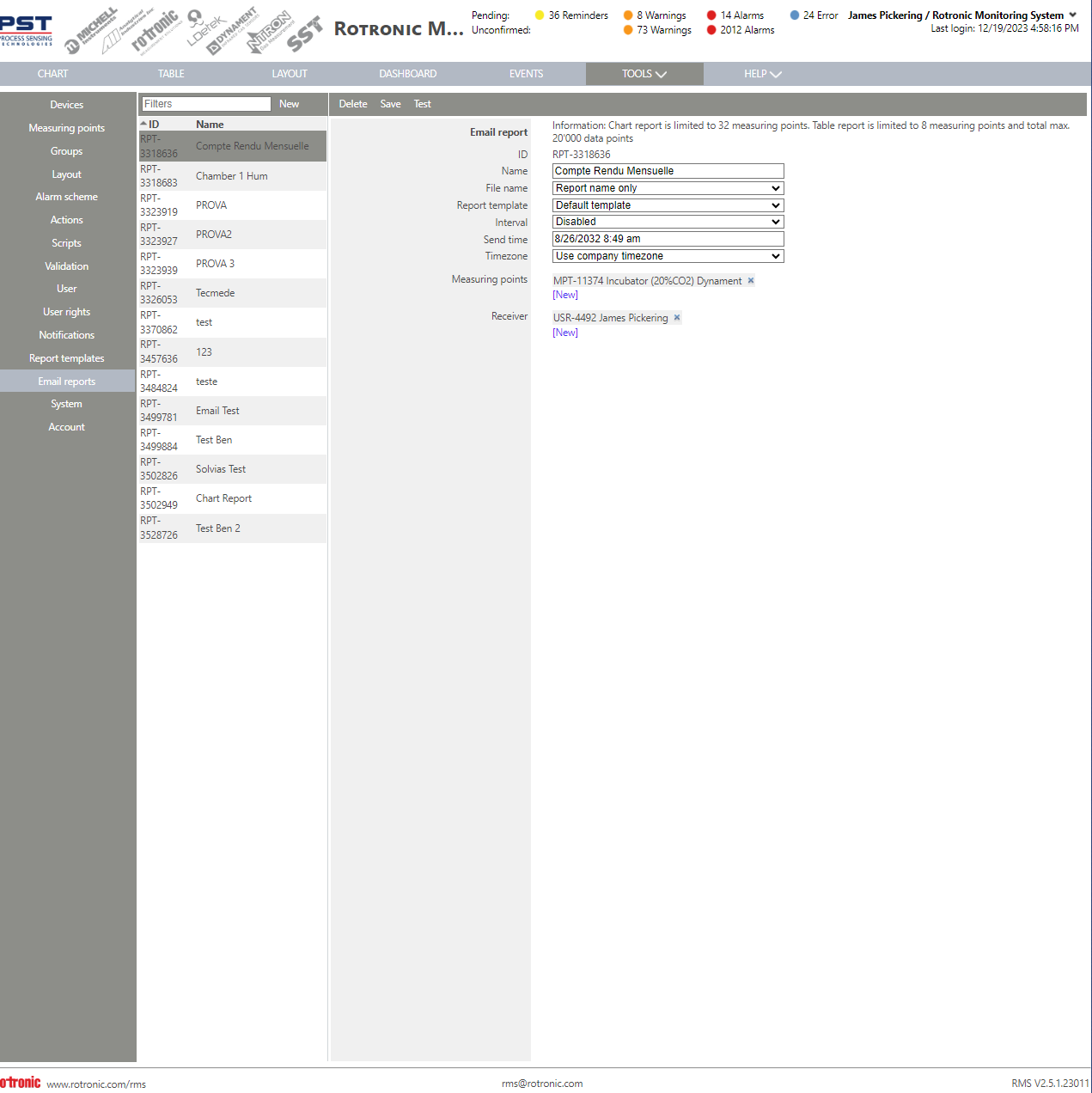 Email report. - ID: RPT-xxx automatically given by RMS. - Name: User configured report name. - File name: Add an extension to the file name (current time, from time, to time and from and to time - Report template: Report template used for the E-Mail report. - Interval: User configured E-Mail report interval (disabled, daily, weekly and monthly). - Send time: Time that the report is sent. - Timezone: User defined Timezone that is used for the report. - Measuring points: Measuring points used in the automated report. - Receiver: Receiver of the automated report. Update V2.8.0: CSV data report The option of a .csv email report is added.  Automated saving into file system Automated email reports can additionally be saved into the file system. This is only available for on-premise RMS. The directory must be accessible from the server.  Alarm/warning ID and confirmation included in the data report All reports with audit trail data also include the audit trail user inputs. - Alarm ID and confirmations will be included in the alarm details for the data report - (Same for warnings) 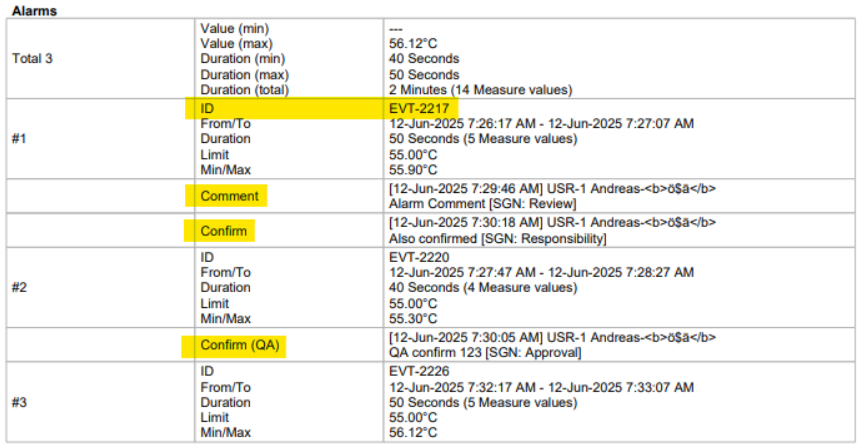 |
|---|---|
| Print Screen 2 | Add a new automated report by clicking on new and entering a name. 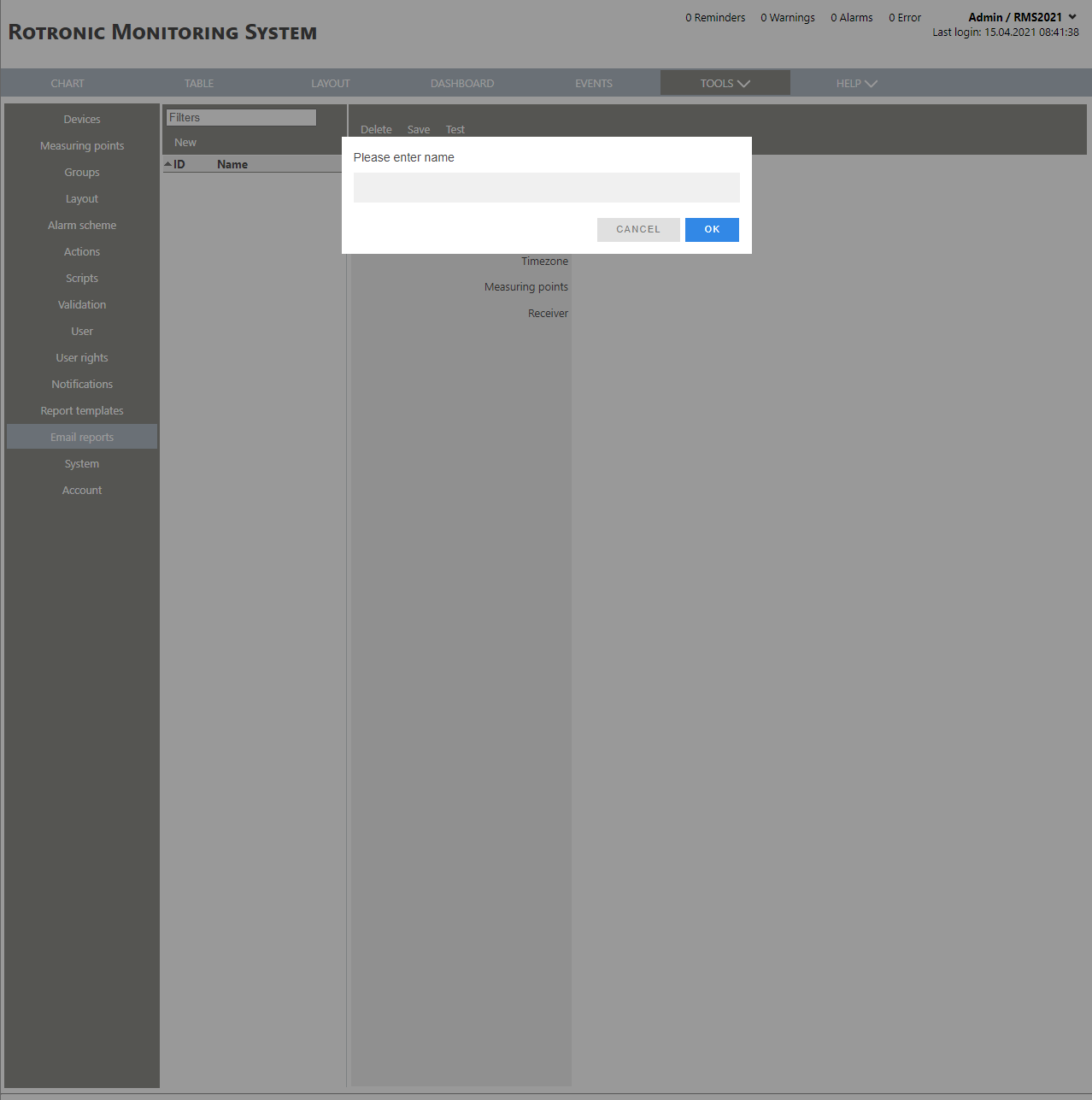 |
Updated: 13.02.2025.